

How to Use Live Chat
Live Chat allows you to access conversations straight from the Wabot dashboard, making it simpler for you and your team to handle customer interactions.
Activate WA Live Chat
Navigate to https://app.wabot.my/dashboard
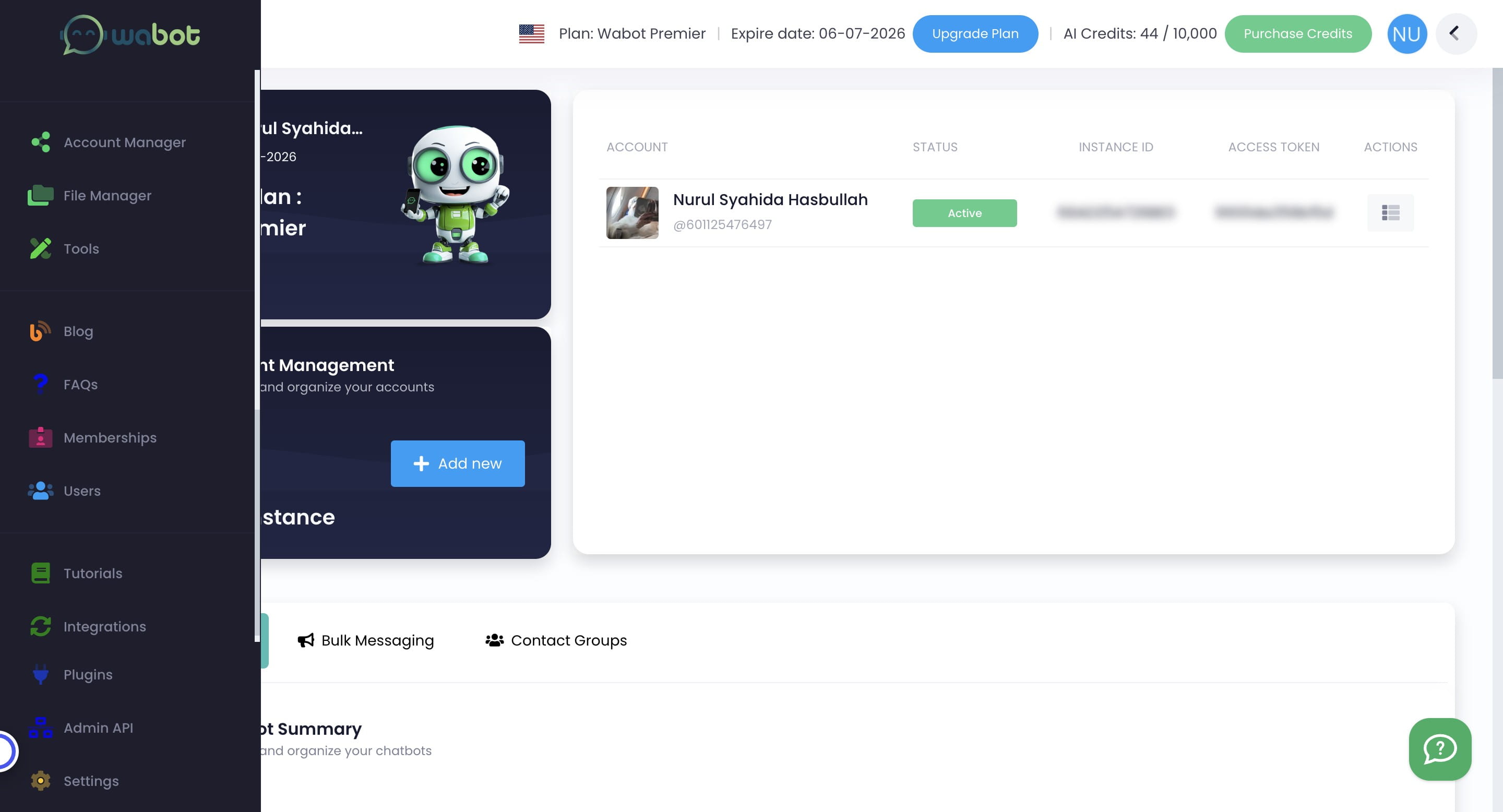
Click on "Account Manager"

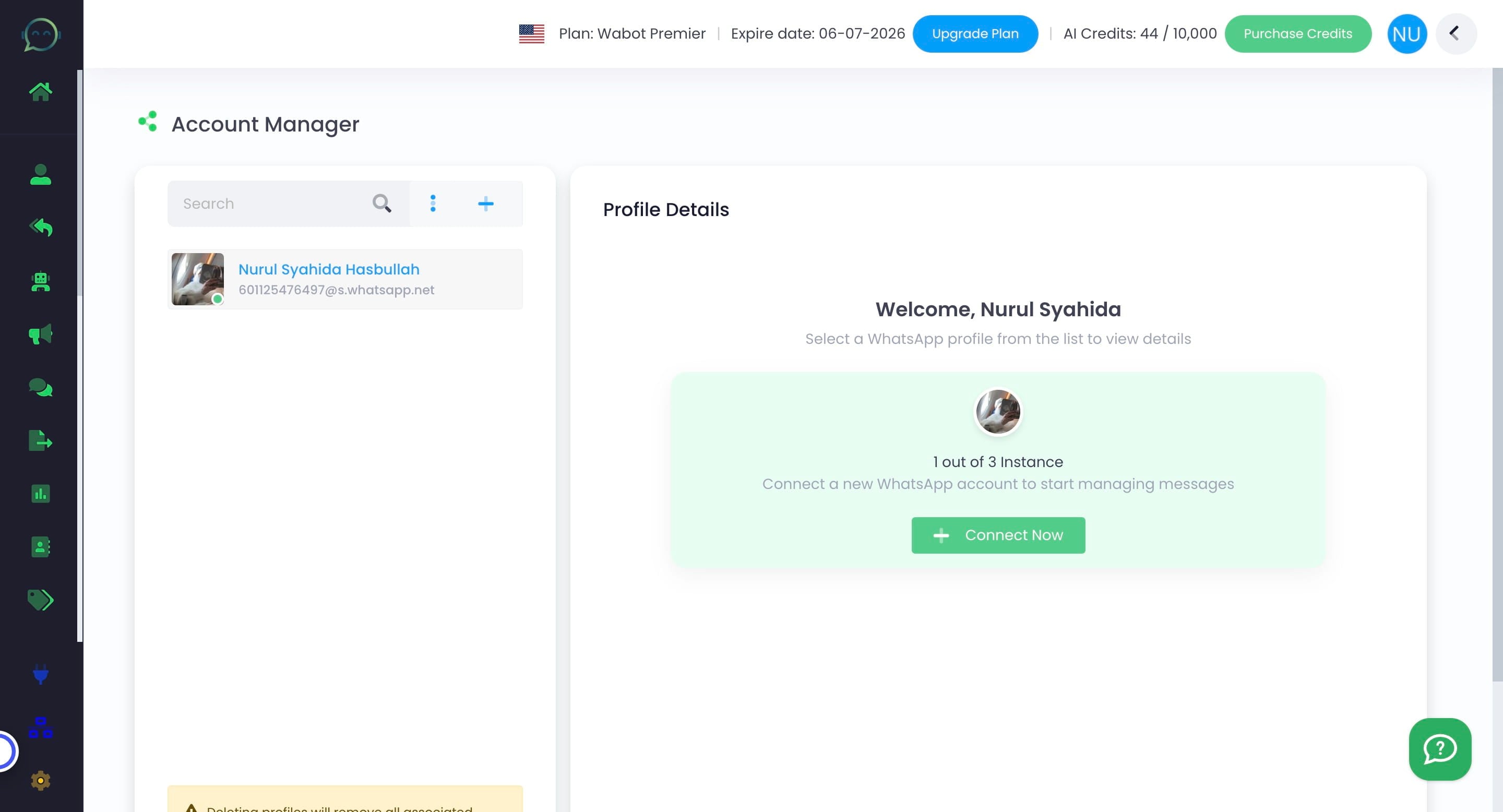
Click on profile you want to activate the live chat
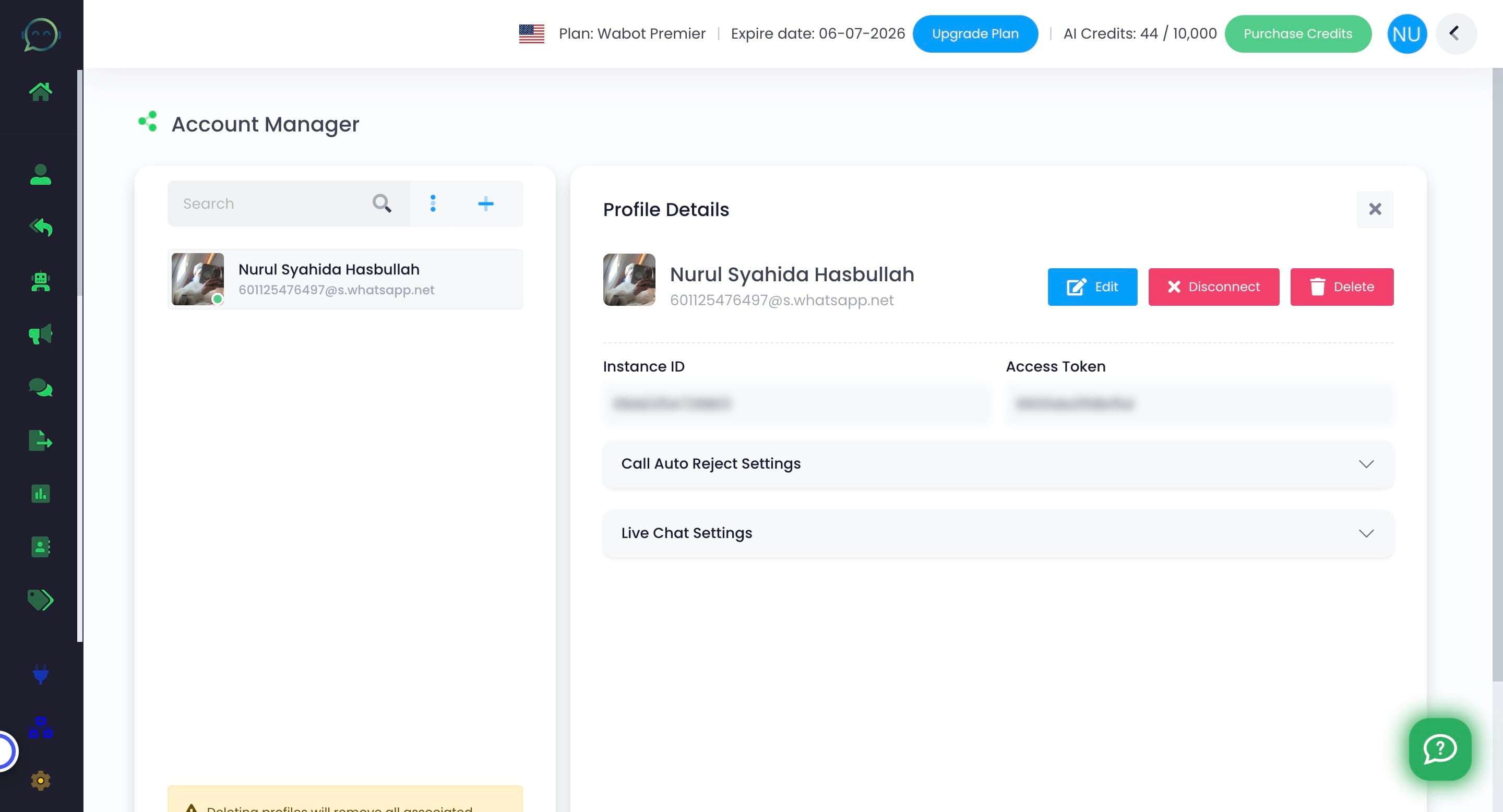
Click on "Live Chat Settings"
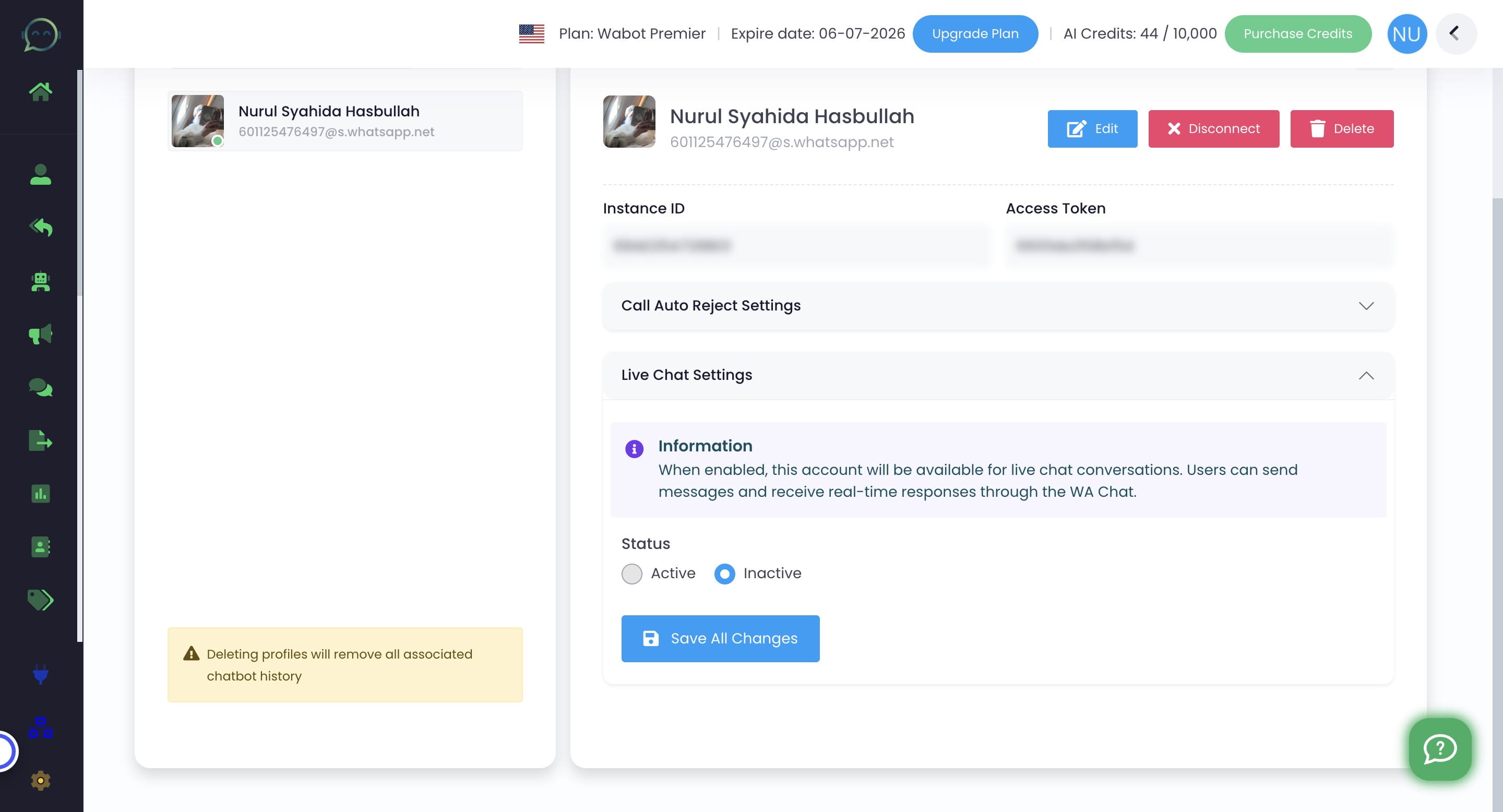
Click "Active" to activate
Decide whether this number will be the preselected chat to view on WA Live Chat. Only one account can be the default chat
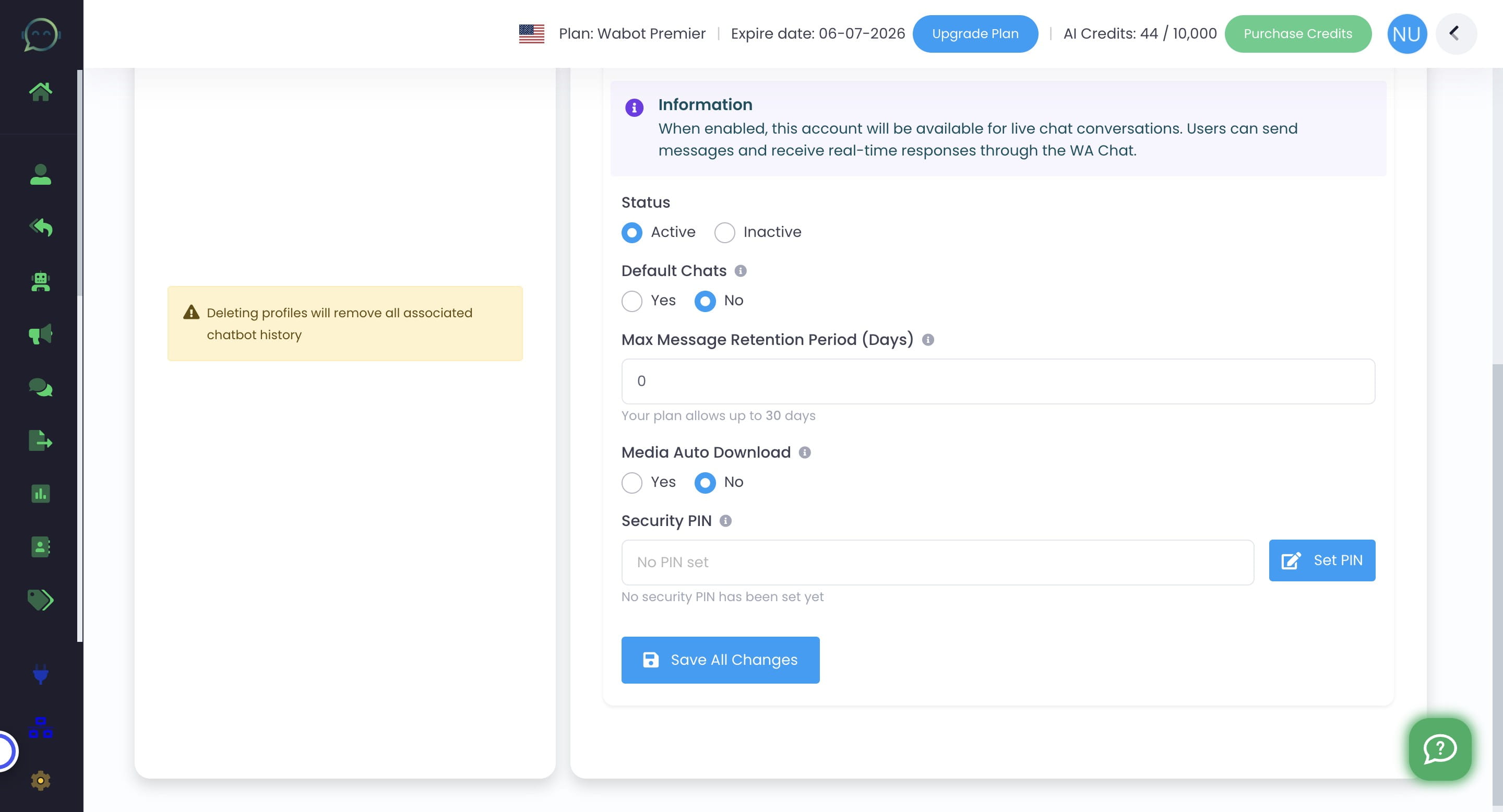
Set the maximum number of days to retain live chat messages. This cannot exceed your plan limit.
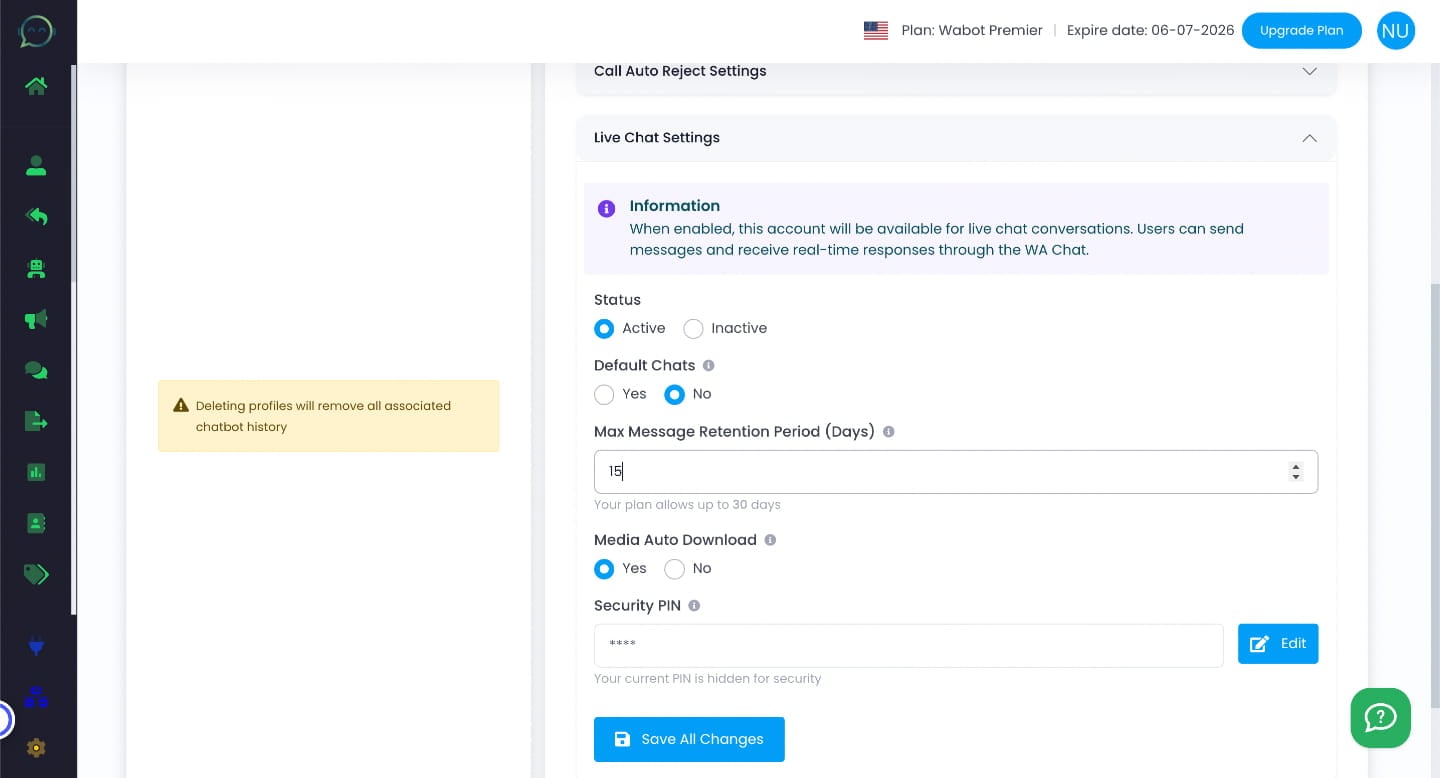
Choose whether to auto download the media or not
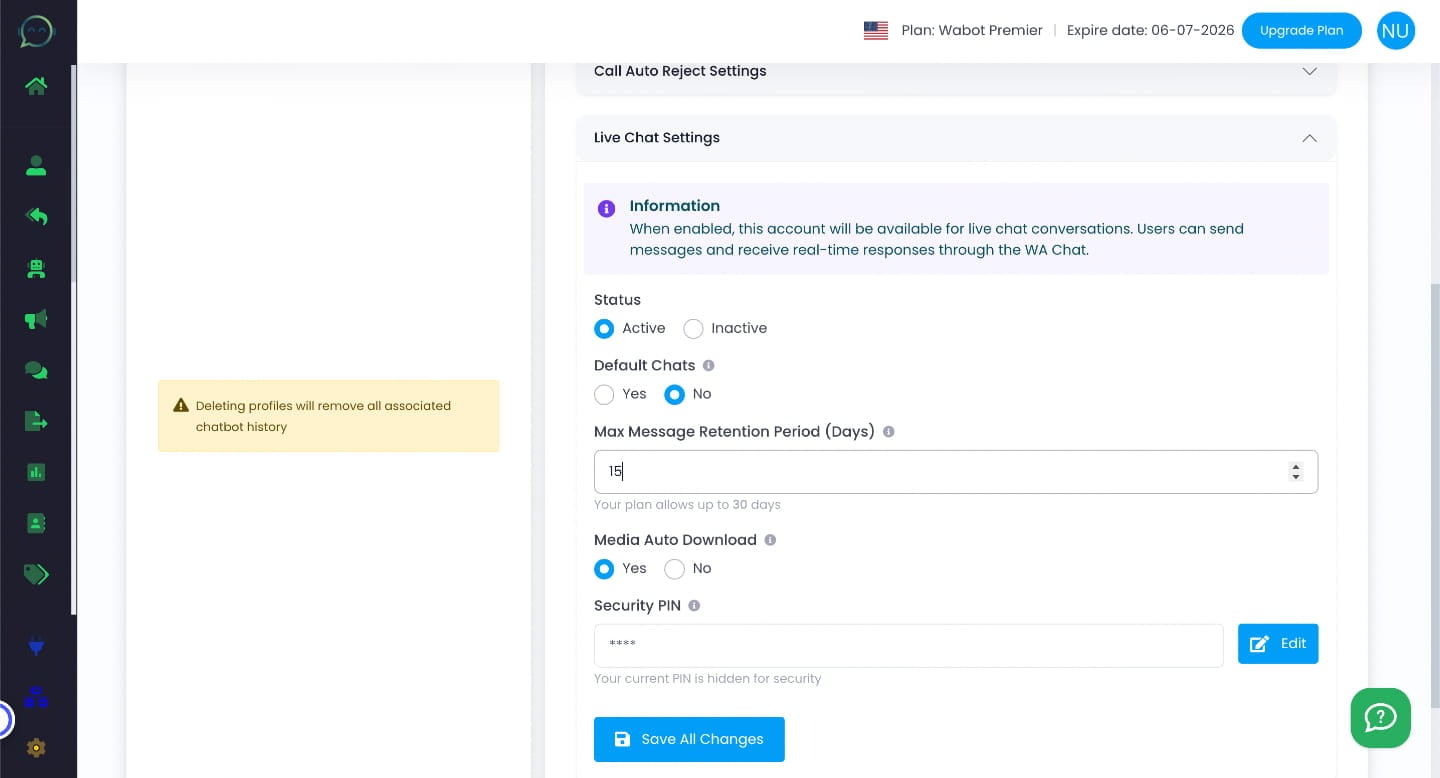
After enabling WA Live Chat, you need to reconnect with Wabot in order to download the media. Kindly follow this tutorial to reconnect
The system will only auto download media below 1MB size for the time being
Set the security pin. This is the pin that you need to enter every time you want to view the chat
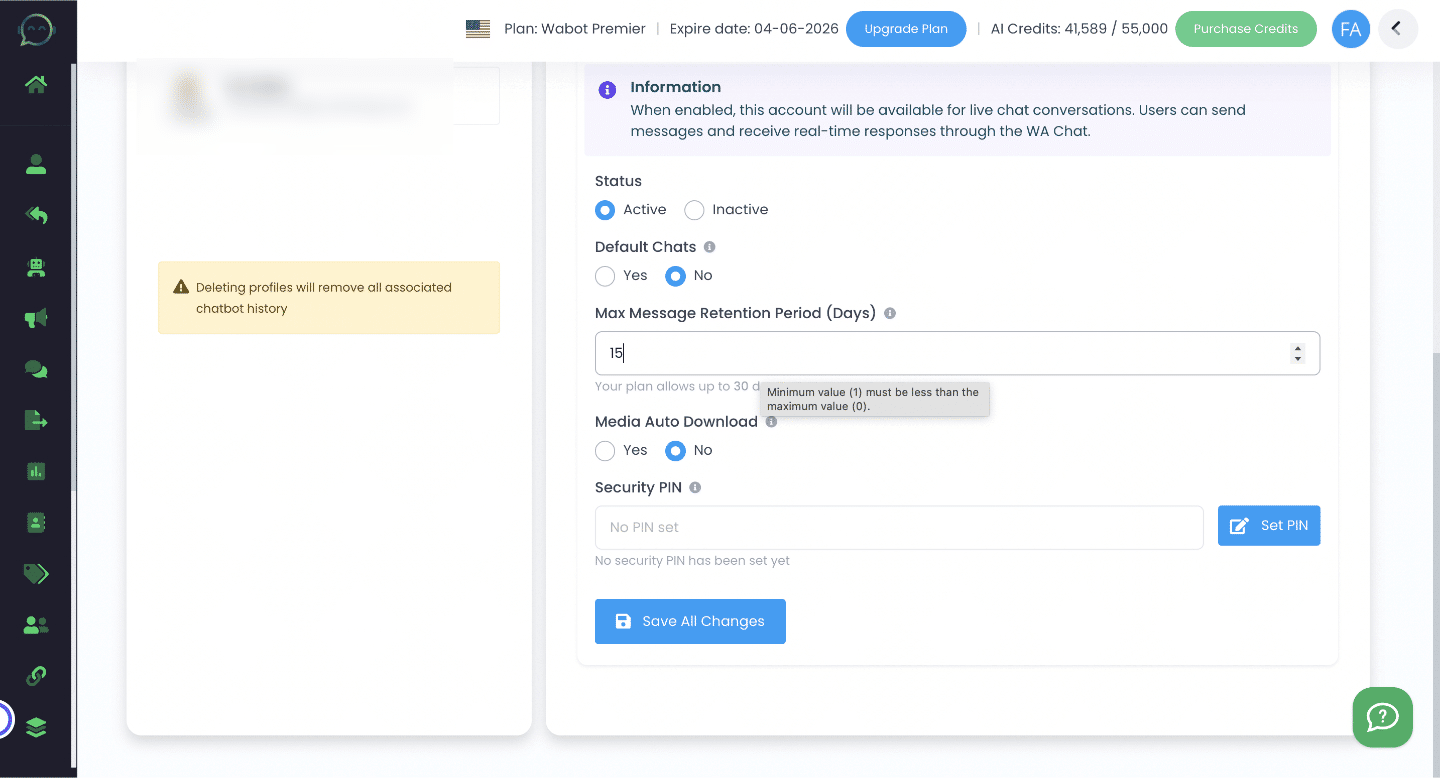
Click "Save All Changes"
Syncing WhatsApp Messages With Wabot
Click on "WA Live Chat"
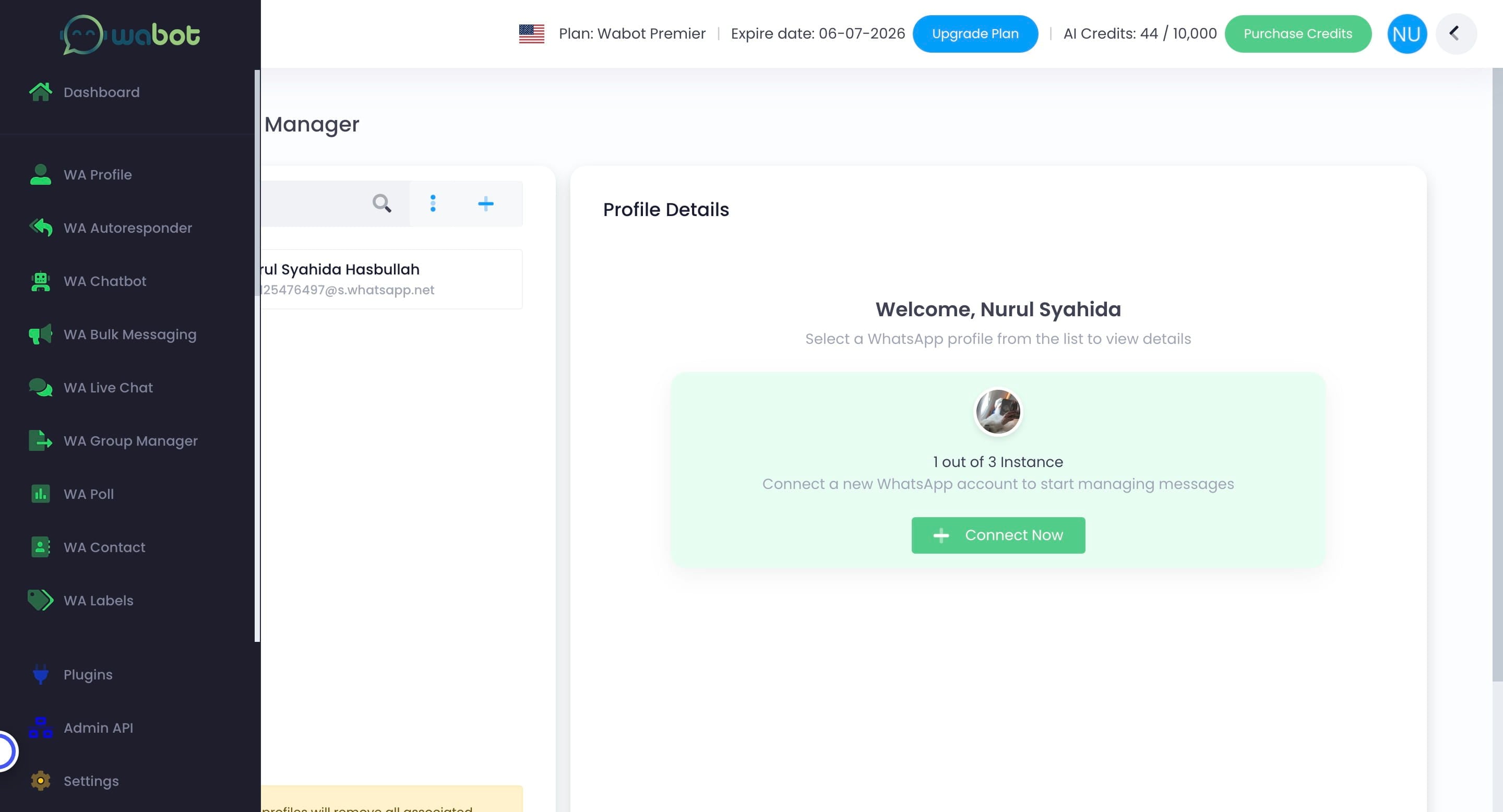
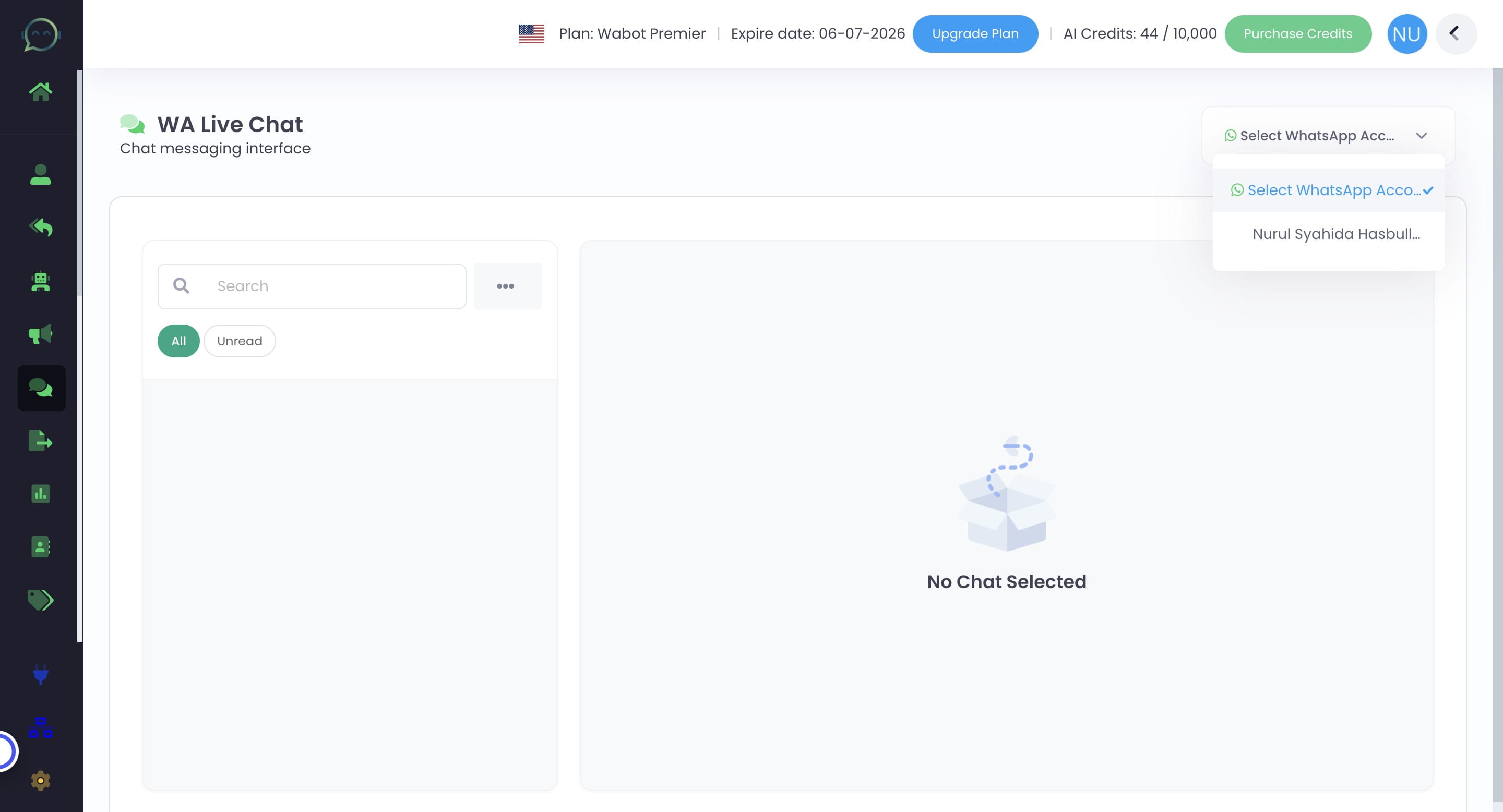
Select the WhatsApp account
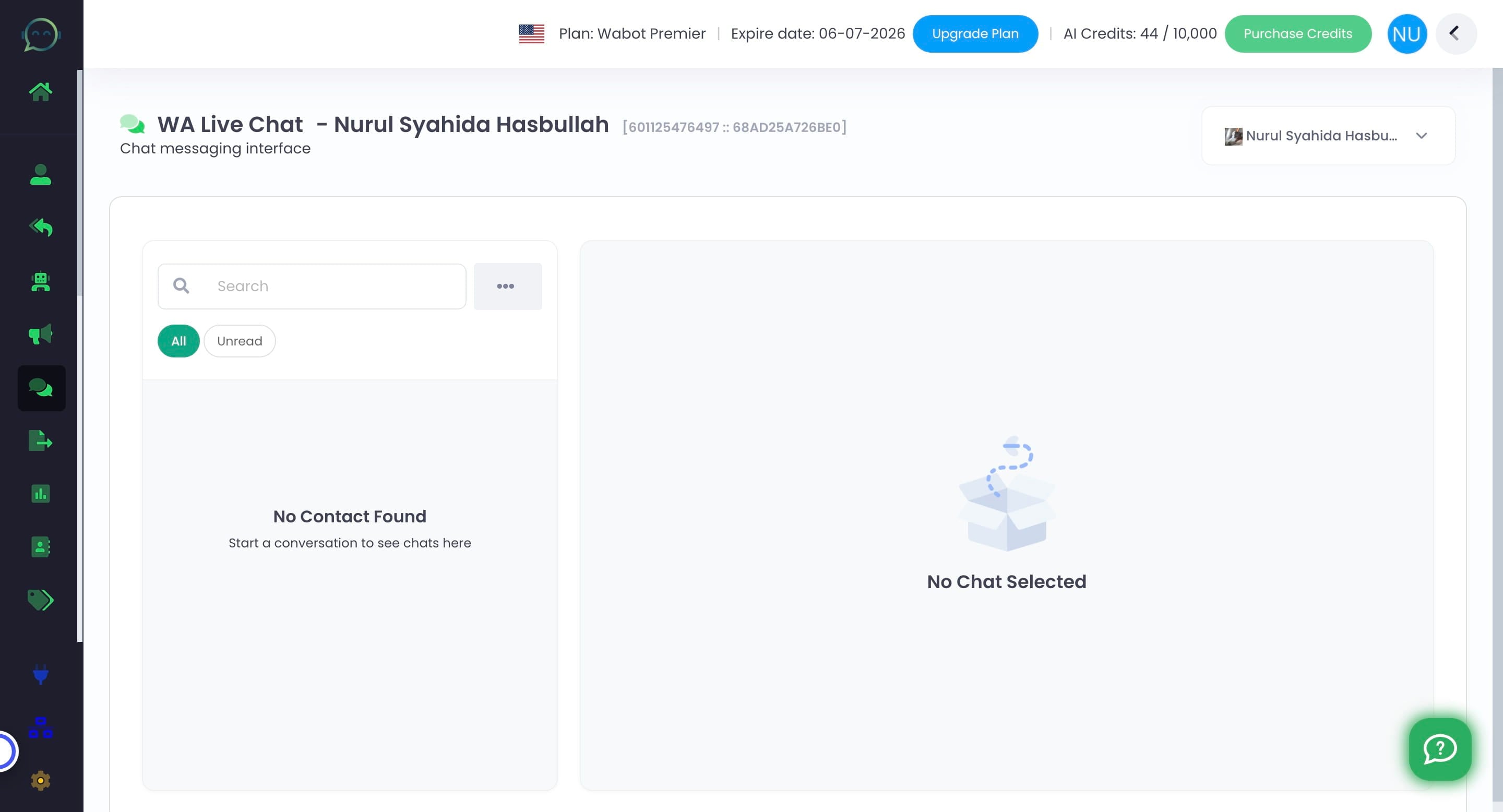
Click this icon
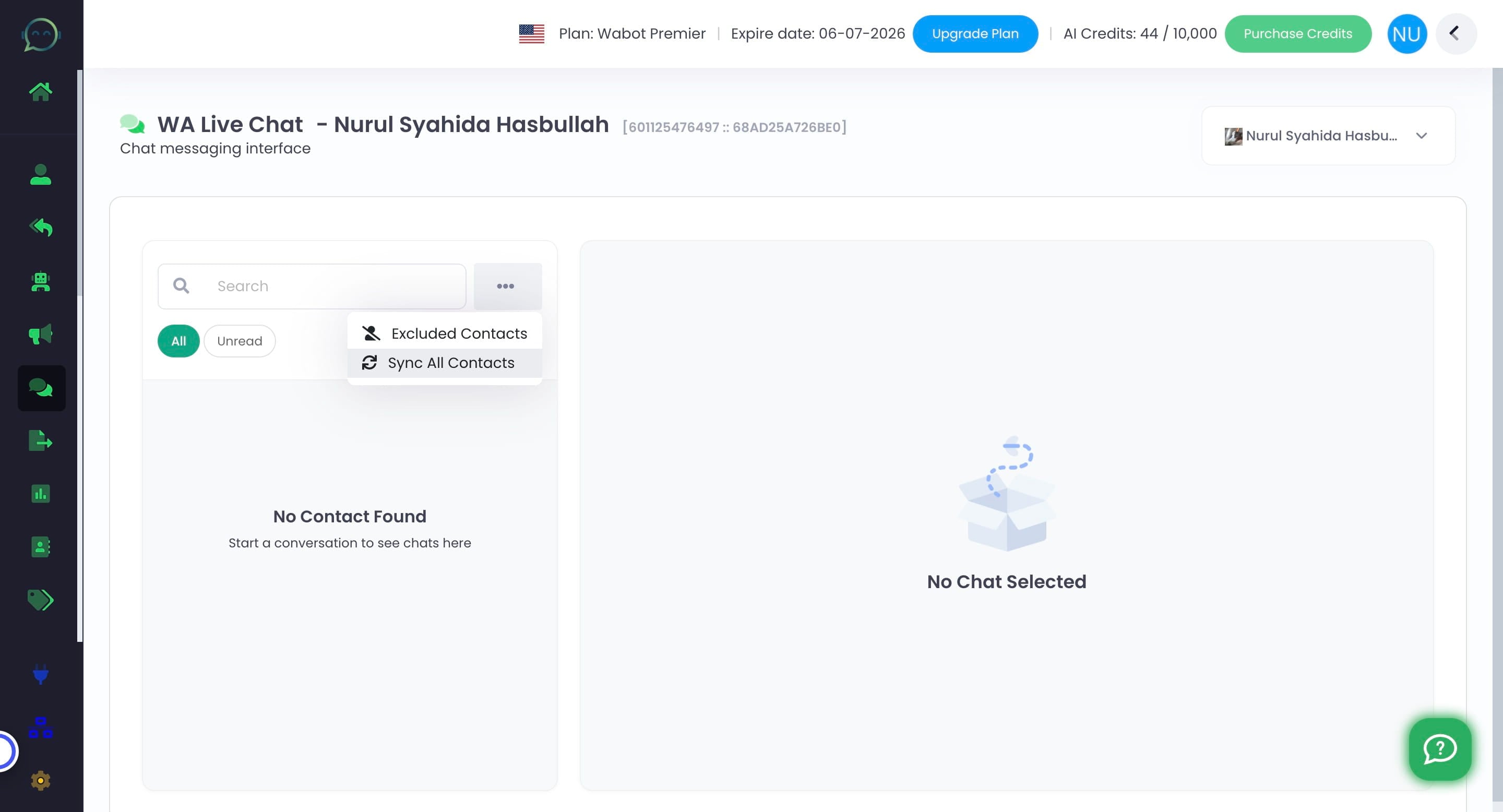
Click "Sync All Contacts" to sync with WhatsApp
When the messages appear like this, your WA Live Chat is ready to be used 🚀
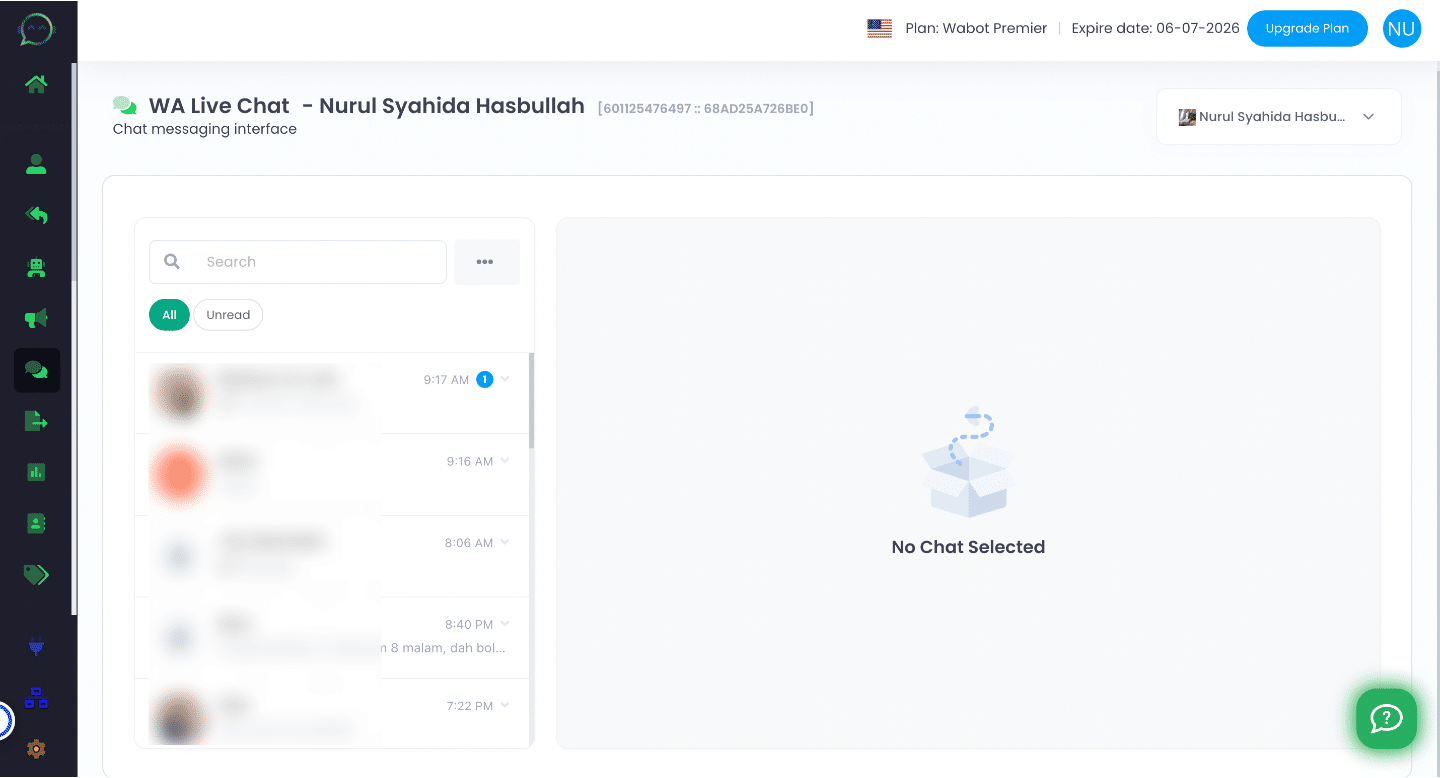
If the messages is not appearing, you can try to send messages to the number connected with Wabot. It should appear in a minute
For the older messages, sometimes WhatsApp will not transfer the data to Wabot, thus why the older messages is not appearing. But you can try to reconnect again to retrieve the older messages. Kindly follow this tutorial to reconnect