logo

How To Use Leads Forwarder Tool

1

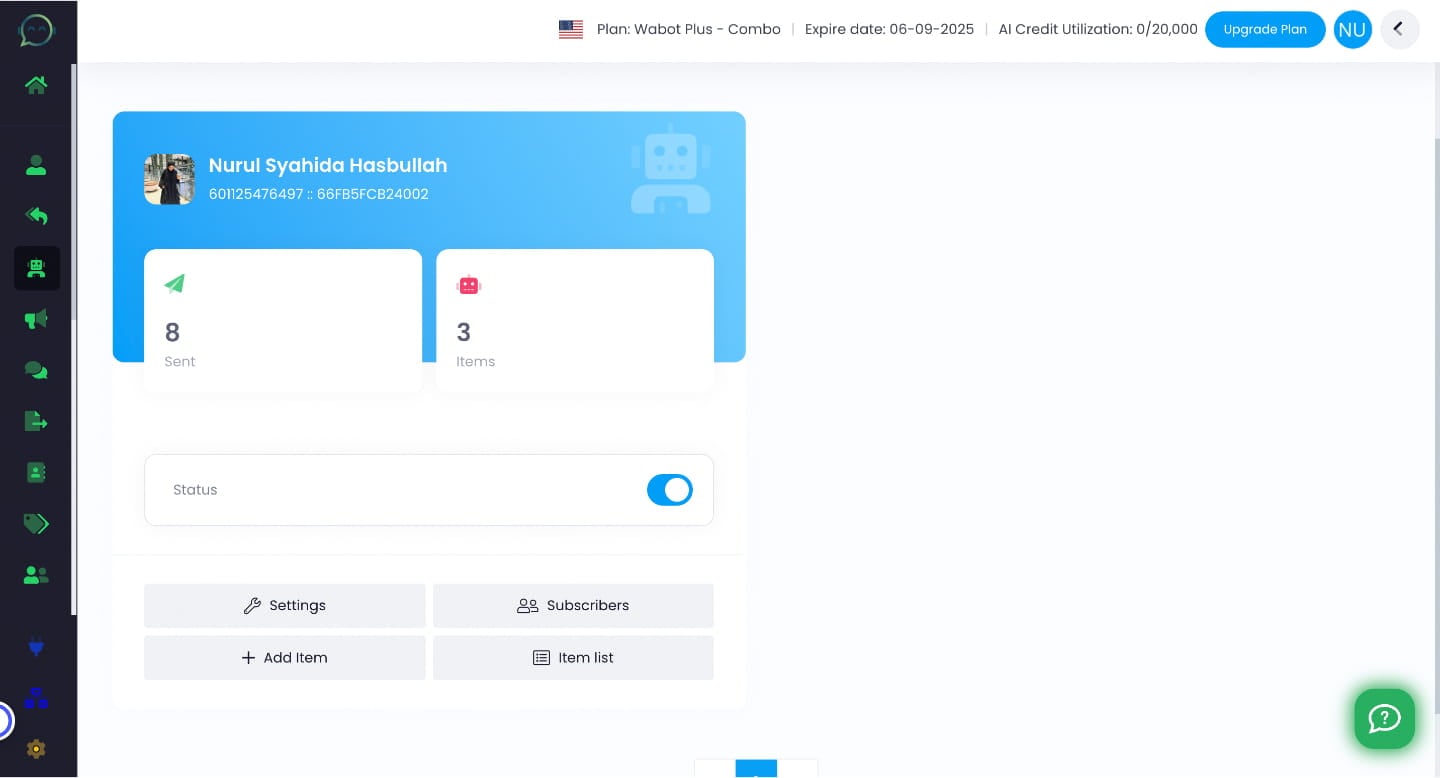
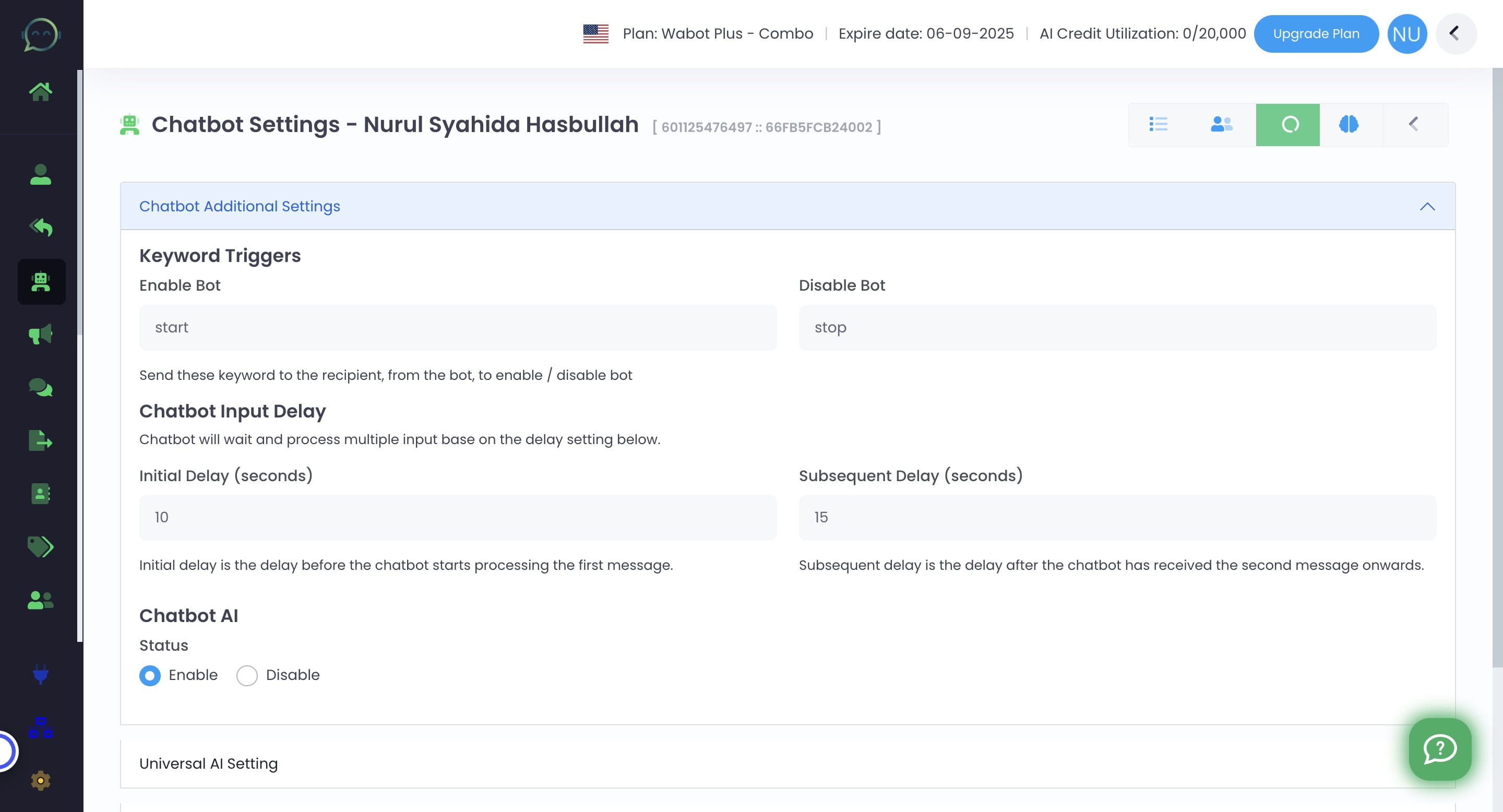
Navigate to Settings in WA Chatbot

Navigate to Settings in WA Chatbot
2

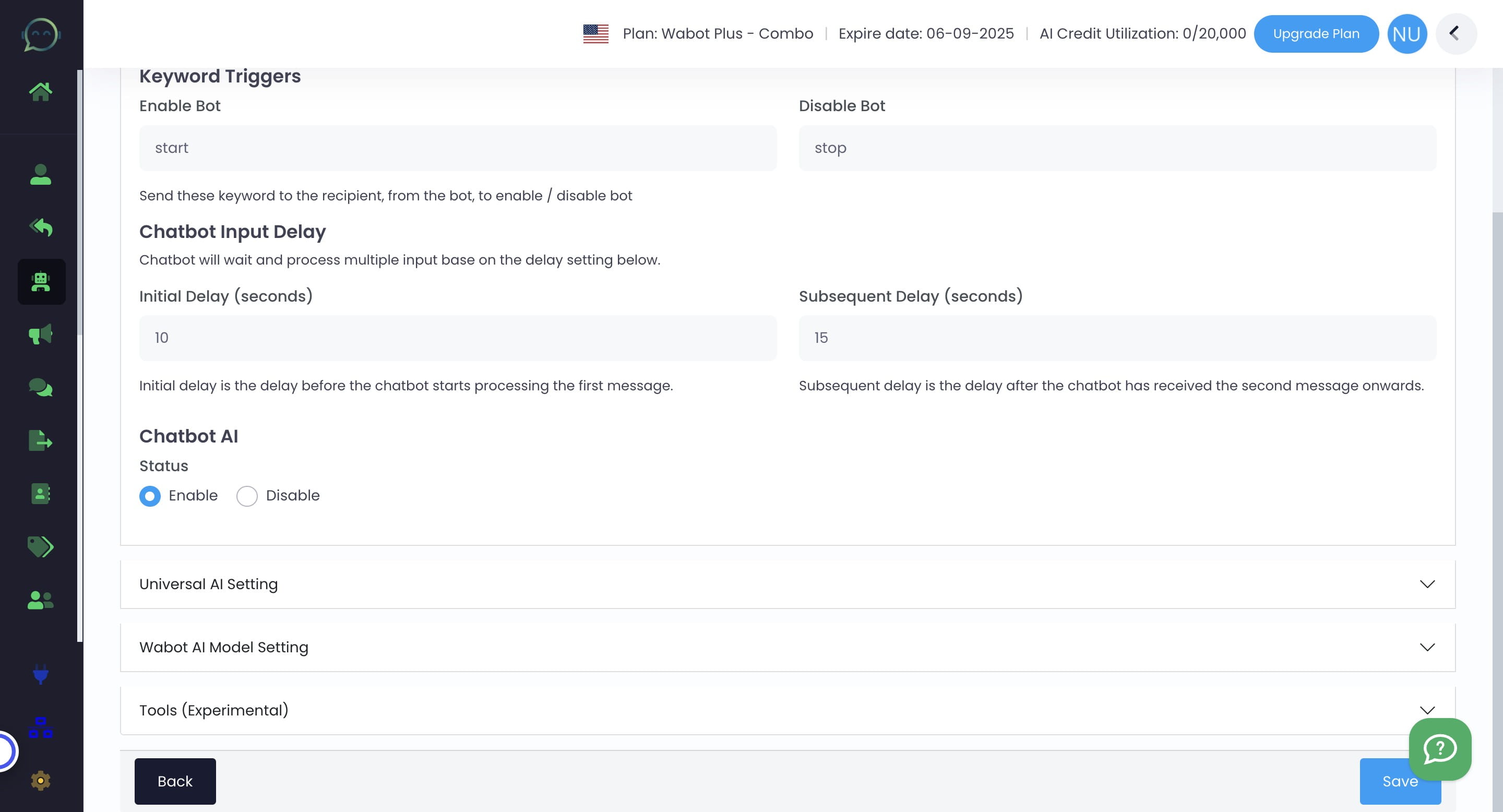
Click on "Tools" and click "Leads Forwarder"
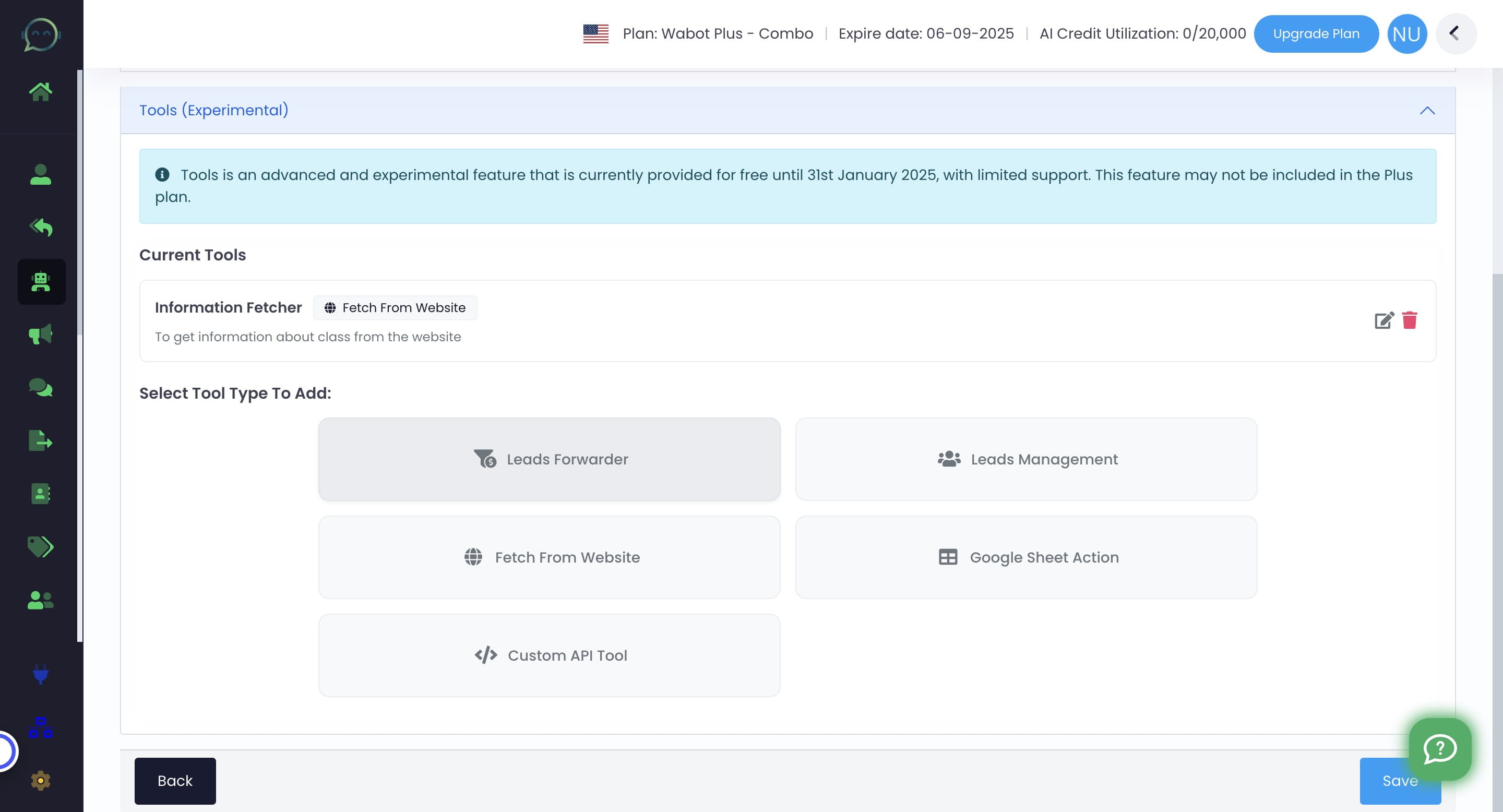
Click on "Tools" and click "Leads Forwarder"
3

Name the tools, depending on the purpose you want to forward the lead for
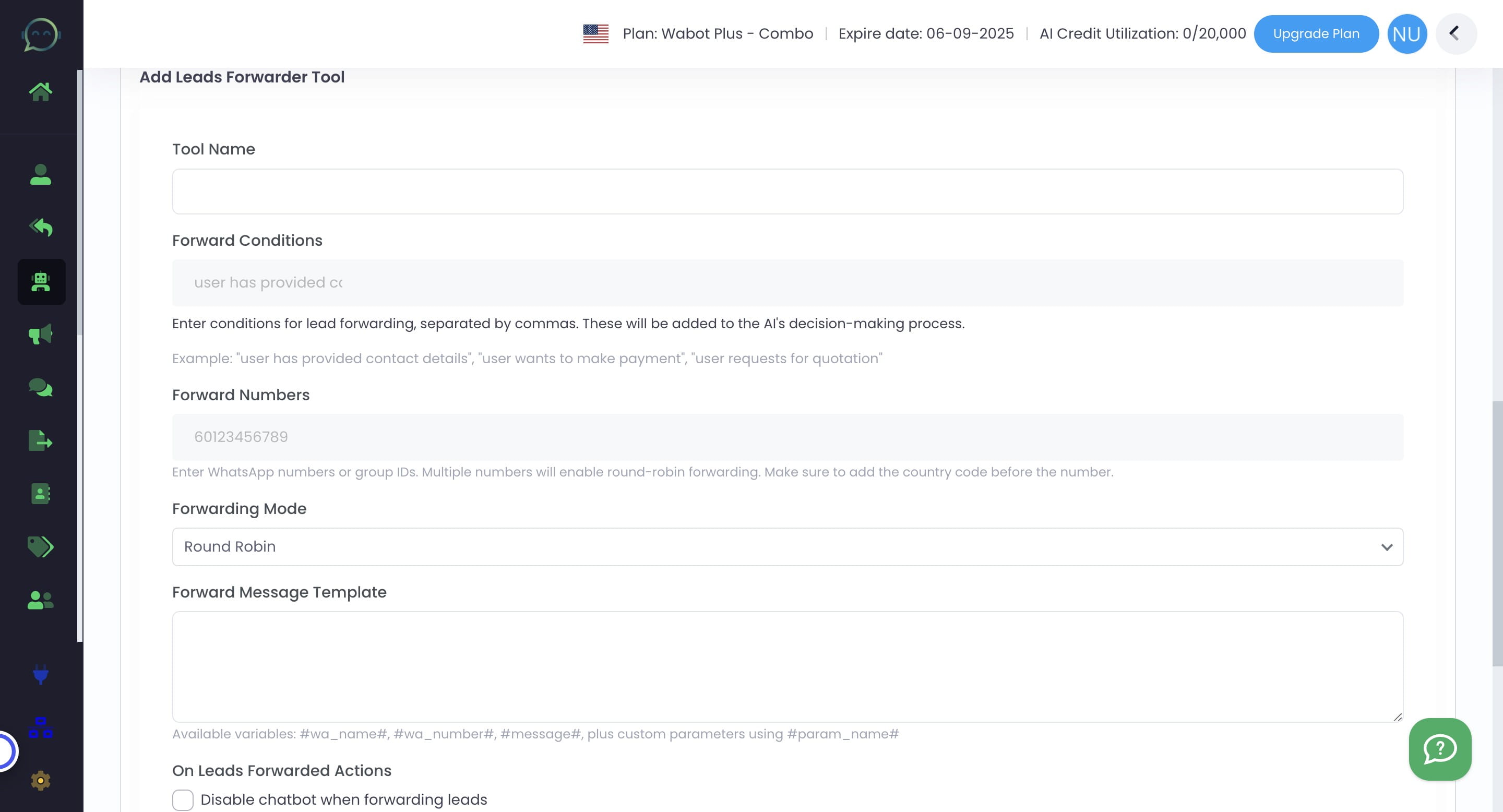
Name the tools, depending on the purpose you want to forward the lead for
4

Set the conditions for lead forwarding
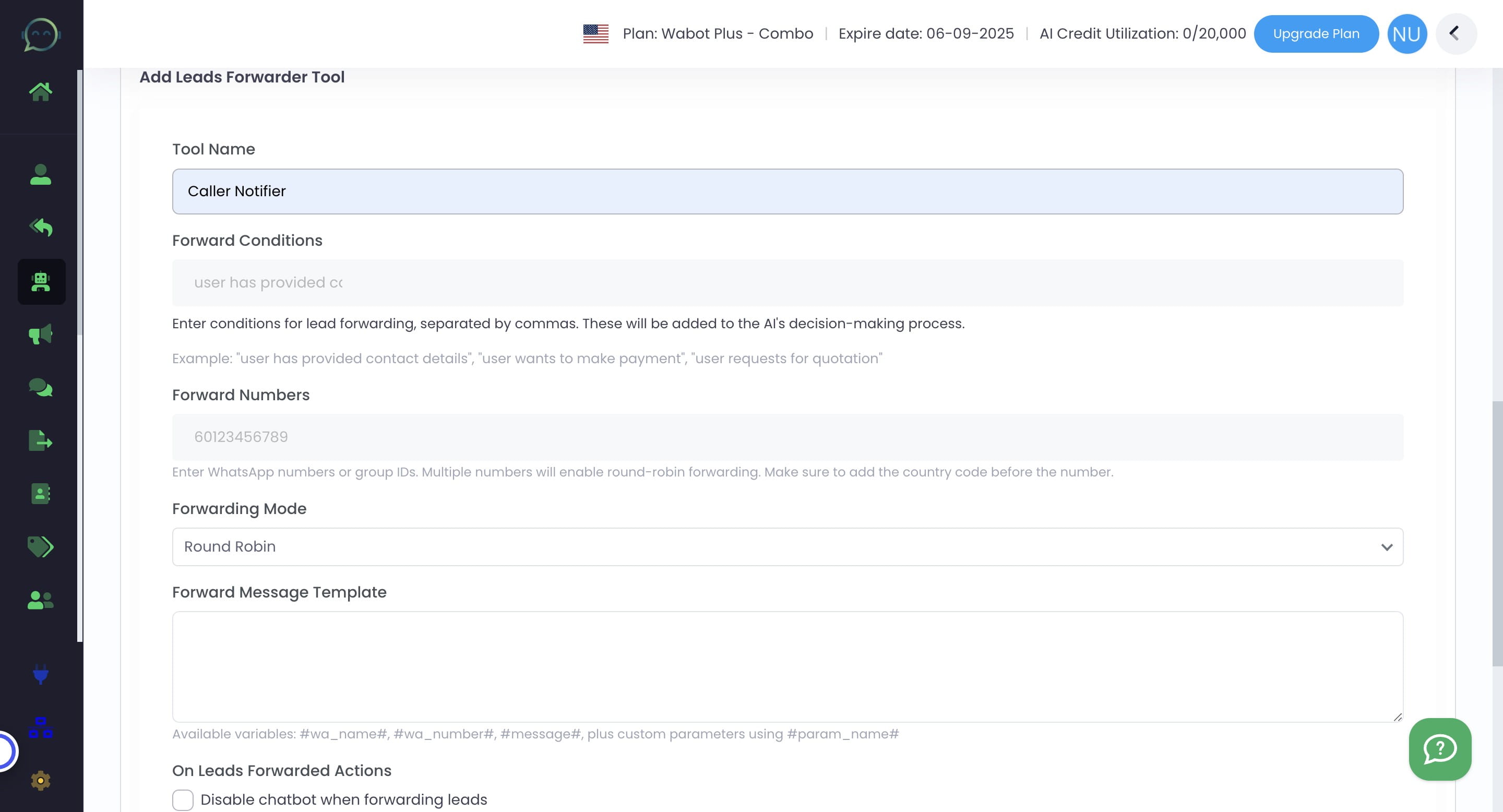
Set the conditions for lead forwarding
5

Insert the WhatsApp numbers or WhatsApp group IDs that you want to forward the lead to
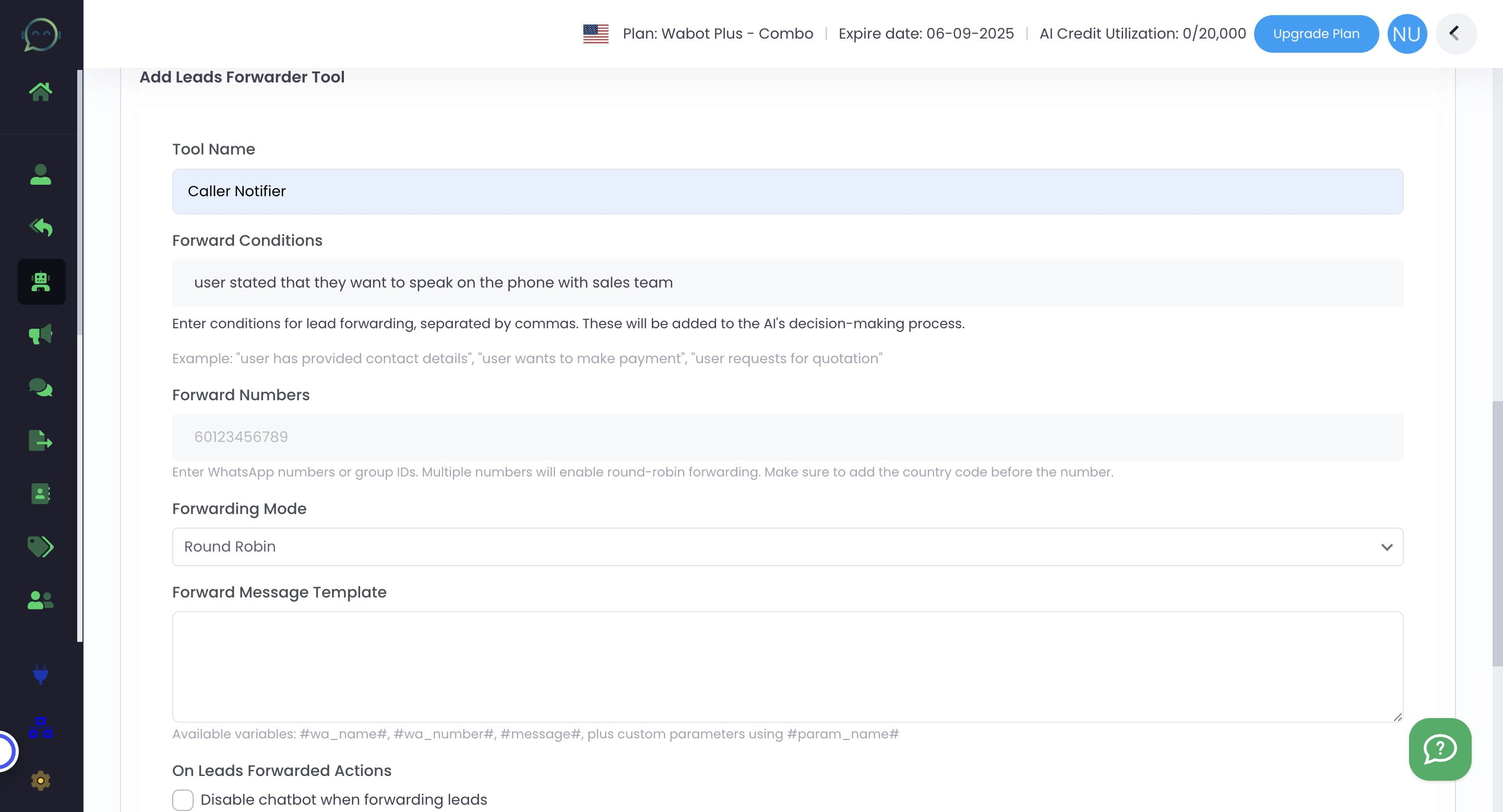
Insert the WhatsApp numbers or WhatsApp group IDs that you want to forward the lead to
6

Choose the forwarding mode. "Round Robin" means the lead will be shared among the phone numbers, while "Send to All" means every number you enter will receive the message
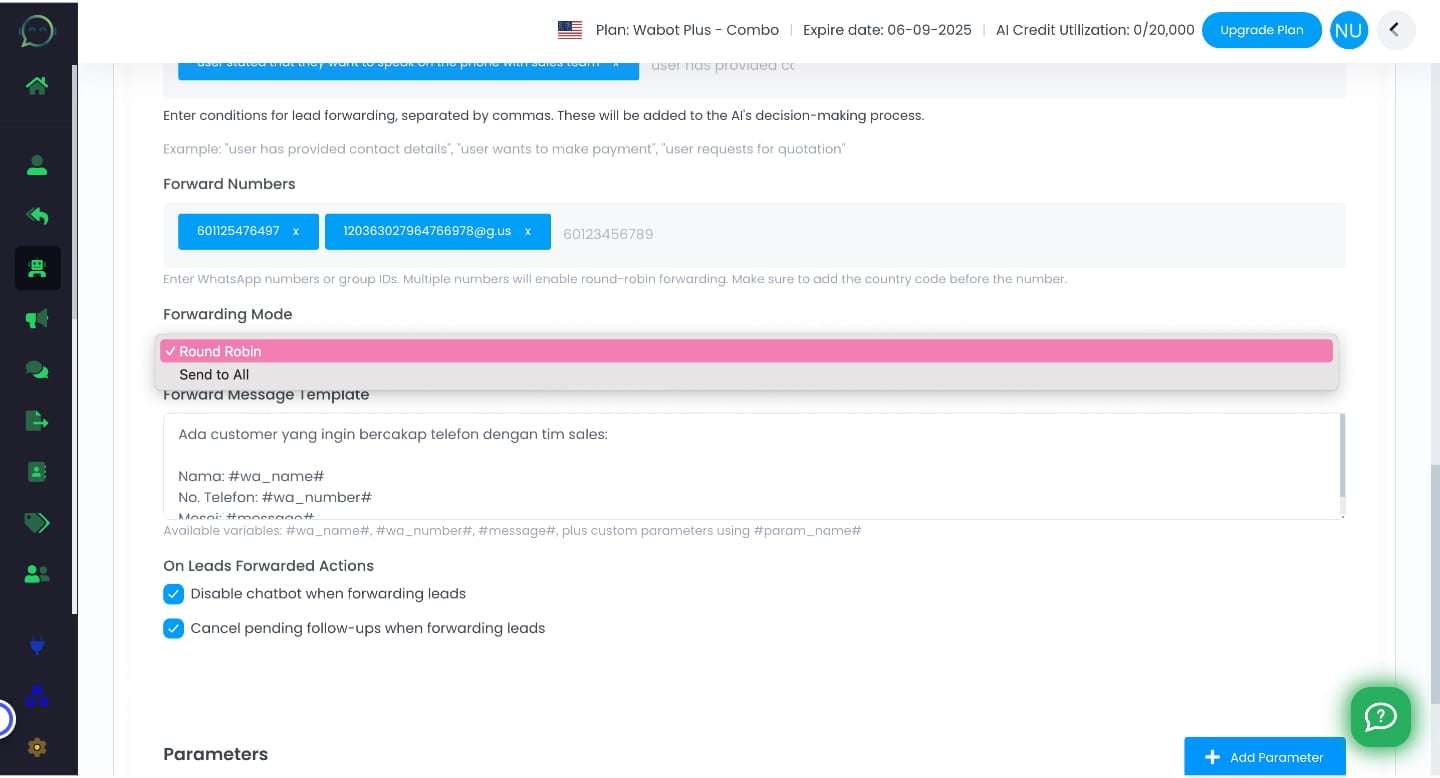
Choose the forwarding mode. "Round Robin" means the lead will be shared among the phone numbers, while "Send to All" means every number you enter will receive the message
7

Insert the forwarded messages. You can include the parameter/variables needed
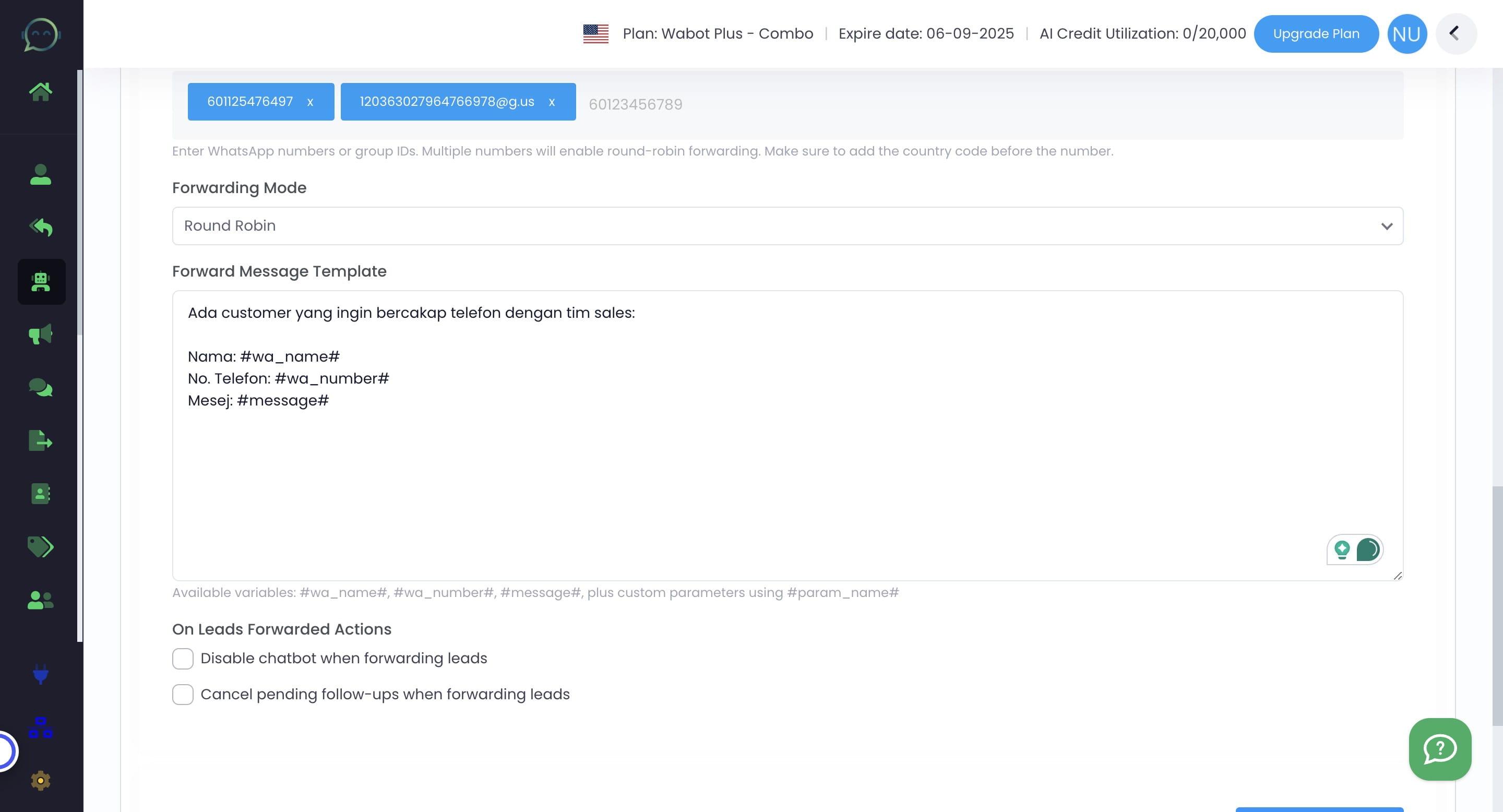
Insert the forwarded messages. You can include the parameter/variables needed
8

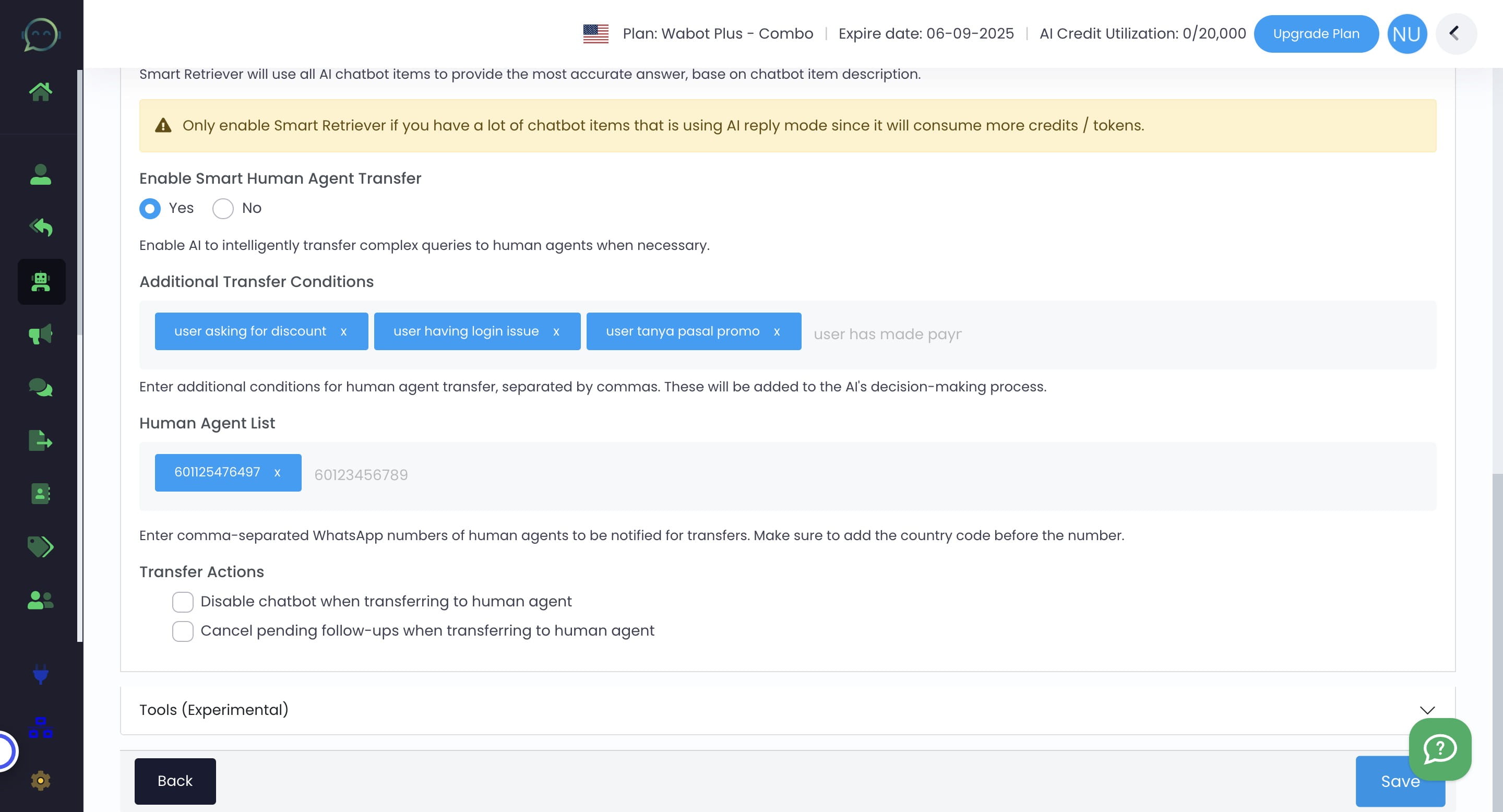
You can choose to disable chatbot or cancel pending follow-ups when forwarding leads
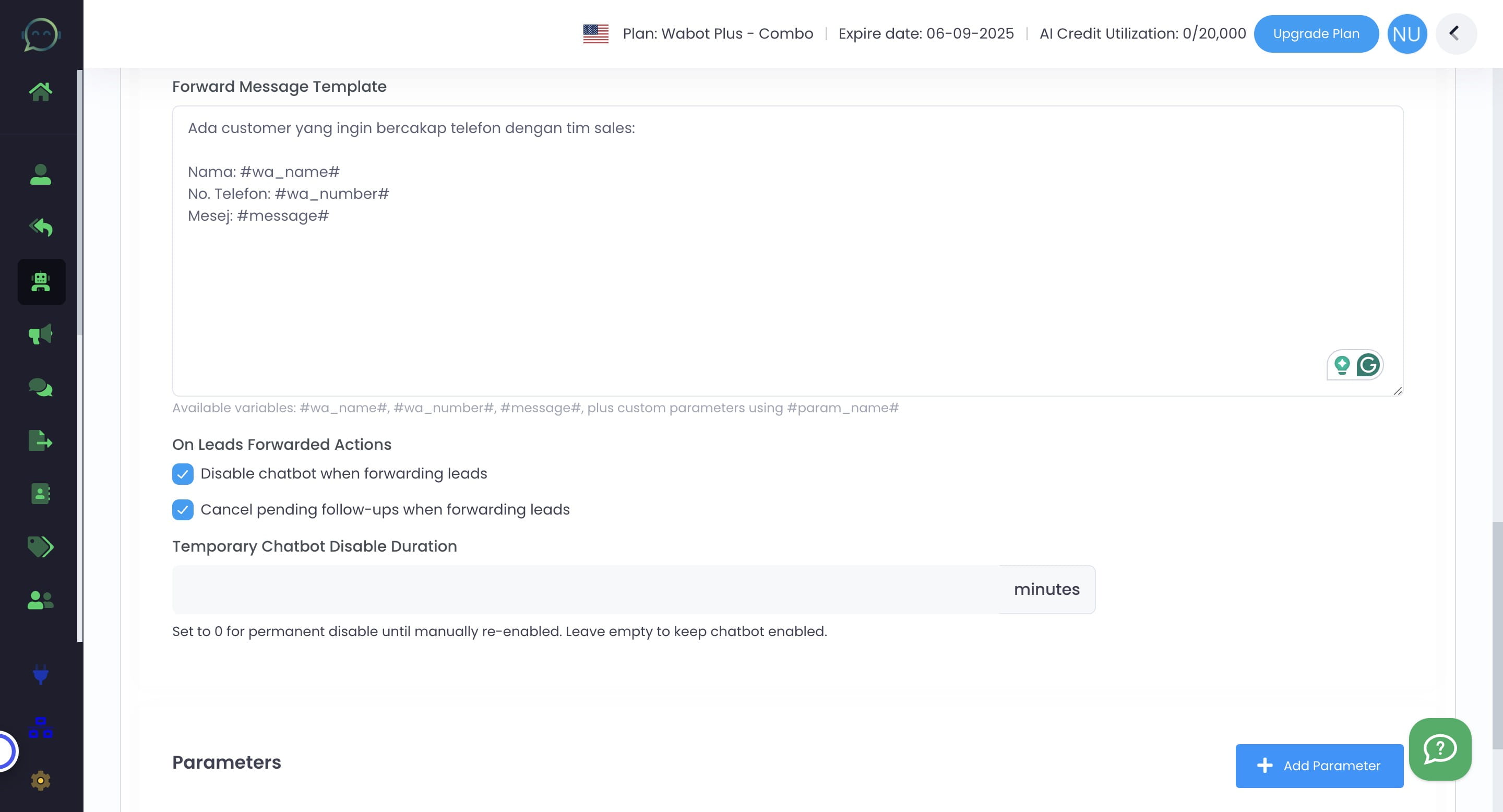
You can choose to disable chatbot or cancel pending follow-ups when forwarding leads
9

You can also temporarily disable the chatbot or simply set to 0 for permanent disable
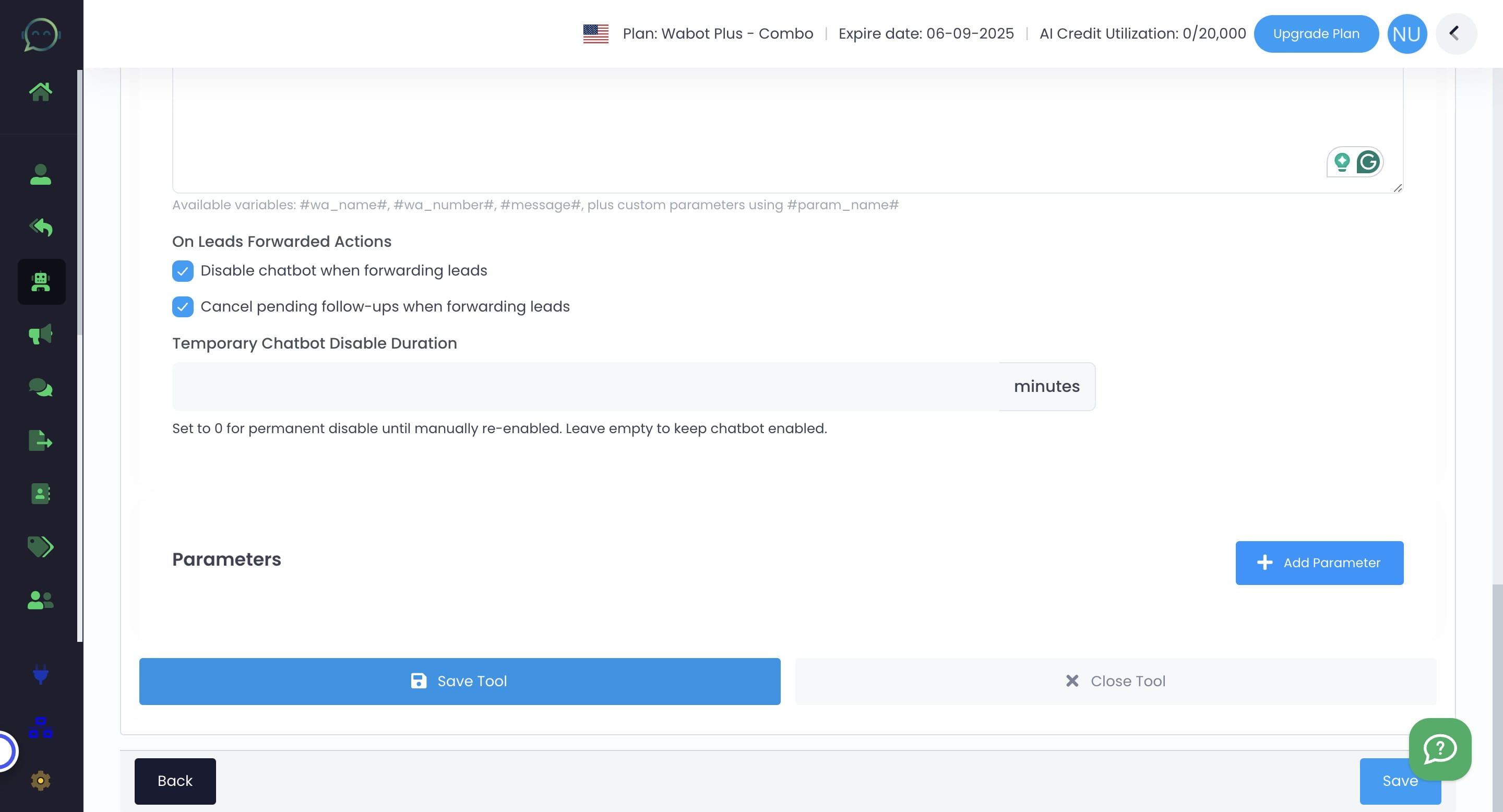
You can also temporarily disable the chatbot or simply set to 0 for permanent disable
10

If you ever needed more information to forward, you can add on the parameter. Kindly follow this tutorial to add more parameters

If you ever needed more information to forward, you can add on the parameter. Kindly [follow this tutorial](https://docs.fatomate.com/guides/aa735281-fe51-4ebd-9634-4842c04f1831) to add more parameters
11

Click on "Save Tool"

Click on "Save Tool"
12

Click on "Save"

Click on "Save"
13

You can now see the tools is available here
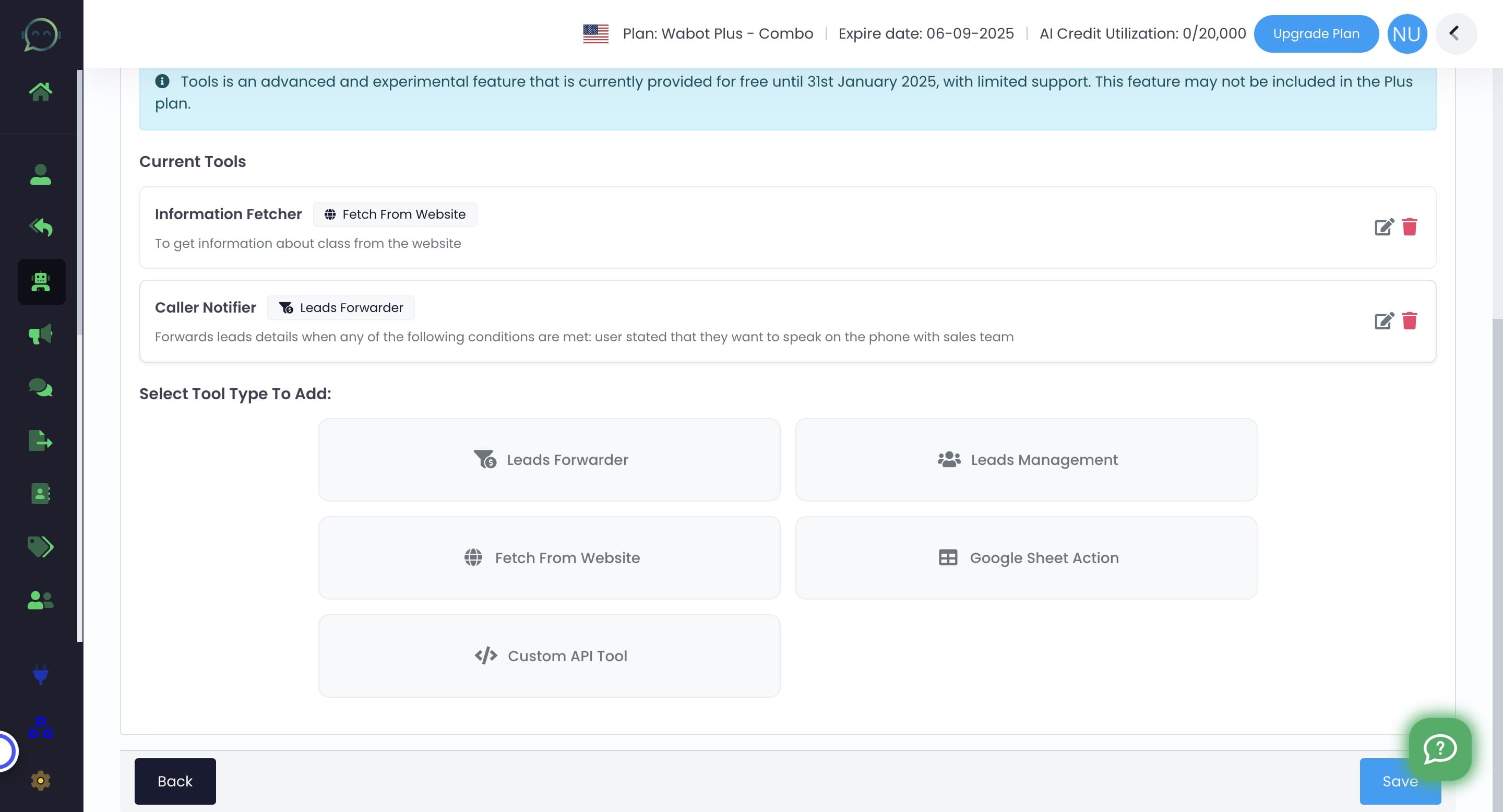
You can now see the tools is available here
14

Simply click on the pencil icon to edit the tools anytime
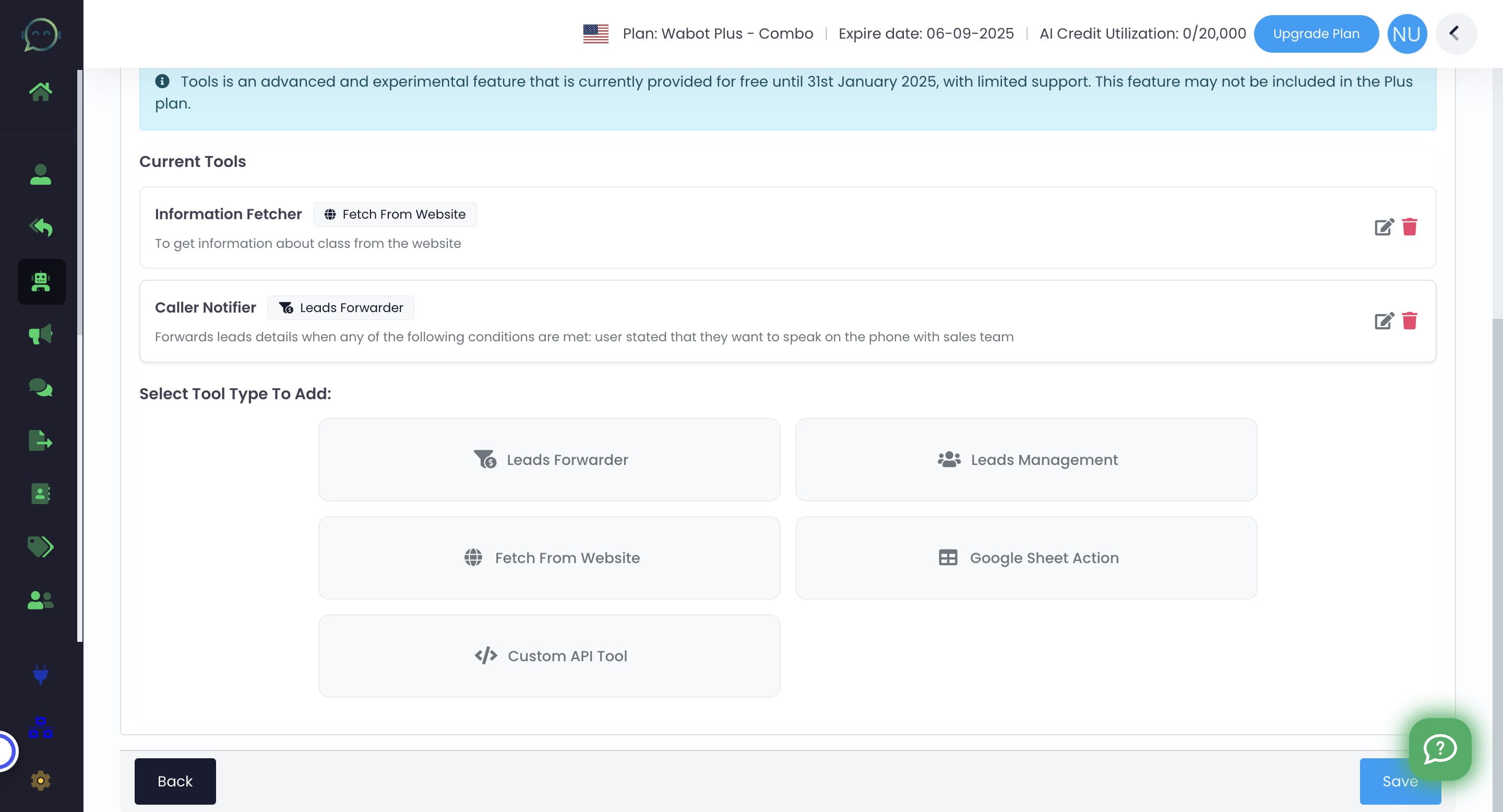
Simply click on the pencil icon to edit the tools anytime
15

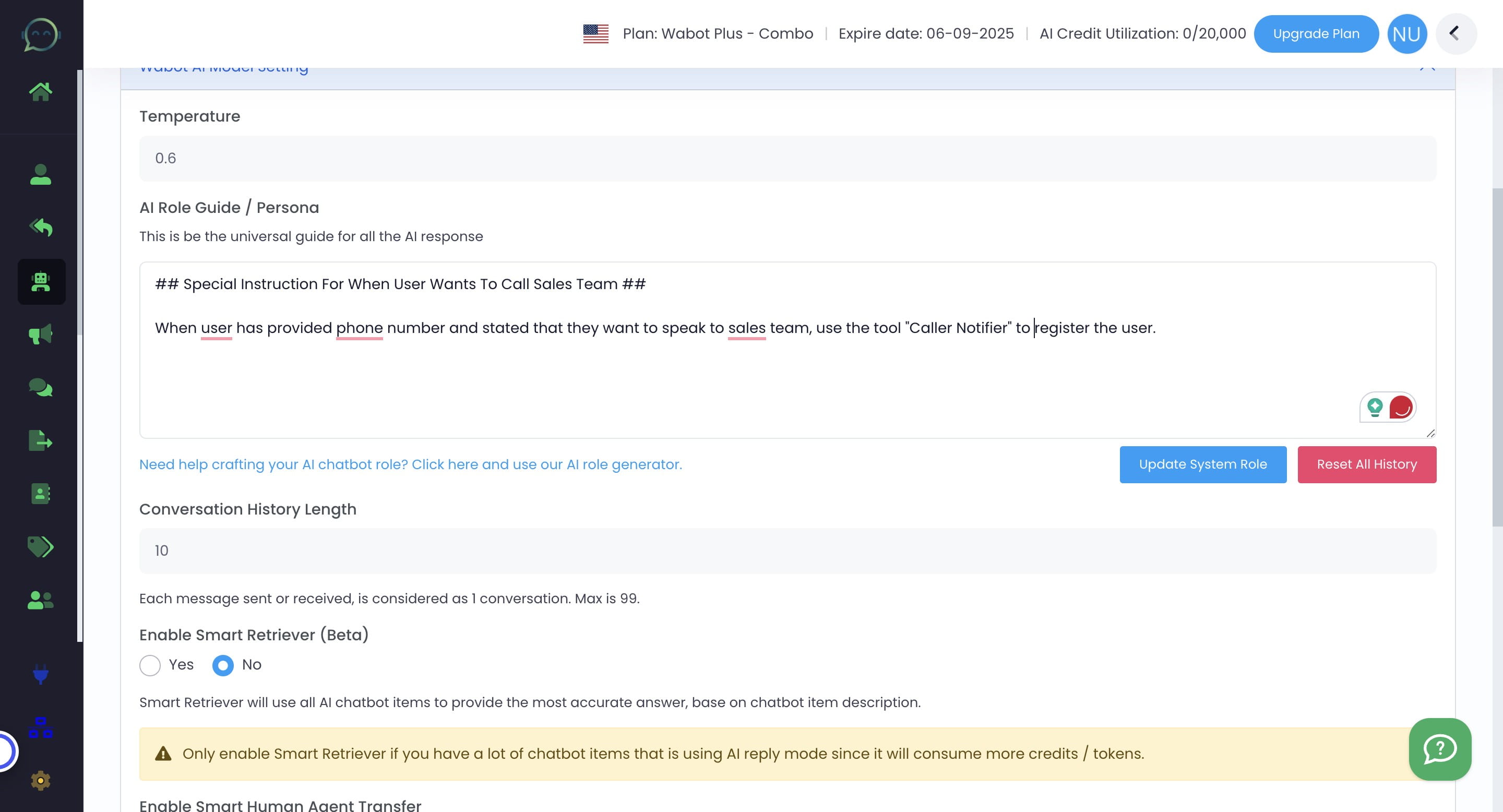
Now time to give the tools an additional prompts so AI can understand when to use the tools. Click on "Wabot AI Model Setting"
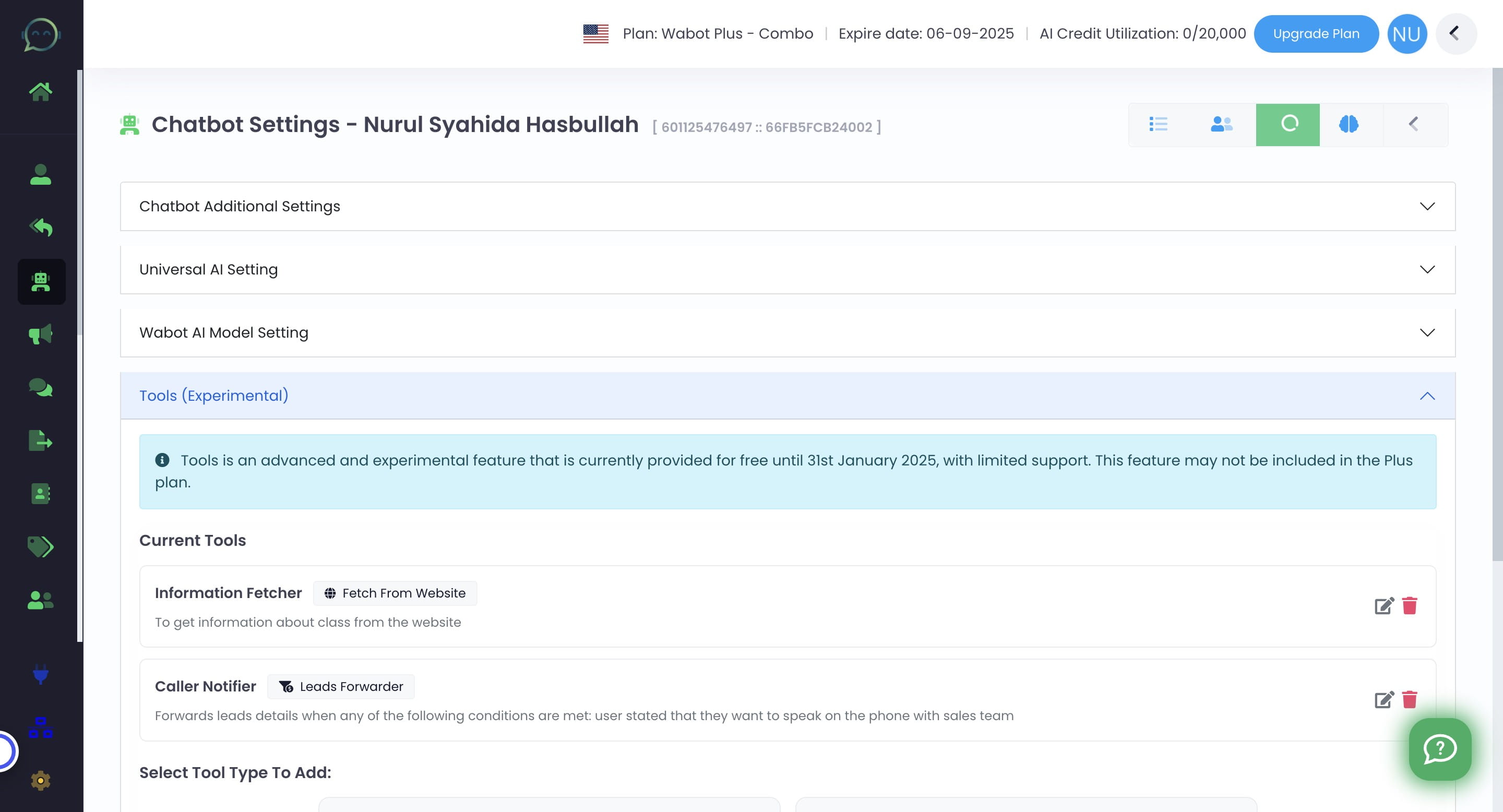
Now time to give the tools an additional prompts so AI can understand when to use the tools. Click on "Wabot AI Model Setting"
16

Kindly refer the prompt example

Kindly refer the prompt example
17

Don't forget to update the system role to ensure AI is running based on the latest instructions!
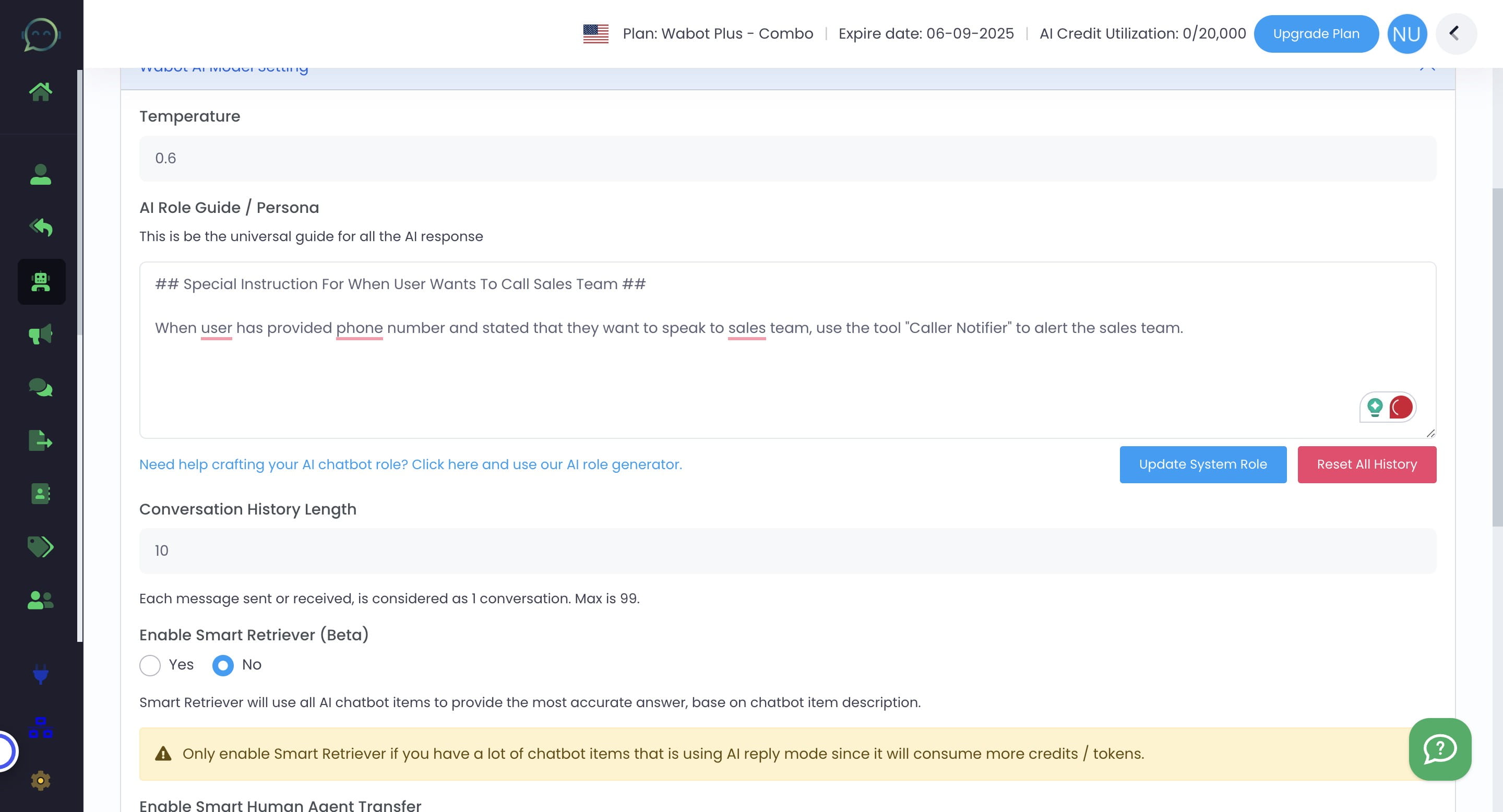
Don't forget to update the system role to ensure AI is running based on the latest instructions!
18

Click on "Save"

Click on "Save"
19

Done 🚀

Done 🚀