

How To Insert Image In Chatbot AI
1
Navigate to https://app.wabot.my/dashboard
2
Go to File Manager
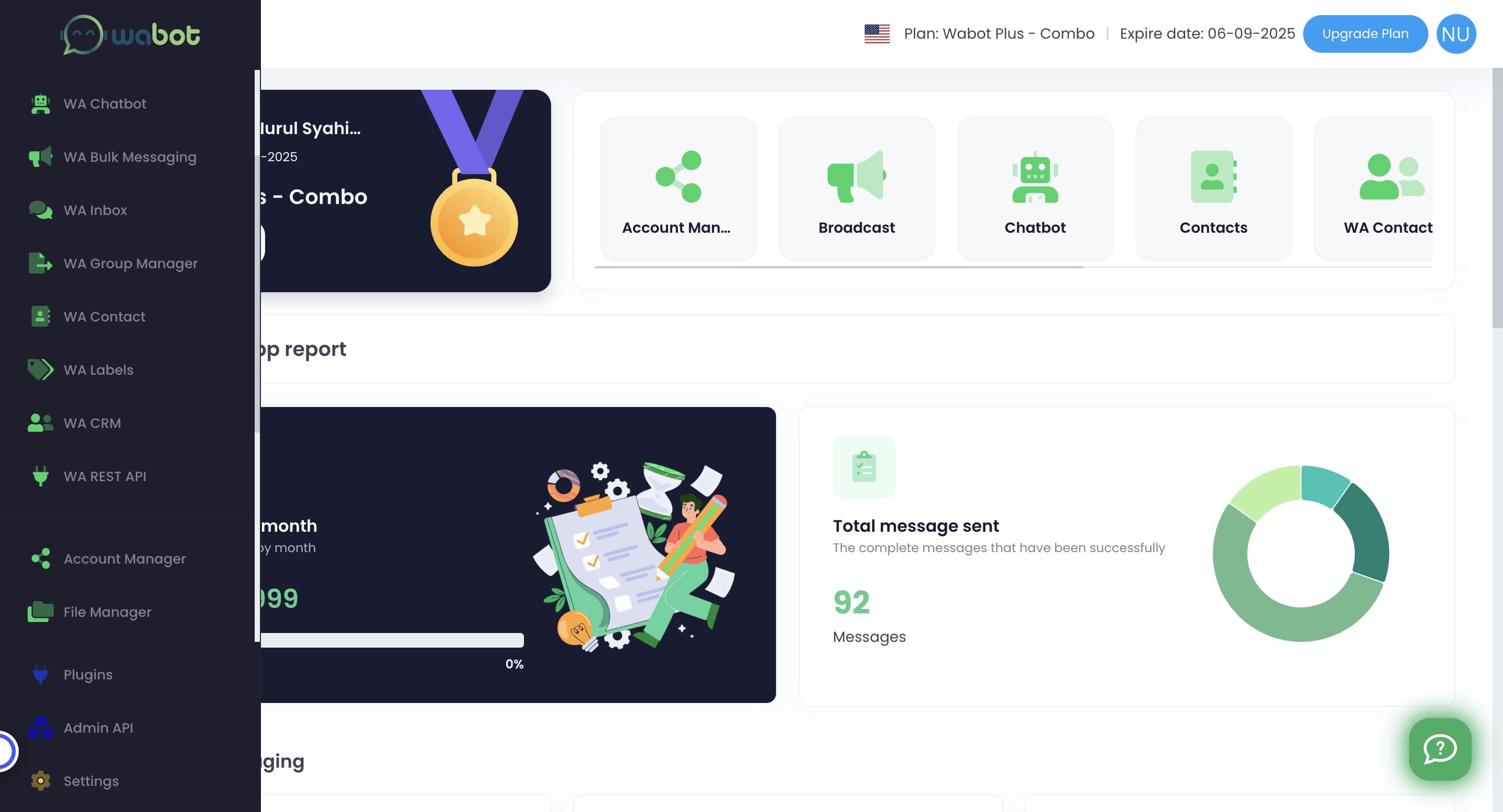

3
Browse the media you want to upload
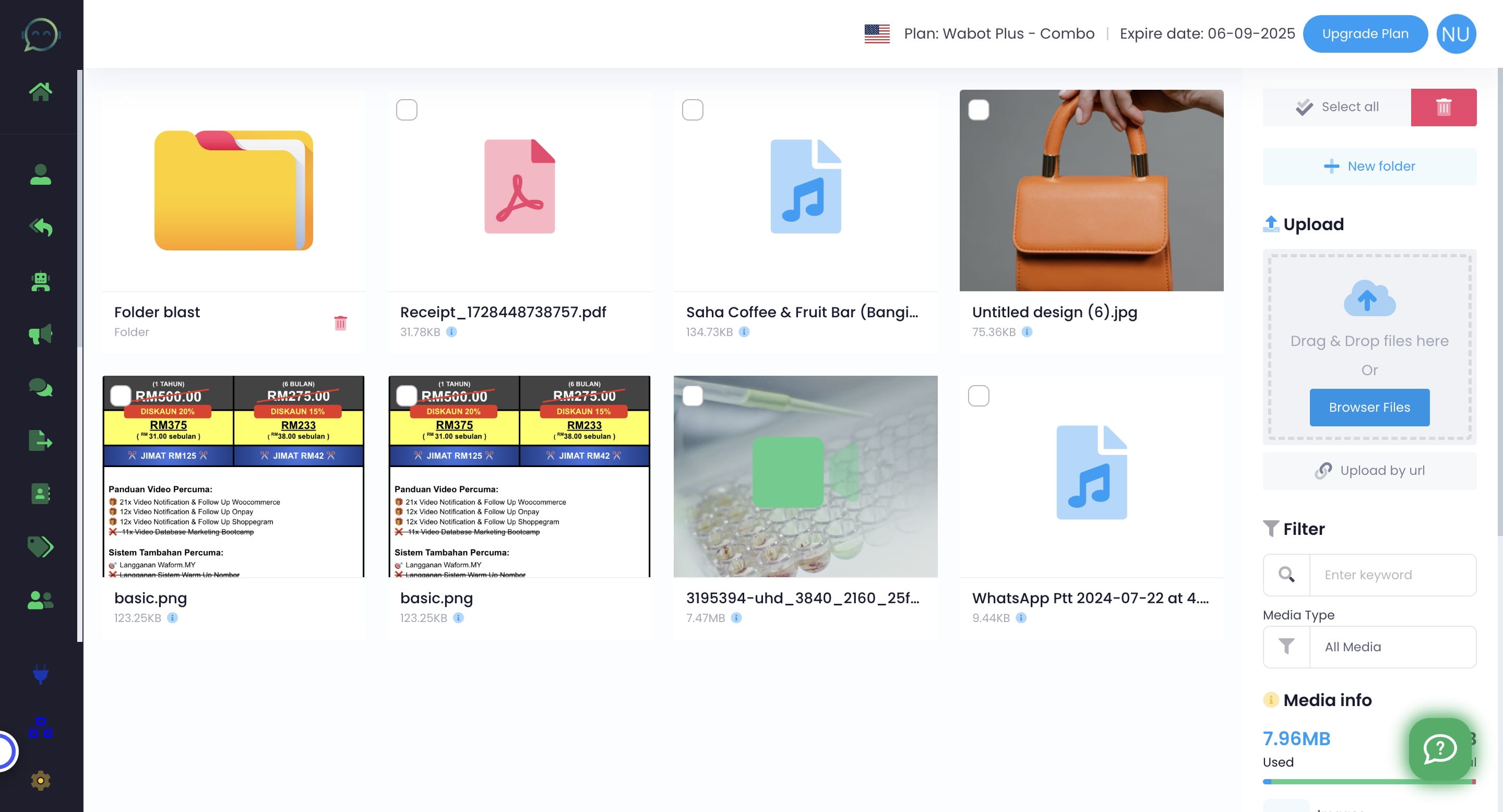
4
Once uploaded, you can see it inside here. Then click the icon ℹ️
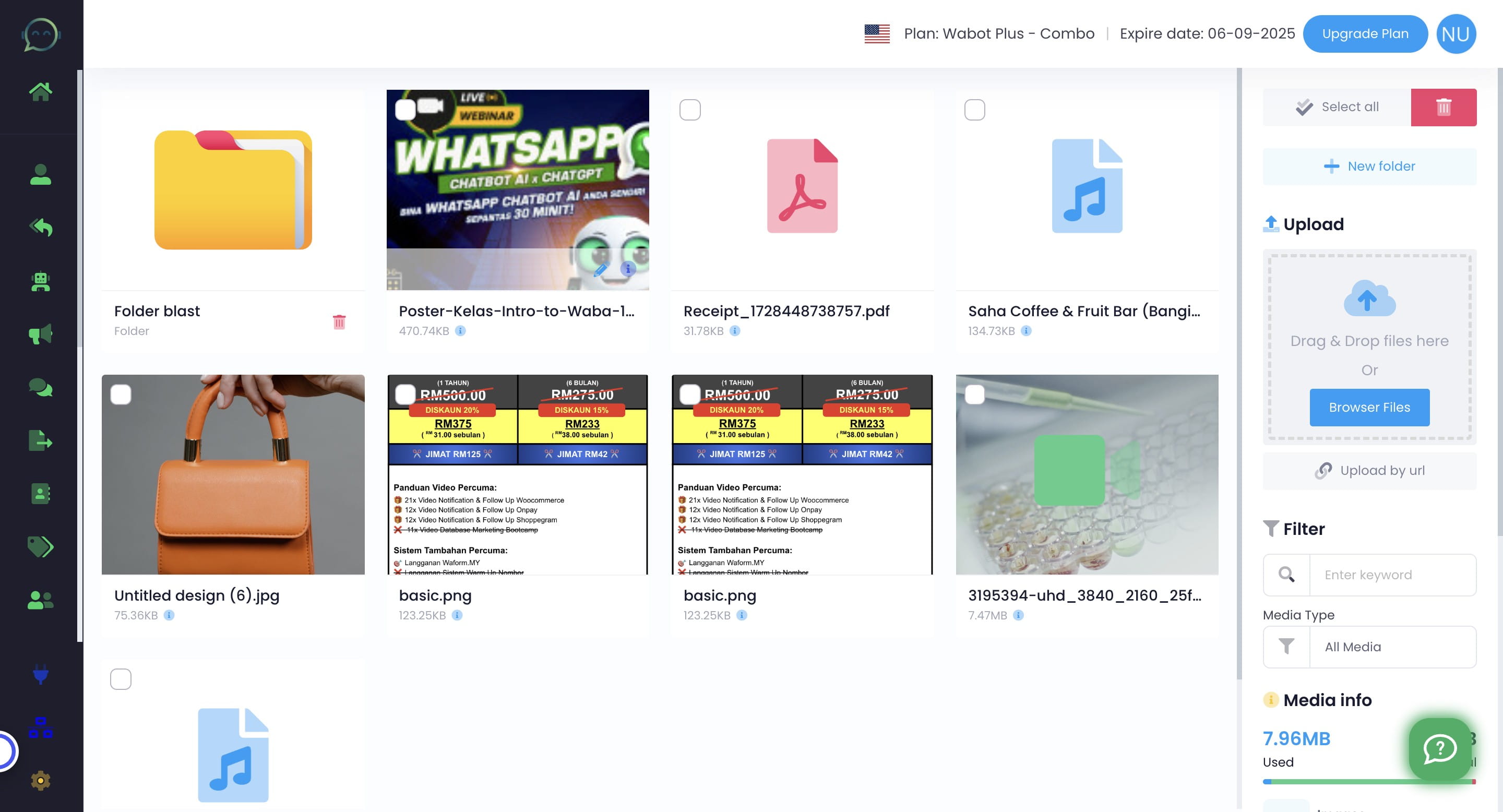
5
Copy the entire file URL
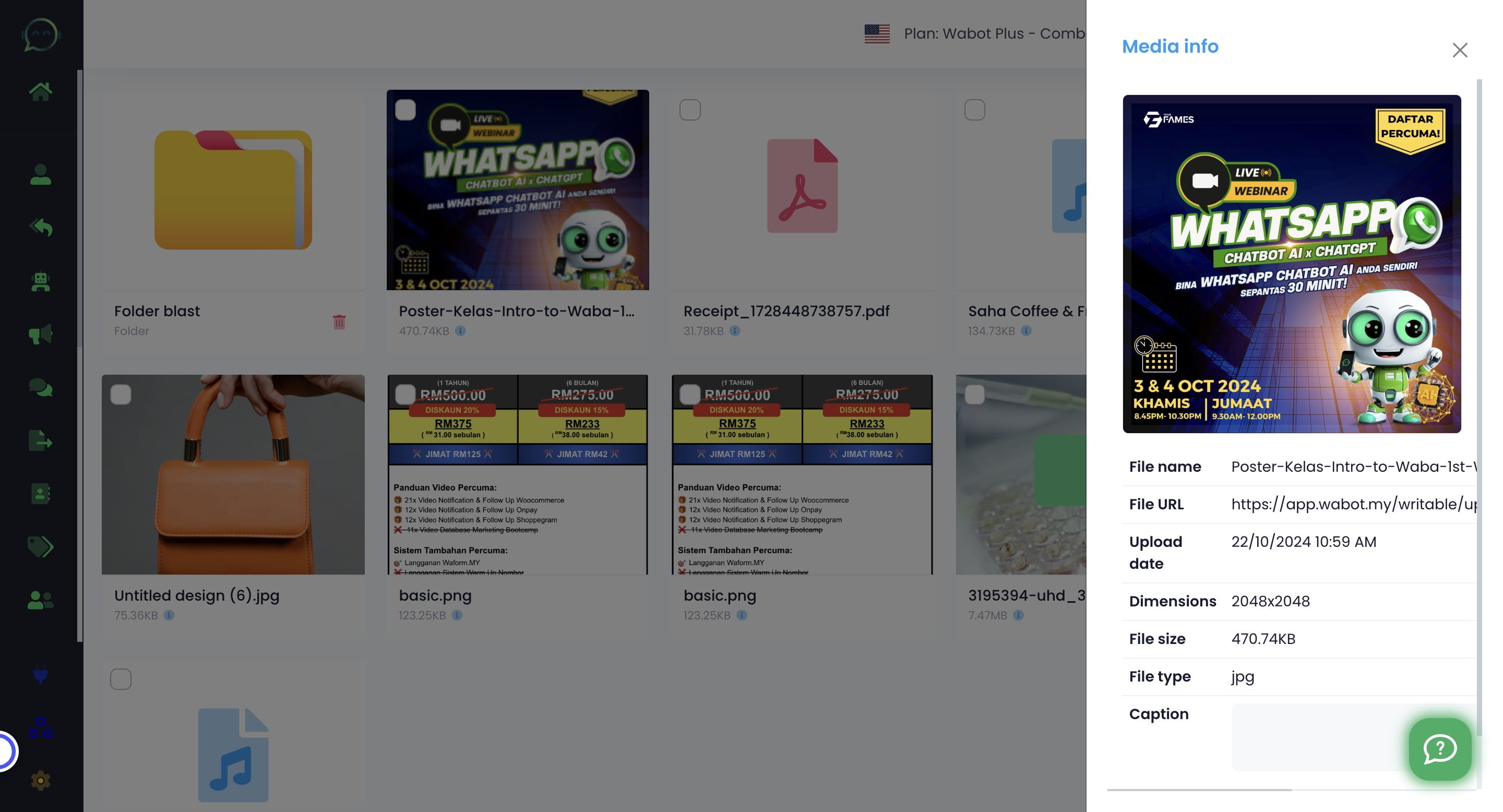
6
Make sure to copy until the end of the link
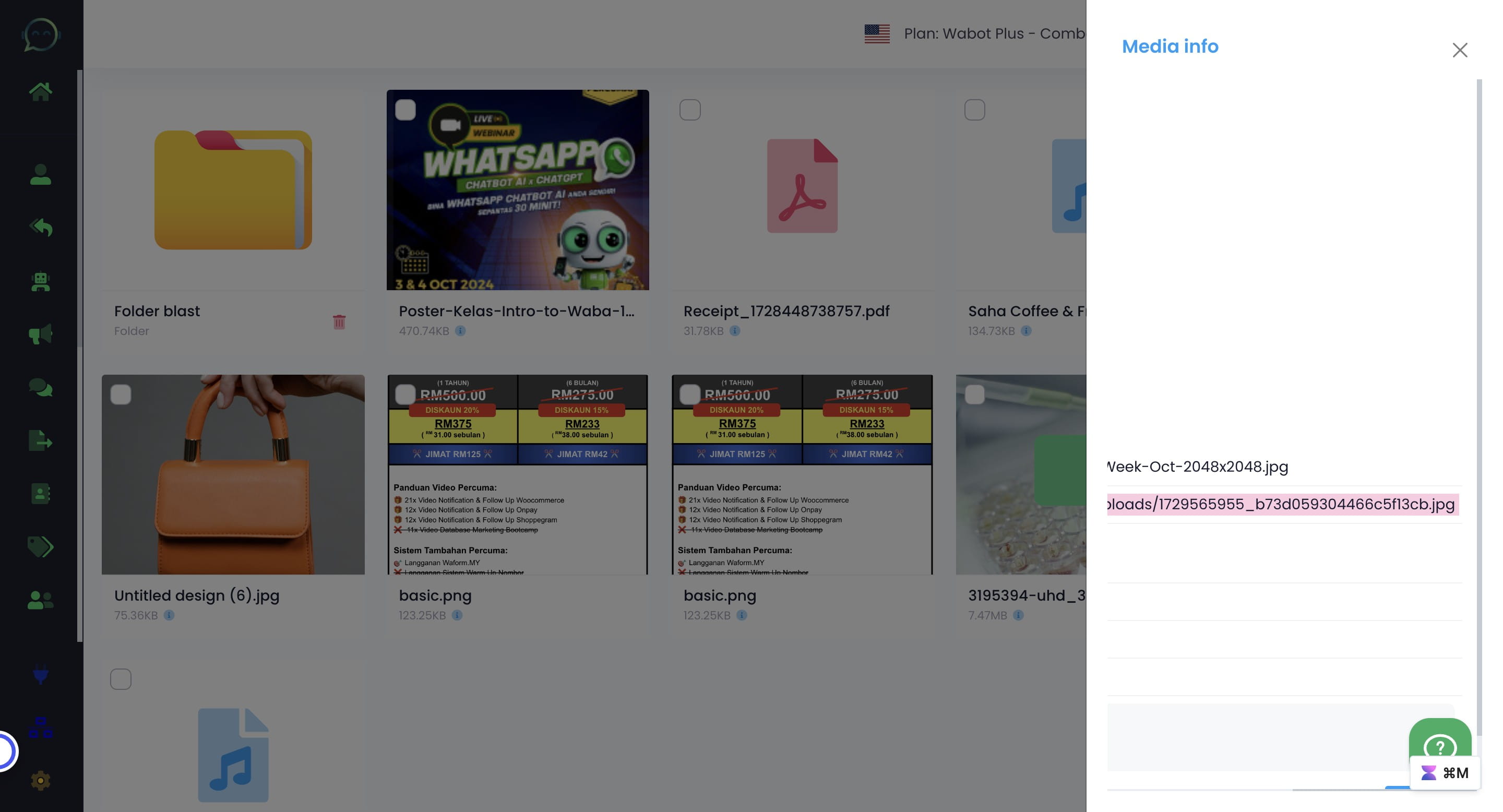
7
Click here
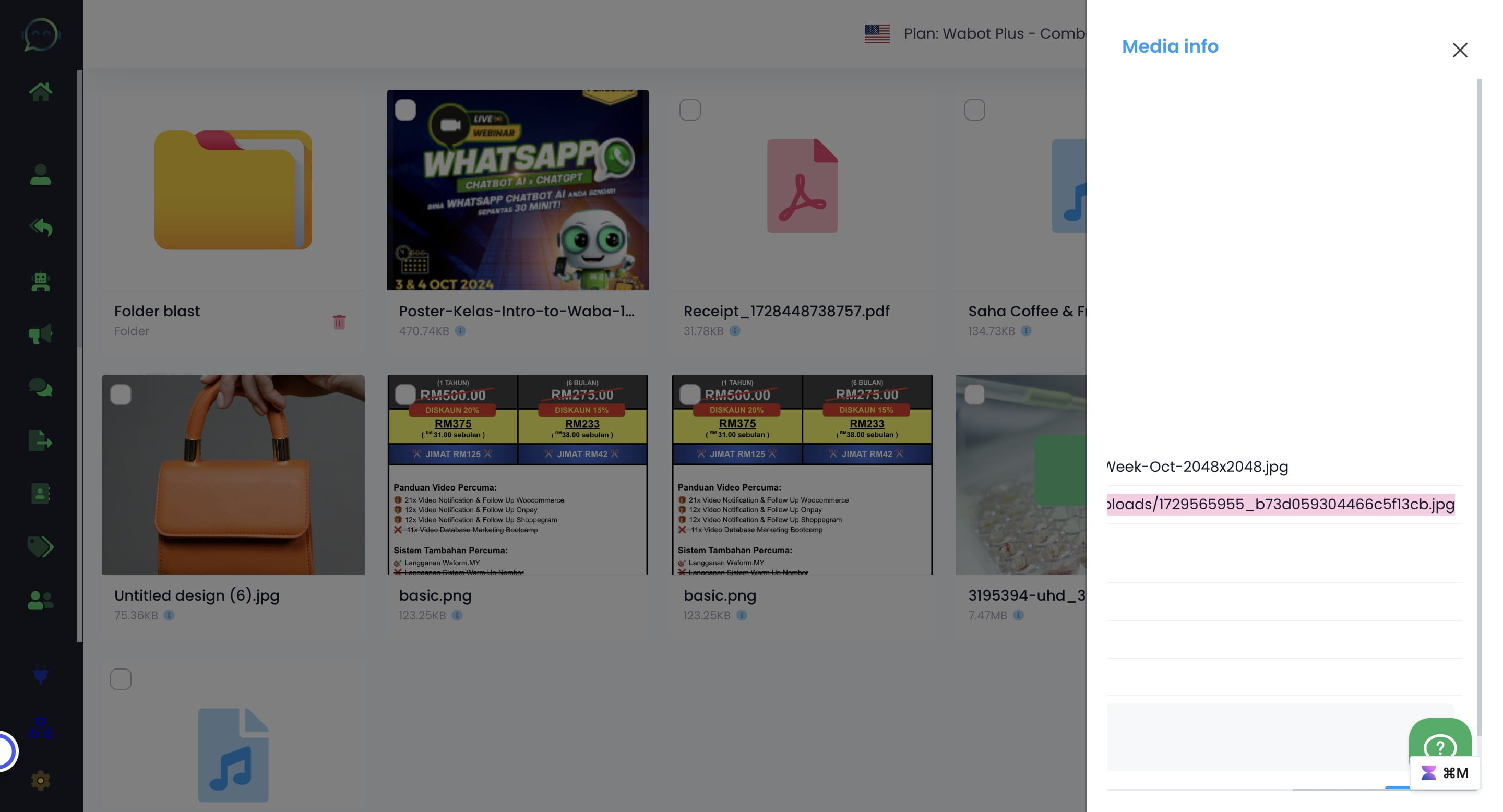
8
Click on "WA Chatbot"
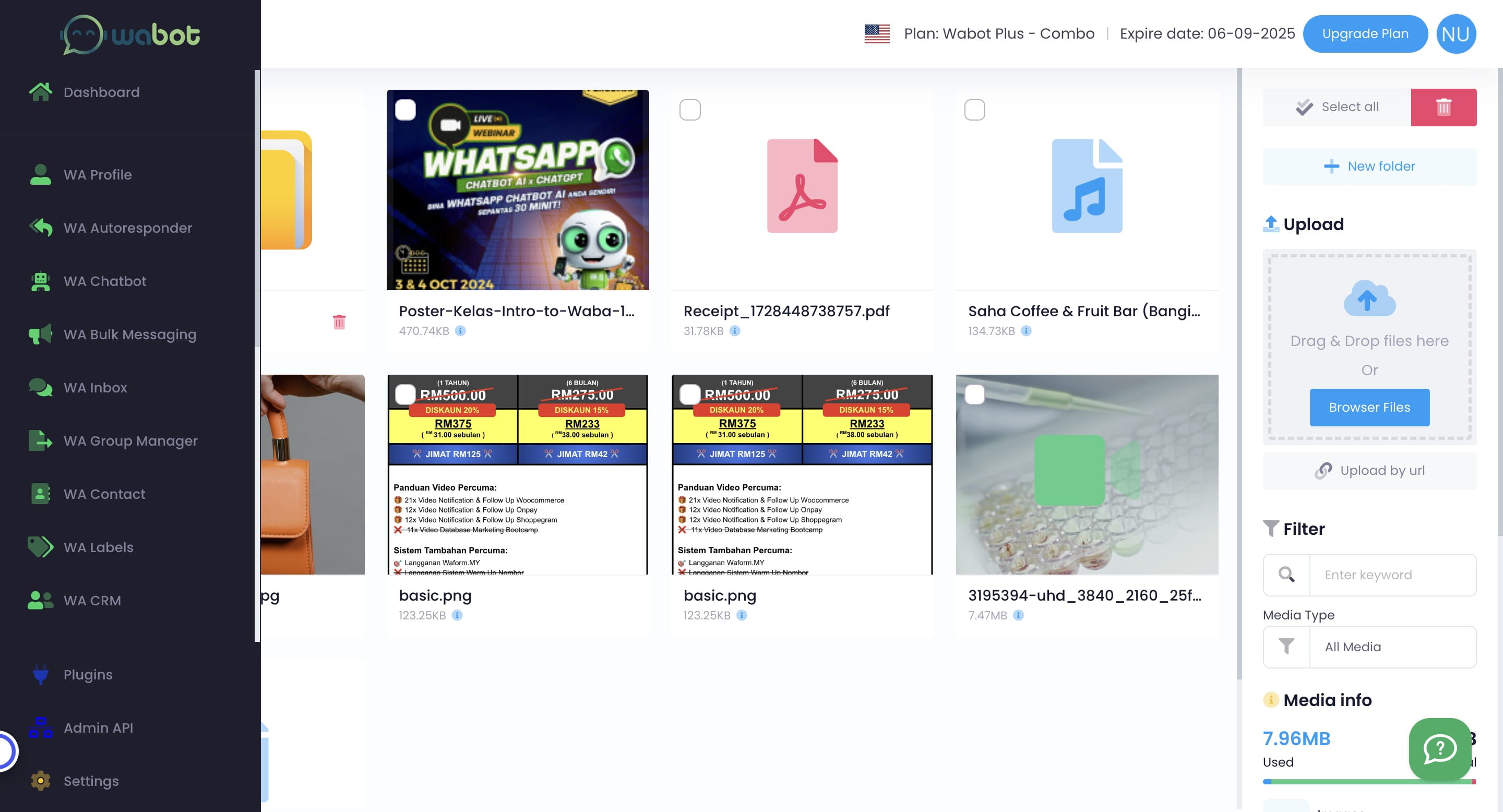
9
Click this icon
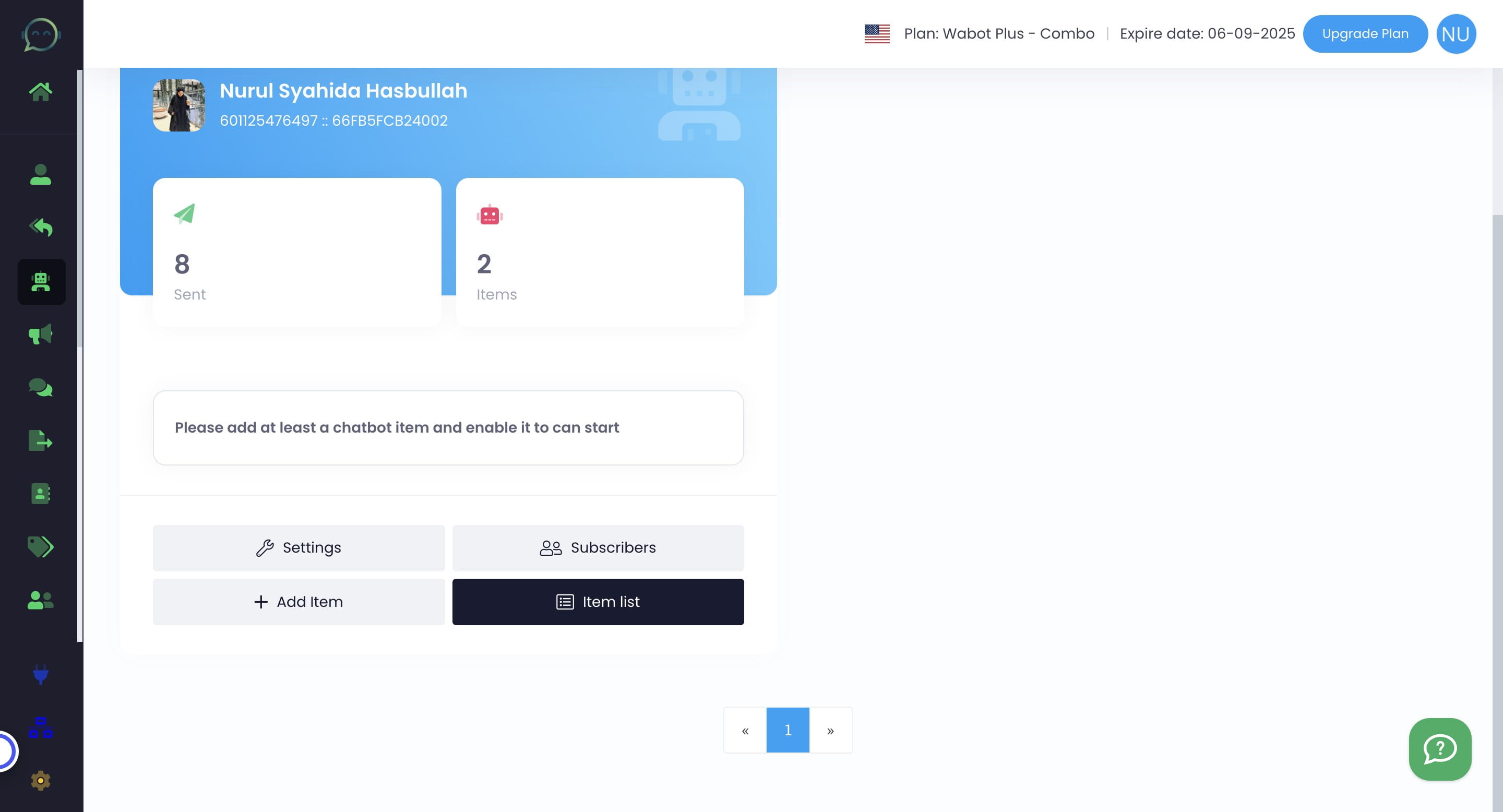
10
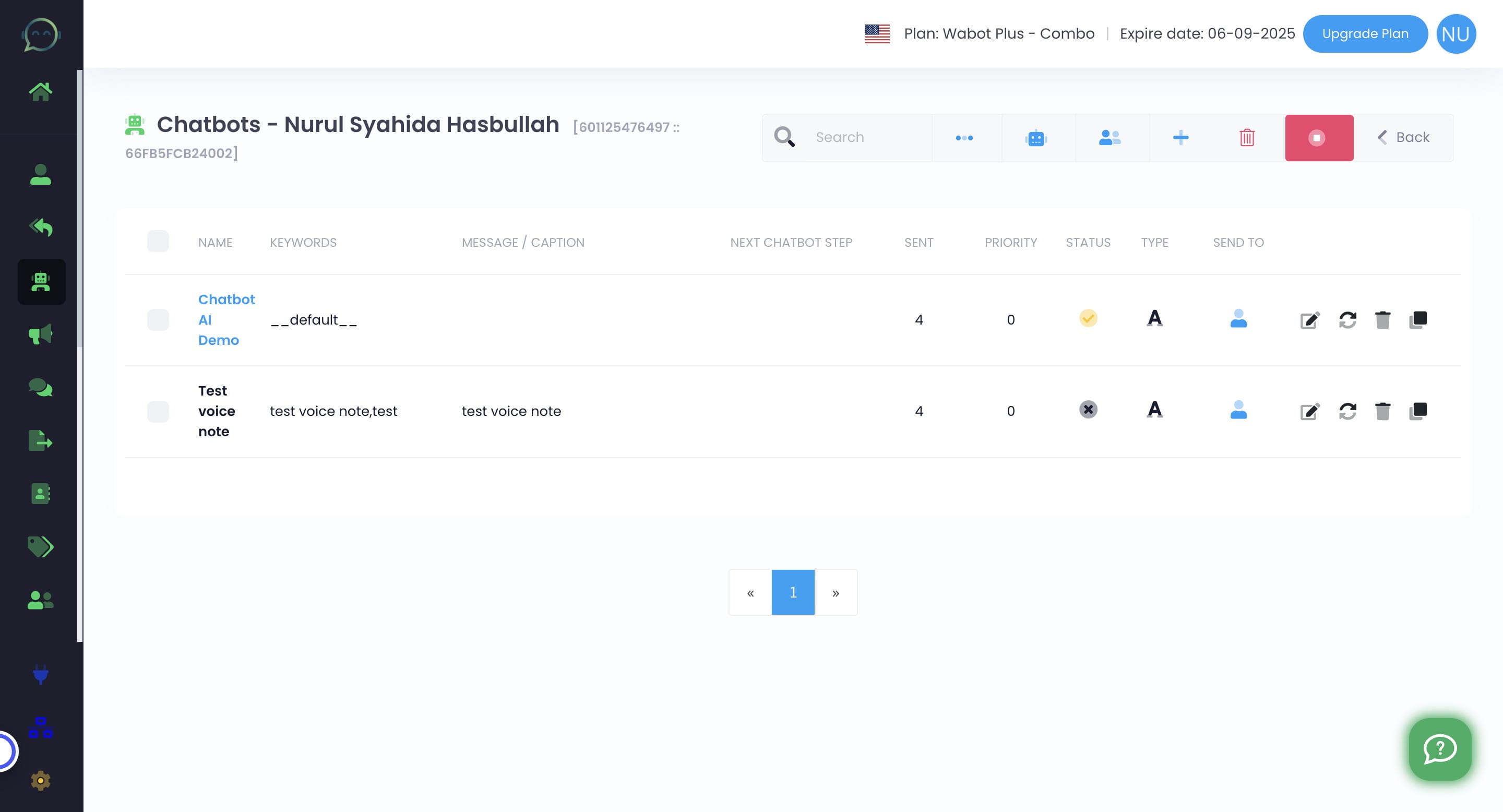
Click on the item list that you want to put the image
11
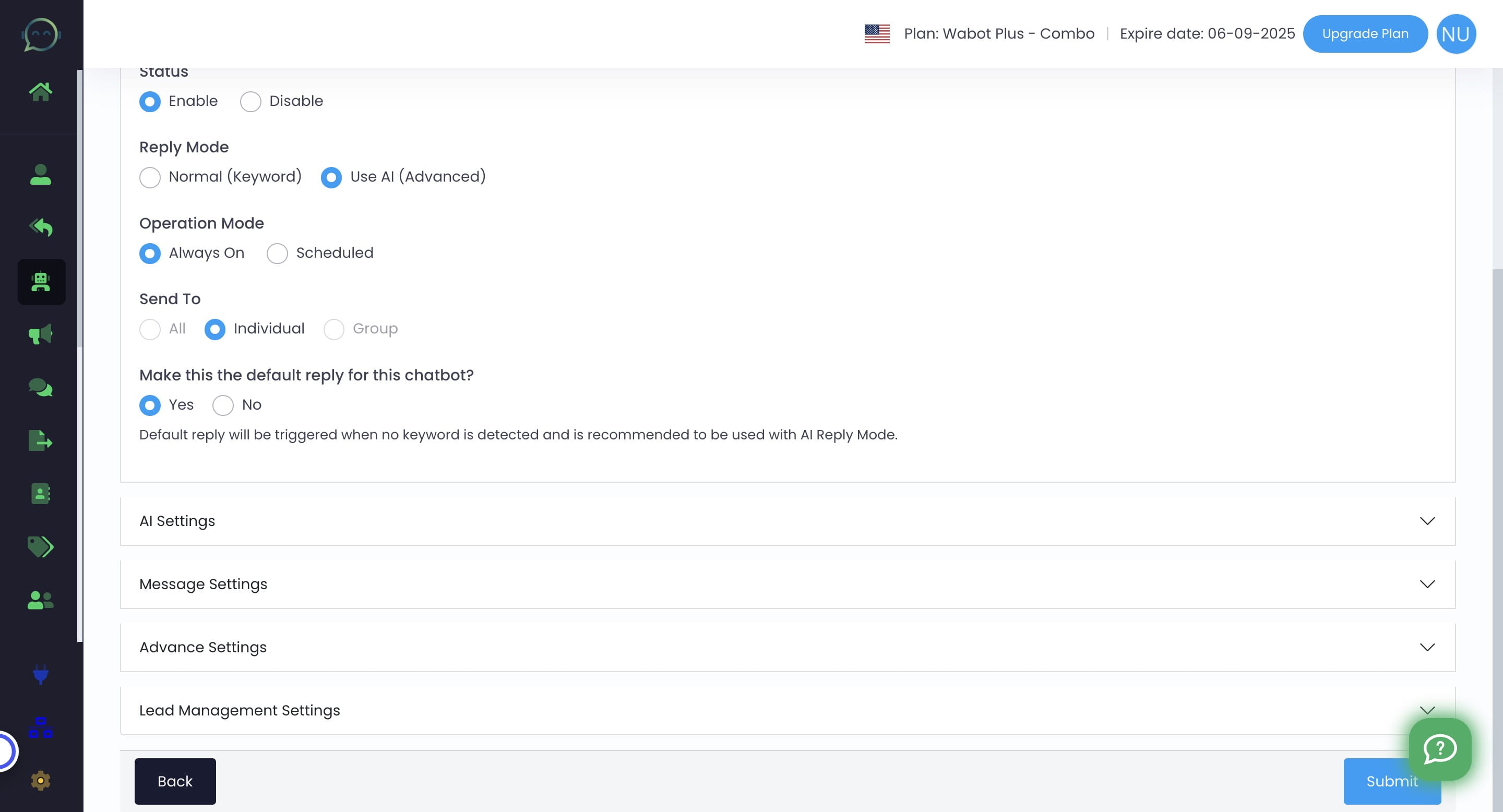
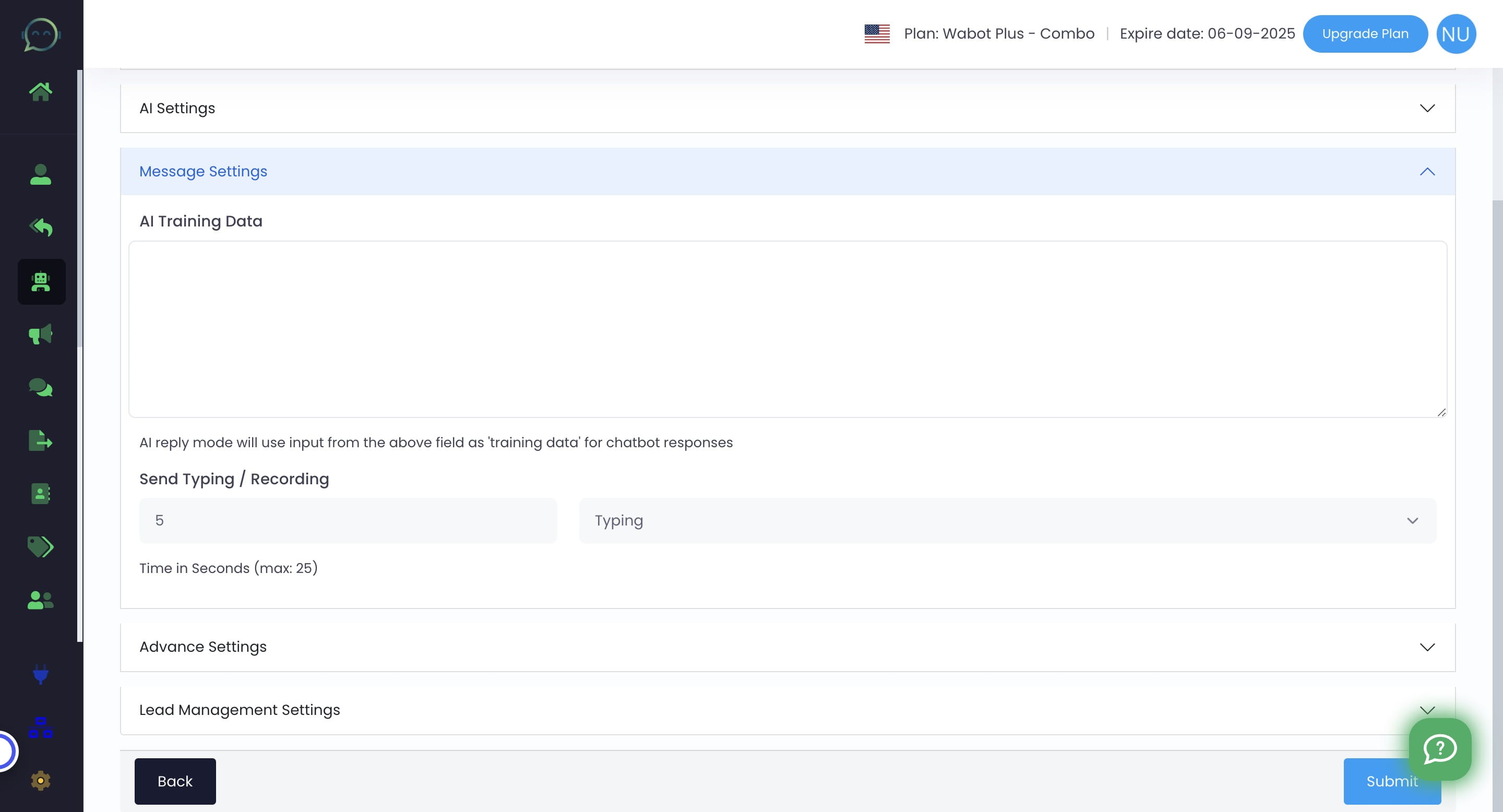
Click on "Message Settings"
12
Paste the link with your business info. Also, include instructions / prompts for when you want the AI to send images / videos
13
Done 🚀
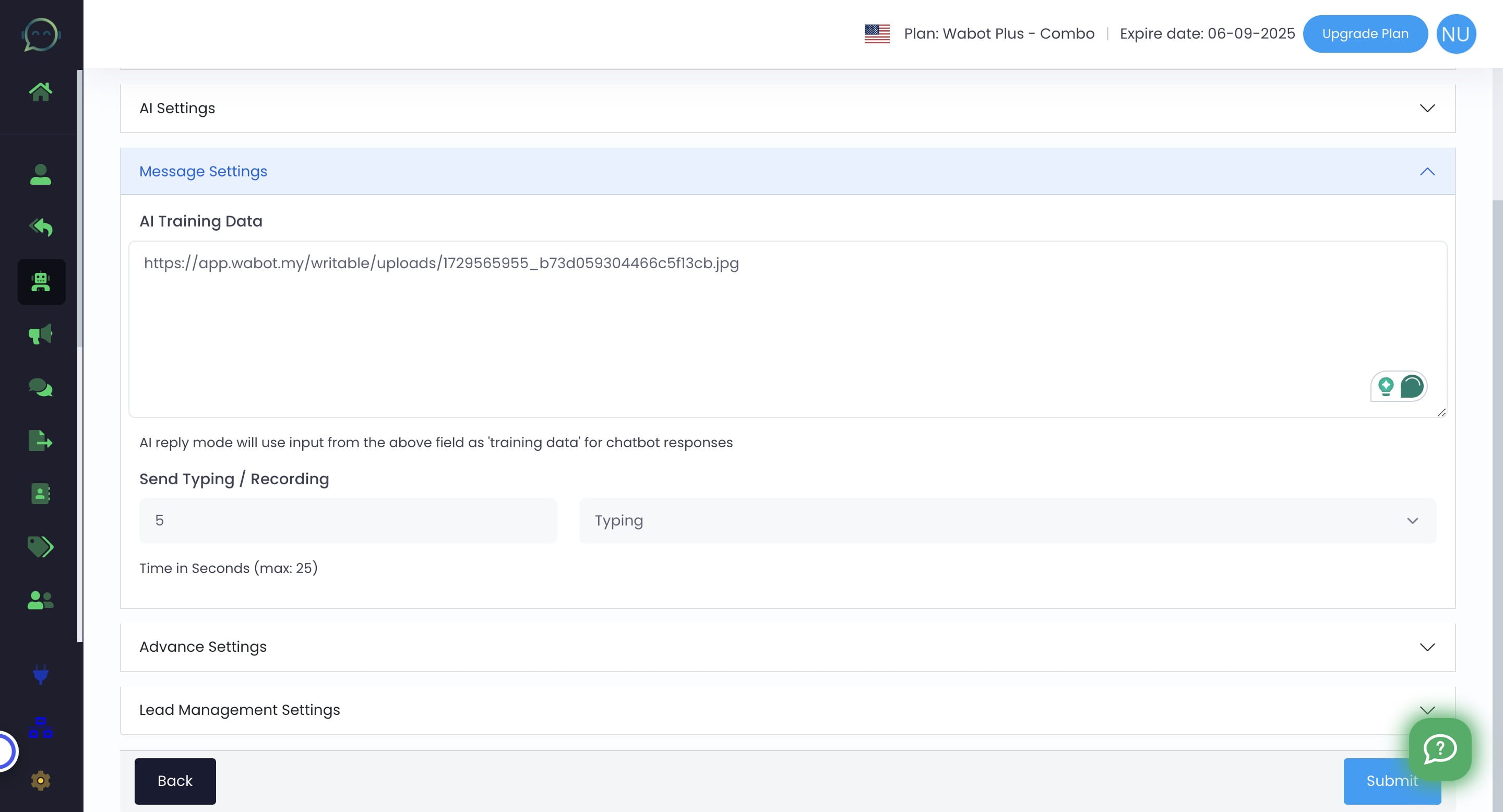
Sometimes AI will send the image as link, so make sure to insert another prompt to send it as an image, not link.