

How To Solve Unstable Connection
Wondering how to fix issues like unresponsive chatbots, failed broadcasts, or auto-notifications not working? Follow these quick steps for a solution.
To begin, you first have to back up your chatbot settings. Click here for instructions
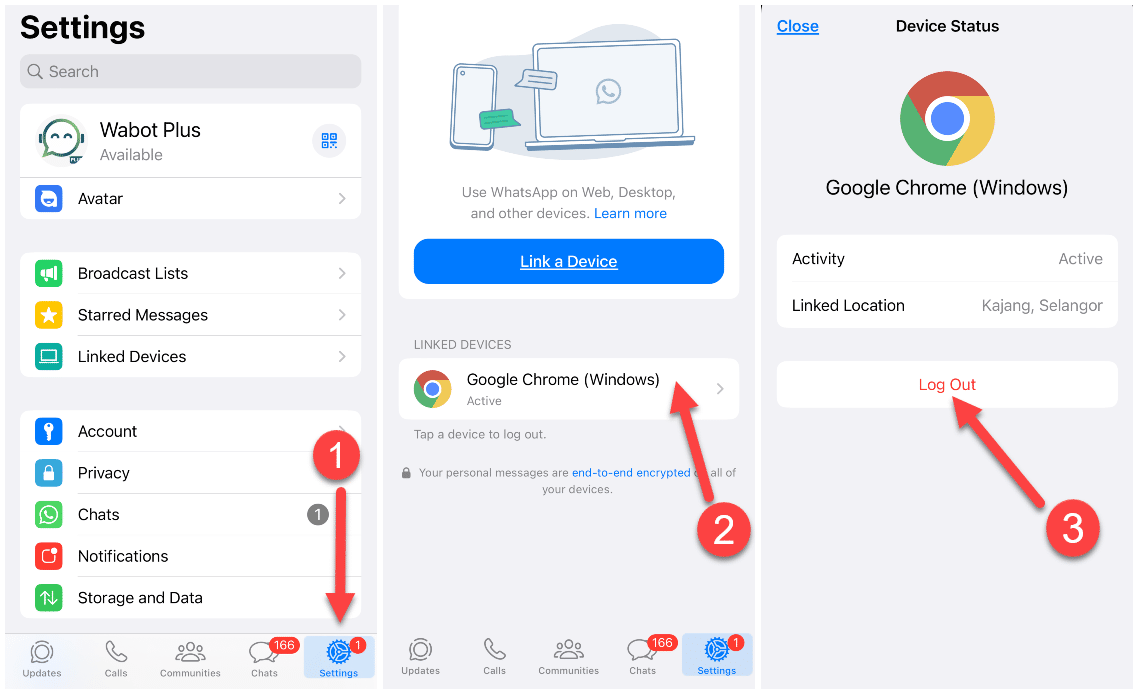
Once you've backed up everything, go ahead and log out all "Linked Devices" on your WhatsApp mobile app. Just follow the steps outlined to complete the process
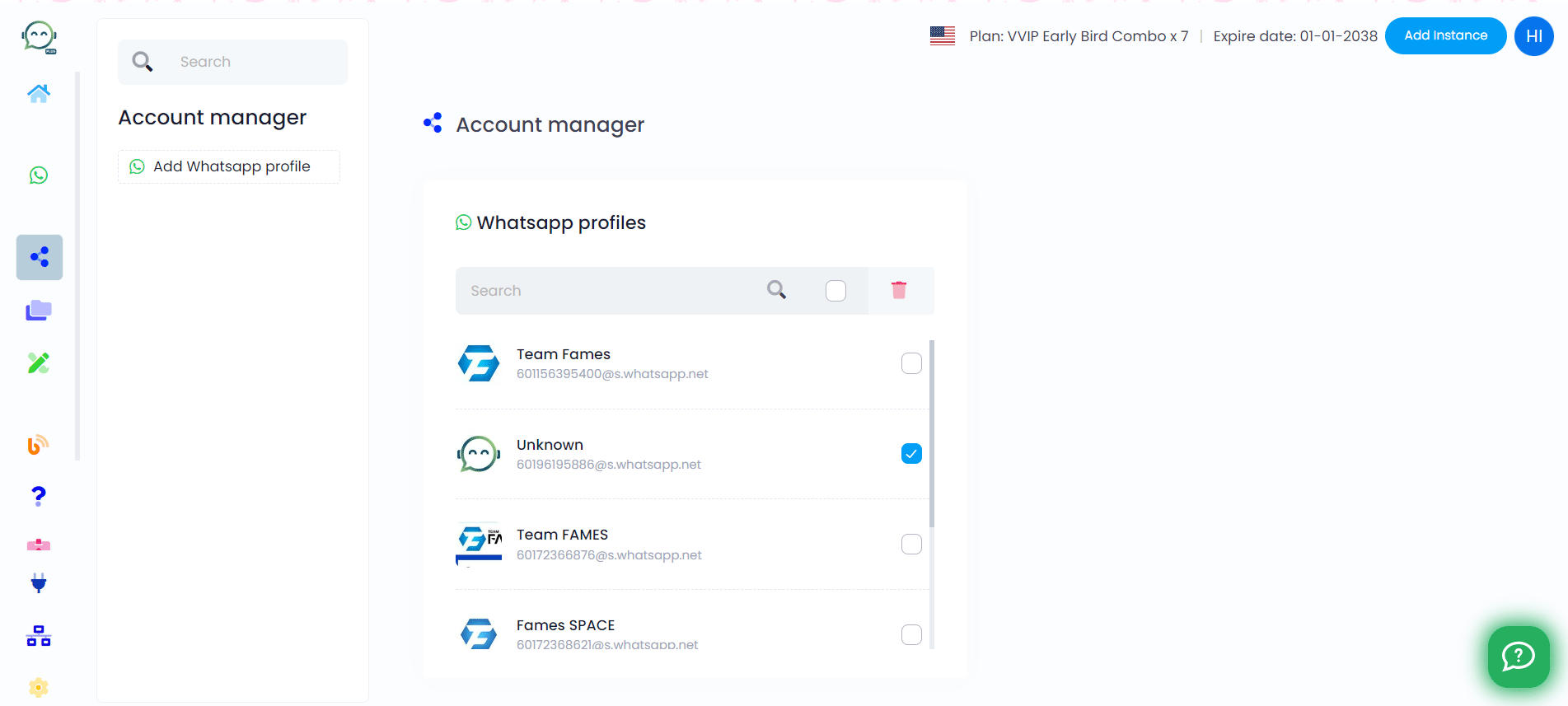
Afterward, log in to your Wabot Plus dashboard and remove the instance from the account manager. Select the instance you wish to delete and click on the "dustbin" icon

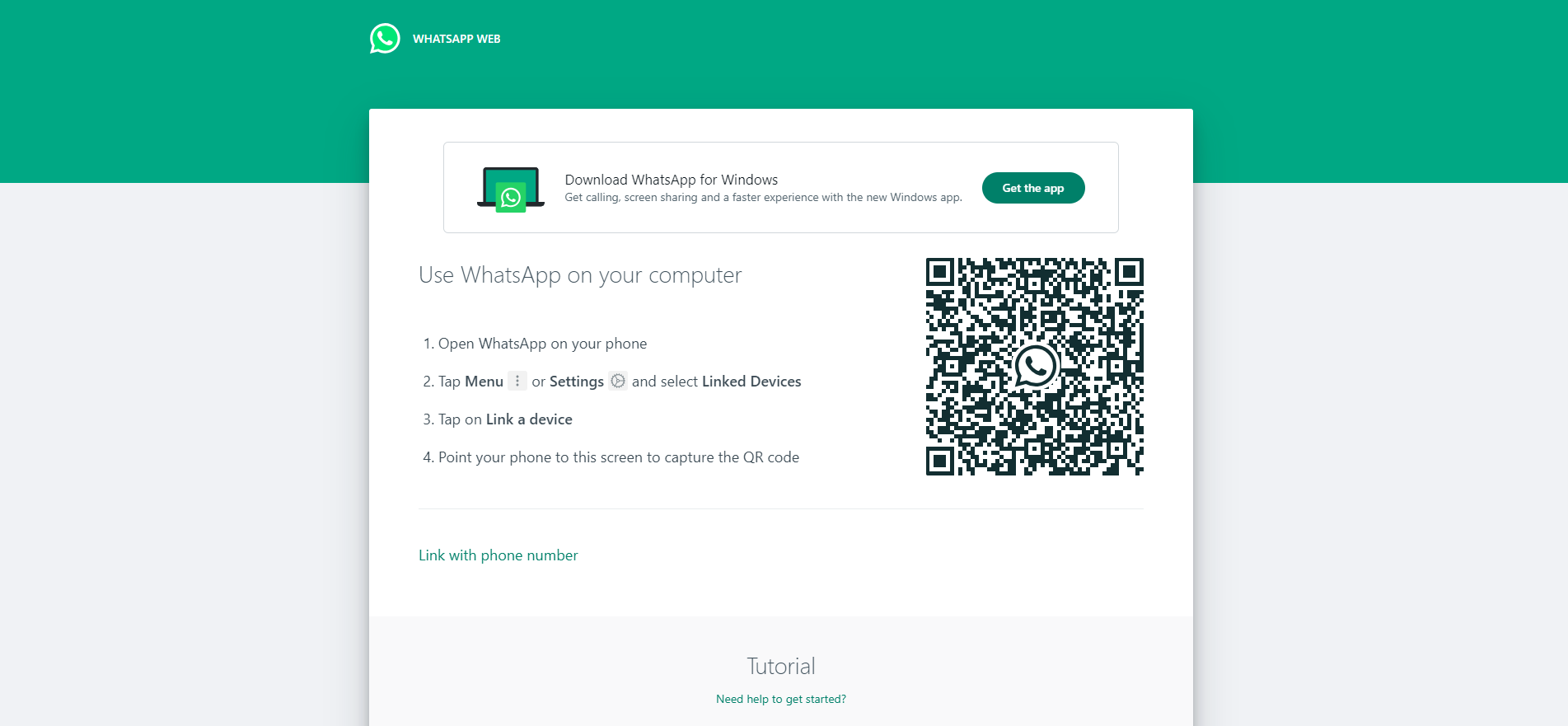
Next, you can proceed to pair again your WhatsApp with WhatsApp Web in your computer. Go to https://web.whatsapp.com/ and scan the QR code that has been generated
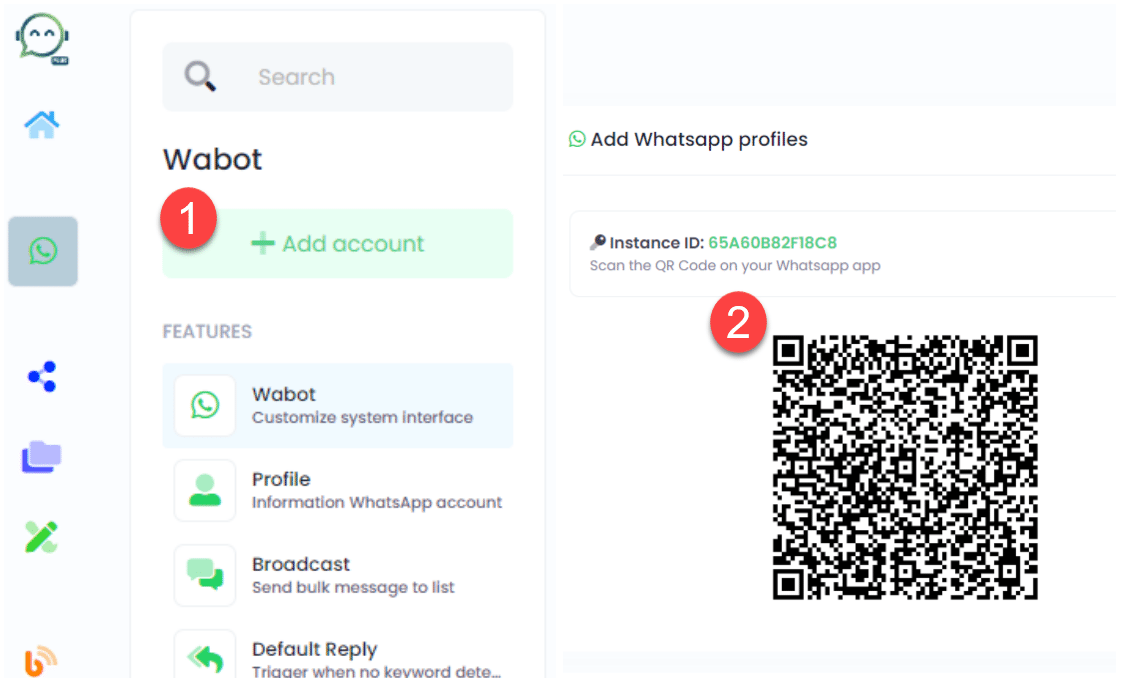
Finally, reconnect with Wabot Plus. Simply log in to your account, click on "Add Account," and then scan the generated QR code
It's better to keep WhatsApp connected to WhatsApp Web on your computer. You can close the computer or browser, no problem
Make sure to update the instance ID in your automation platform and upload chatbot settings if you have them. This is vital for the ongoing functionality of the automation and chatbot. If these aspects do not apply, kindly disregard this step