How to Use Lead Management Tool
Jan 03, 2025●
1
Navigate to https://app.wabot.my/dashboard
2
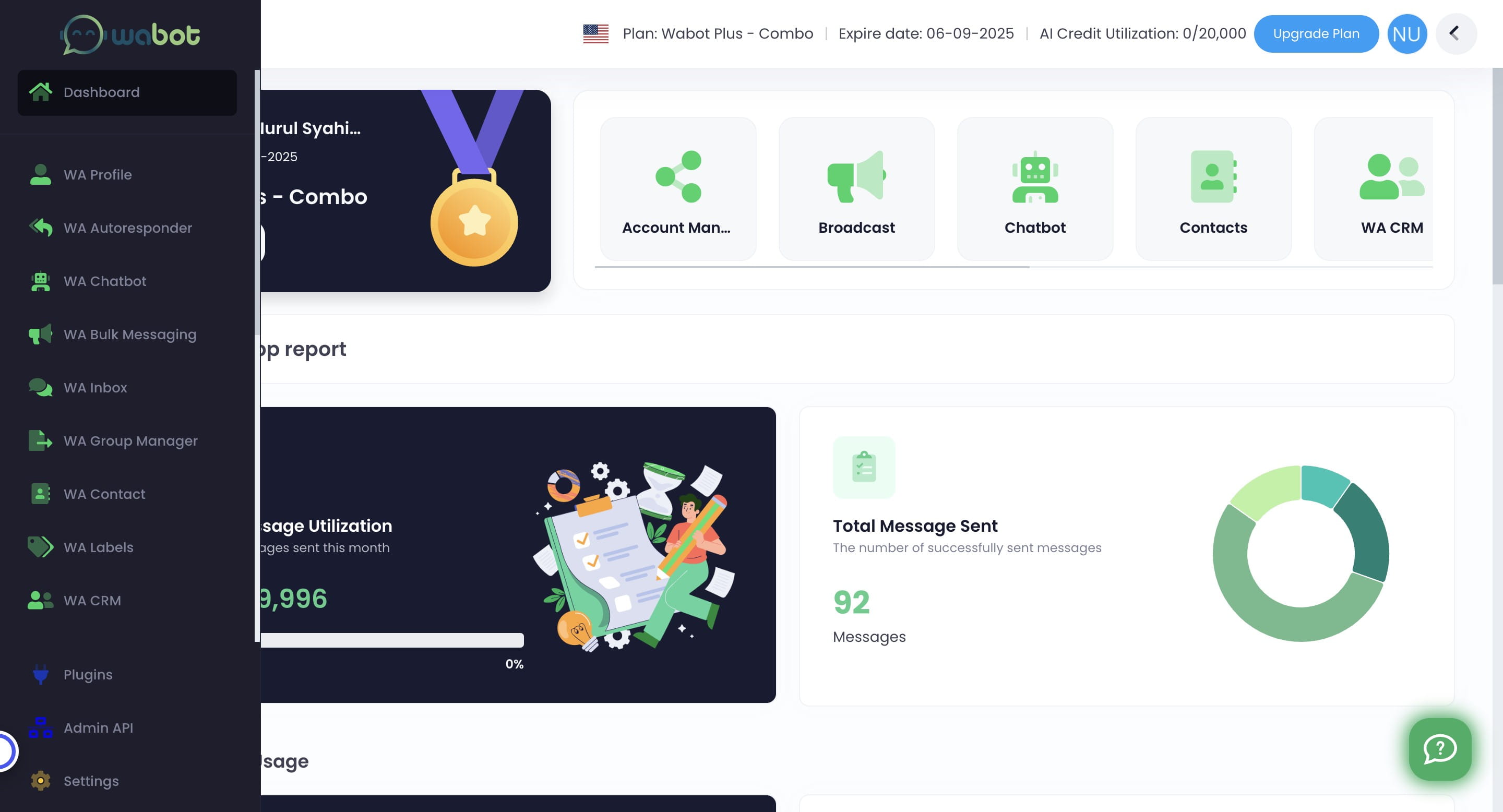
Click on "WA Chatbot"

3
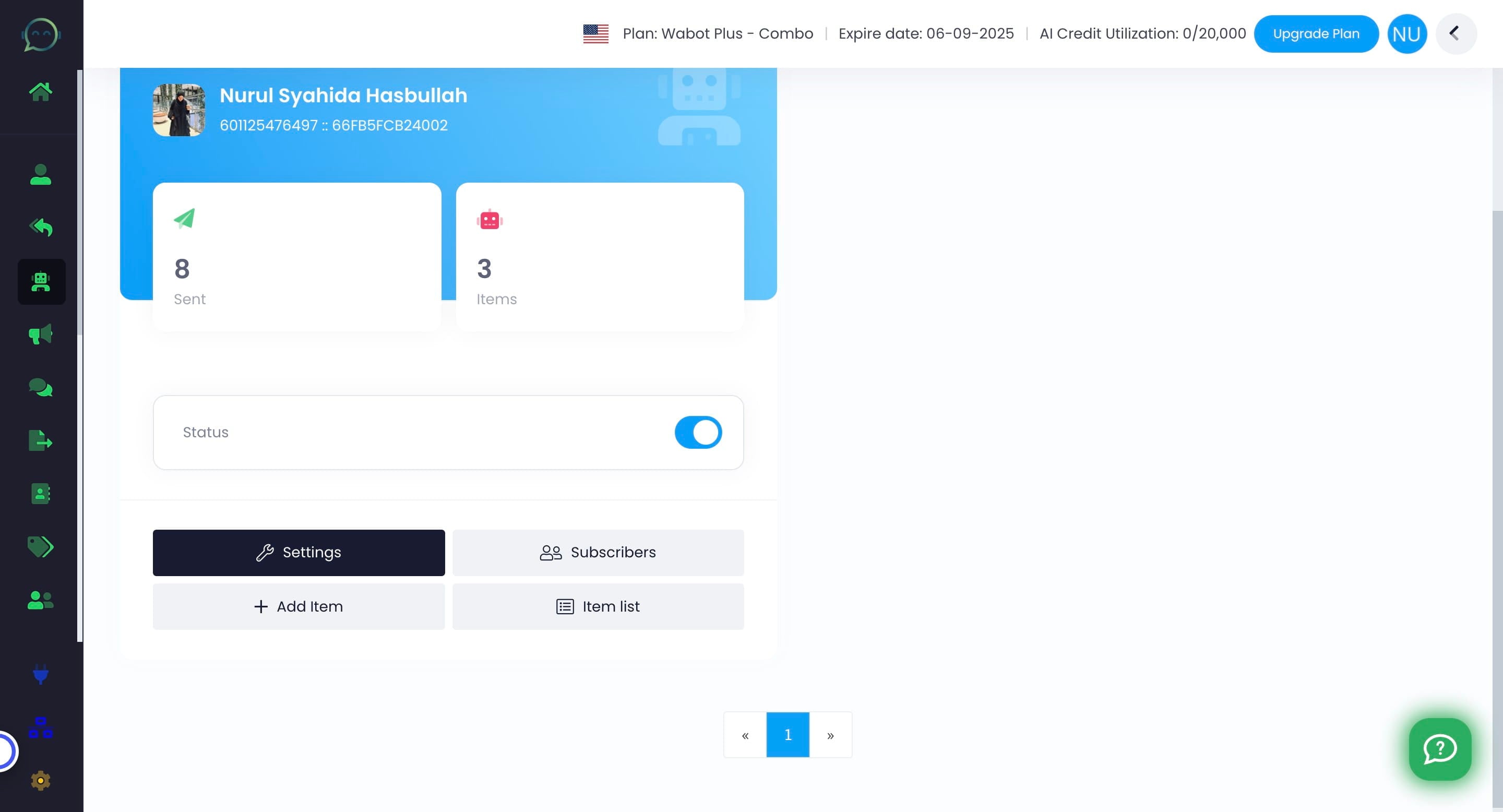
Click on "Settings"
4
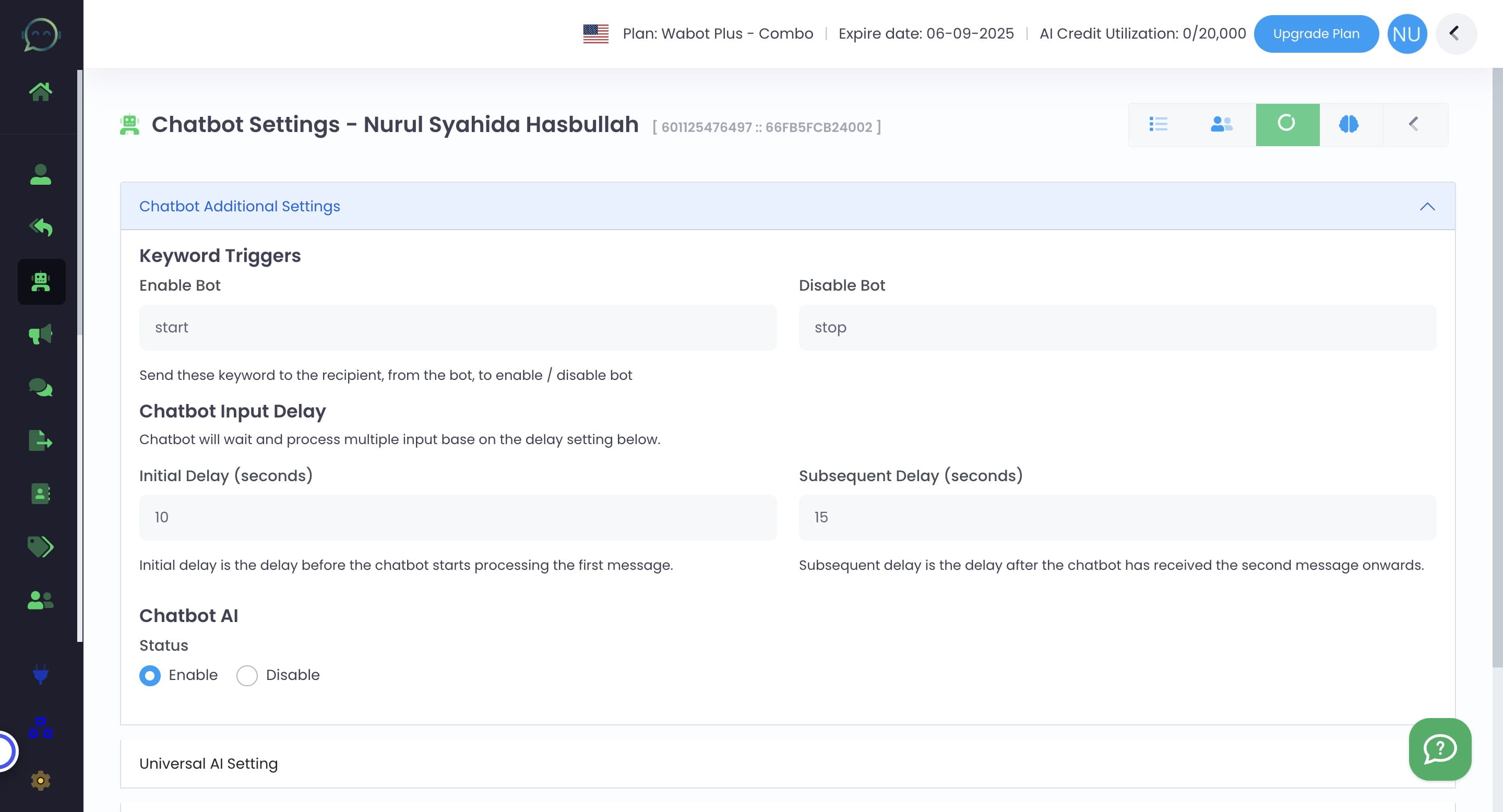
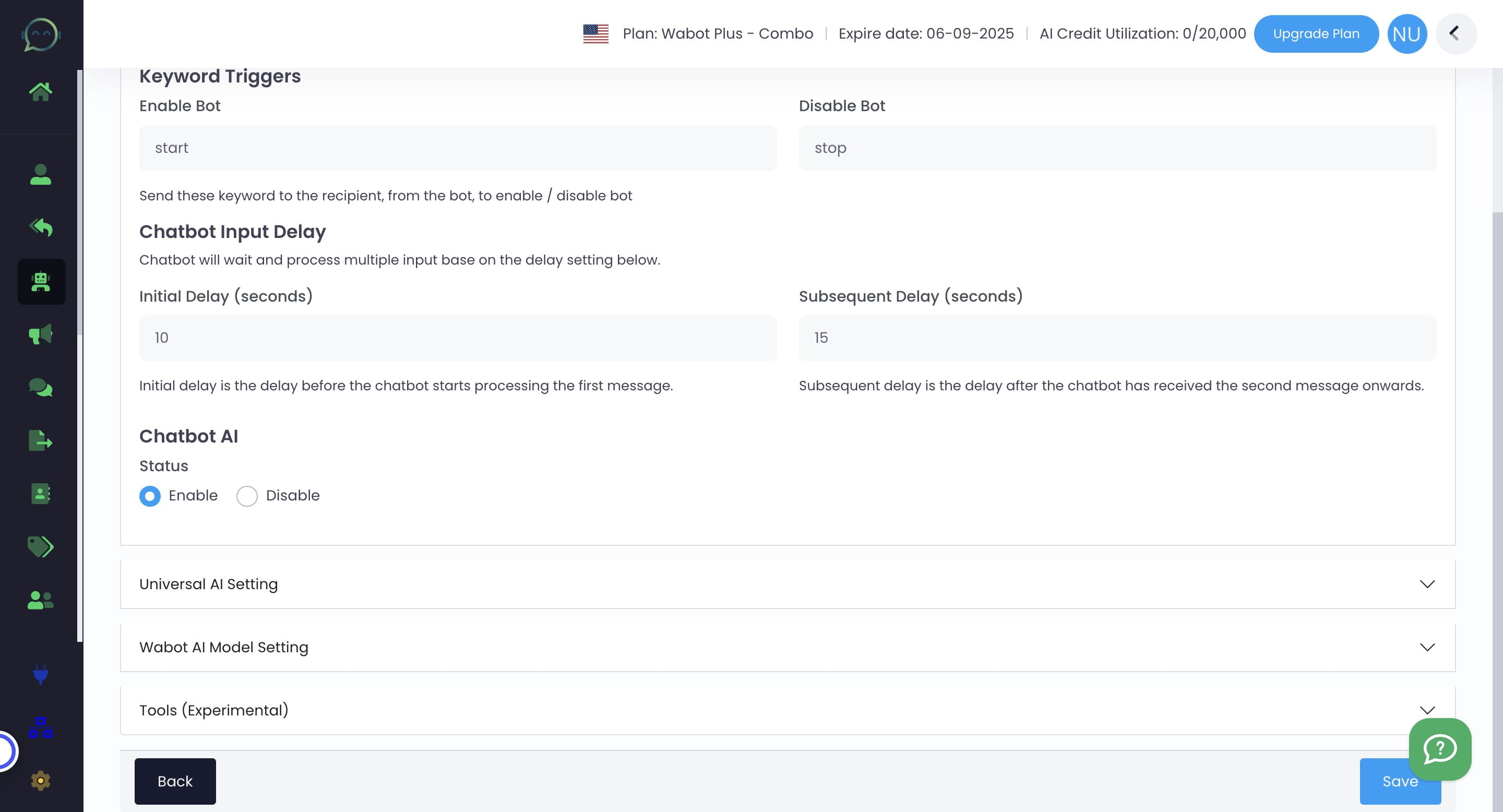
Click on "Tools (Experimental)"
5
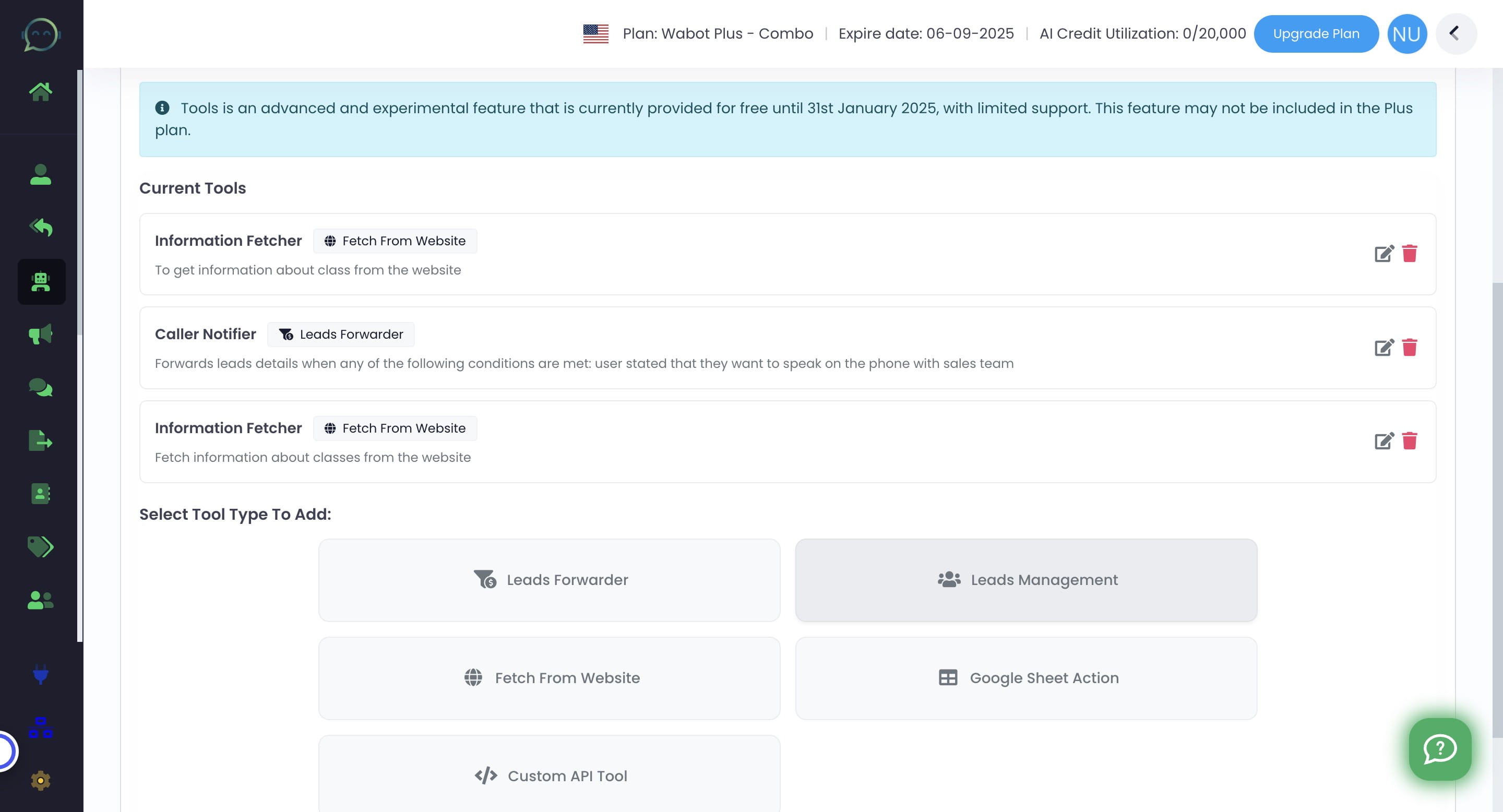
Click on "Leads Management"
6
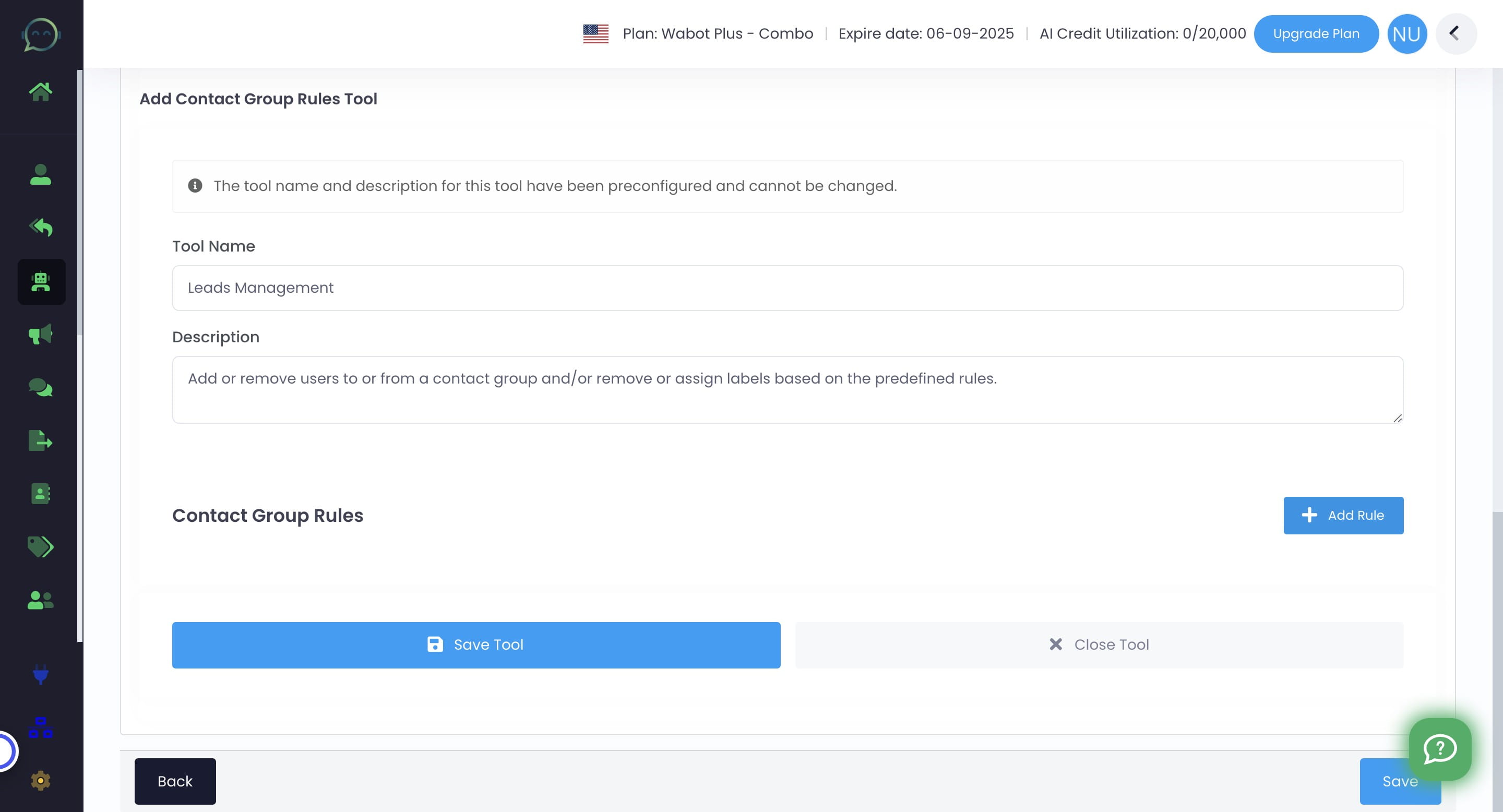
The tool name and description has been set, so no need for adjustment. Simply click on "Add Rule"
7
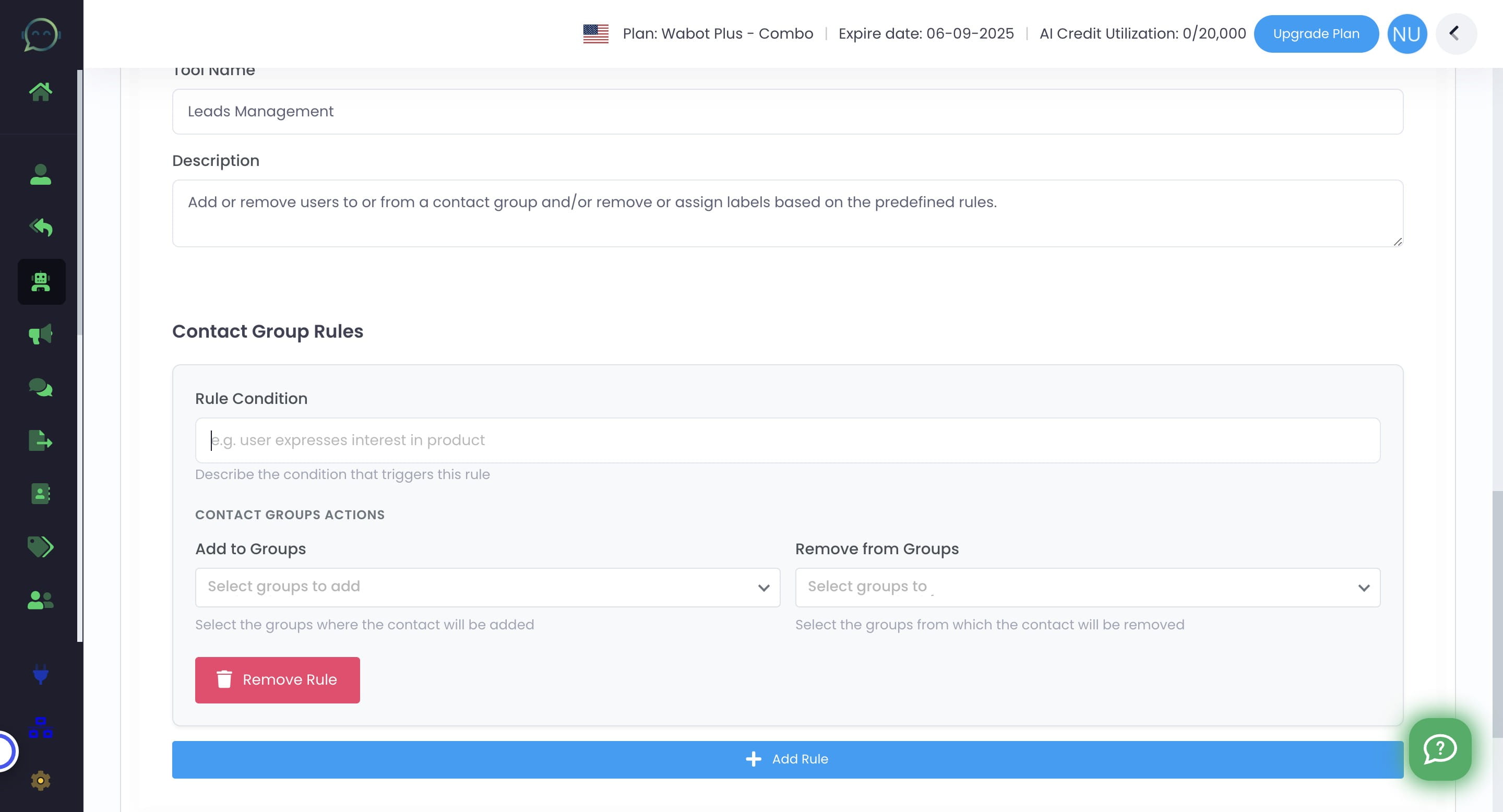
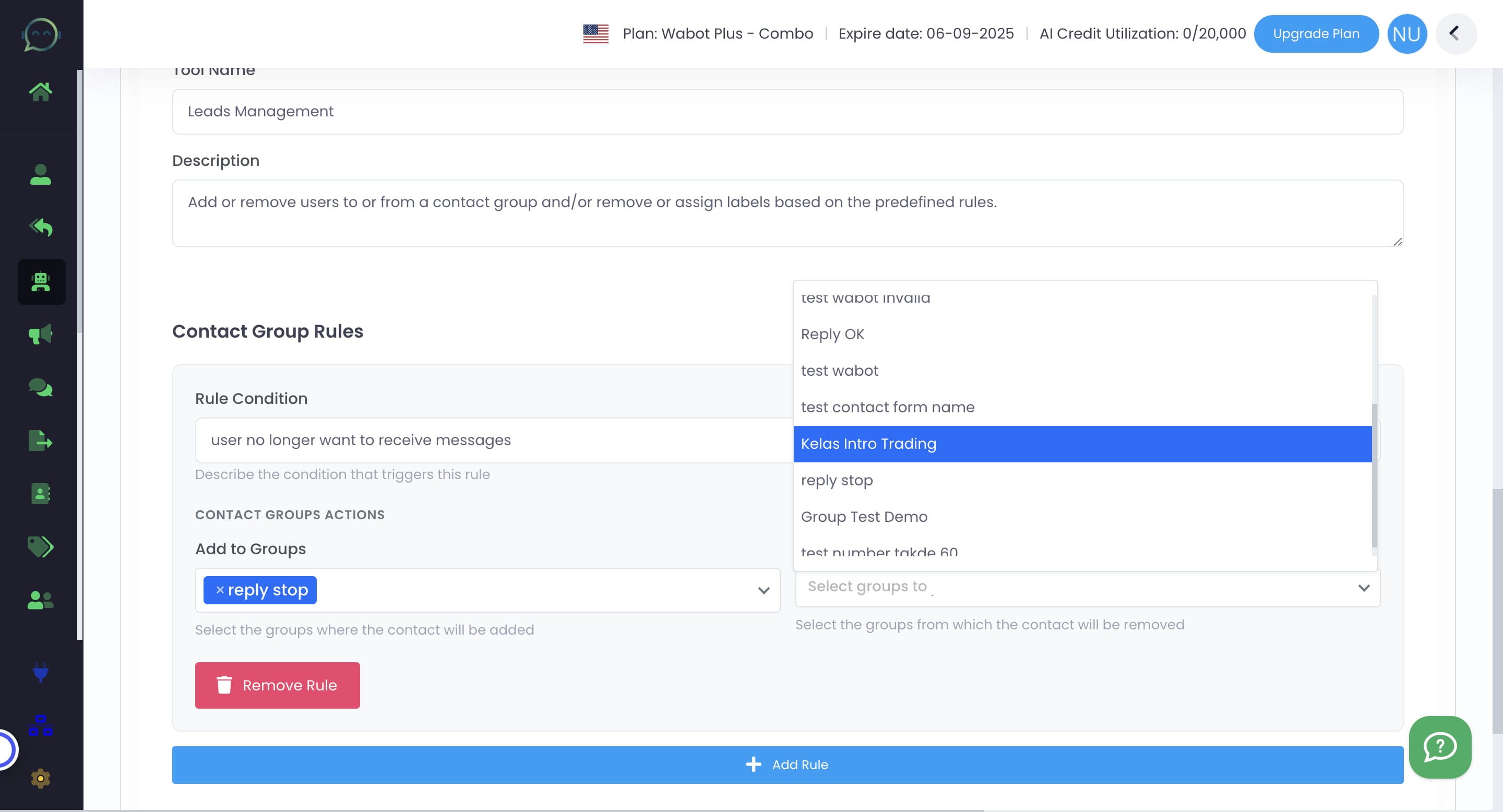
Insert the rule on how to manage the lead
8
Choose which contact group you want to add the lead
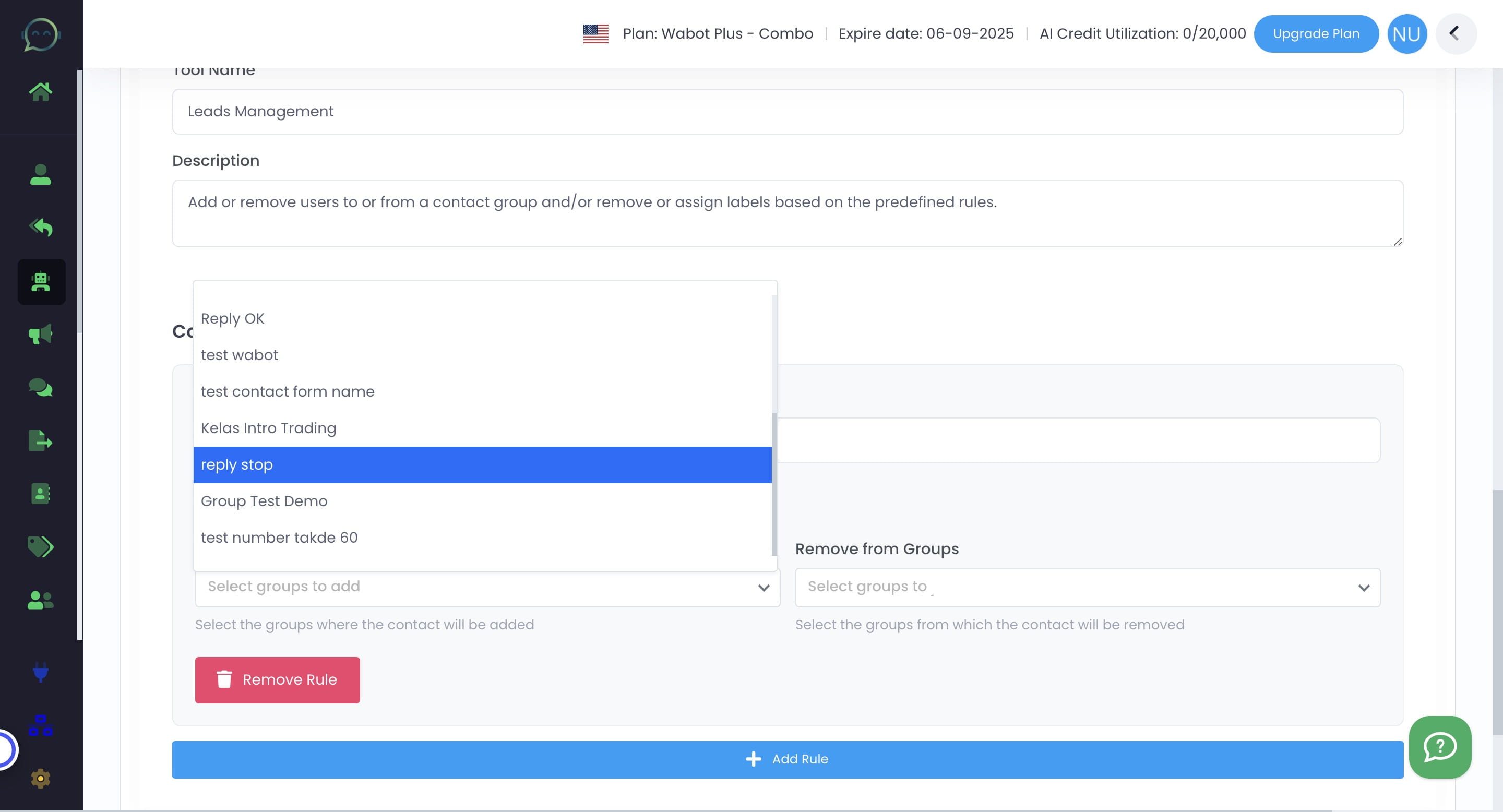
Make sure to create the contact group in WA Contact beforehand
9
Choose which contact group you want to remove the lead from
10
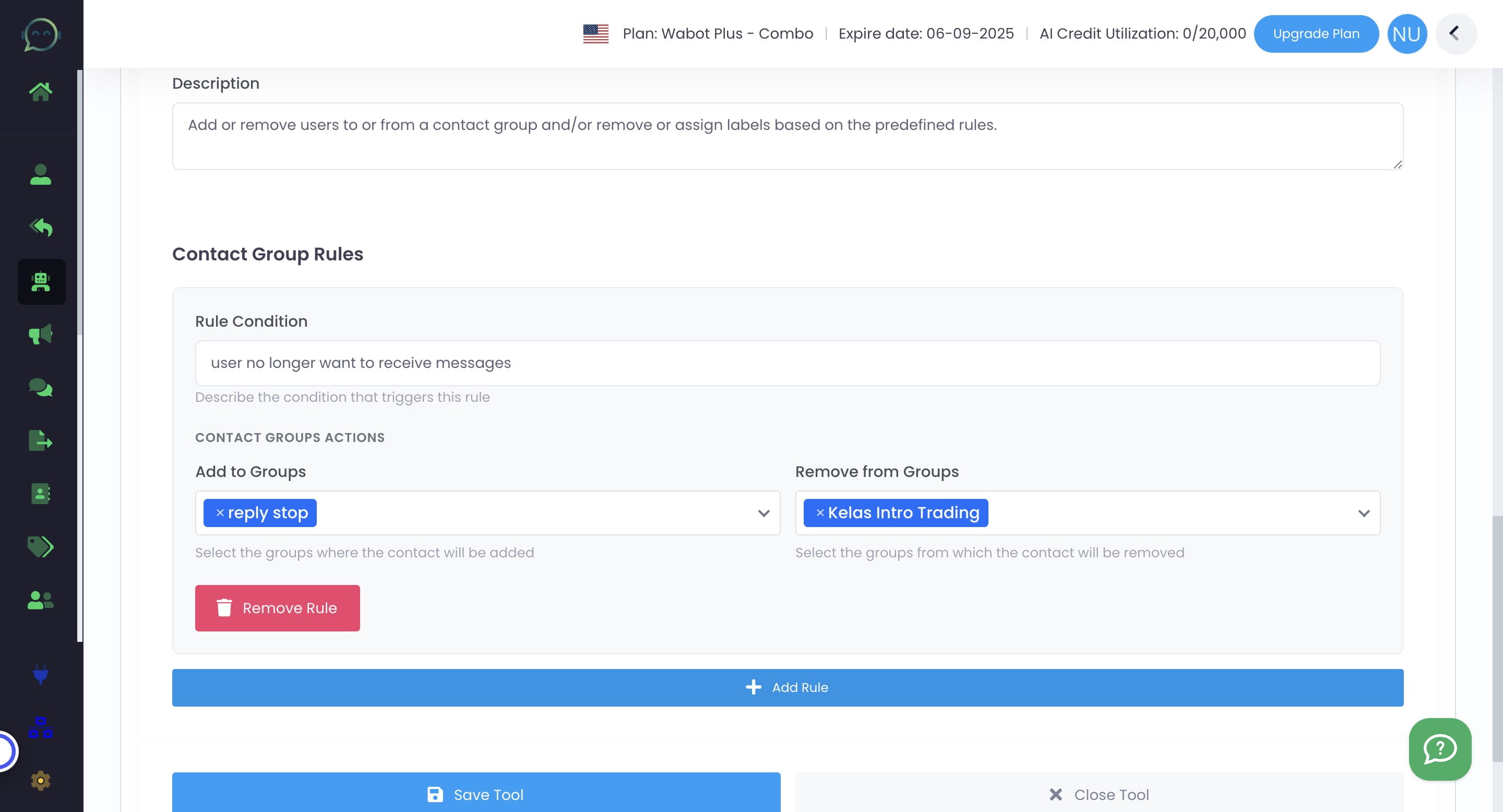
You can add more rule if needed
11
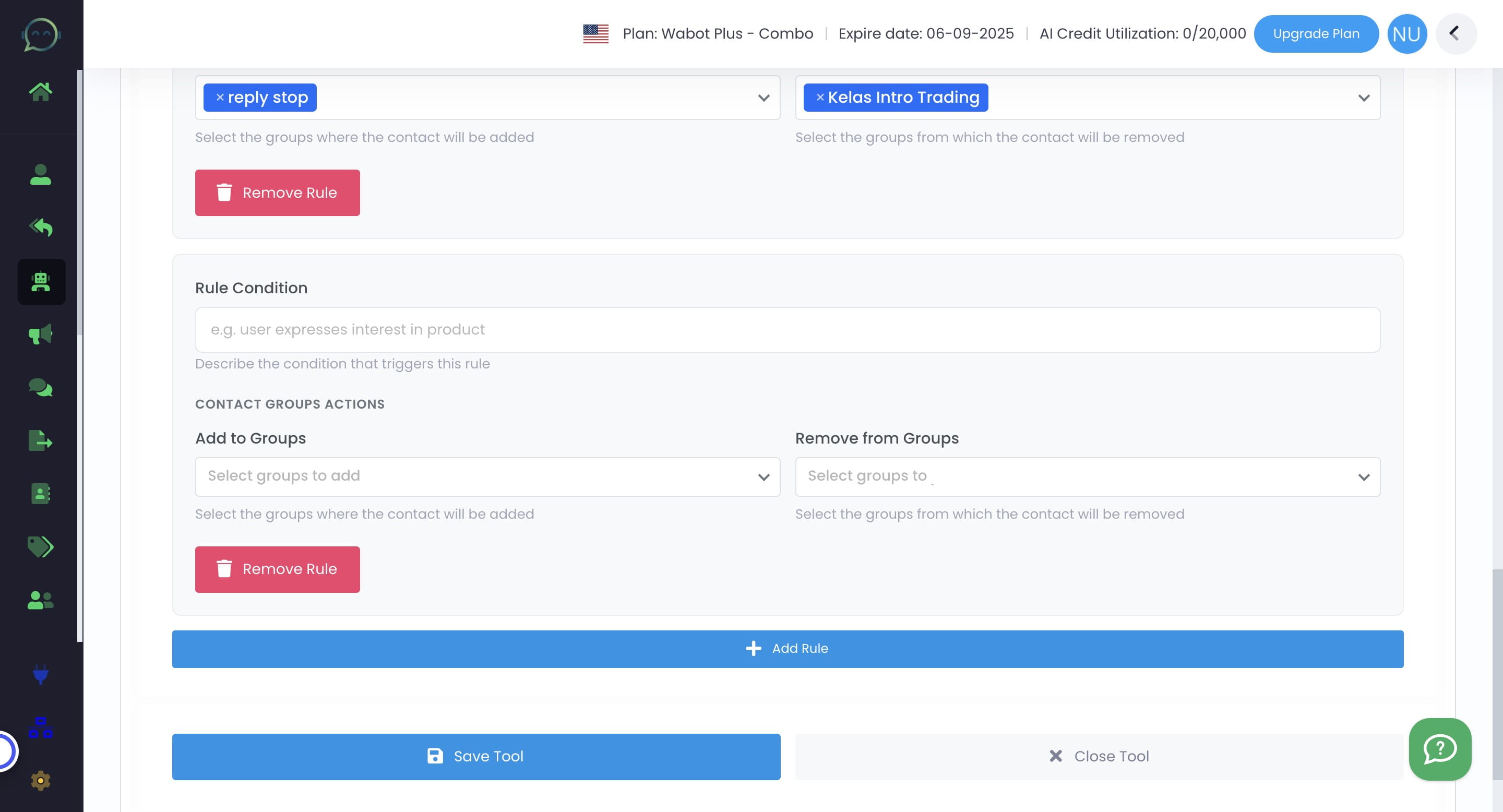
Click "Save Tool"
12
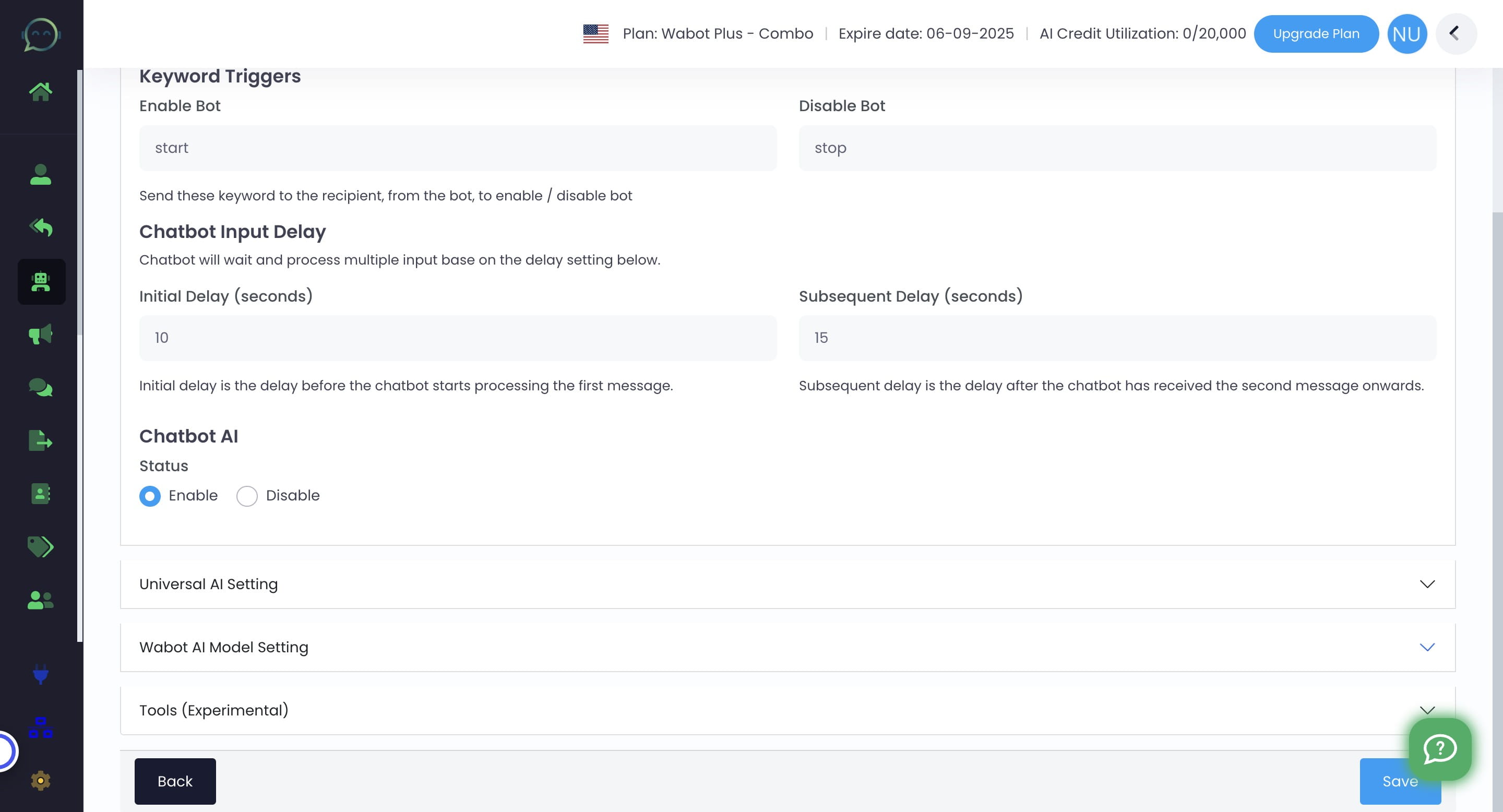
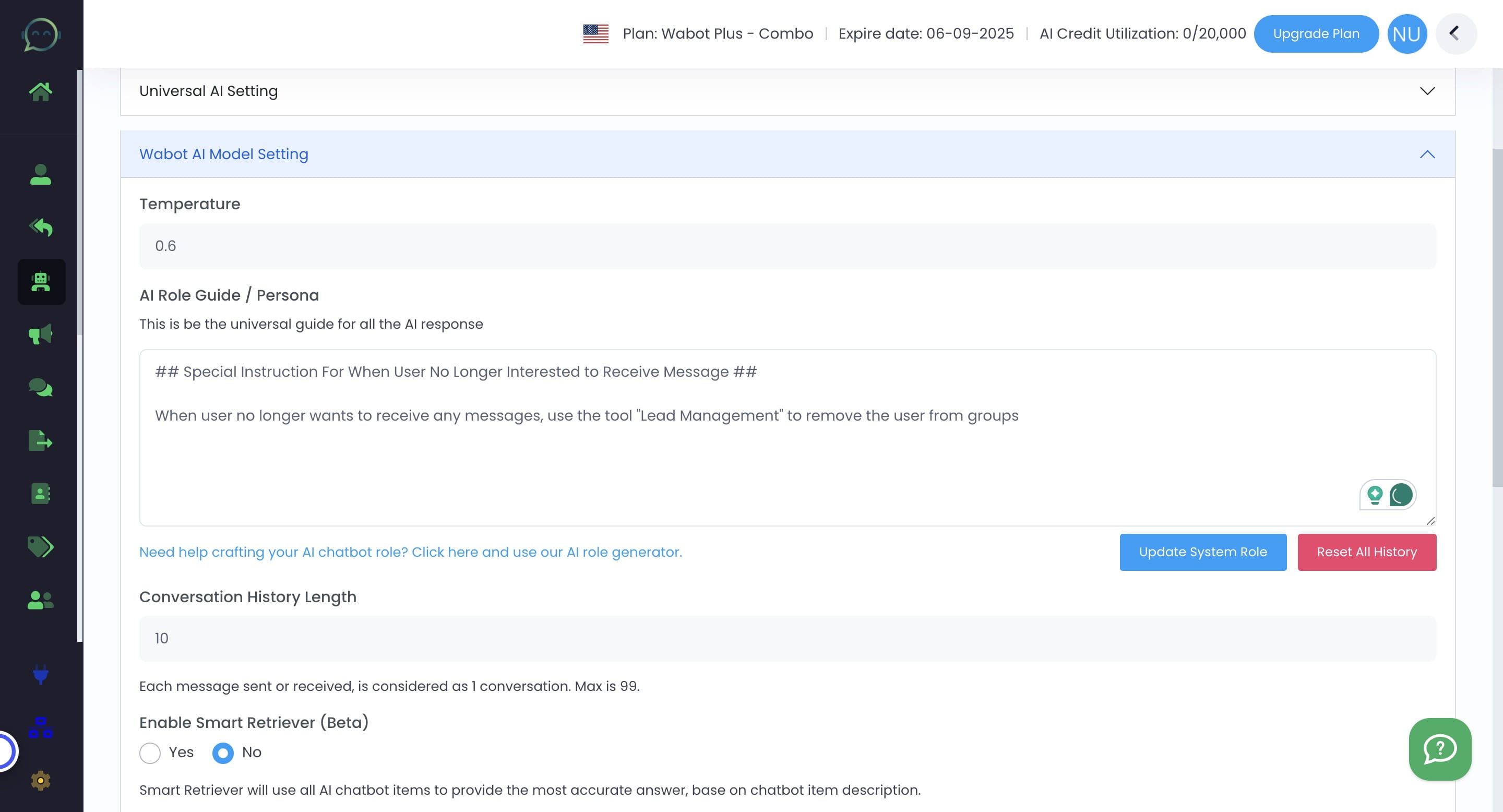
Don't forget to update prompt to give new instruction on using the tools. Click on "Wabot AI Model Setting"
13
Click on "Update System Role" to make sure AI running on the latest prompt given
14
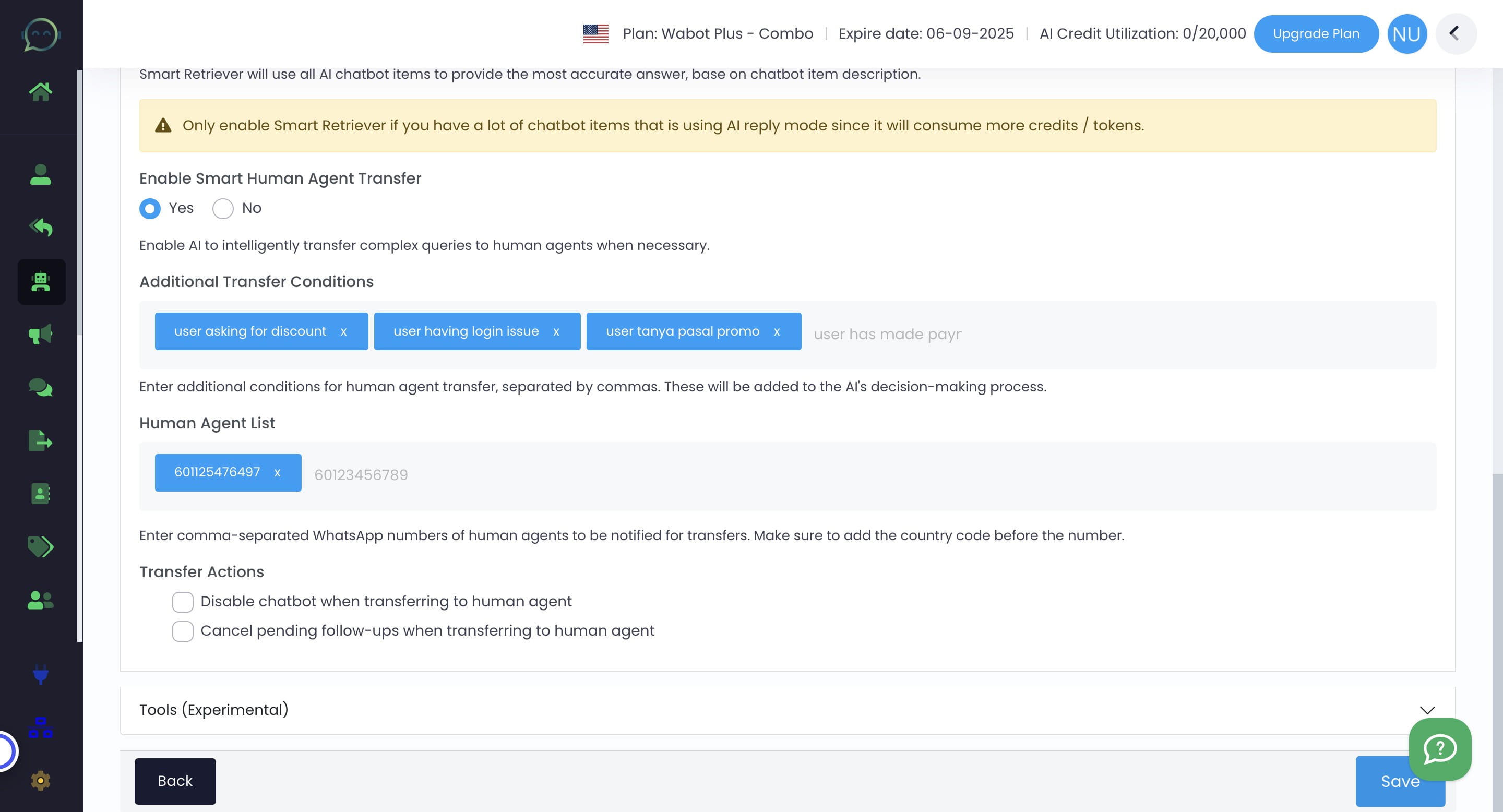
Click on "Save"
15
Done 🚀