How To Send Continuous Message Using Chatbot Keyword
Want to create continuous chatbot keyword based? Here how you can do it.
Navigate to https://app.wabot.my/dashboard
Click on "WA Chatbot"
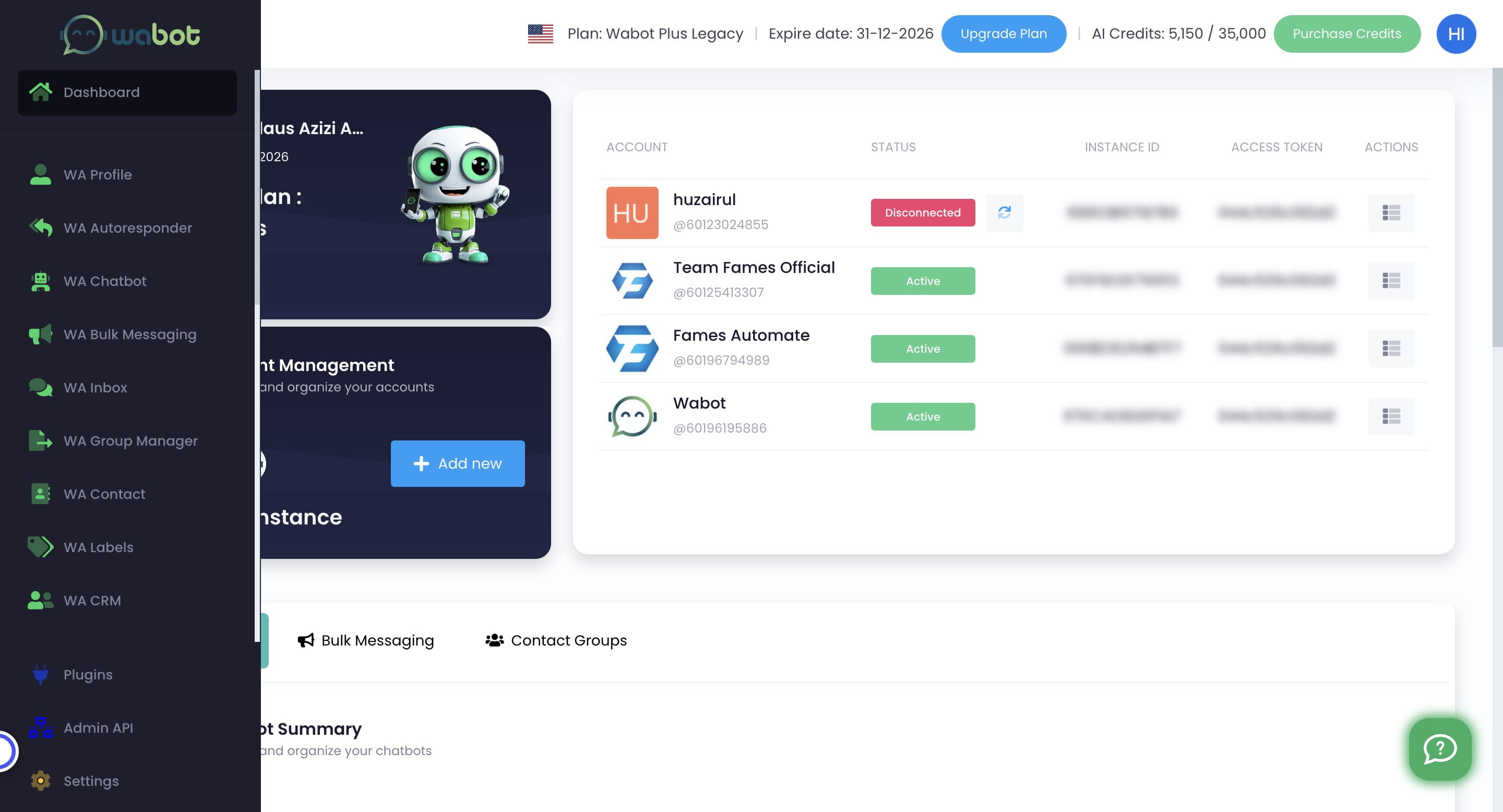

Click this icon to add item
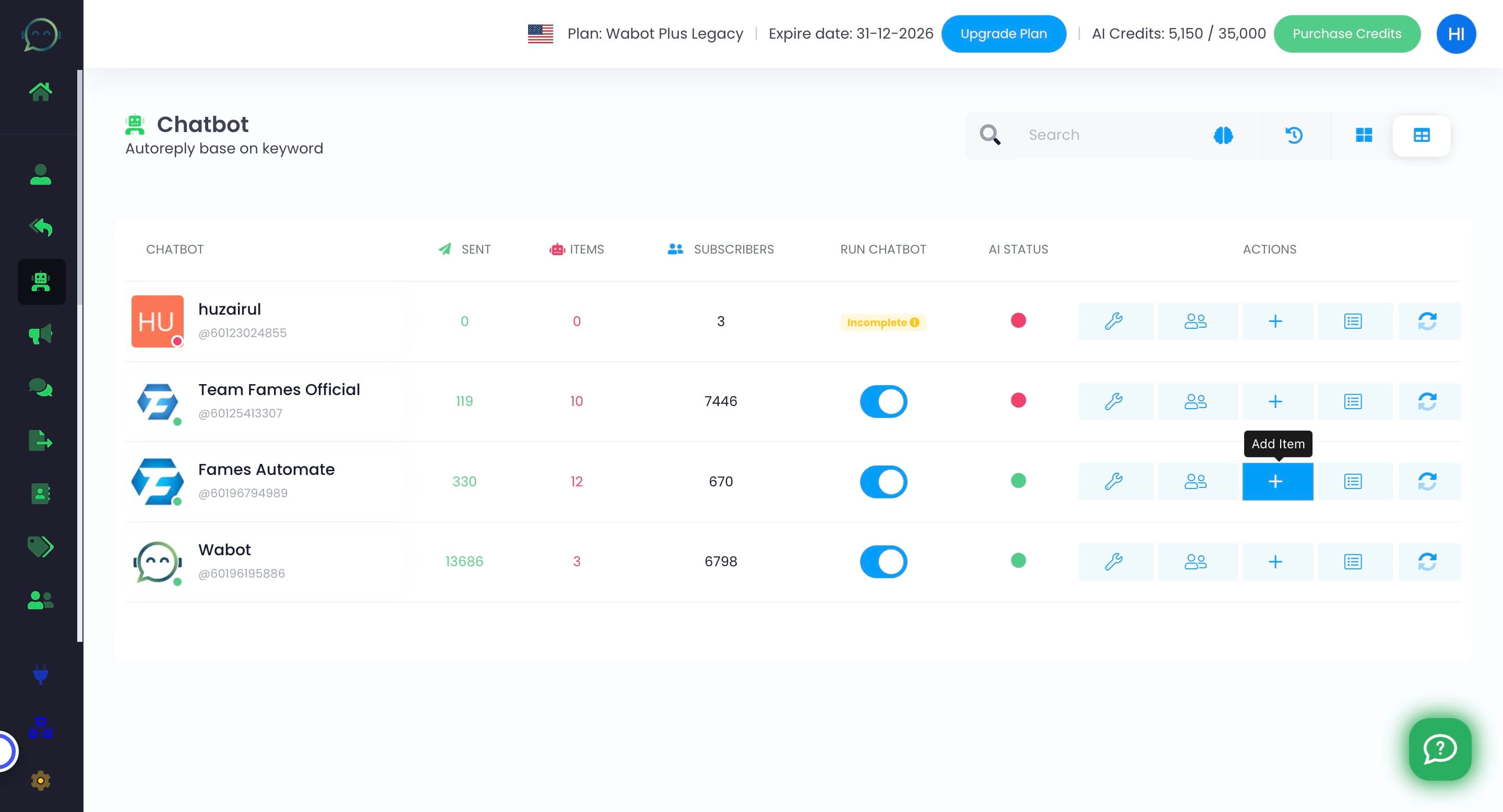
Name your item list
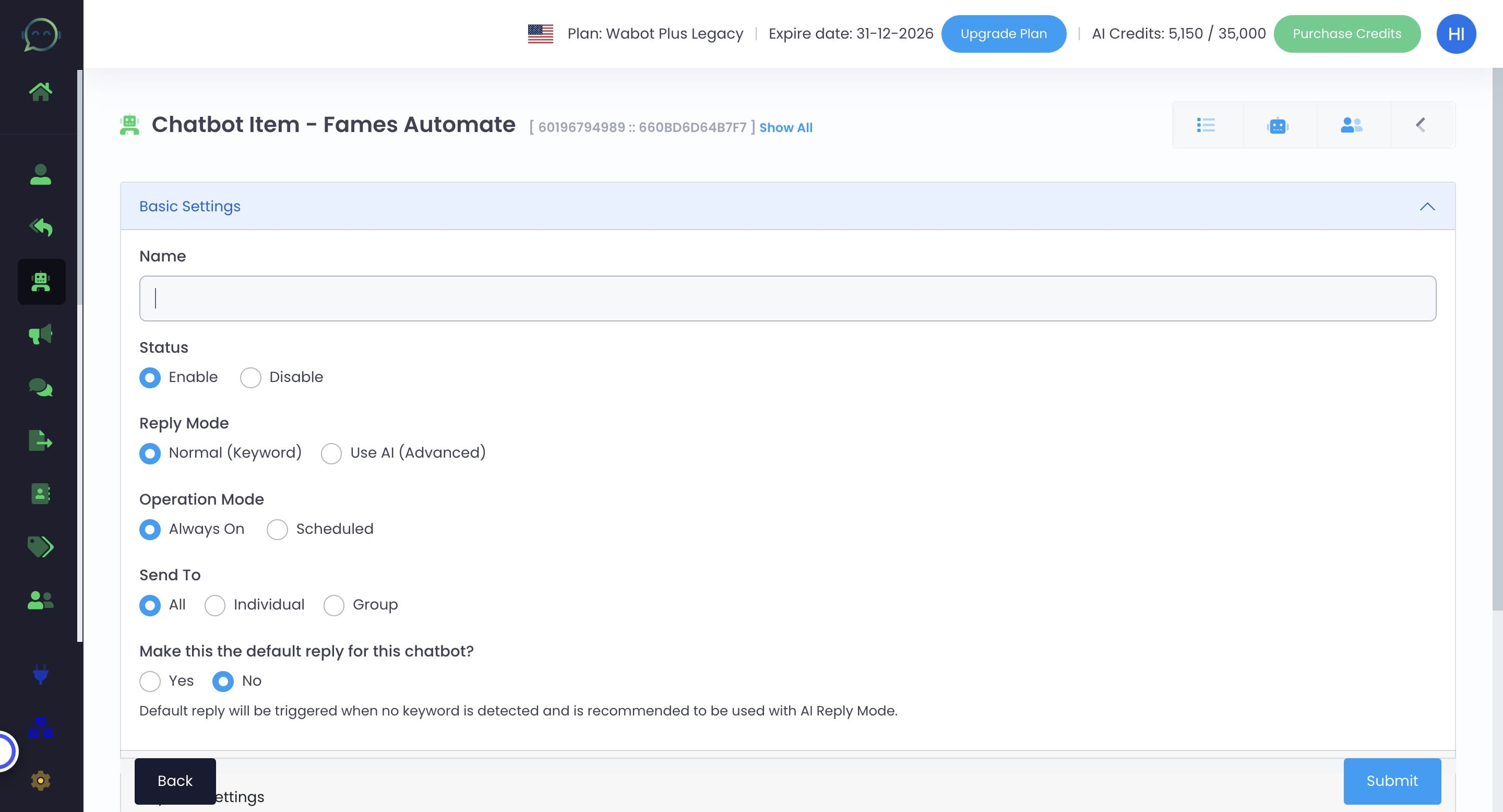
Click on "Enable"
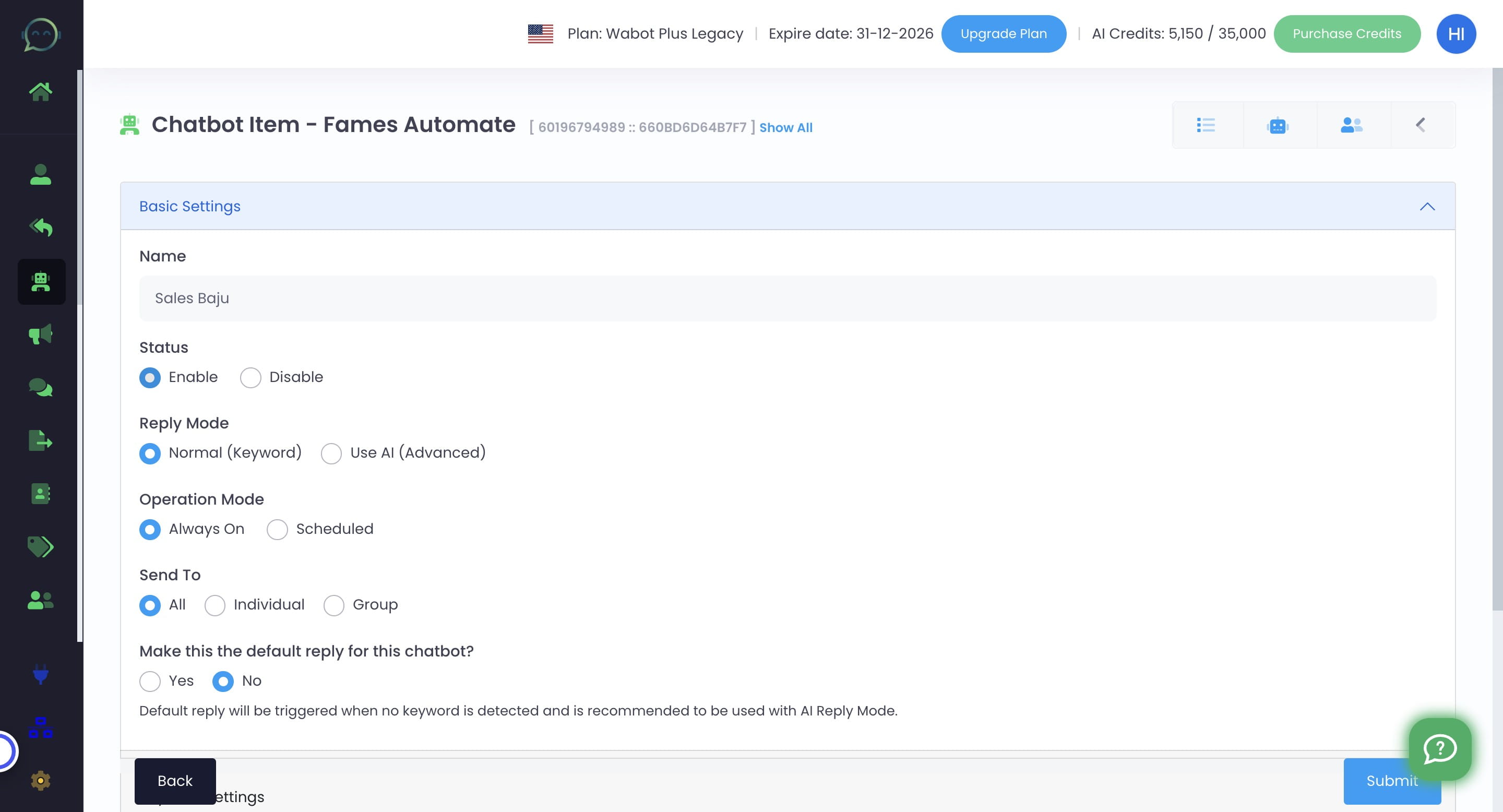
Click on "Normal (Keyword)"
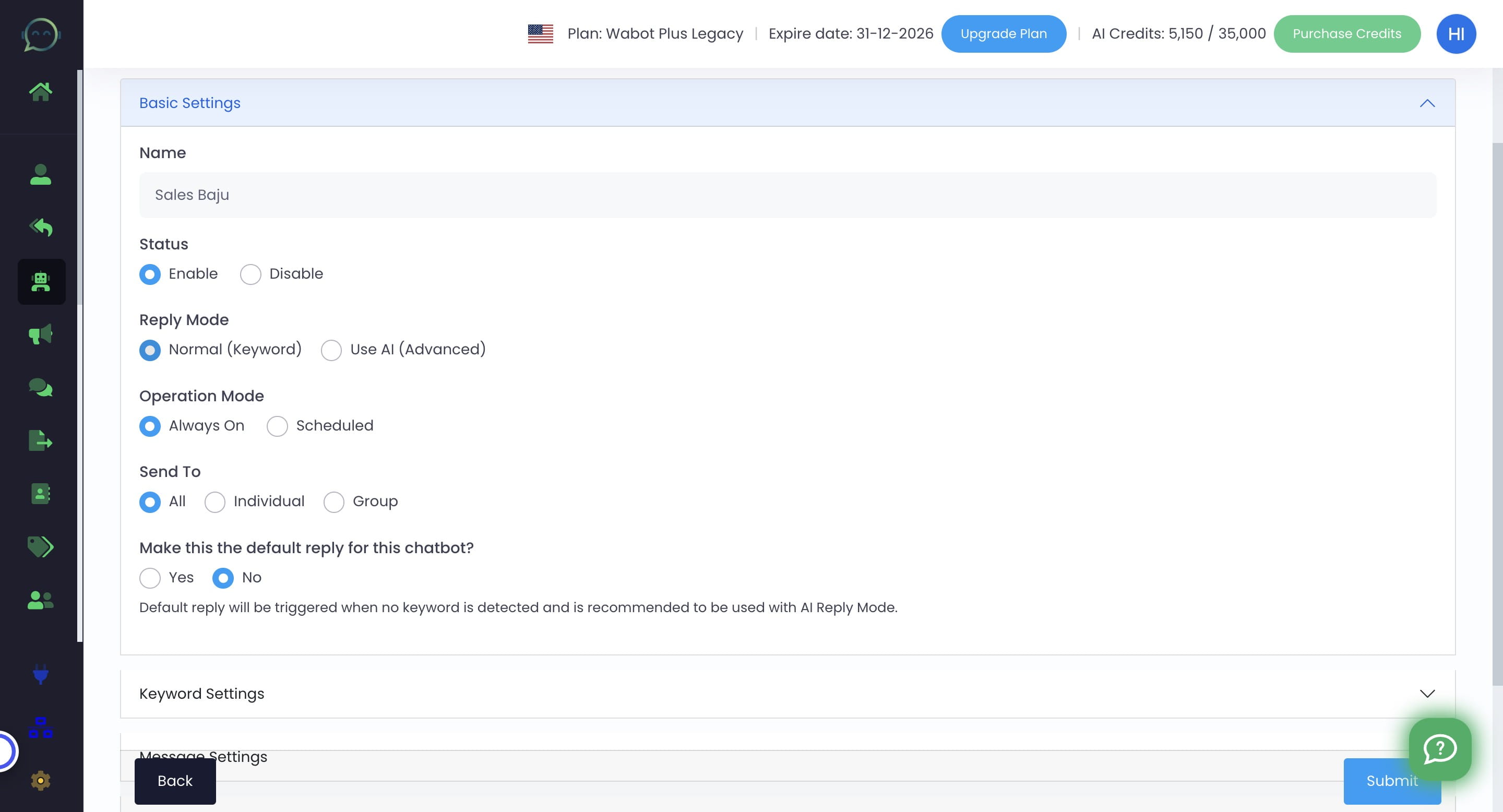
Click on "Always On"
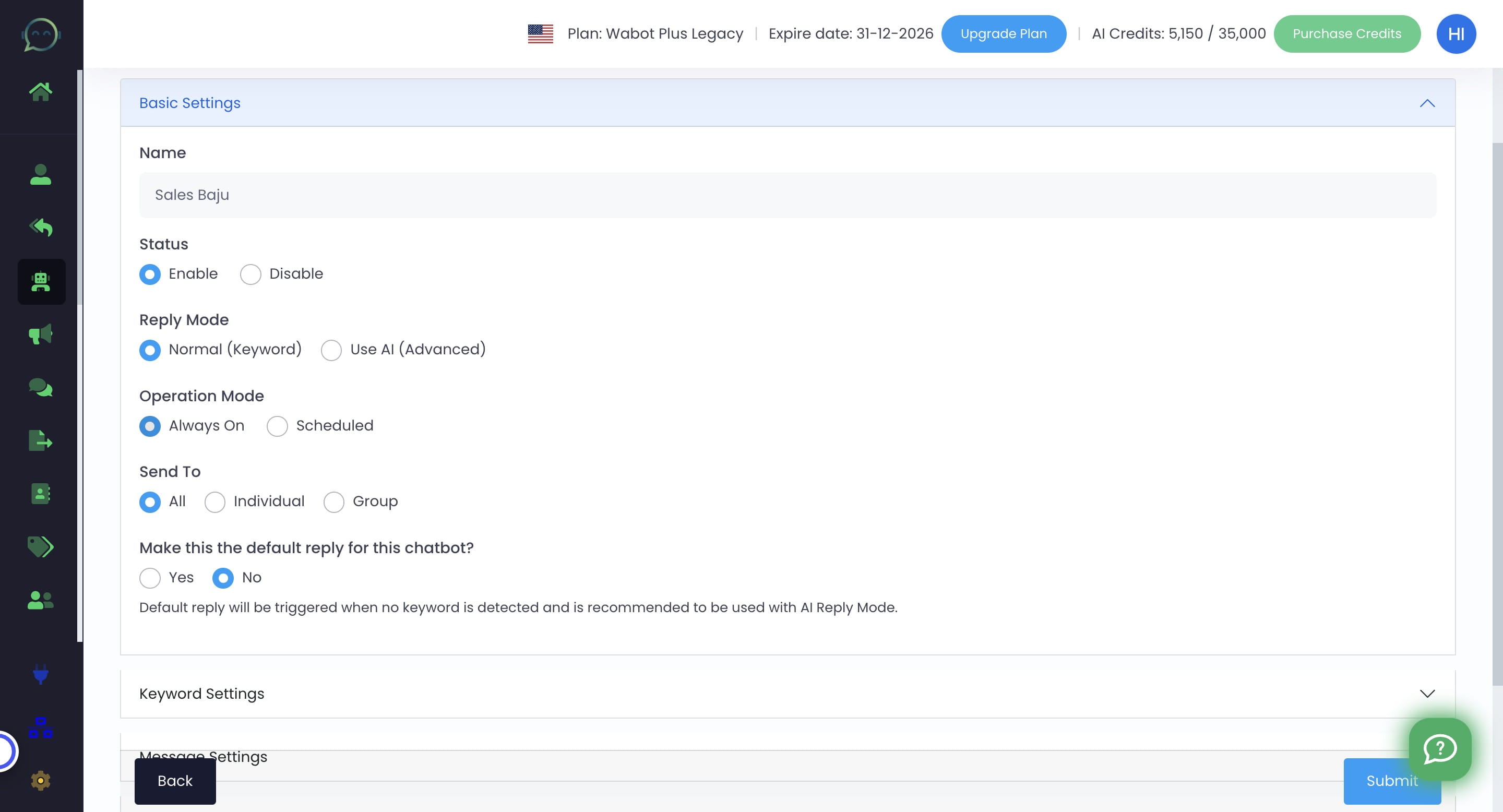
Choose "Individual"
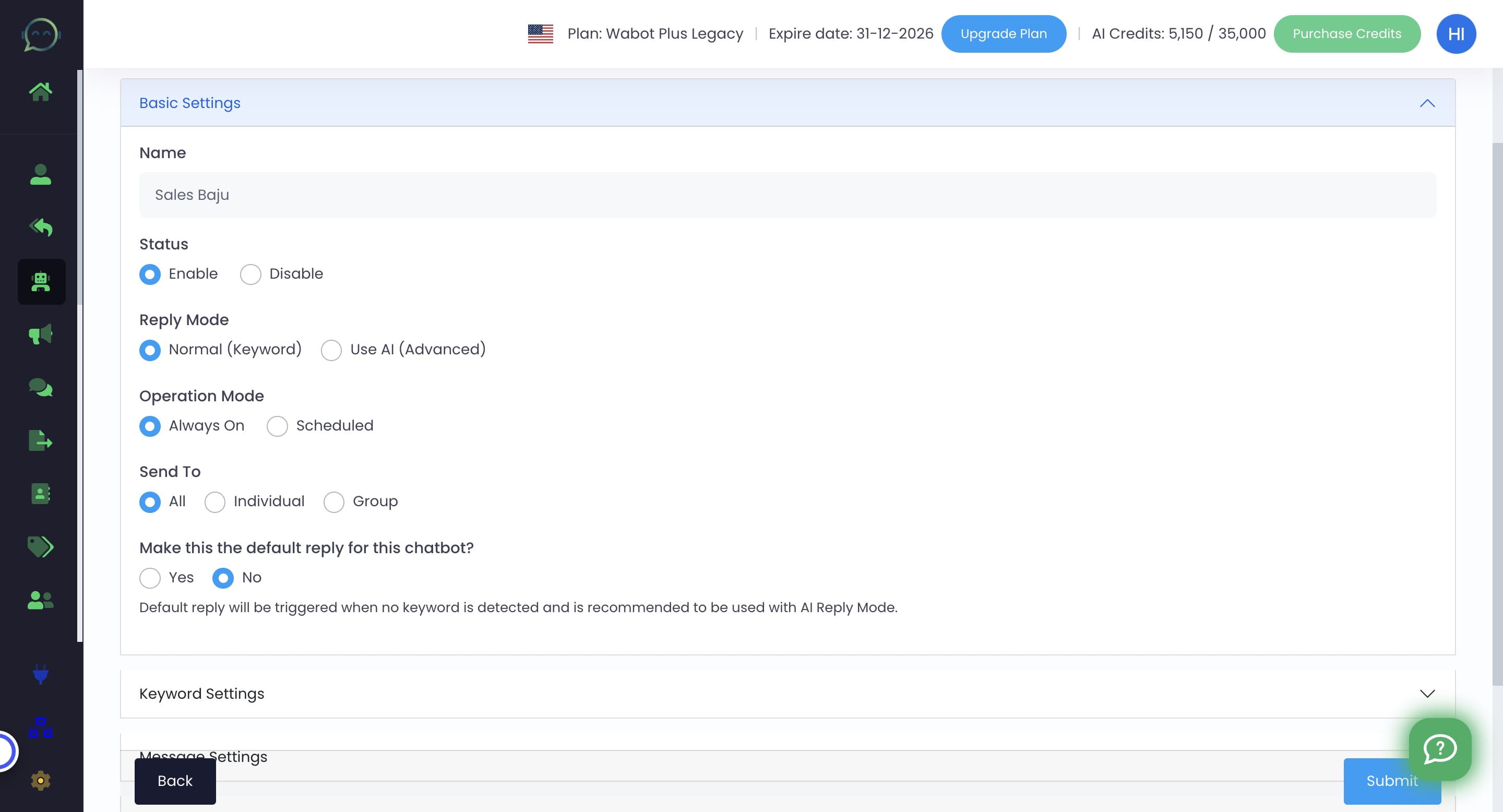
Choose "No" if this is not main default reply
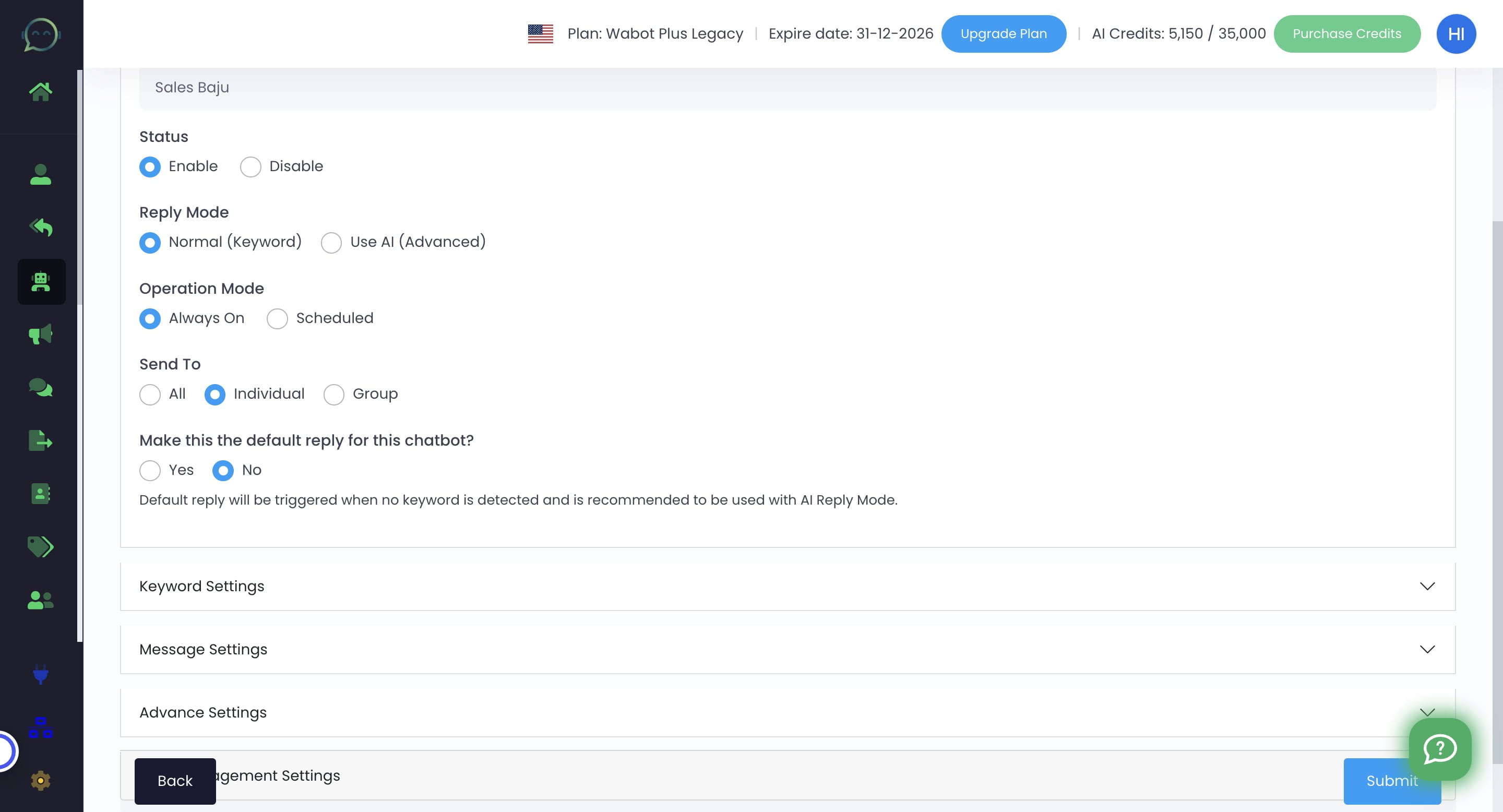
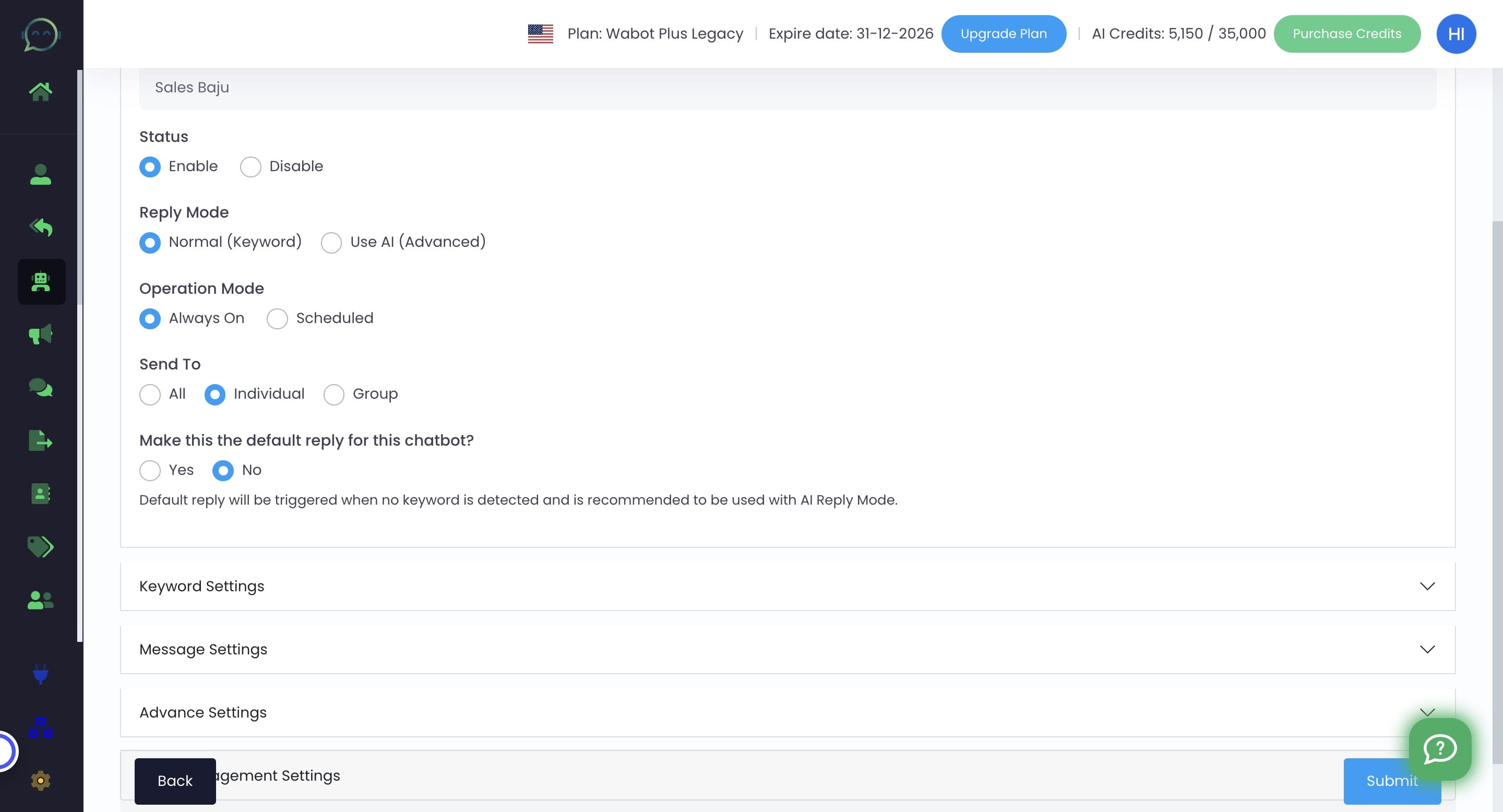
Click on "Keyword Settings"
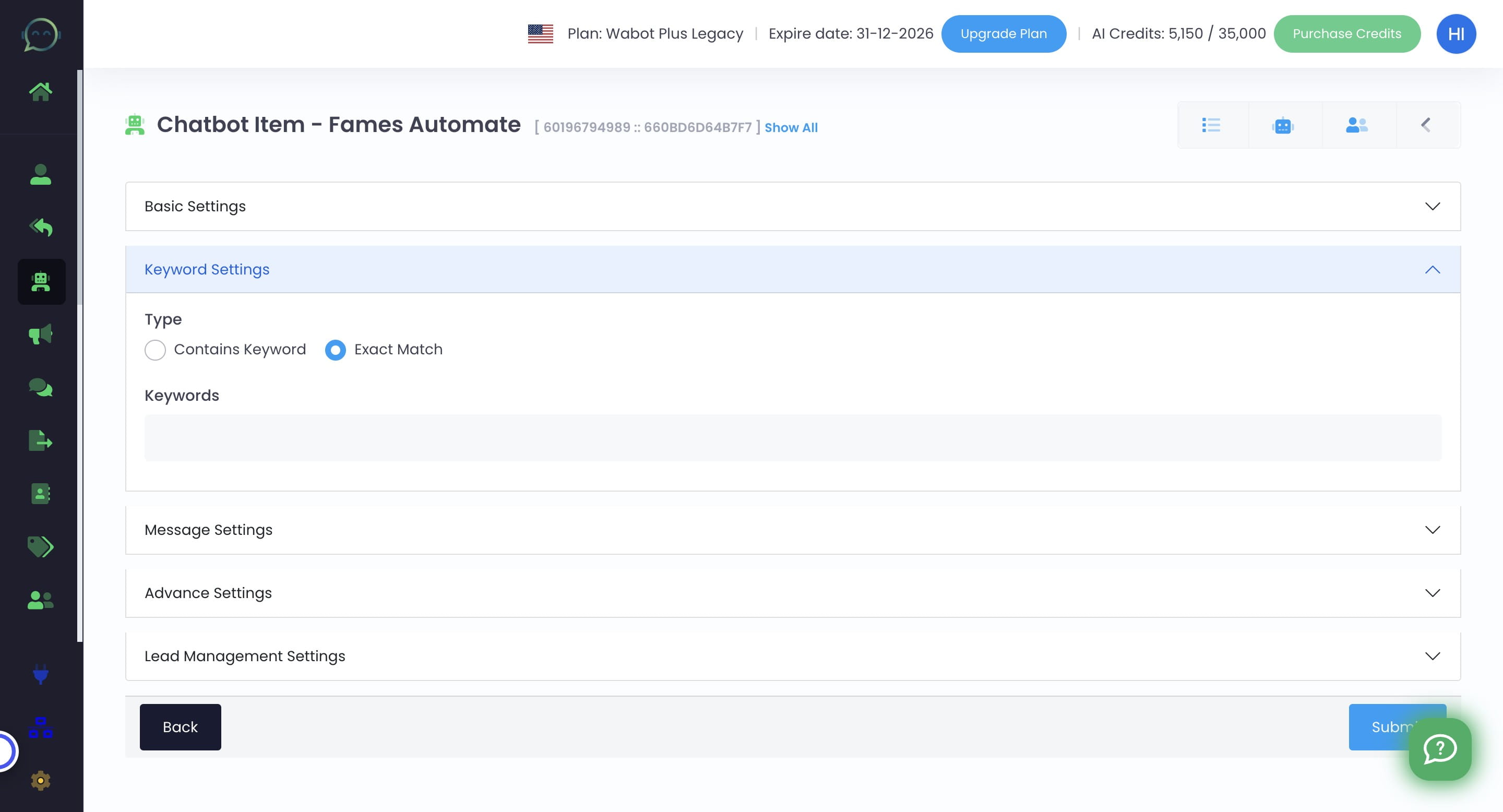
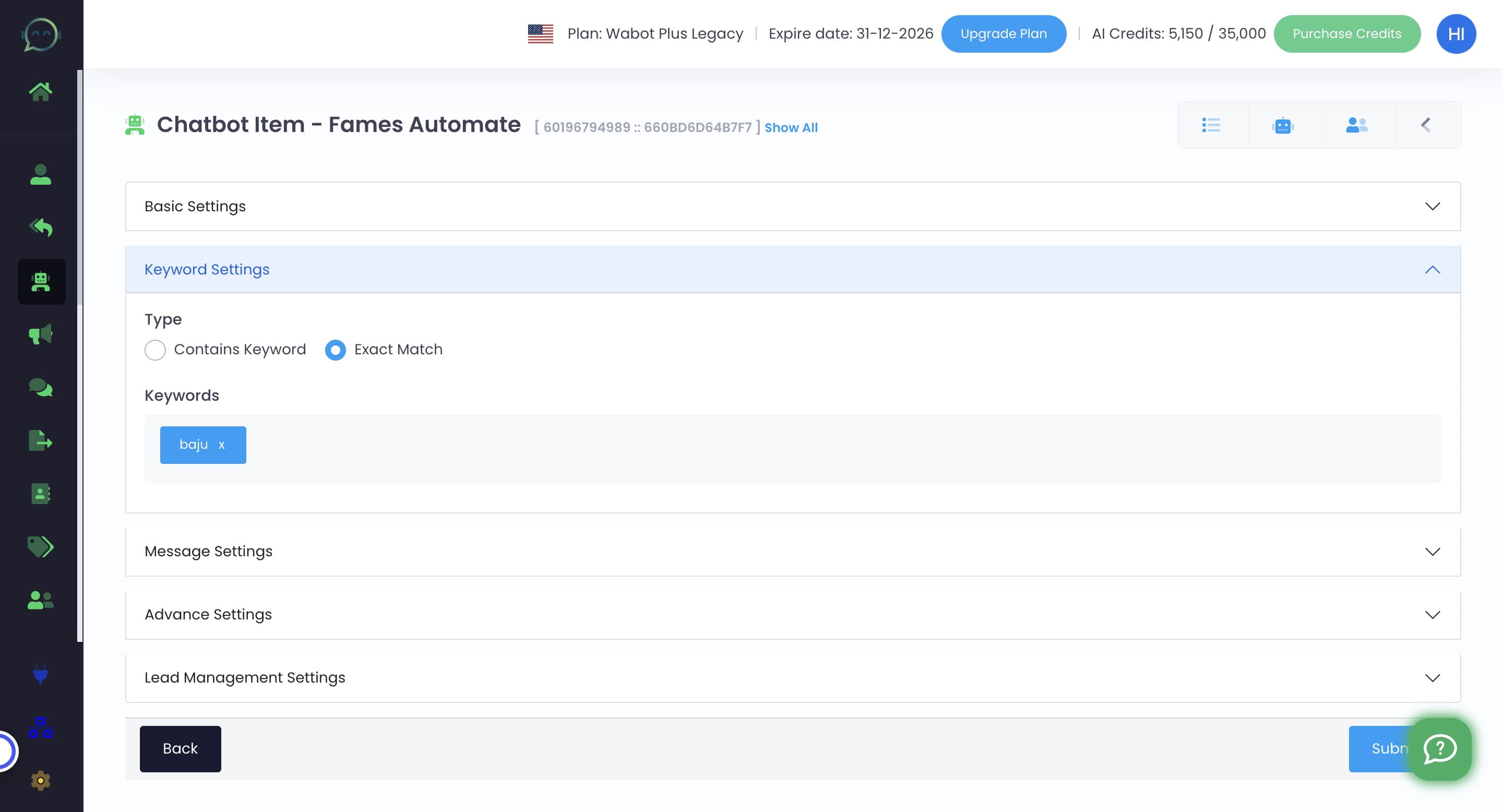
Insert the keyword you want
Click on "Message Settings"
Click this icon to add template
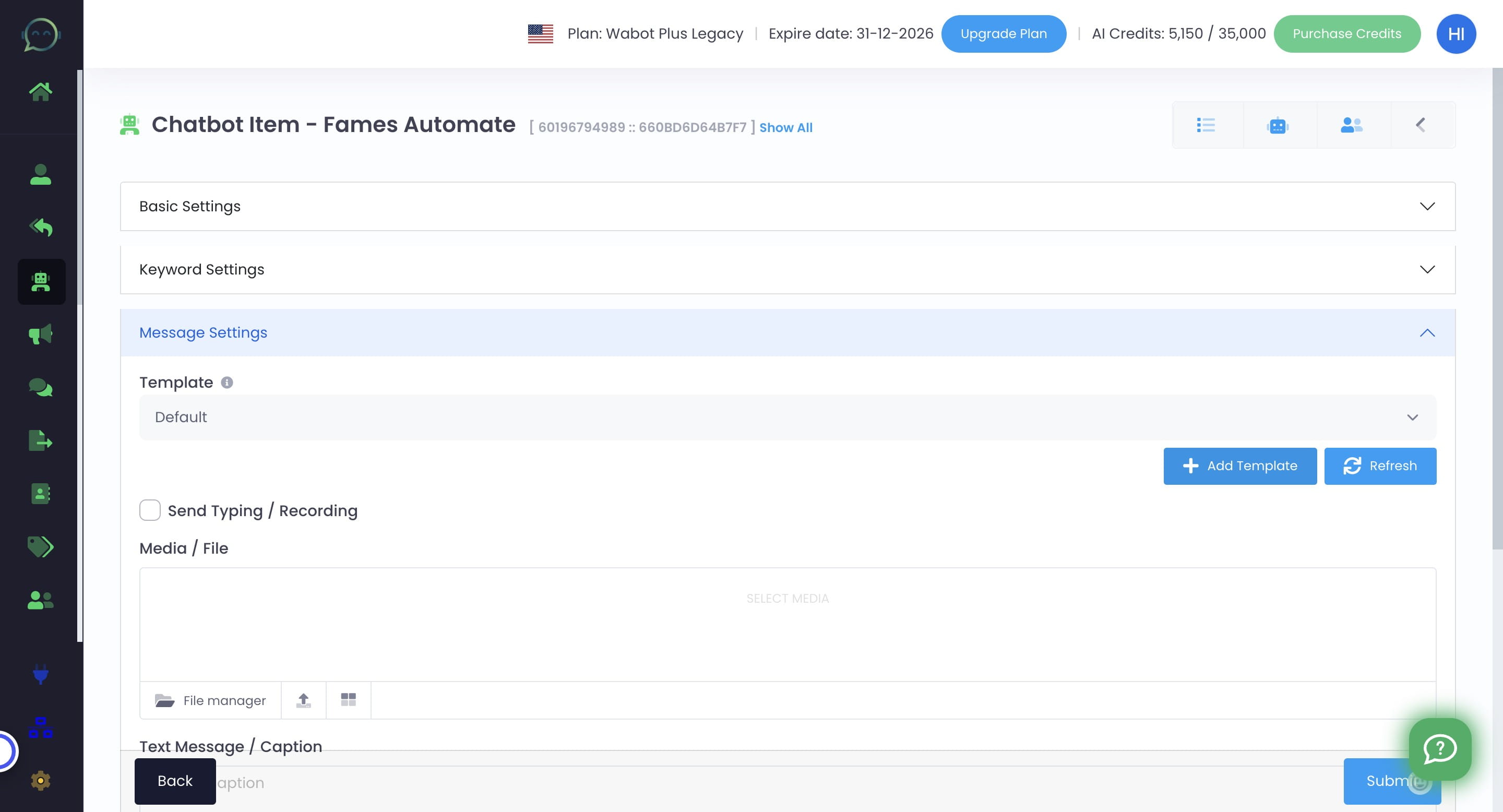
Name the template
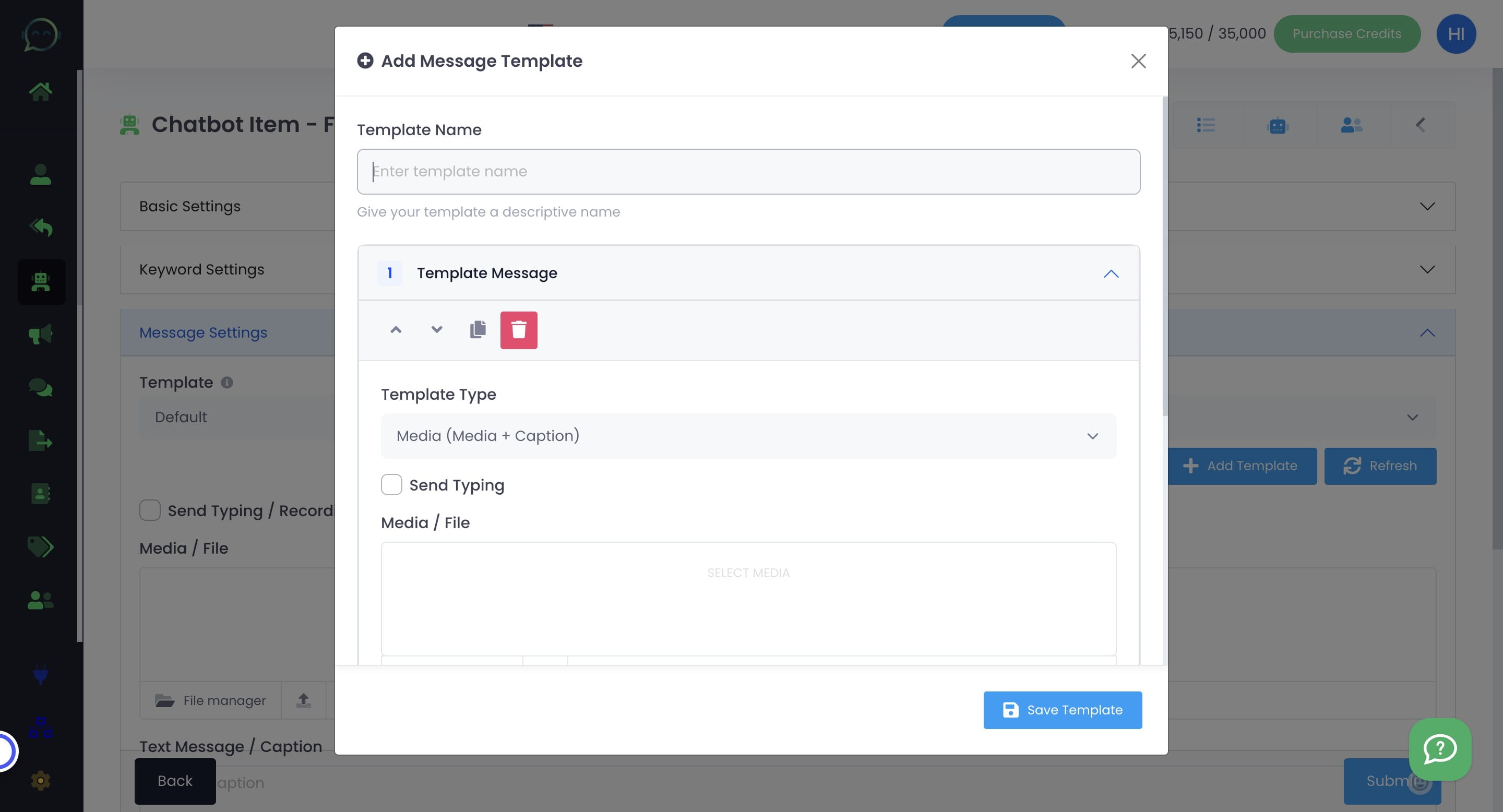
Click to choose template type
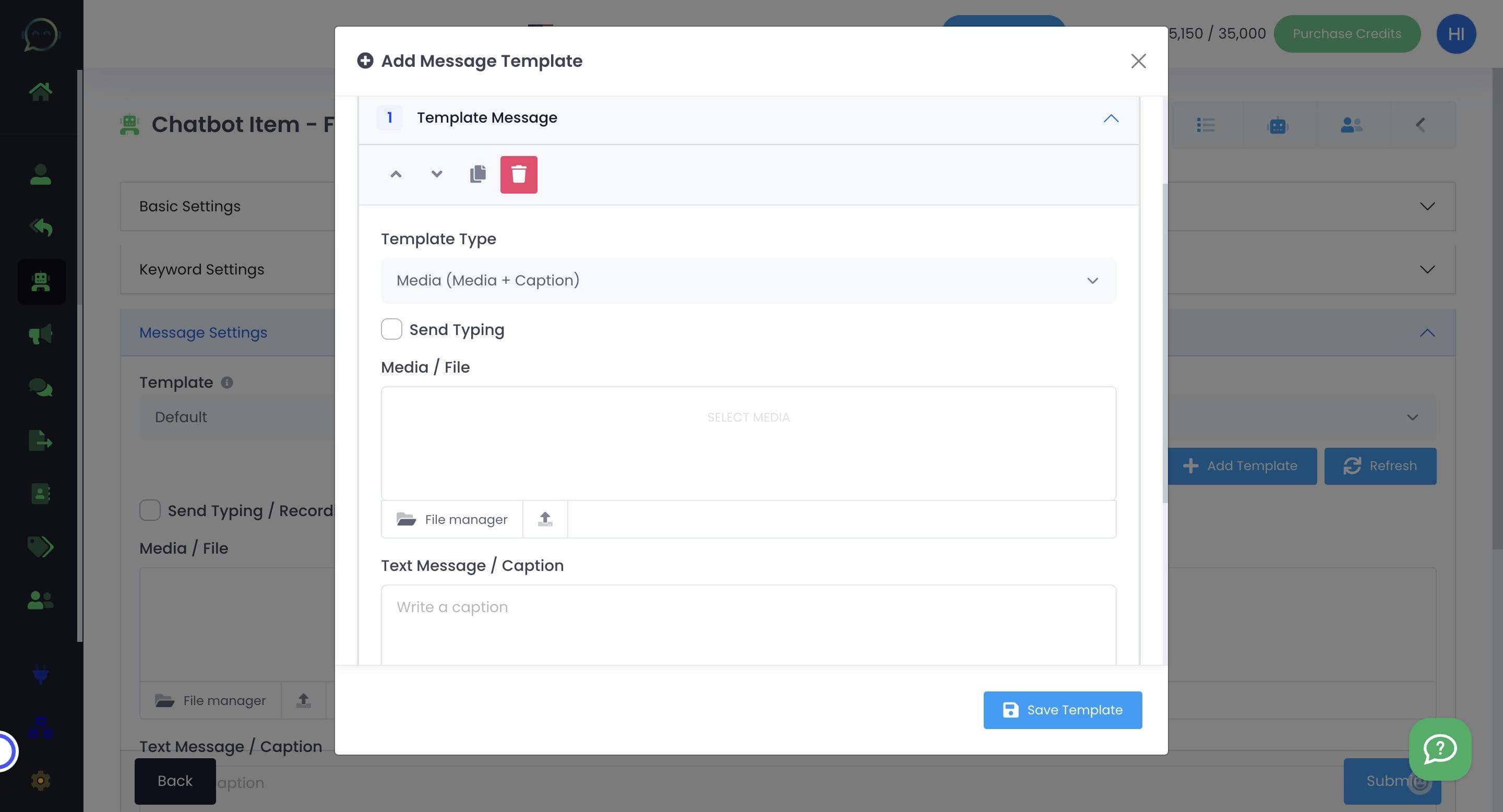
Tick on "Send Typing" box if you want it appears to the customer as if typing
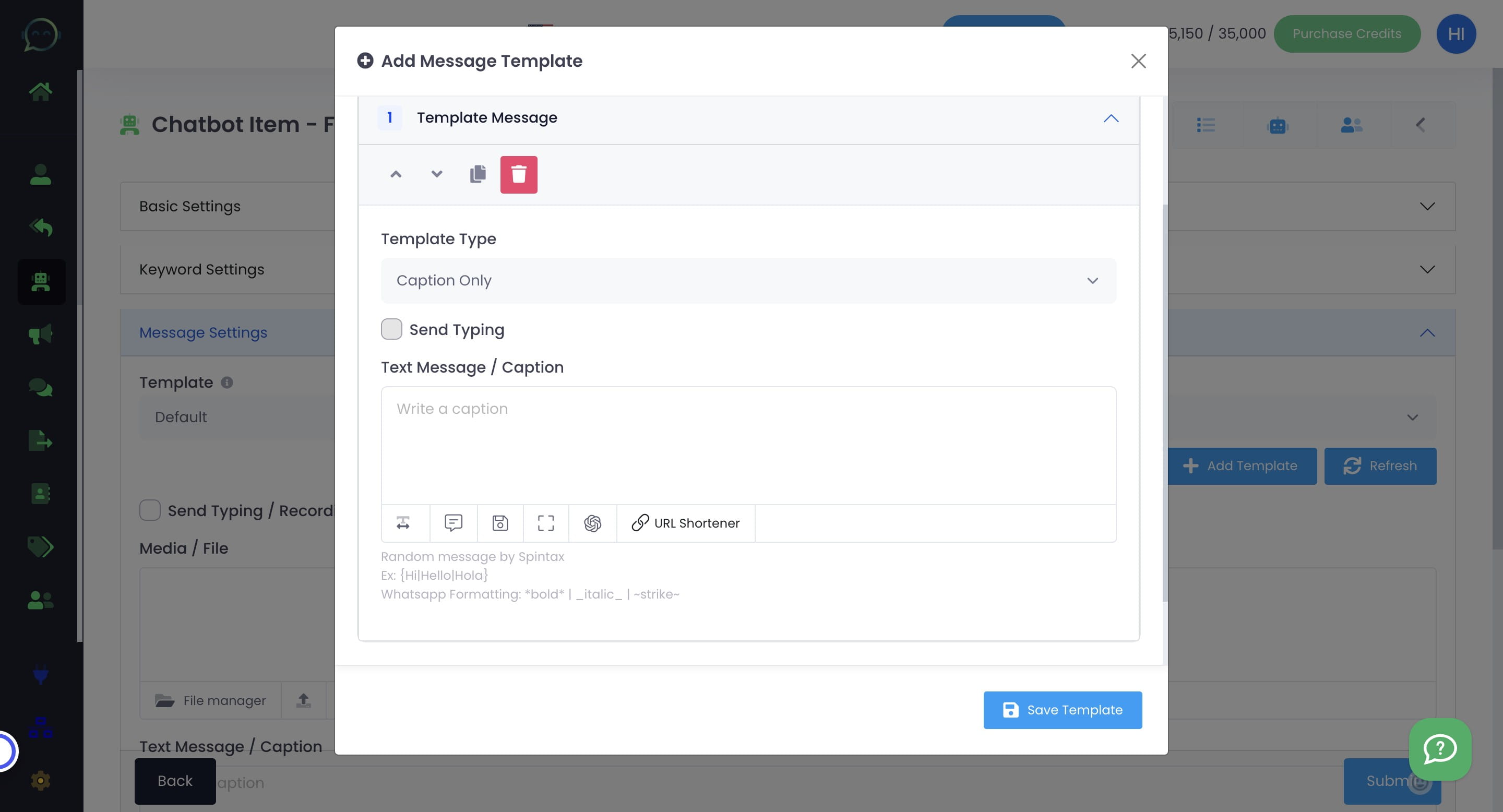
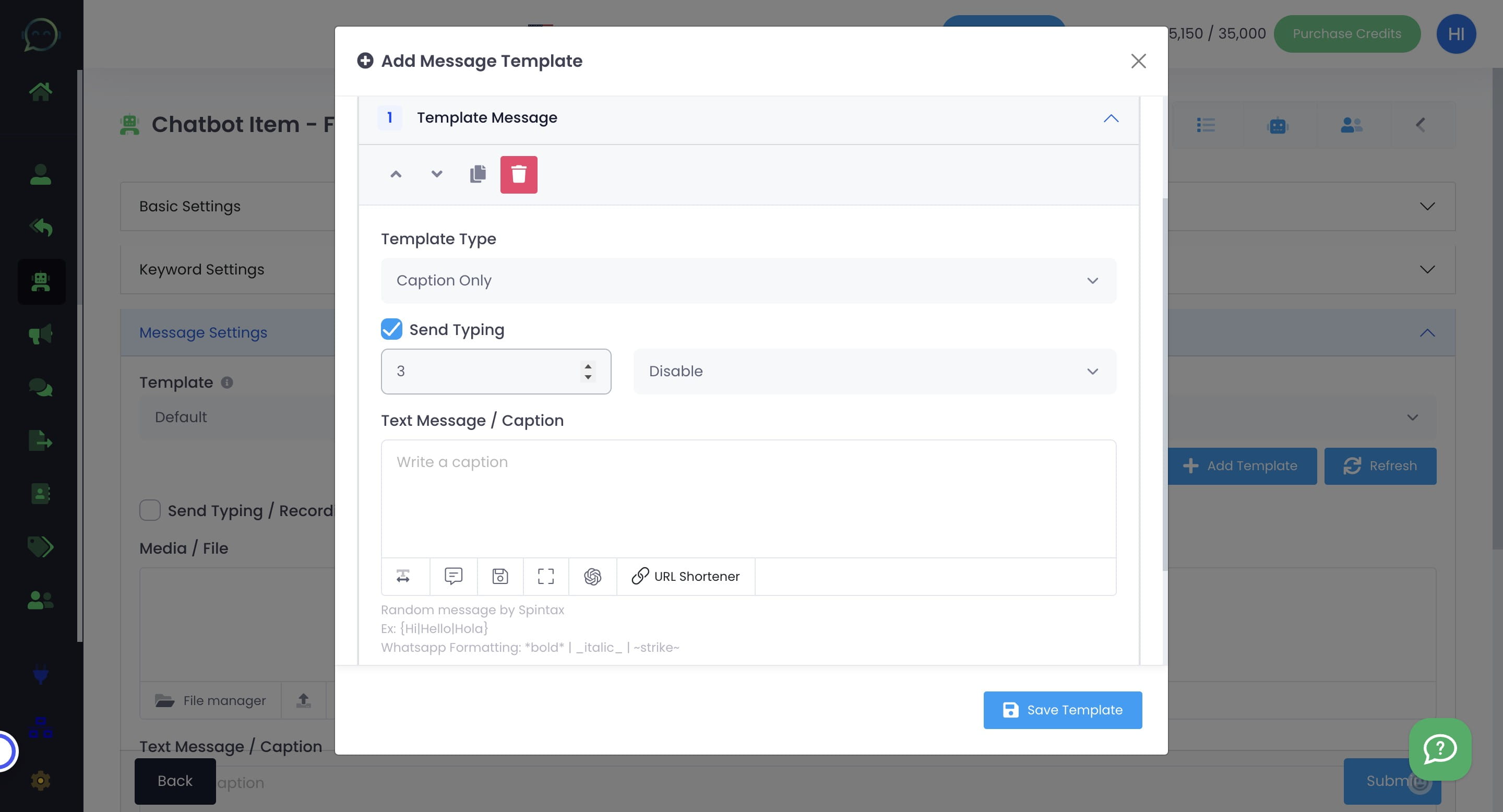
Choose how many seconds it will show typing to the customer before the chatbot reply
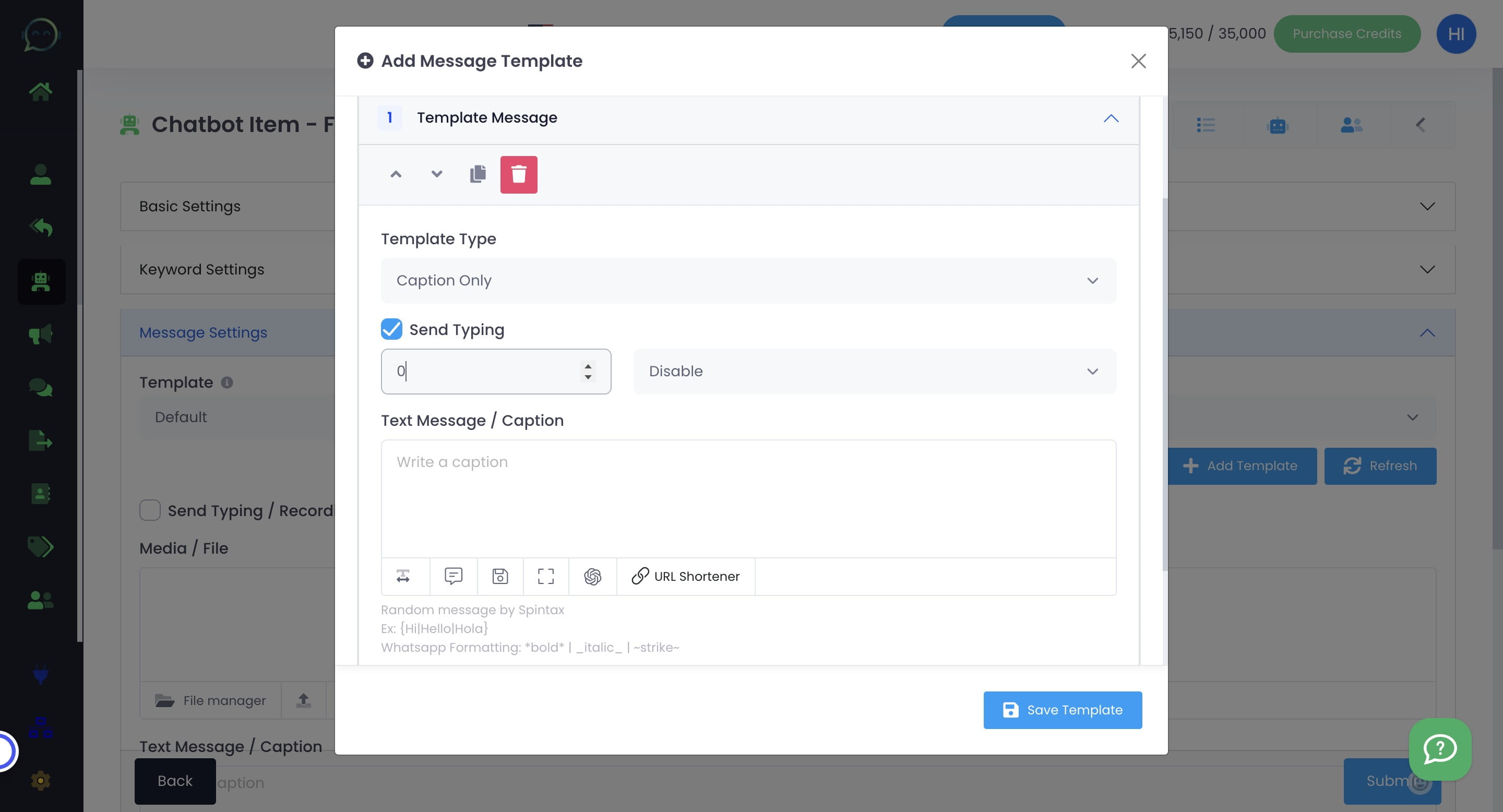
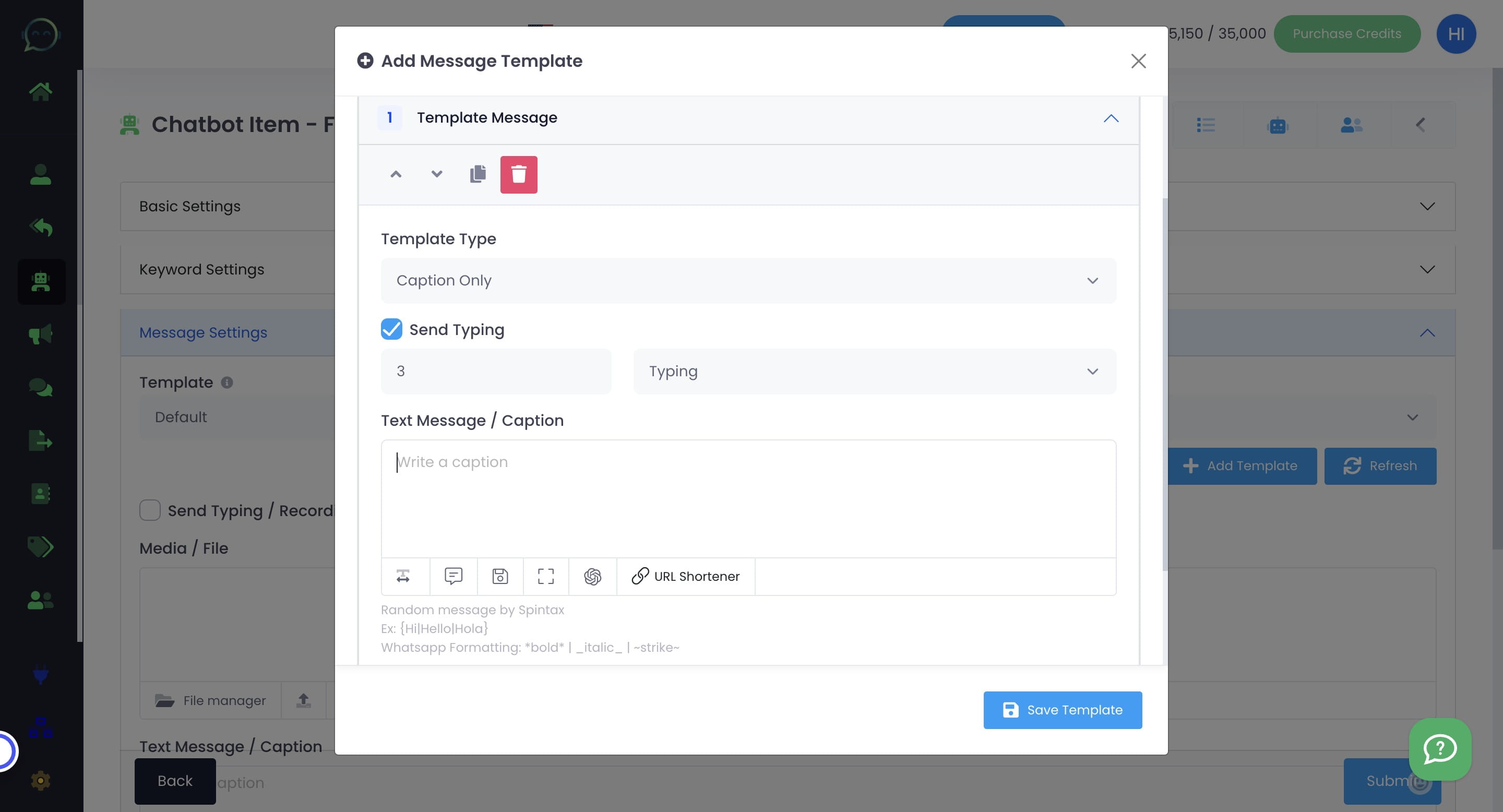
Click on "Disable" and choose "Typing"
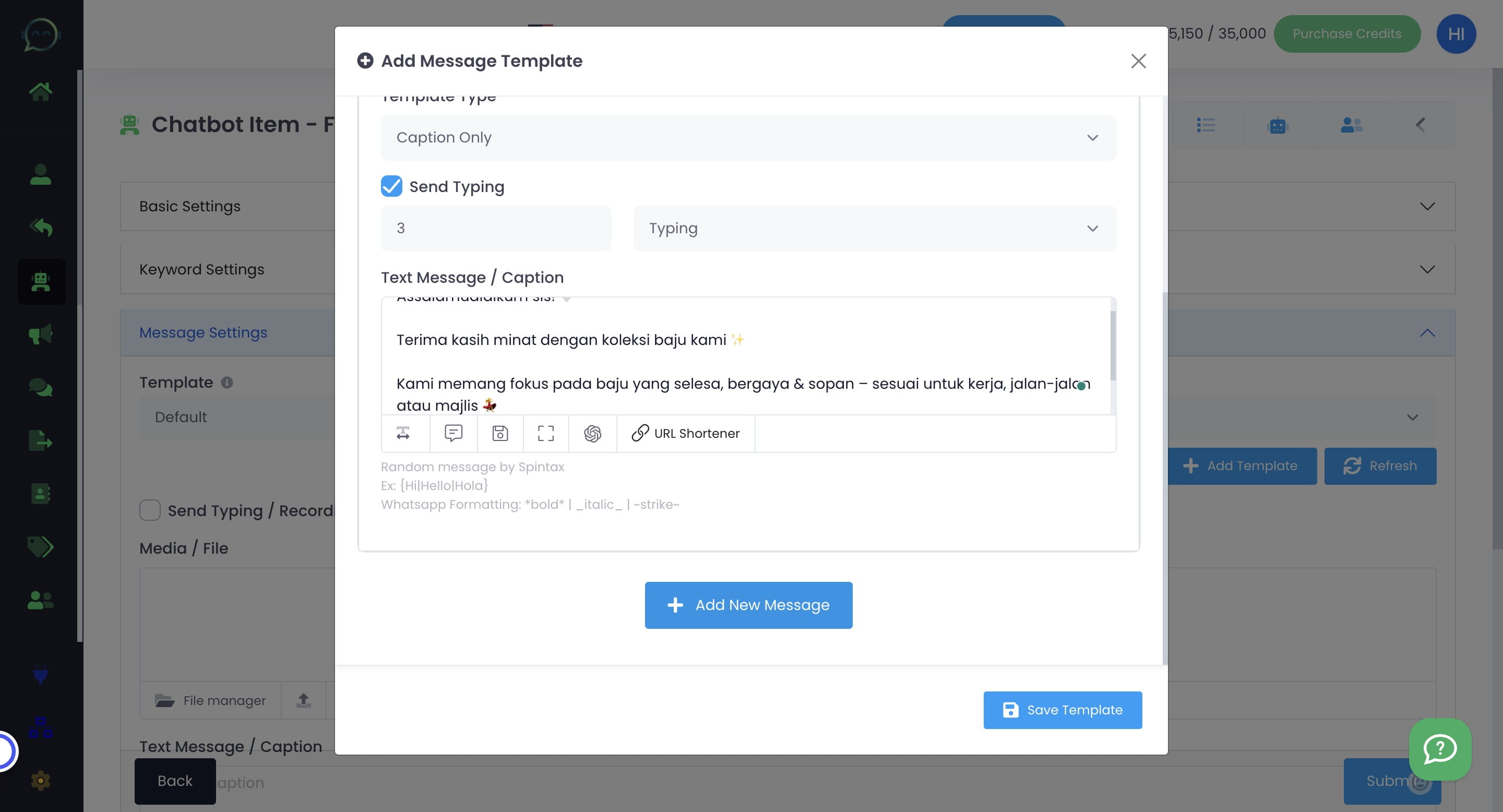
Insert the messages
Click "Add New Message" to add more messages
Basically you will repeat again from step 14 until step 19
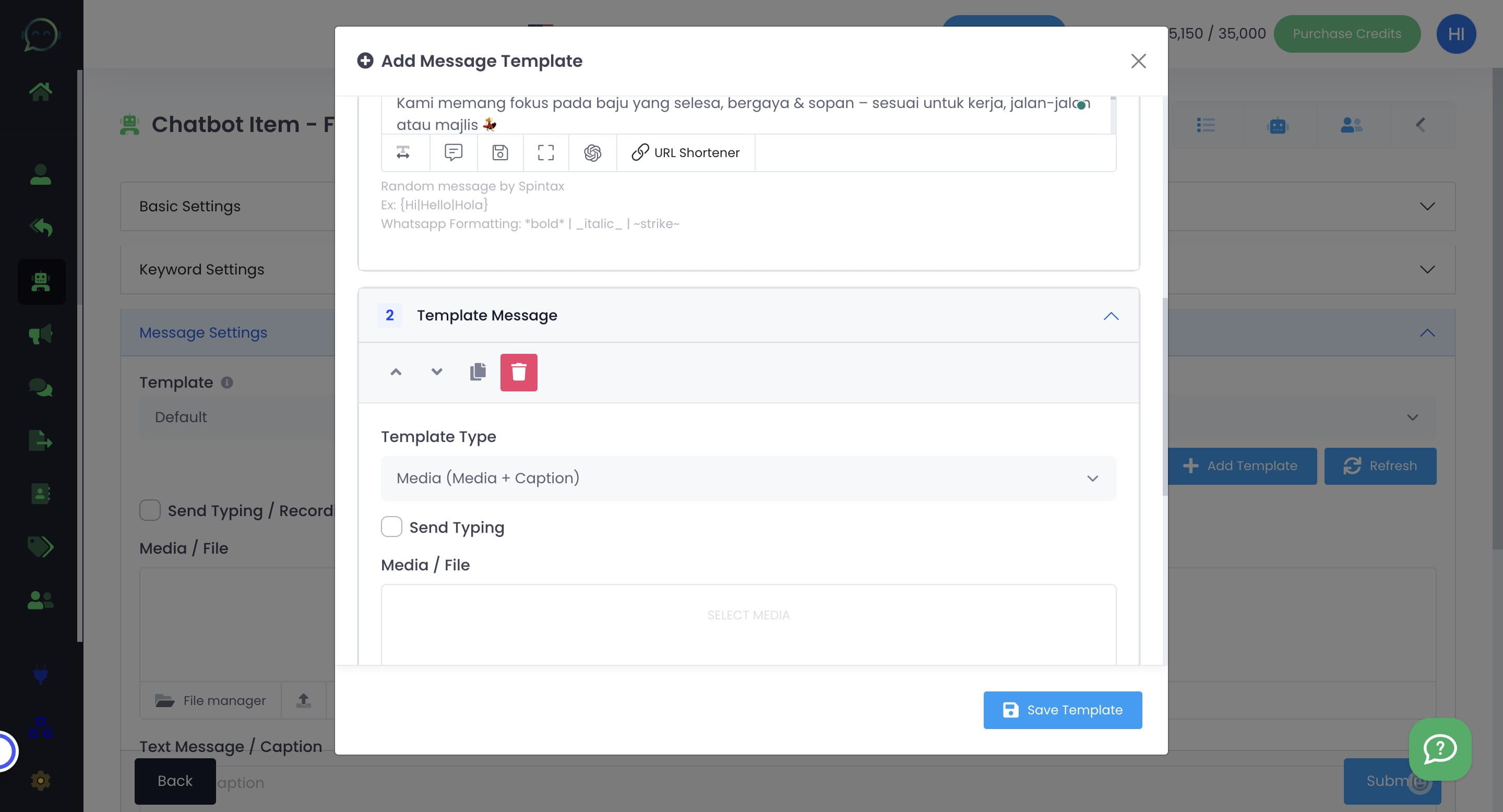
After finish setting the template up, you can choose the template here
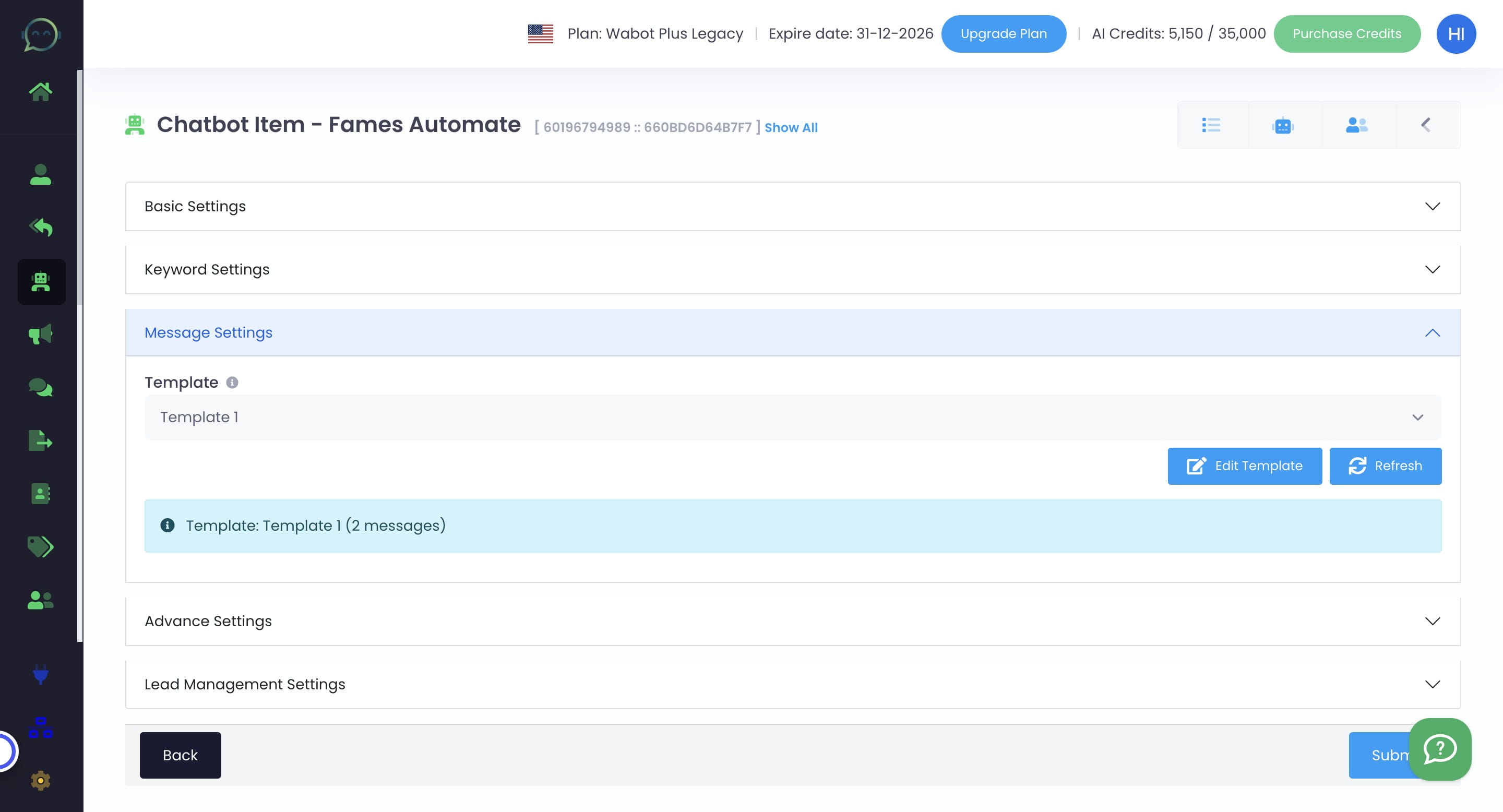
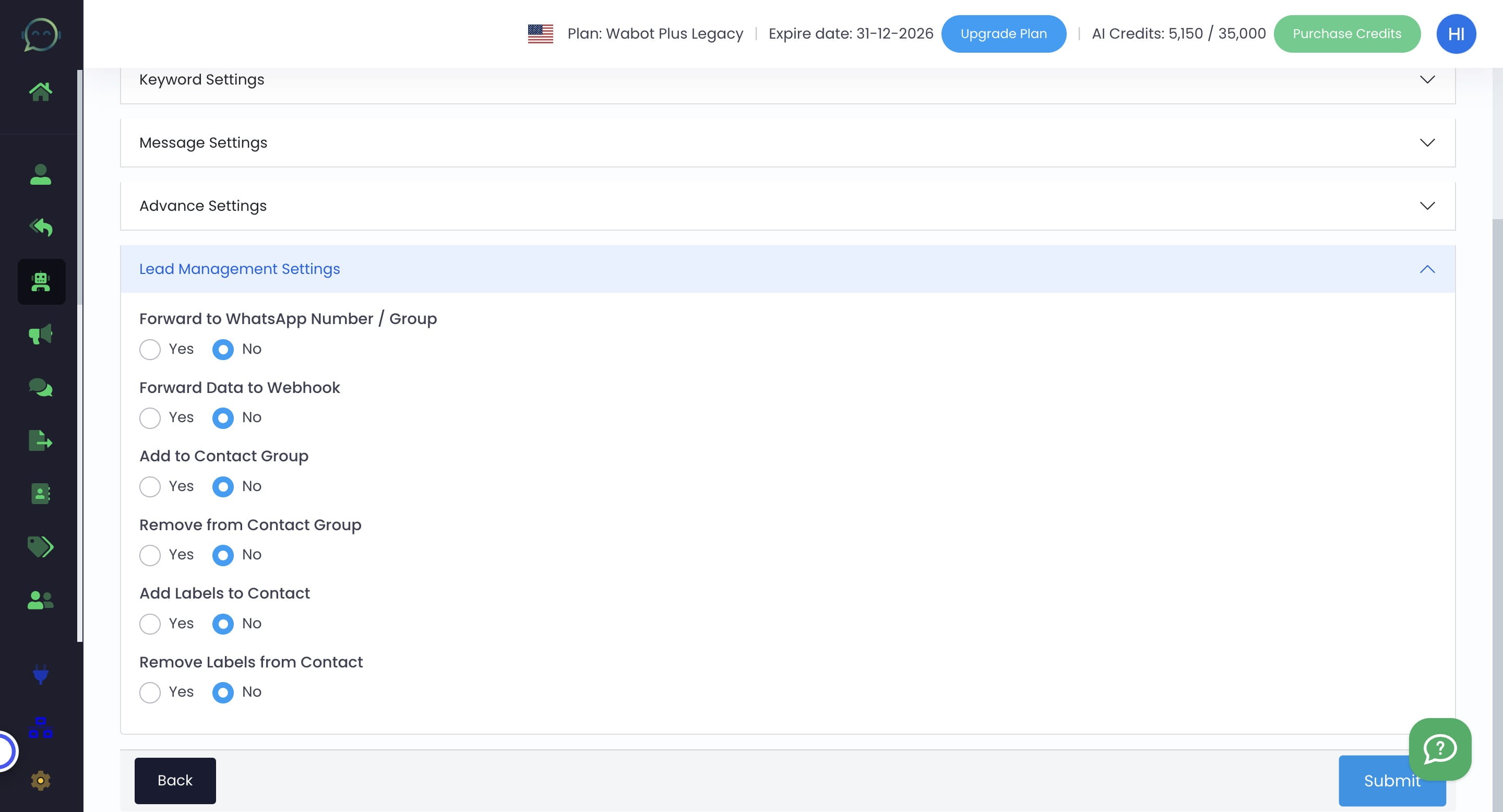
If you does not want to setup the advance and lead management settings, just leave it as it is
Click on "Submit"
Make sure you run the chatbot. Green means the chatbot is active now
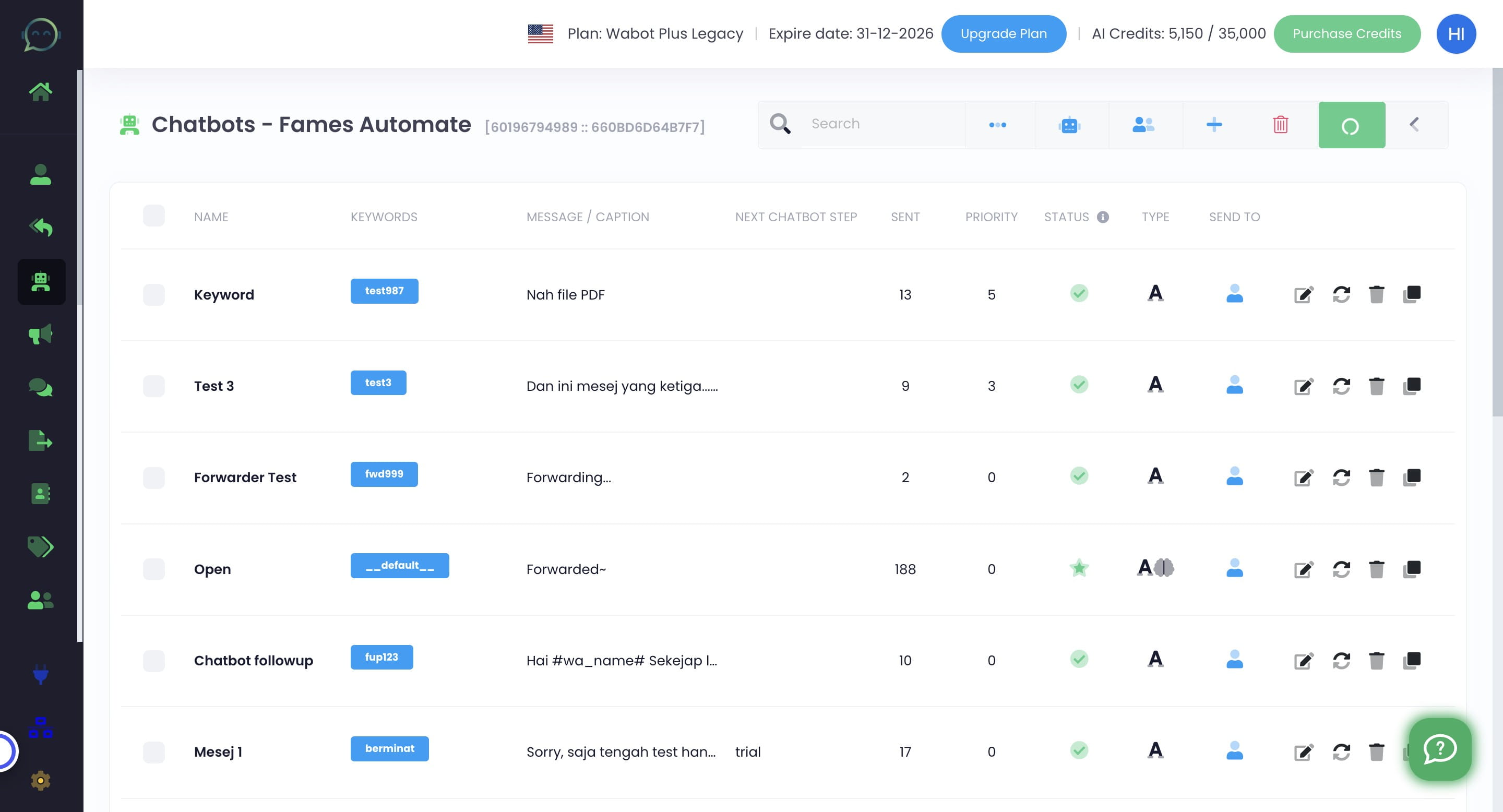
Done 🚀
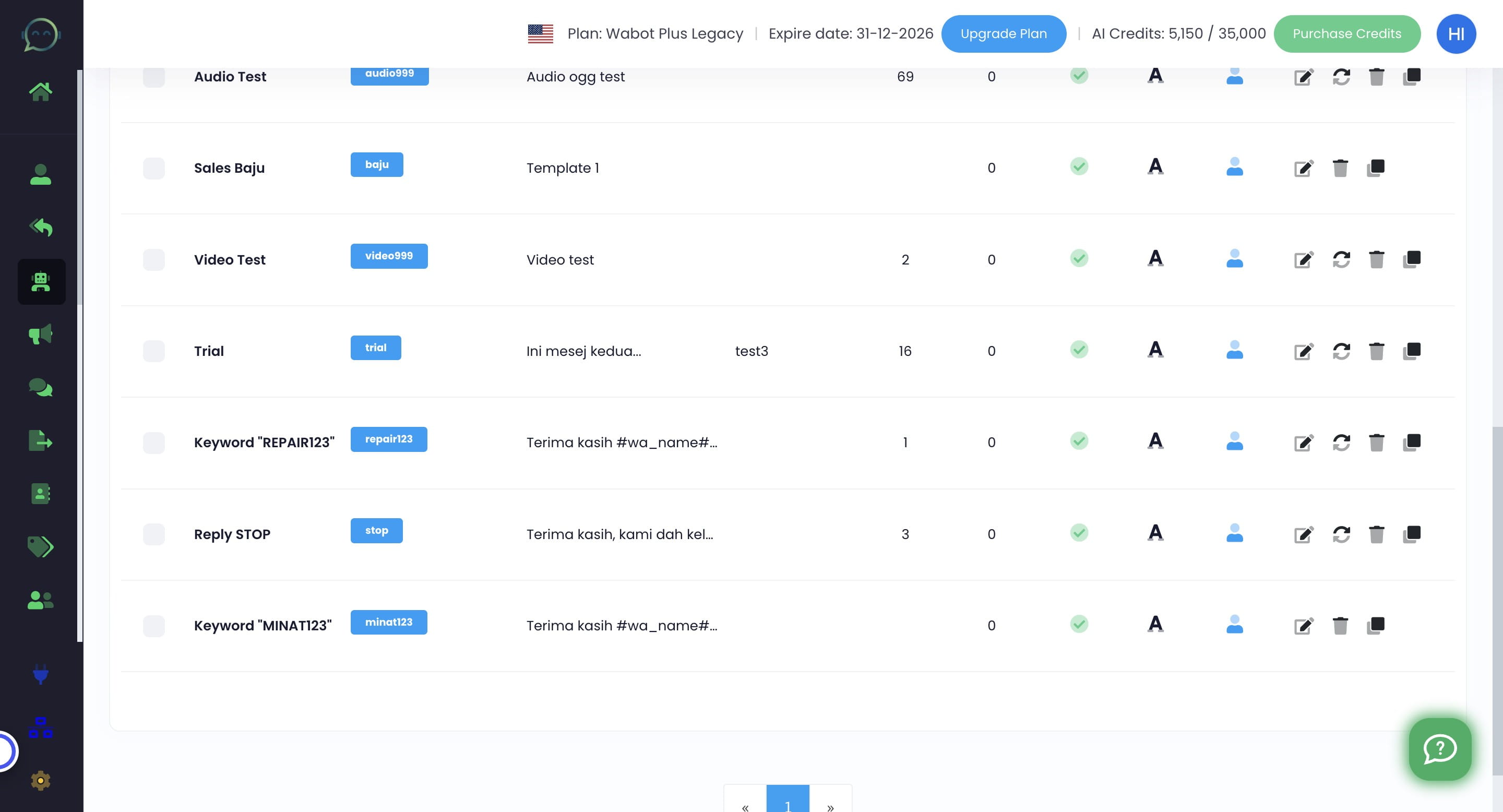
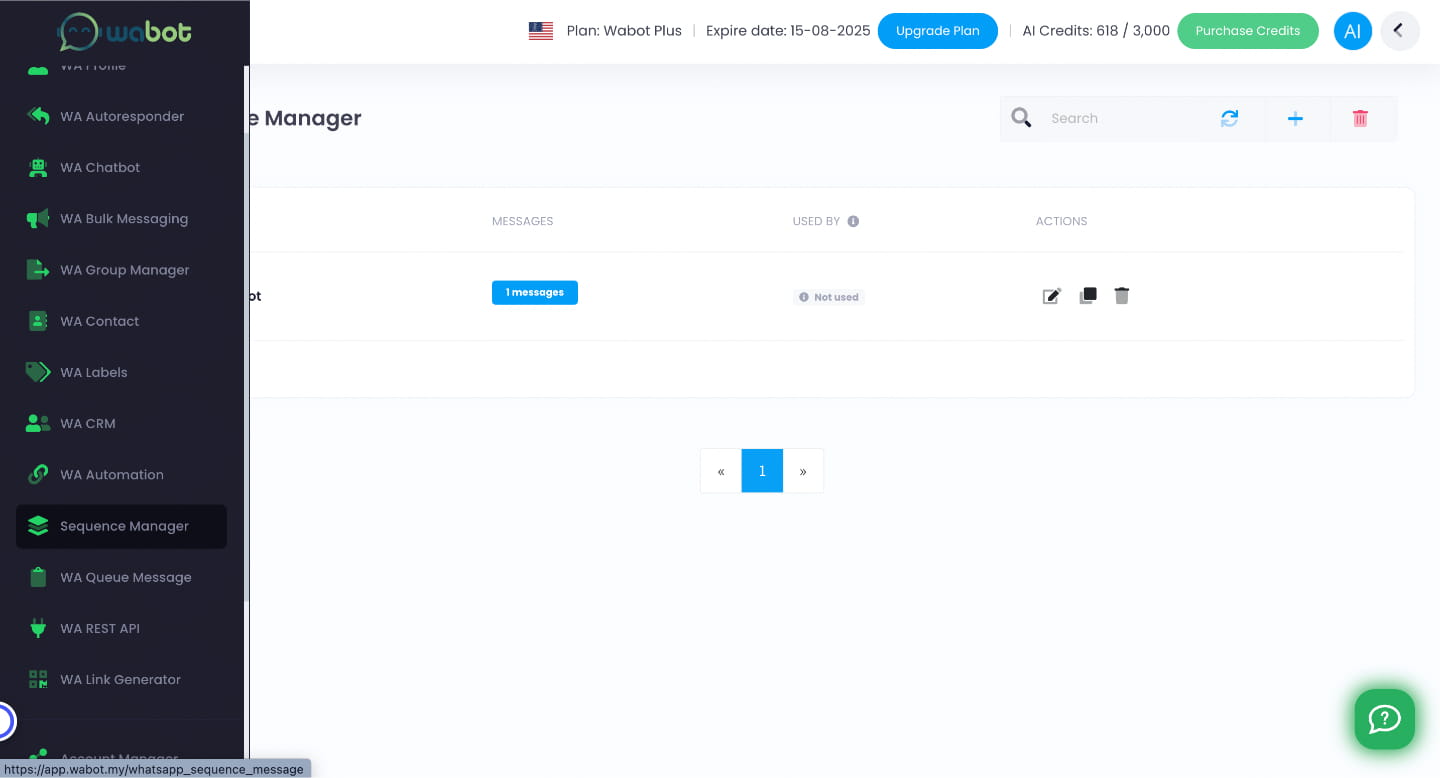
You can also create template inside Sequence Manager. Here you can monitor and clone the template