

How to Remove a Subscriber Who Replies "Stop" from a Contact Group And Place Them Into One Group
Sometimes, a subscriber from our contact list may no longer wish to receive messages from us. In this tutorial, we will provide a step-by-step guide on how to automatically exclude subscribers who choose to opt out.
Navigate to https://app.wabot.my/dashboard
You need to create a "Stop" contact group first to identify people who reply with "stop" after the broadcast.
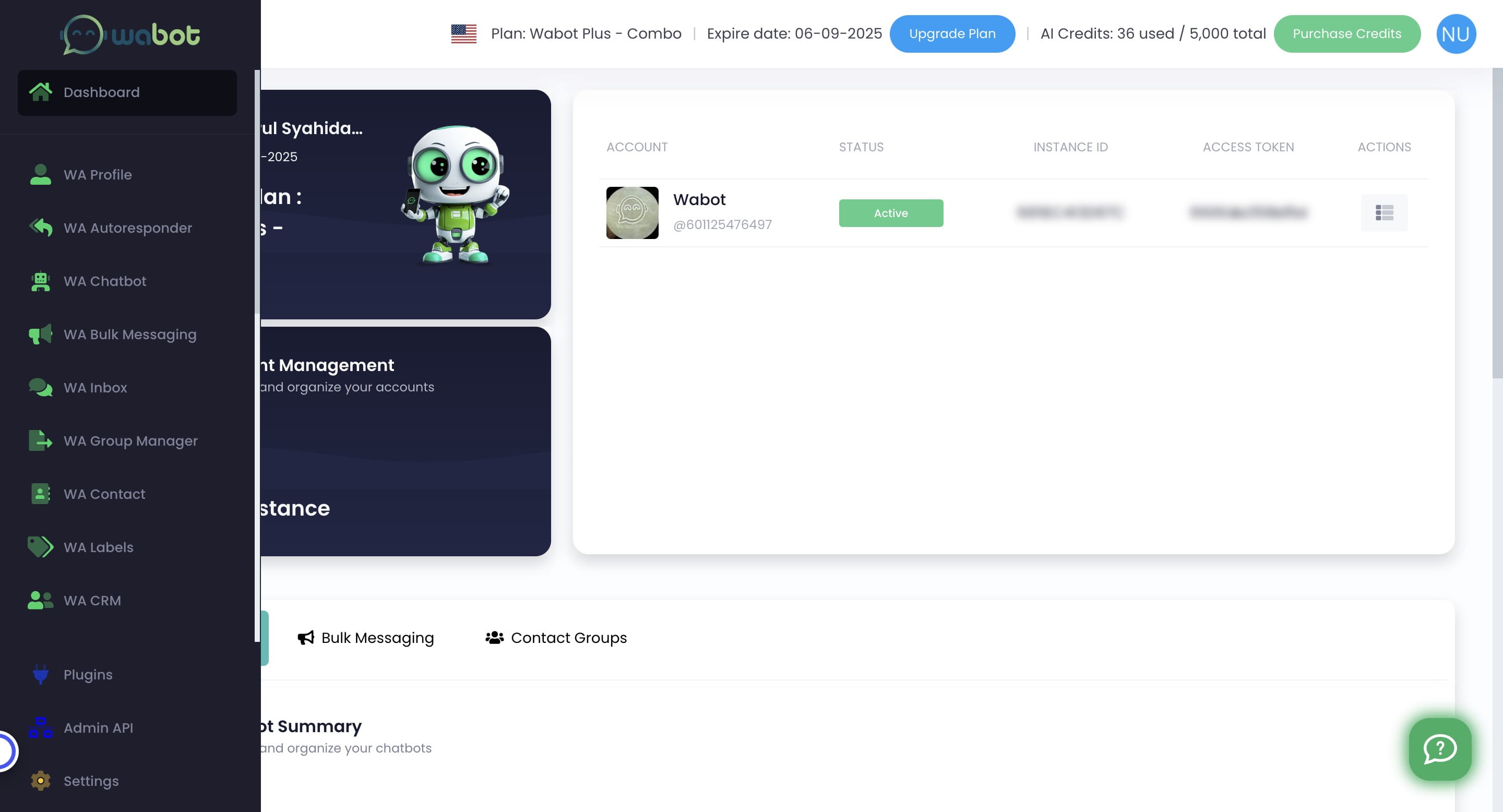
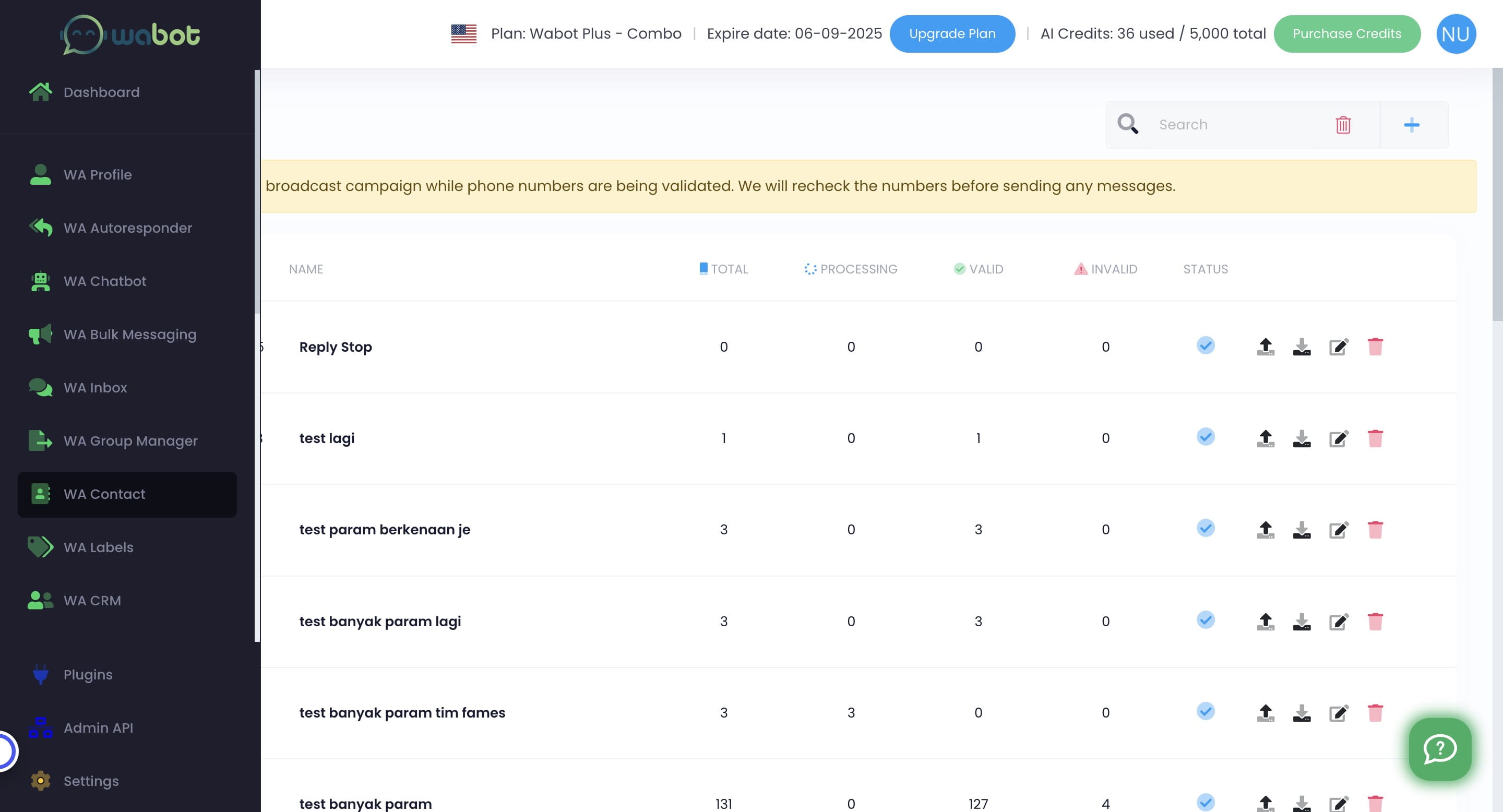
Click on "WA Contact"

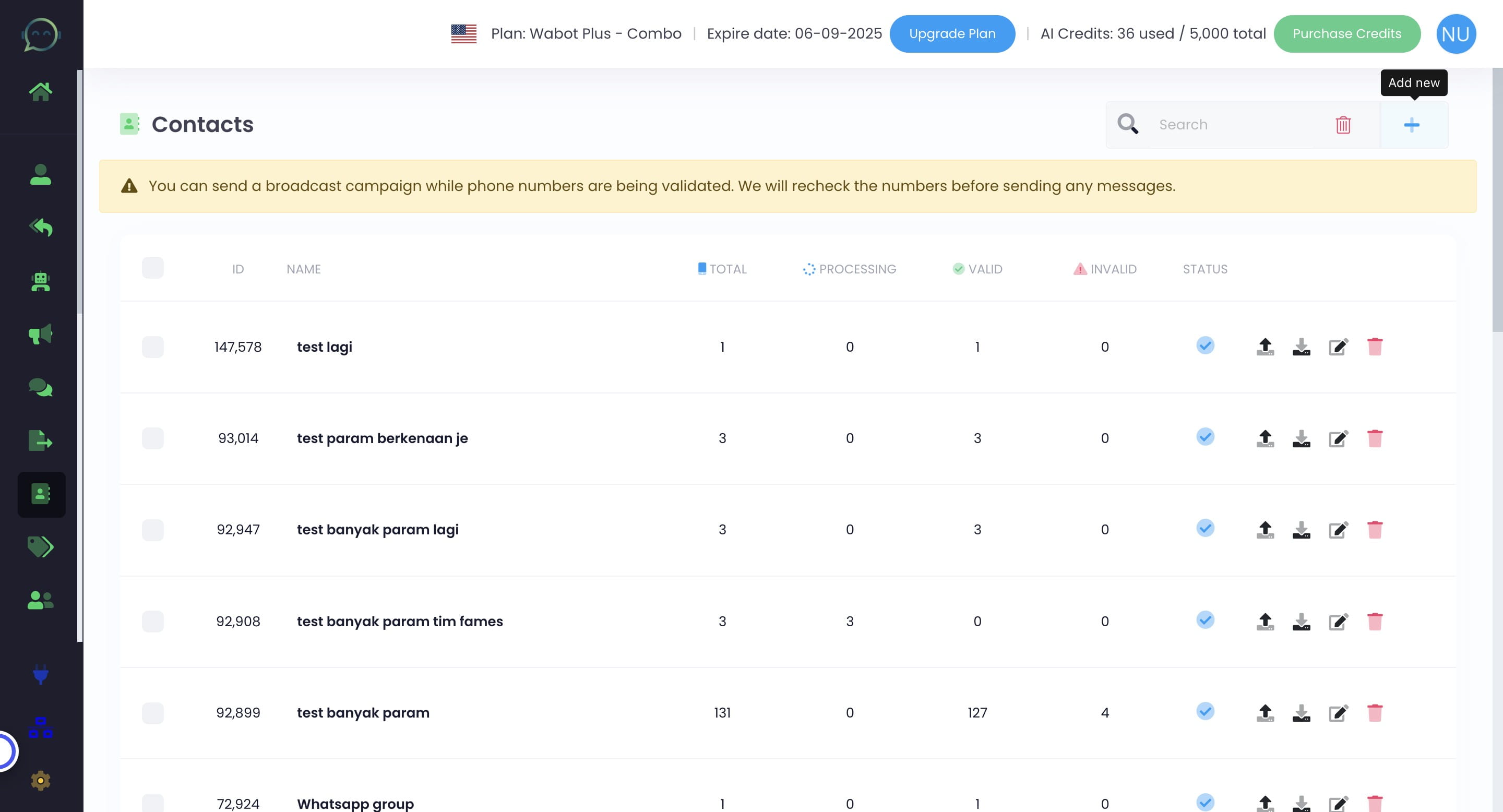
Click this icon
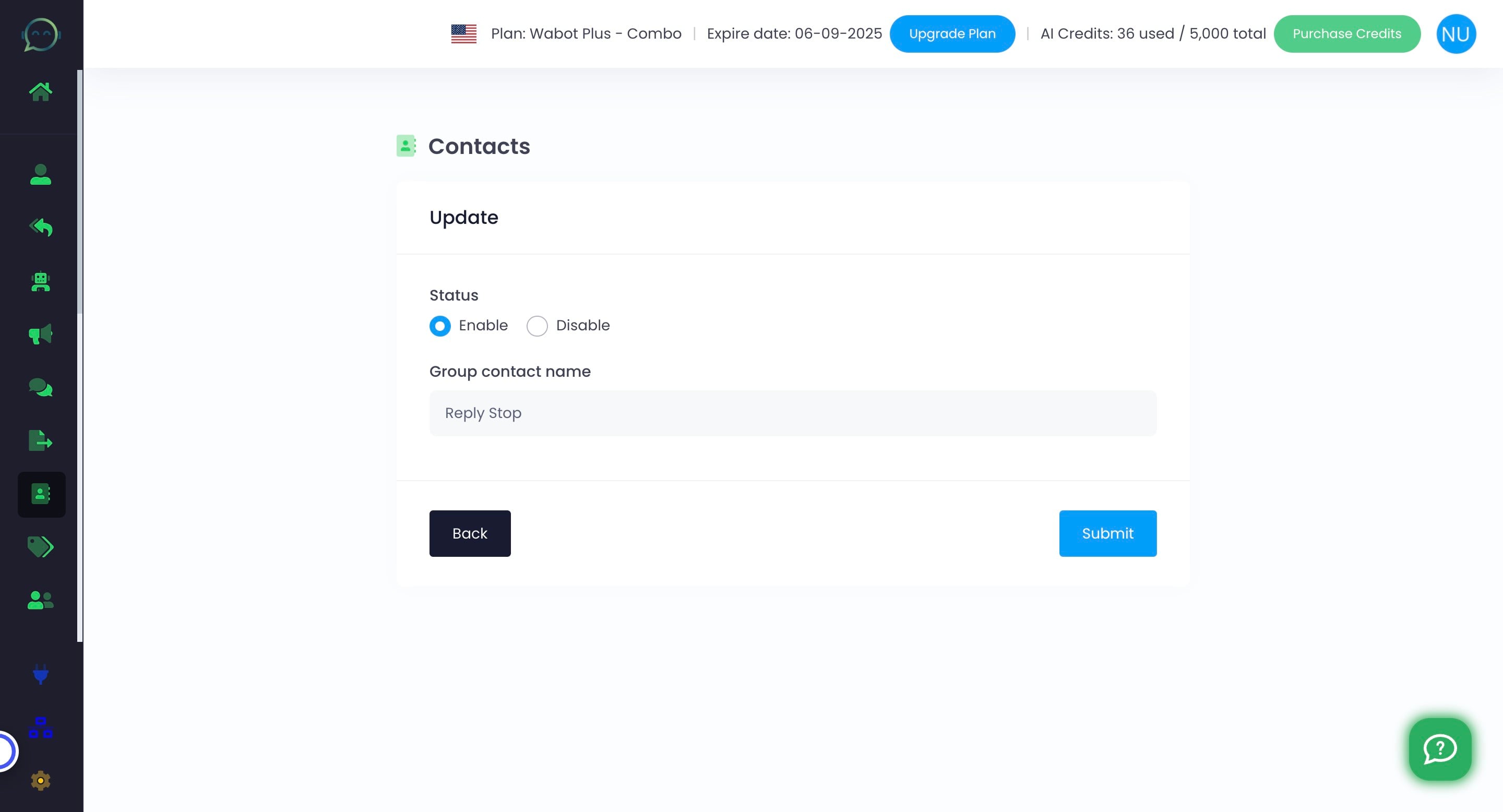
Name the contact group accordingly
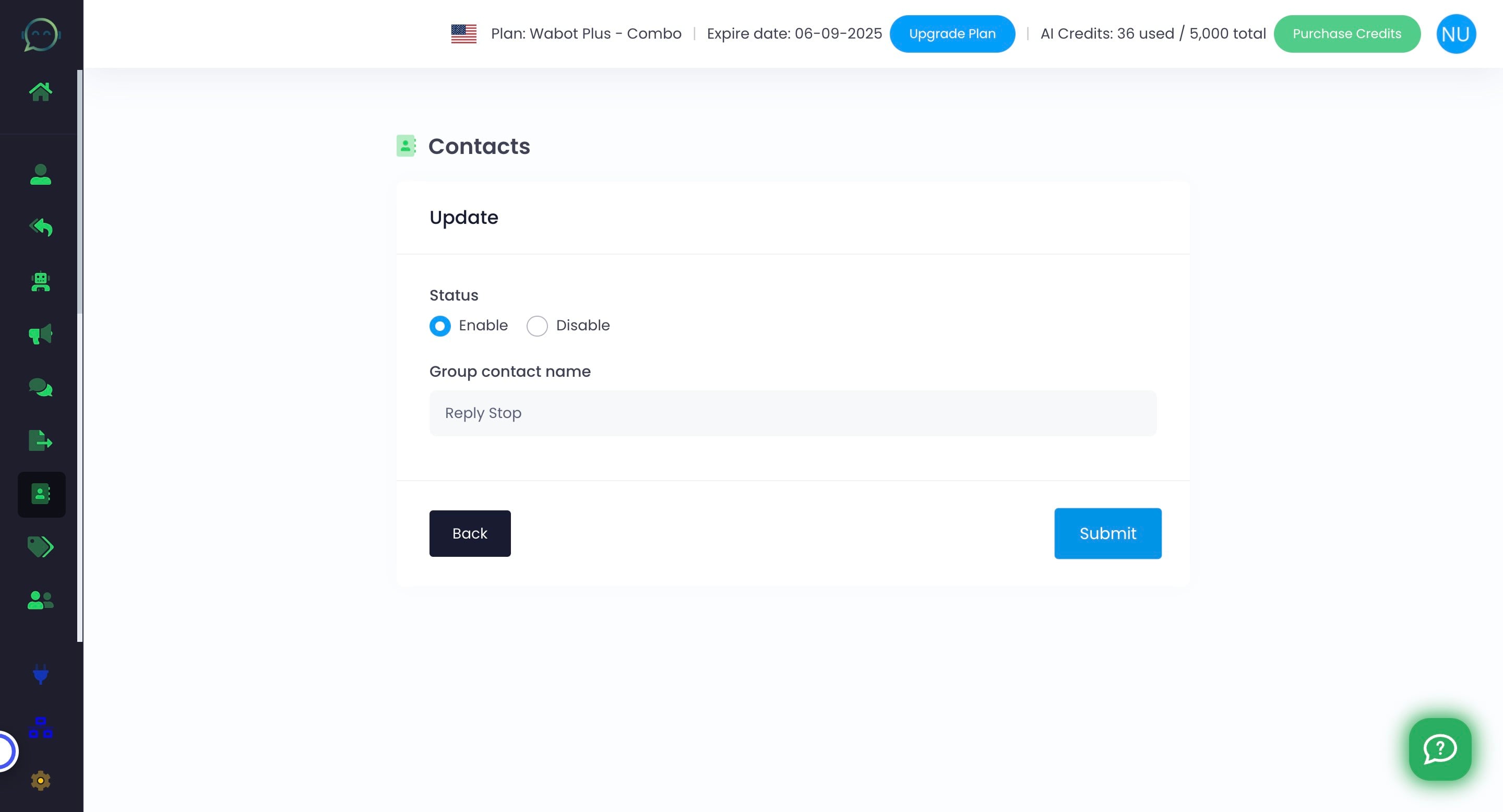
Click on "Submit"
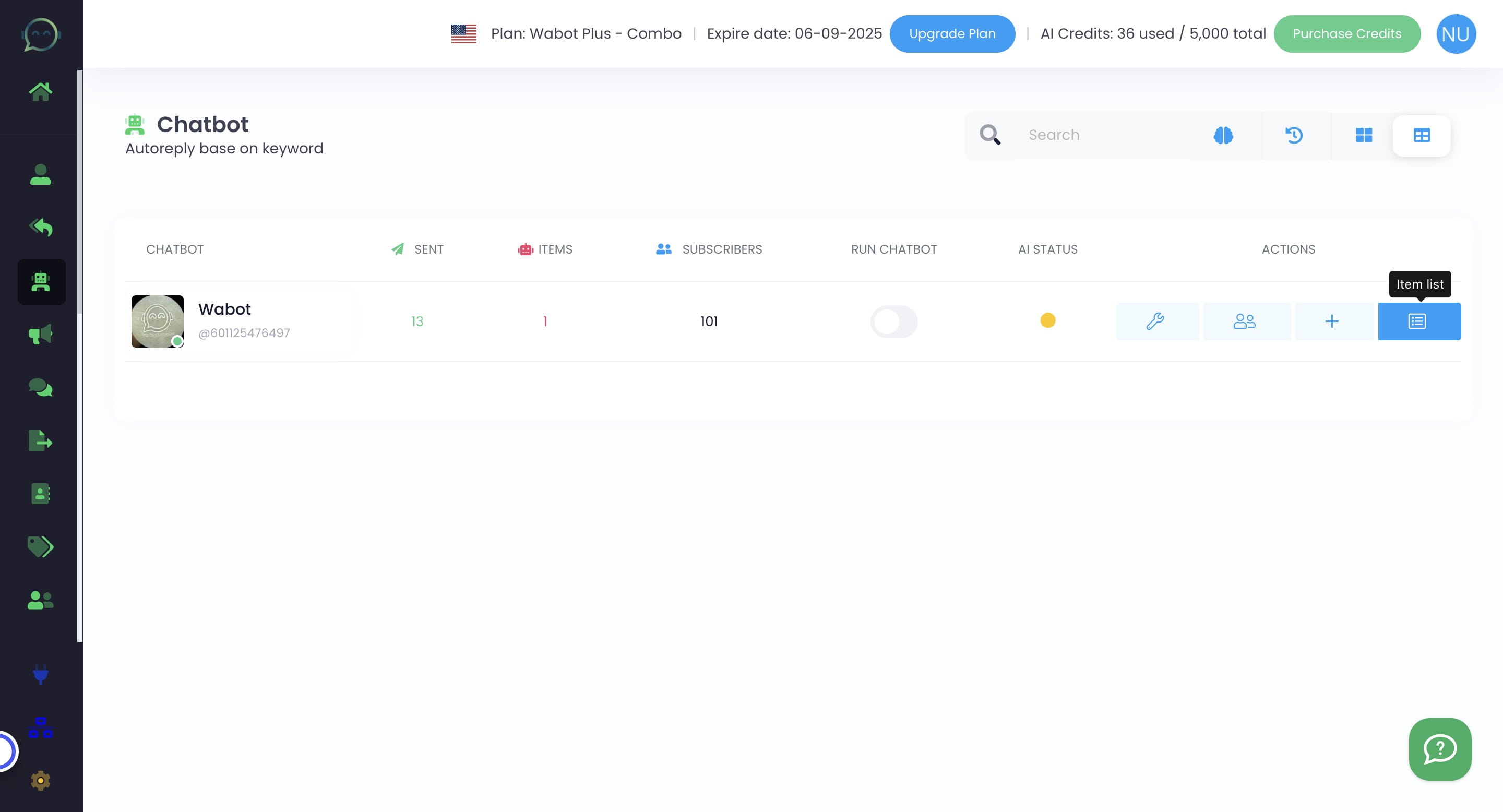
Click on "WA Chatbot"
Click this icon
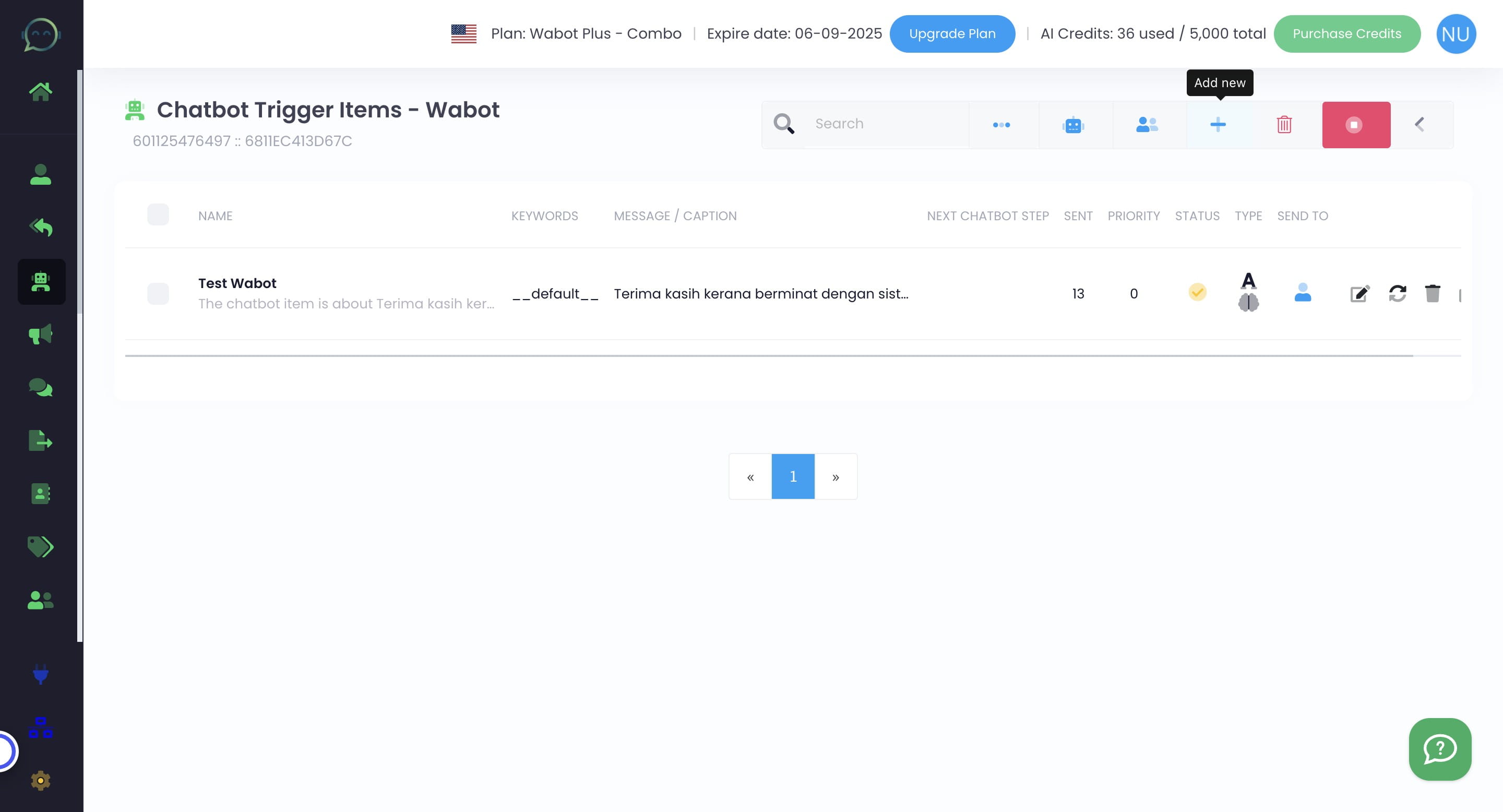
Click this icon
Name your chatbot
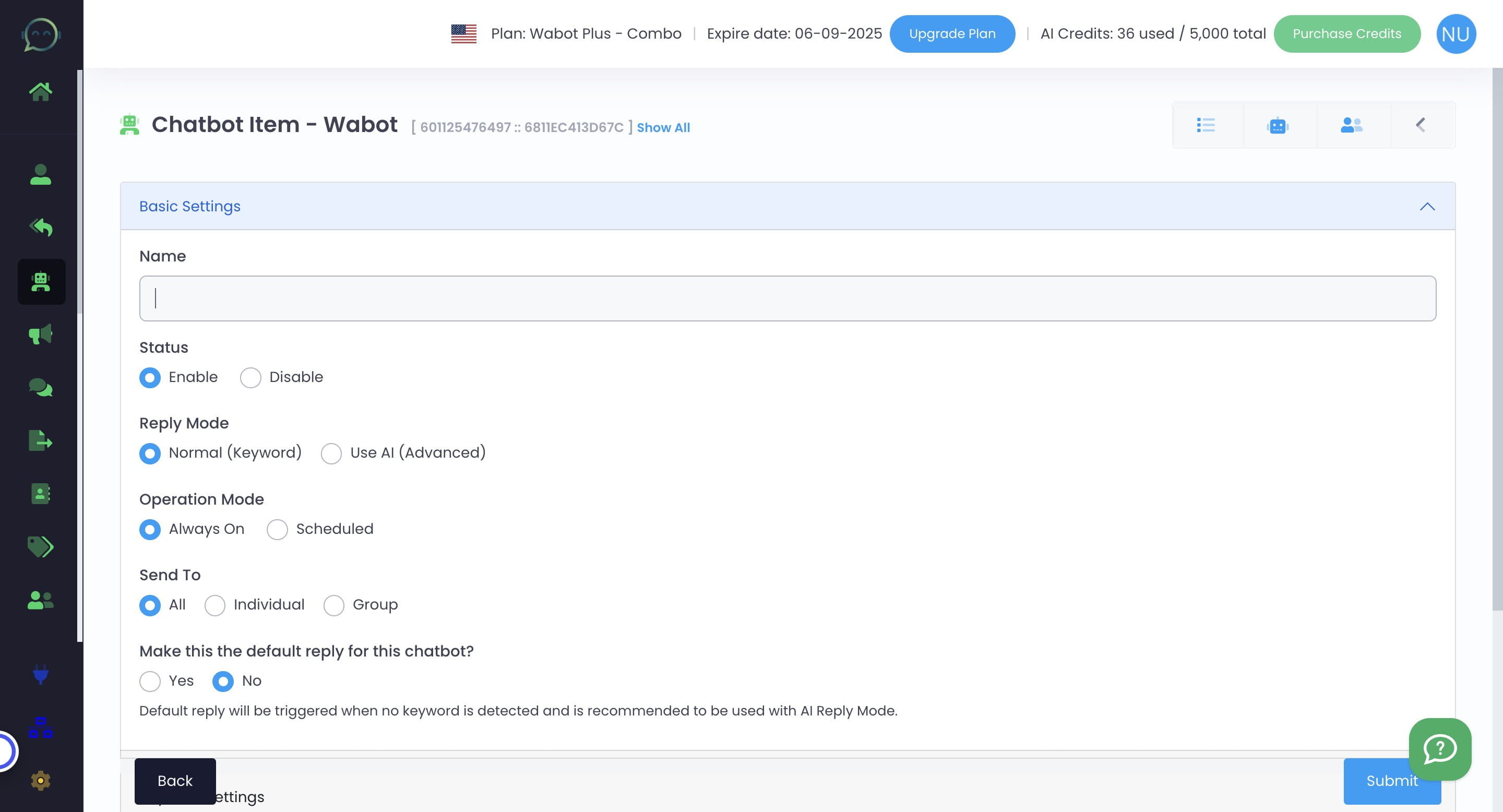
Click here to enable
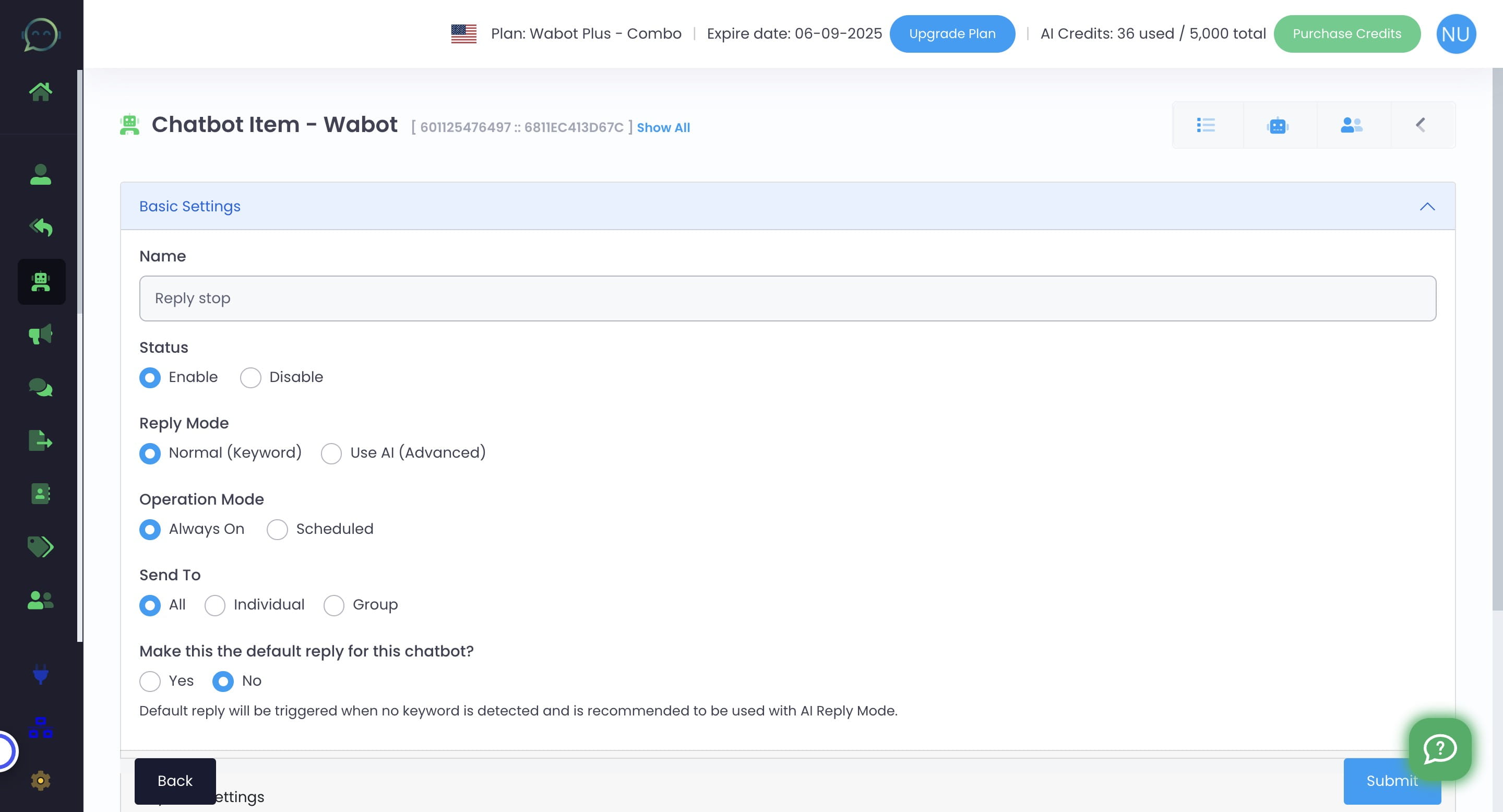
Choose normal keyword as this is for chatbot keyword-based only
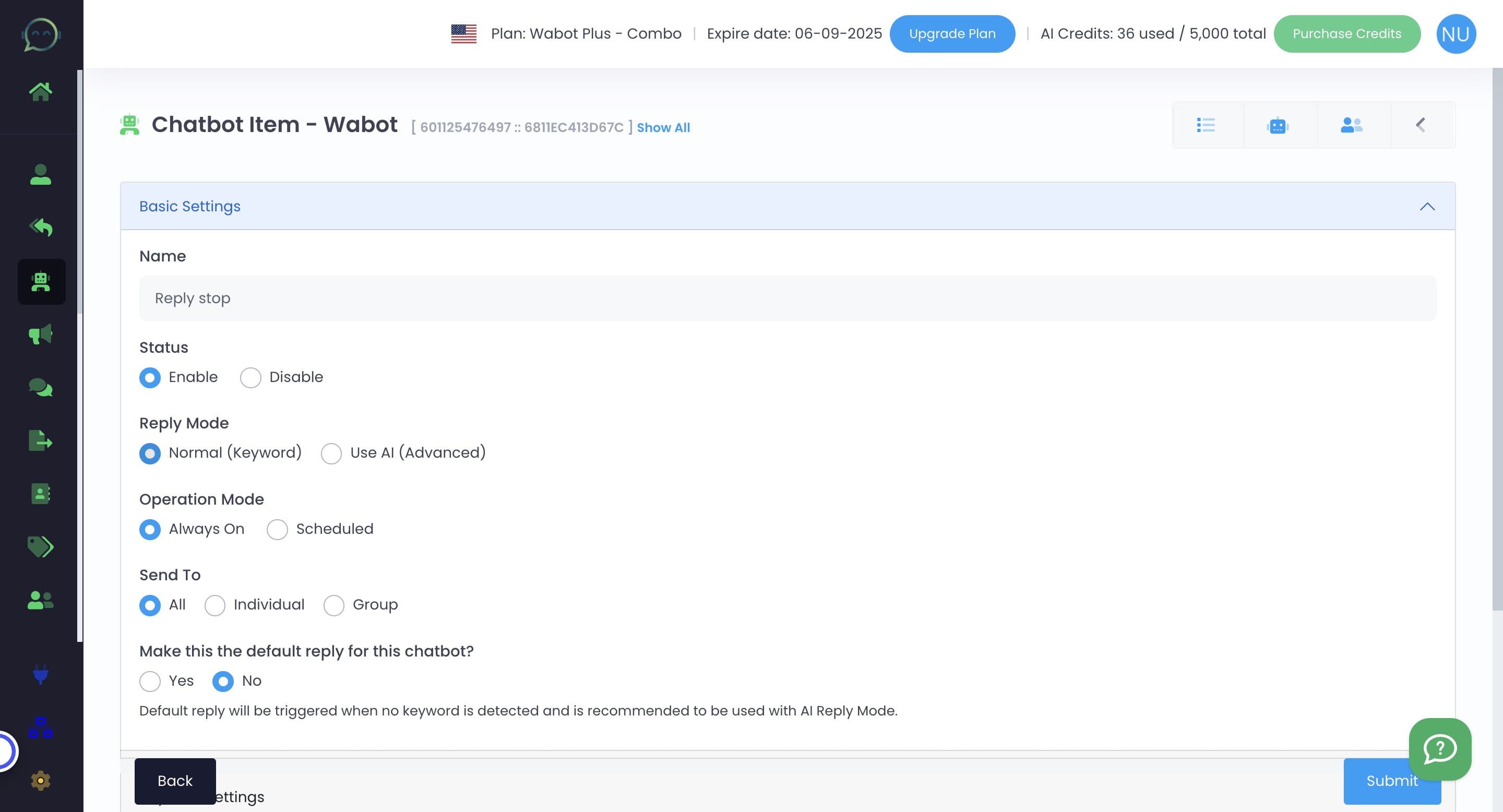
Click here
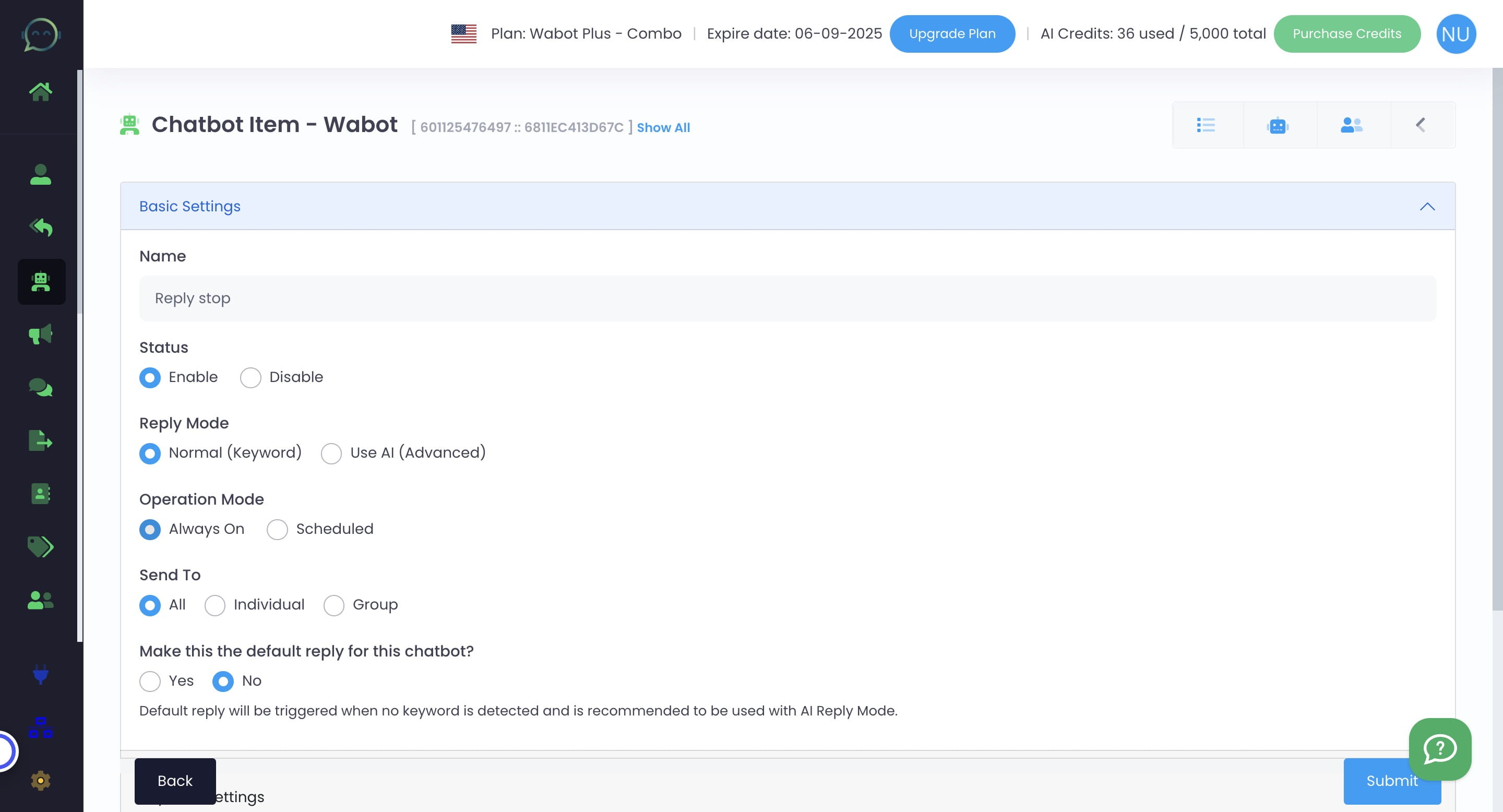
Only send this to personal message
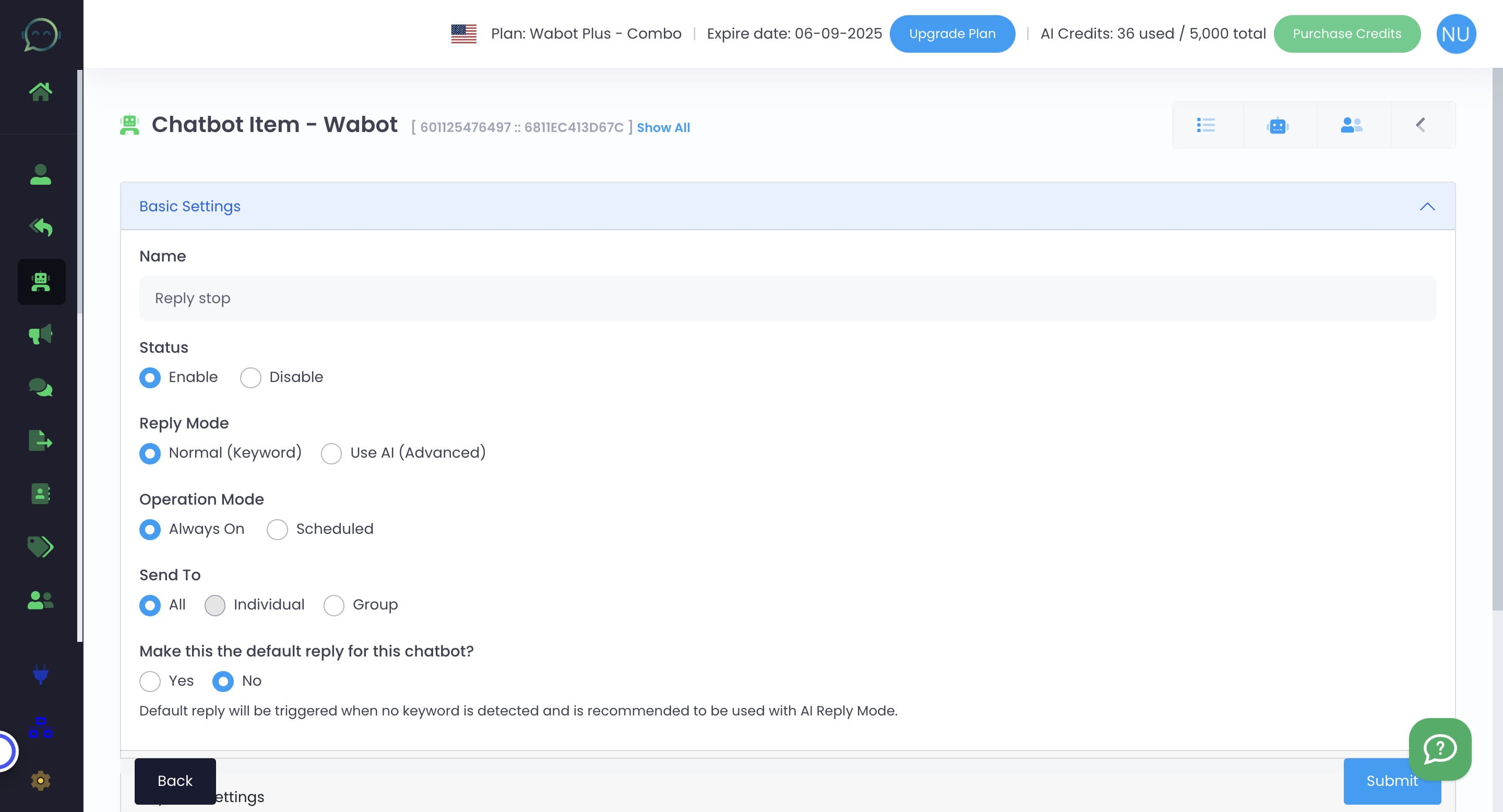
Click here
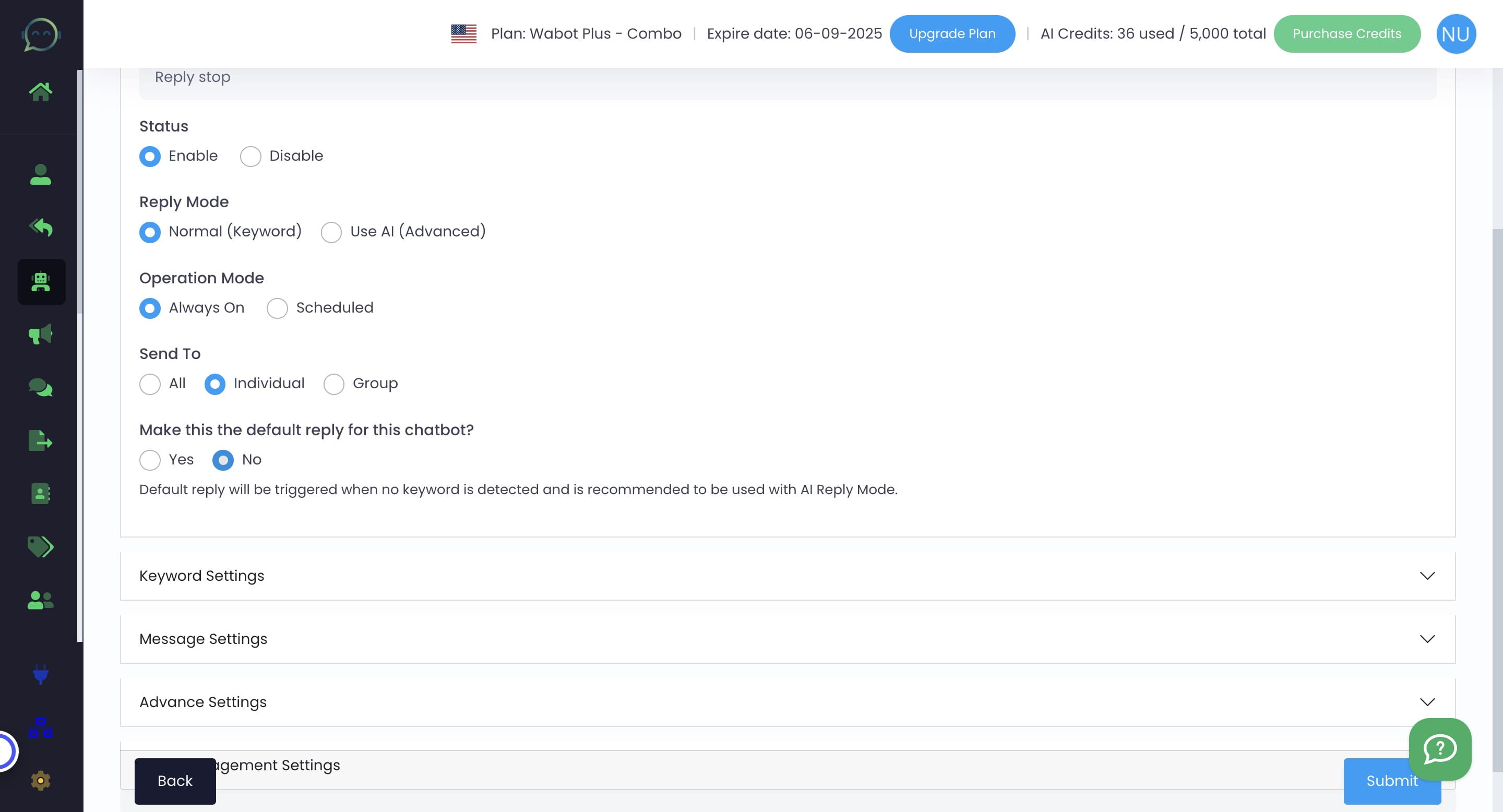
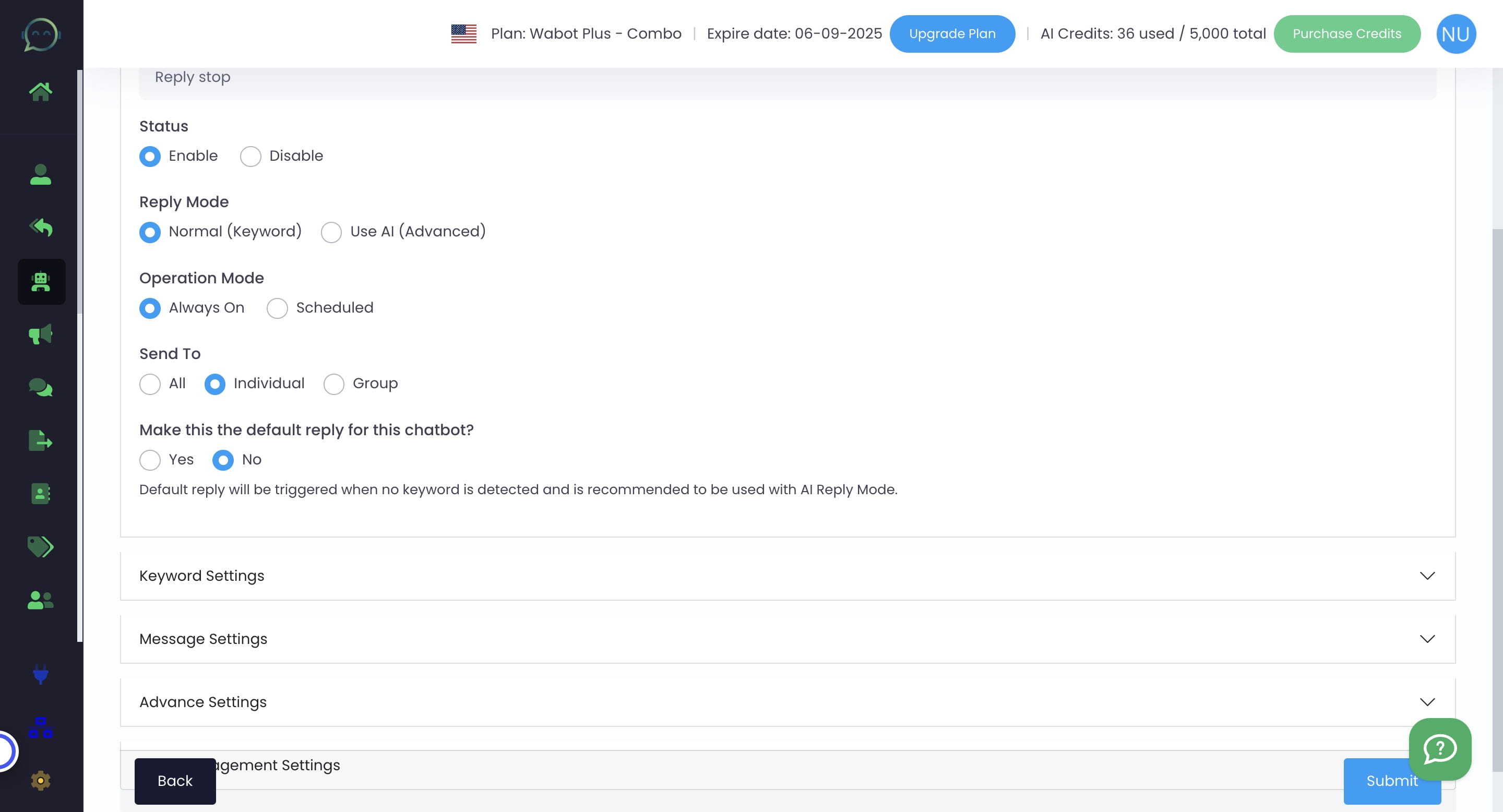
Click on "Keyword Settings"
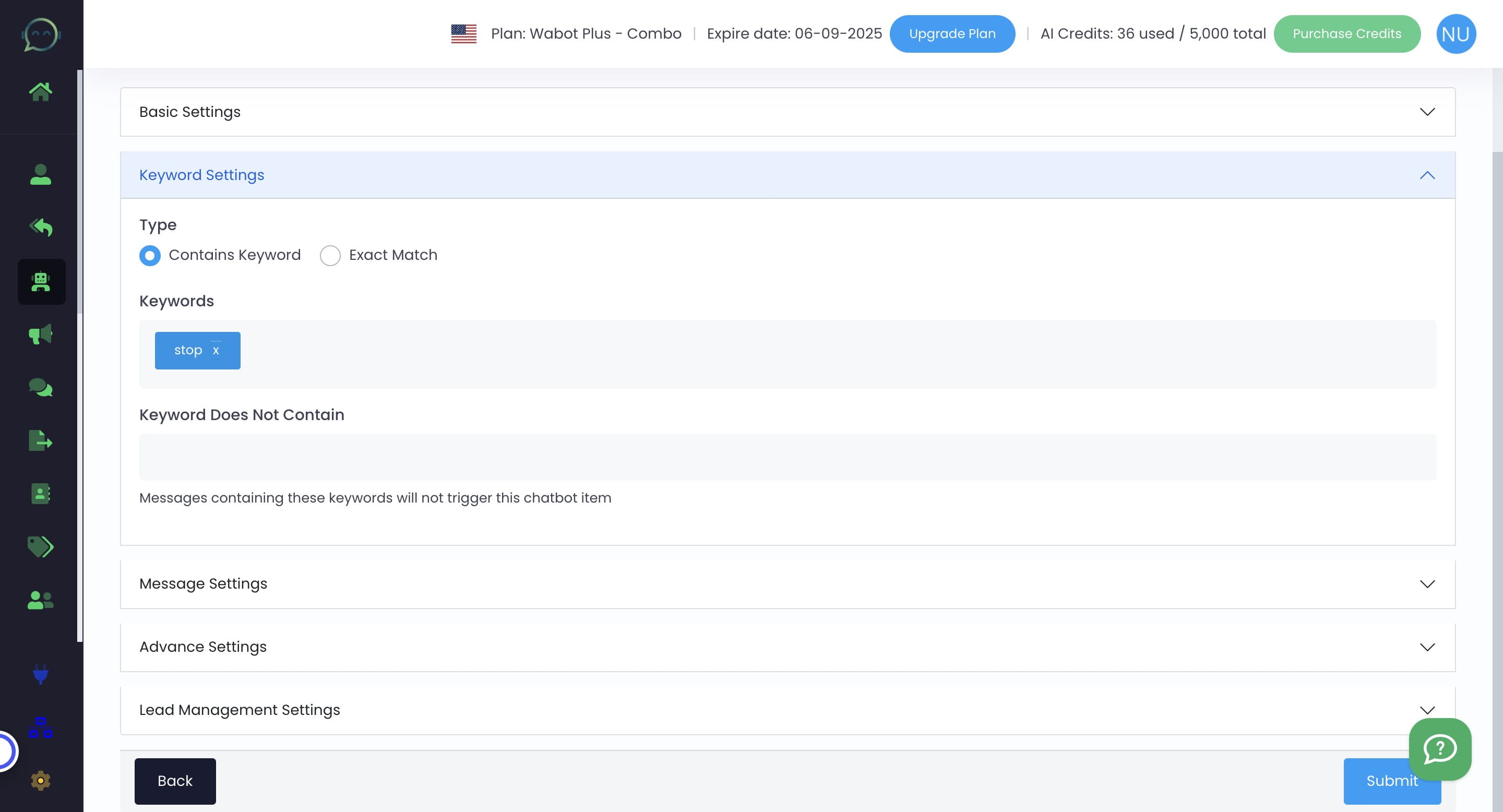
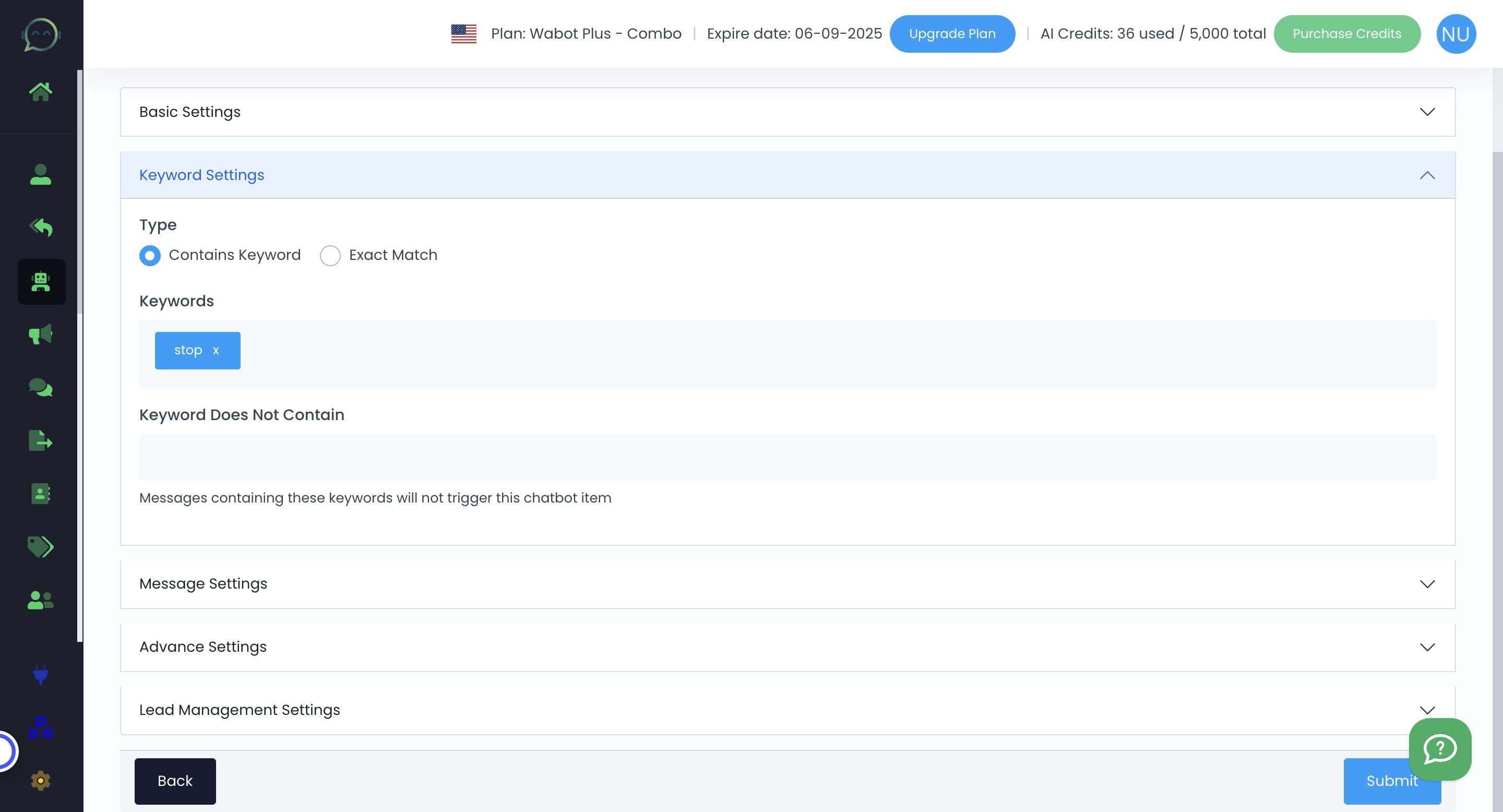
You can choose either "contain" or "exact" keyword. Using "contain" may trigger responses for messages unrelated to unsubscribing, but it will also be triggered if the reply contains more than just "STOP."
Click on "Message Settings"
Insert the caption
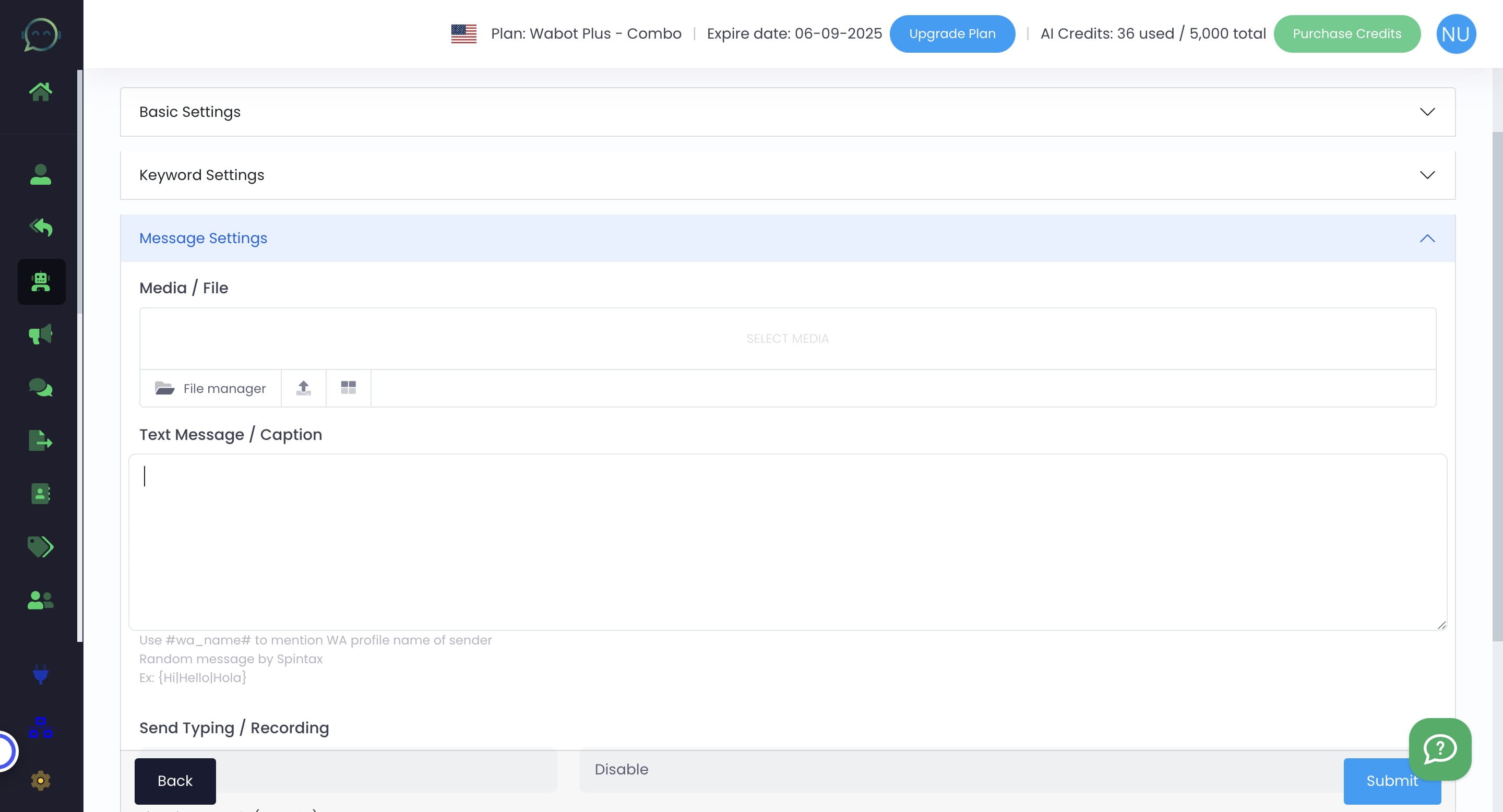
Click on "Use #wa_name# to mention WA profile name of sender"
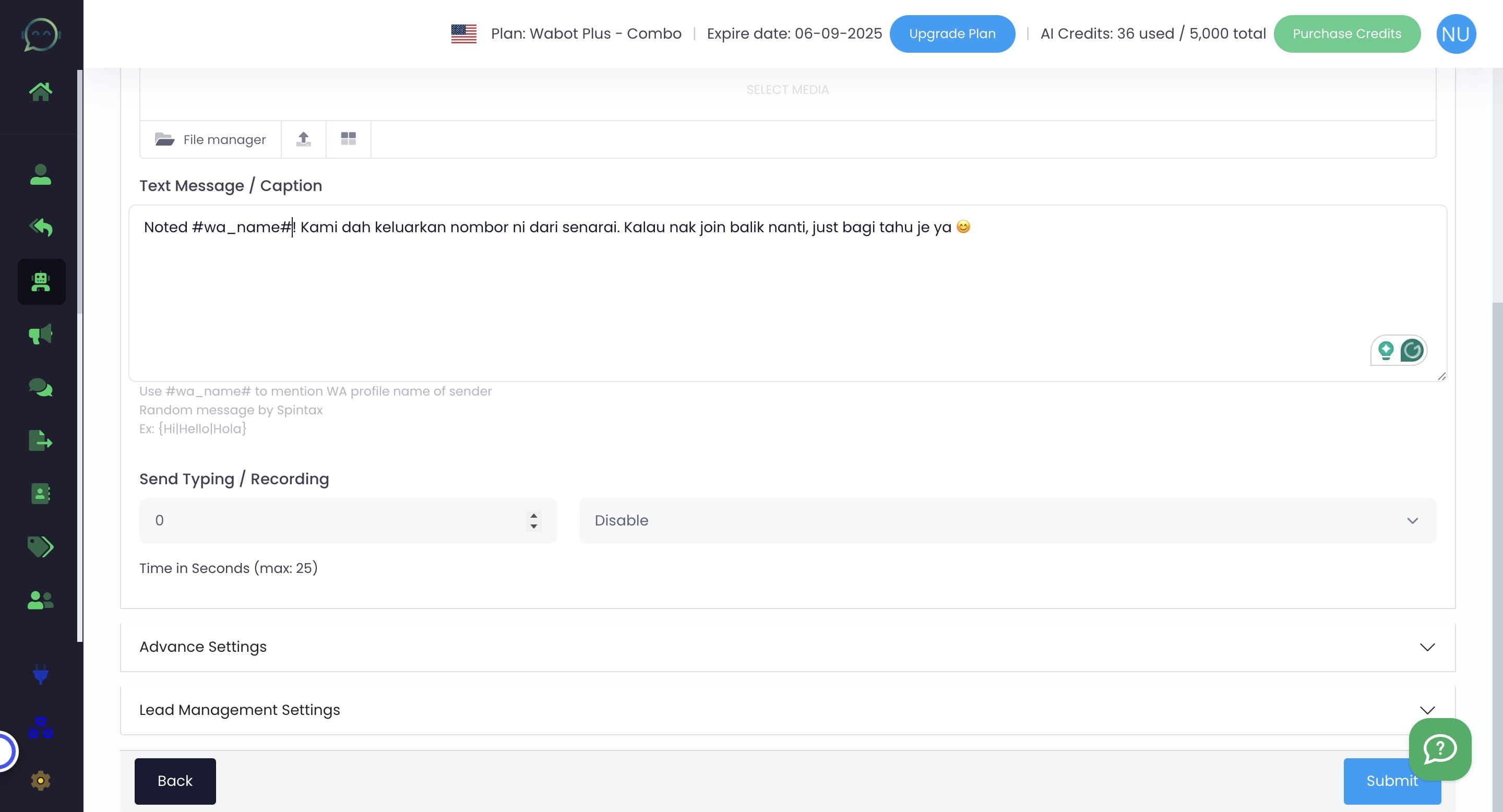
Select the timing for typing
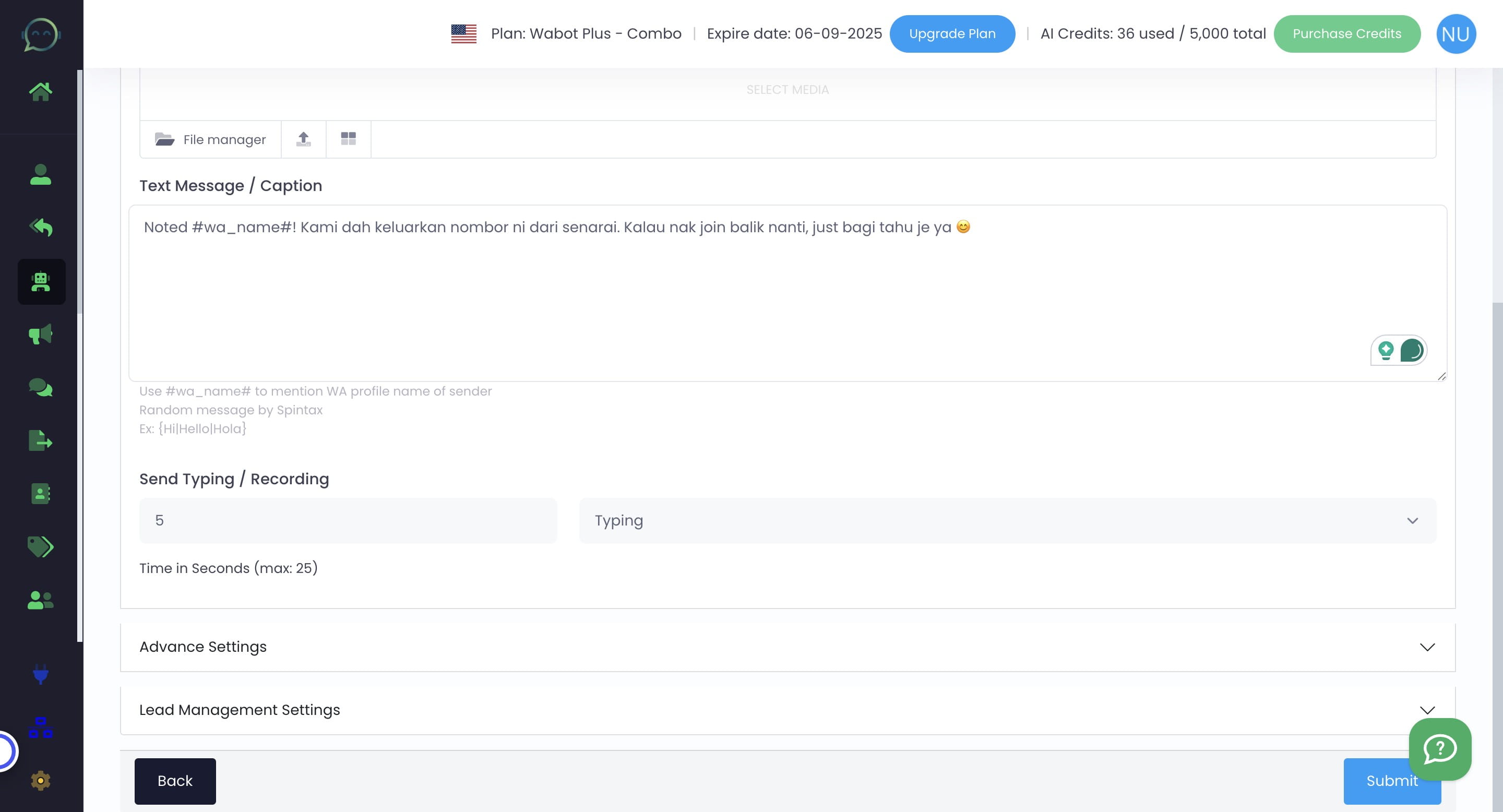
Click on "Advance settings"
Choose "No" for each of the options below if they are not needed
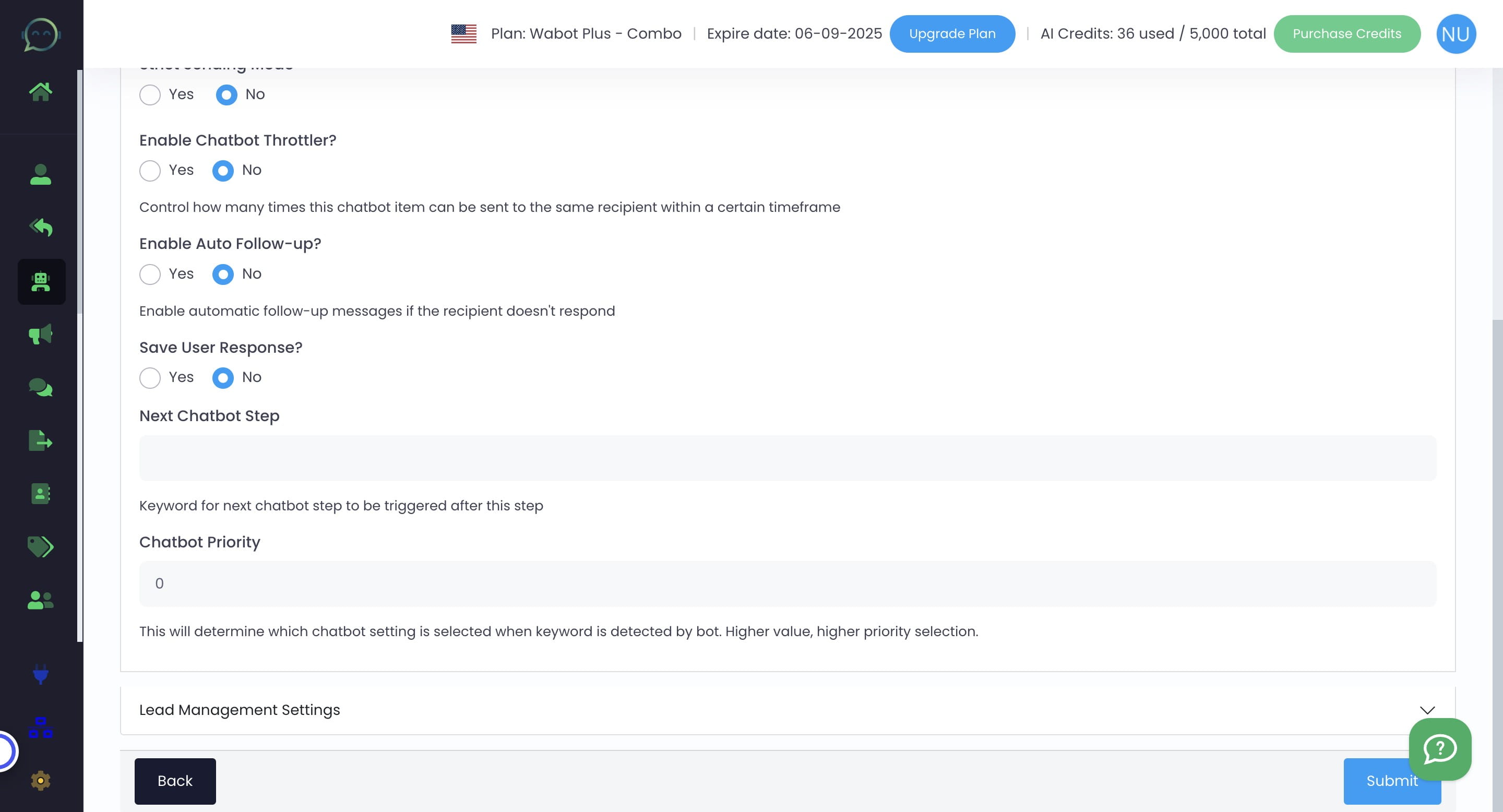
Select "Yes" to add to the contact group for those who replied "stop," and also select "Yes" to remove them from the main contact group (to ensure they are excluded next time)
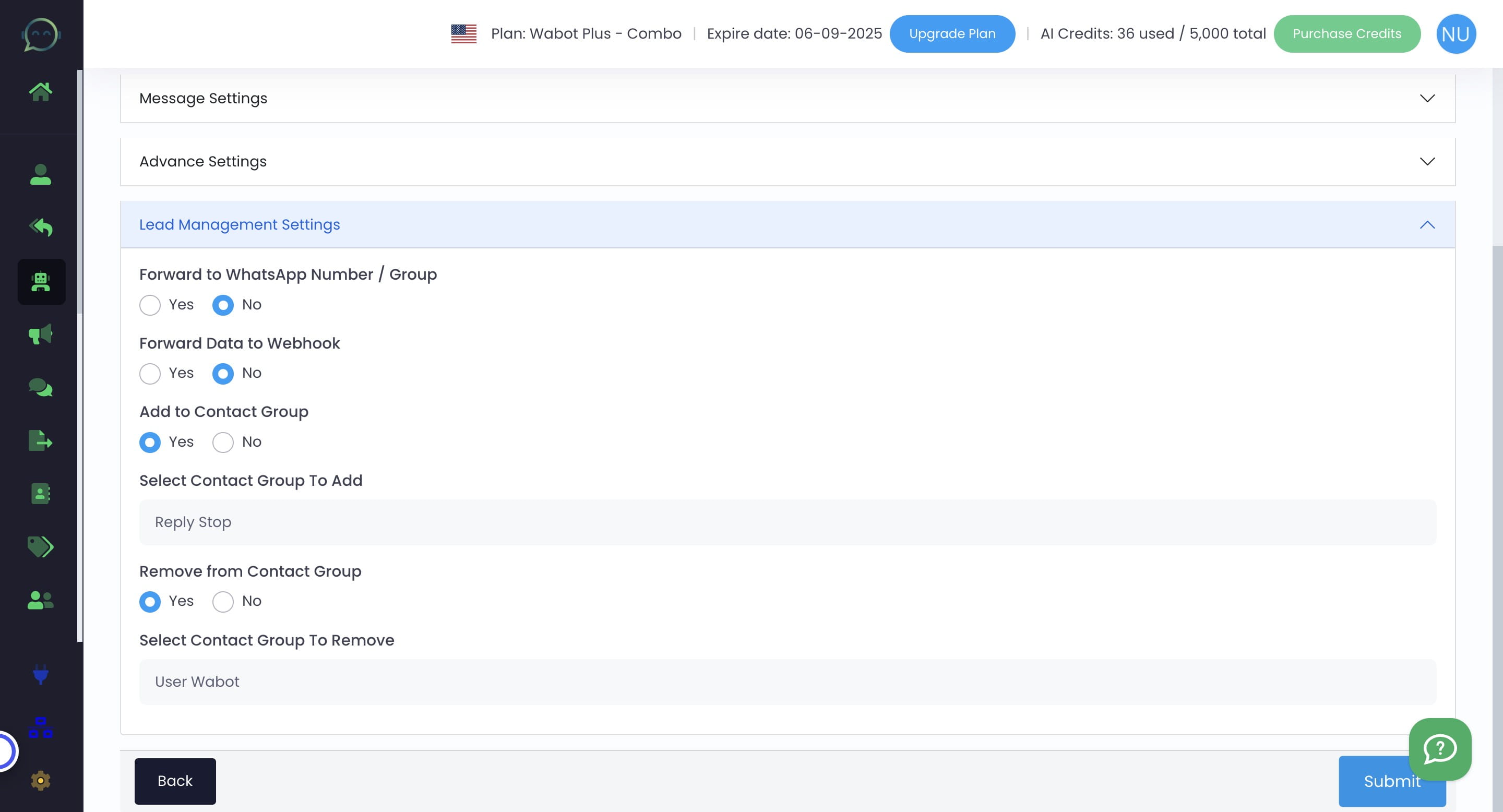
Click on "Submit"
Make sure to run the chatbot first (green icon) and you are done 🚀
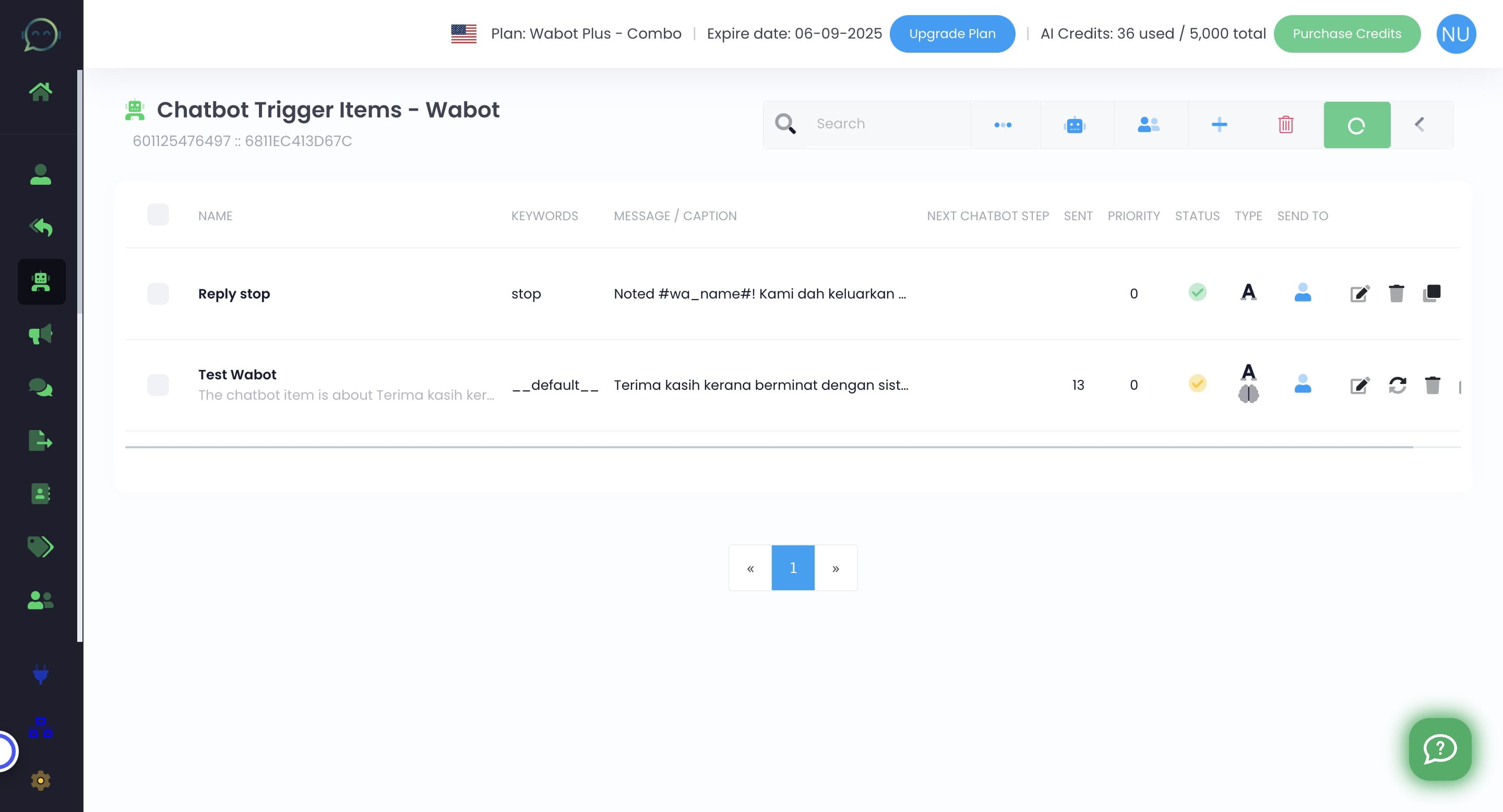
Then after setting this up, you can set the broadcast message campaign and insert in the script for subscribers to reply "Stop" if they no longer want to receive any message
Actually, you can remove them directly from the contact group without adding them to a new group such as "Reply Stop." However, it's helpful to be able to see a list of everyone who has replied "stop" to any of your messages.