Account Manager and Its Usage
In Account Manager, you can easily connect and add new numbers, delete them if needed, and re-link everything if your WhatsApp account gets disconnected from Wabot.
Navigate to https://app.wabot.my/dashboard
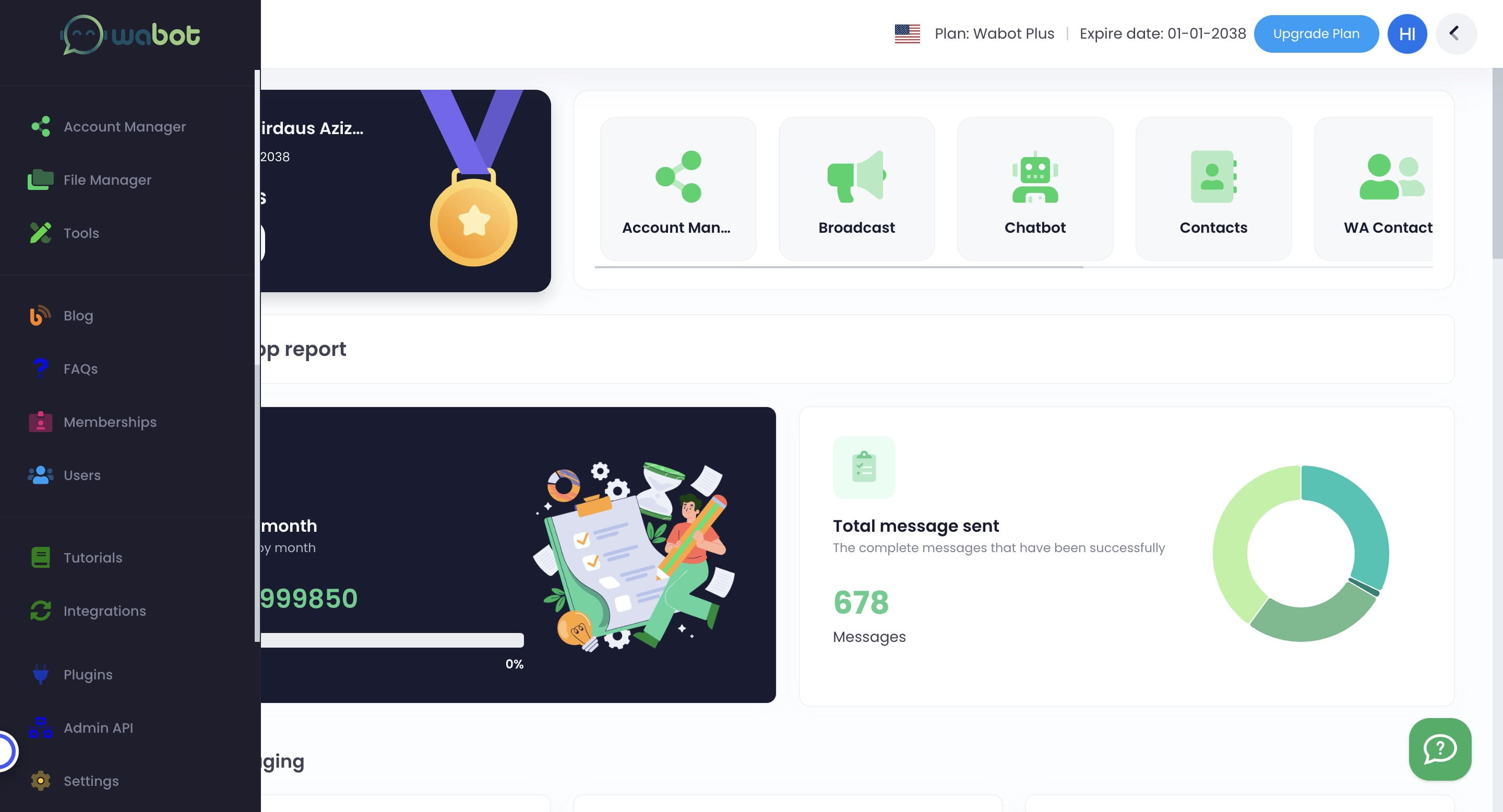
Click on "Account Manager"

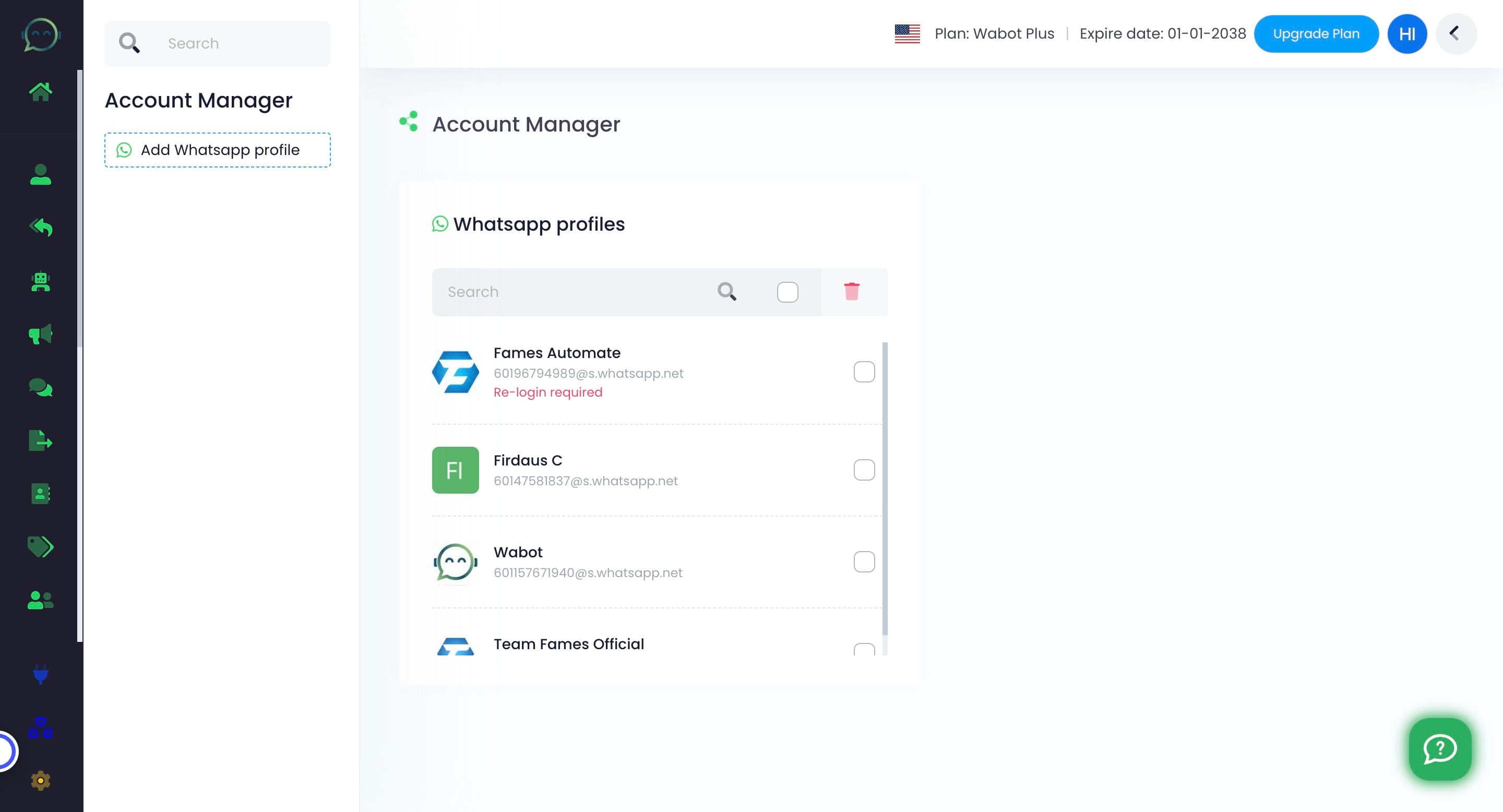
You can add WhatsApp profile by clicking this button
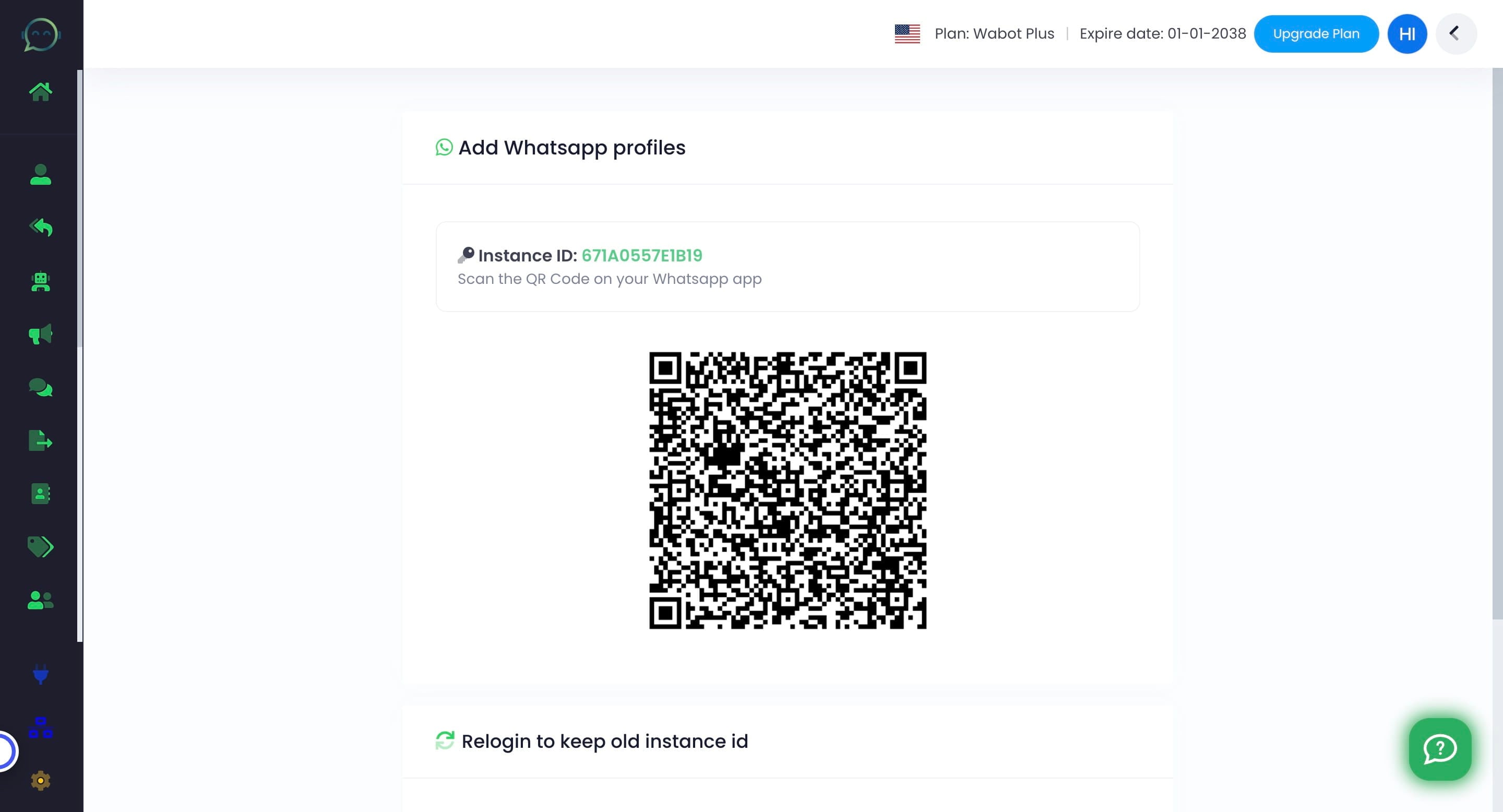
Open your WhatsApp and scan the QR code generated inside your Wabot account
If your WhatsApp profile is connected to Wabot, your profile will appear here with your number and current profile picture
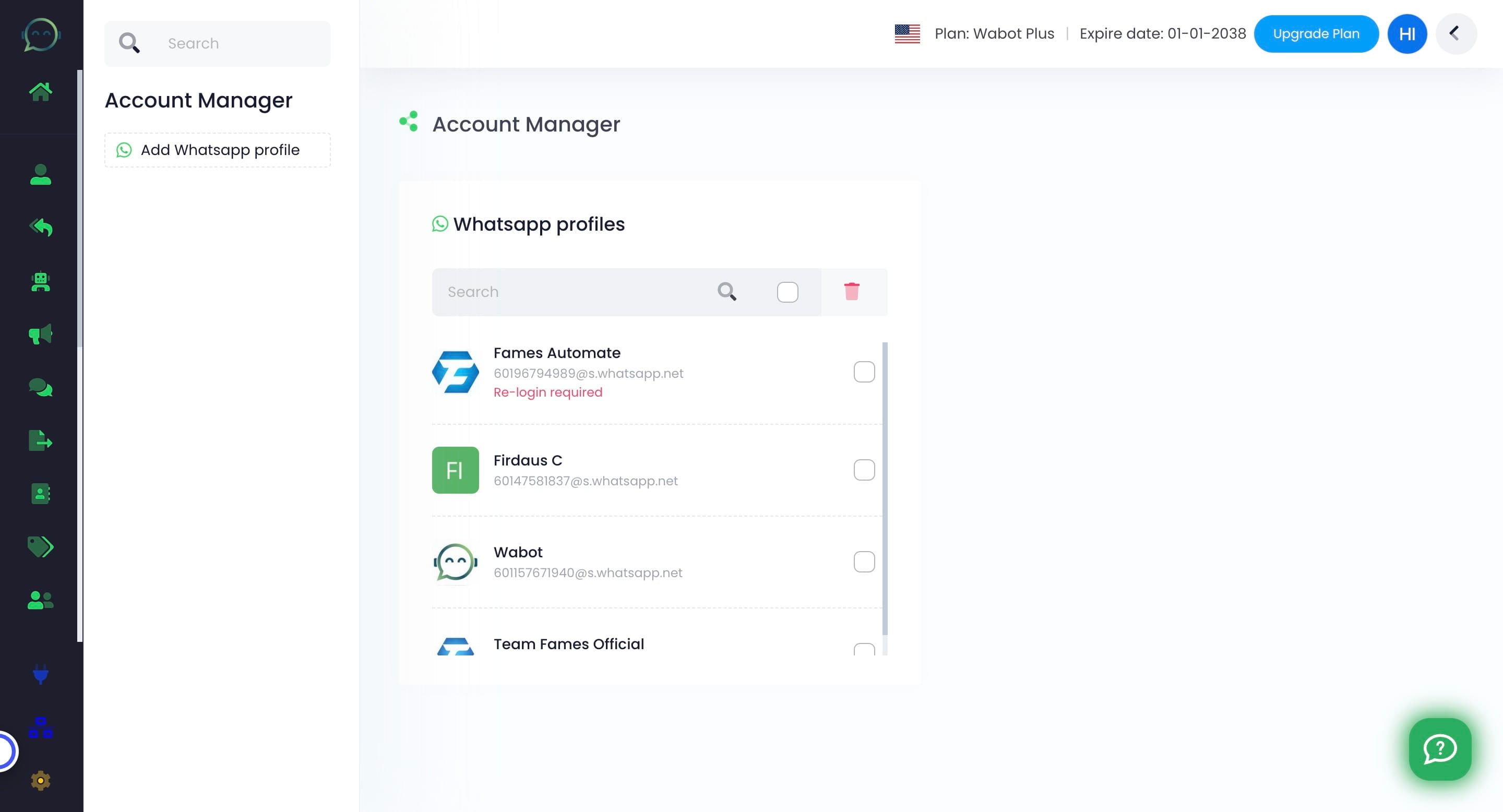
You can also delete any WhatsApp profile from Wabot by ticking the desired profile and clicking the "dustbin" icon
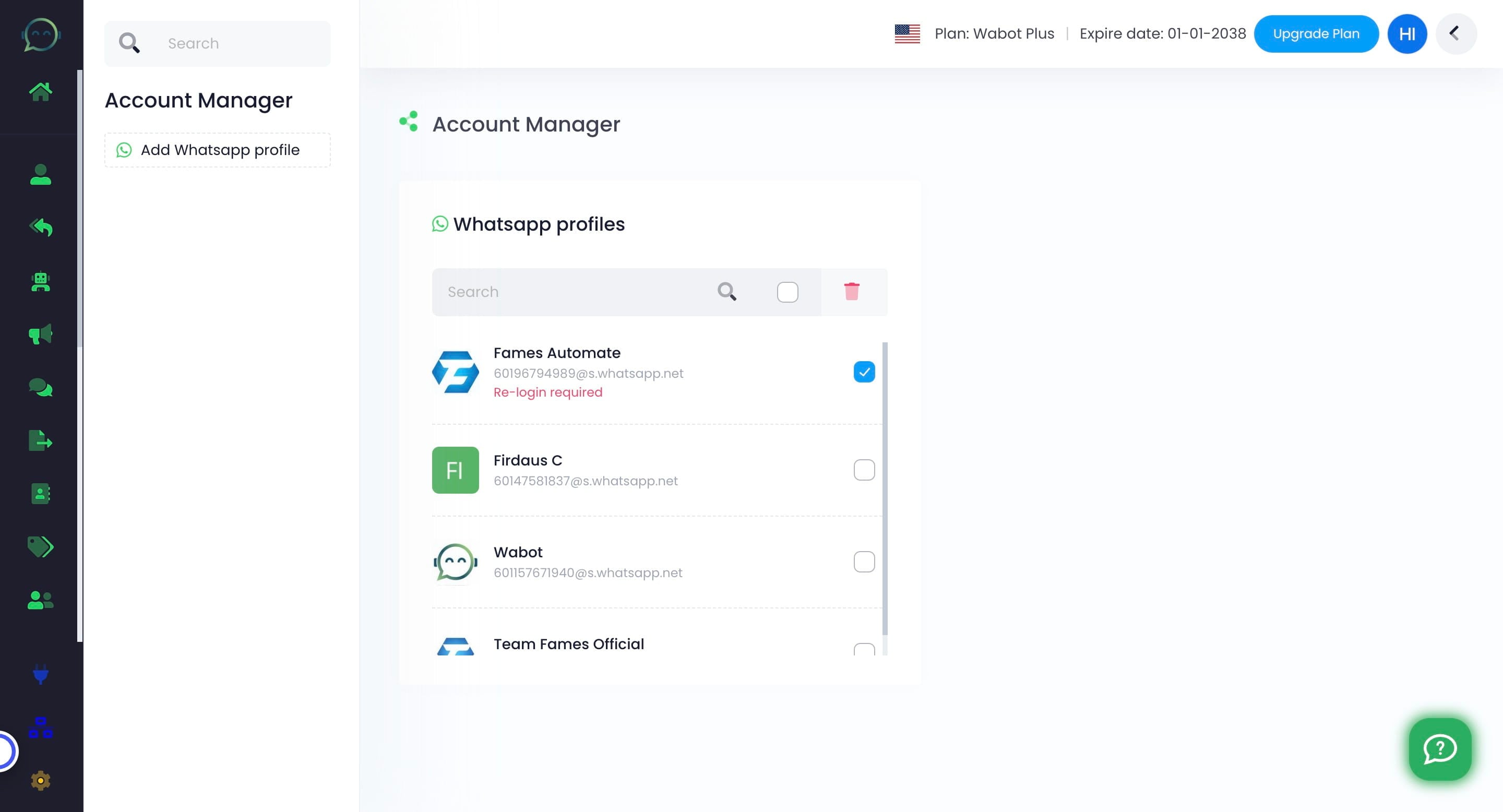
Deleting your WhatsApp profile will lead to the loss of all chatbot settings, and both the instance ID and access token will be changed. You must check thoroughly before making the decision to delete your WhatsApp profile!
Re-login Required
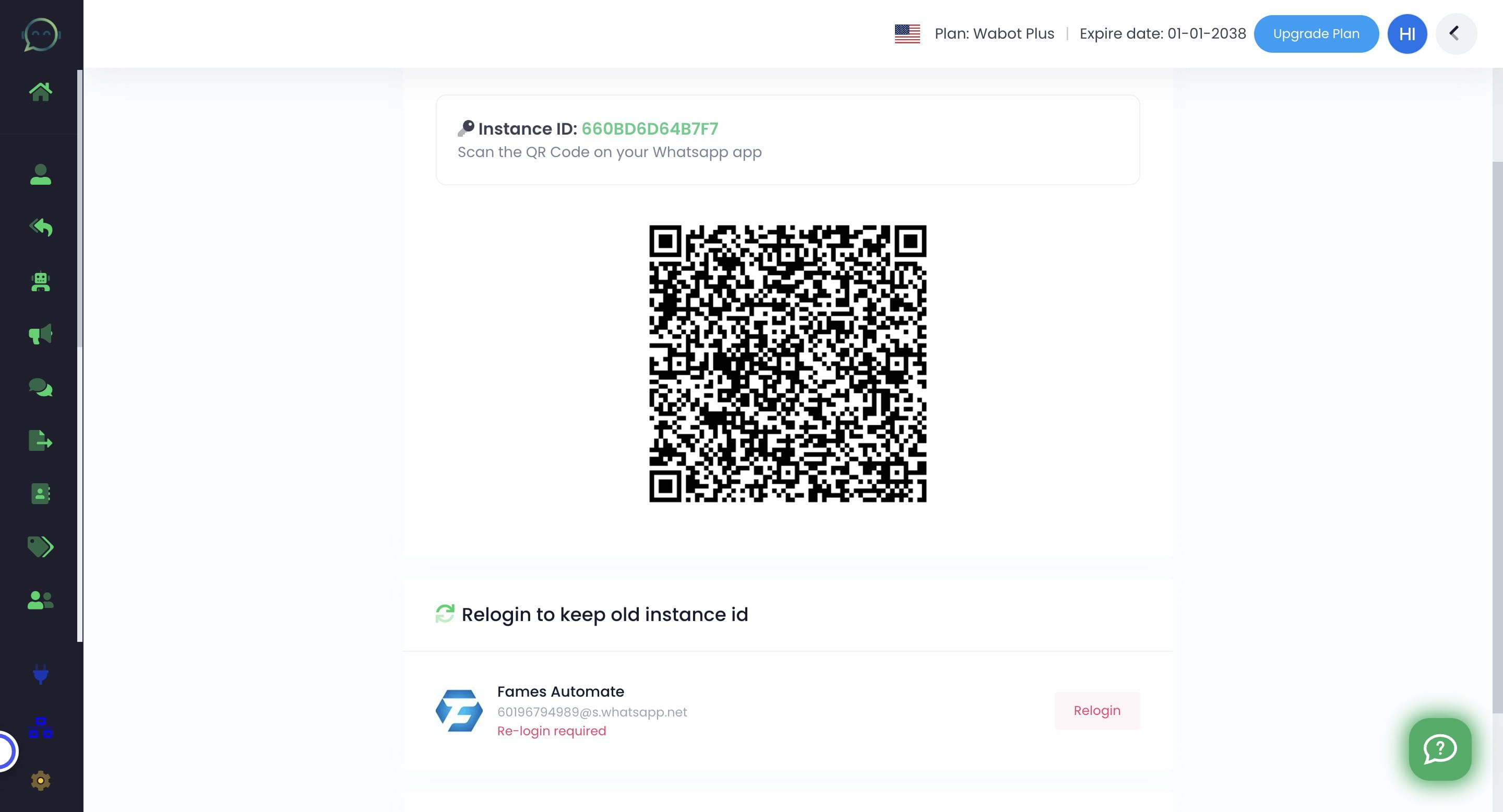
If you encounter this issue, it means your WhatsApp profile has been disconnected from Wabot. Simply click on "Re-login required" to reconnect
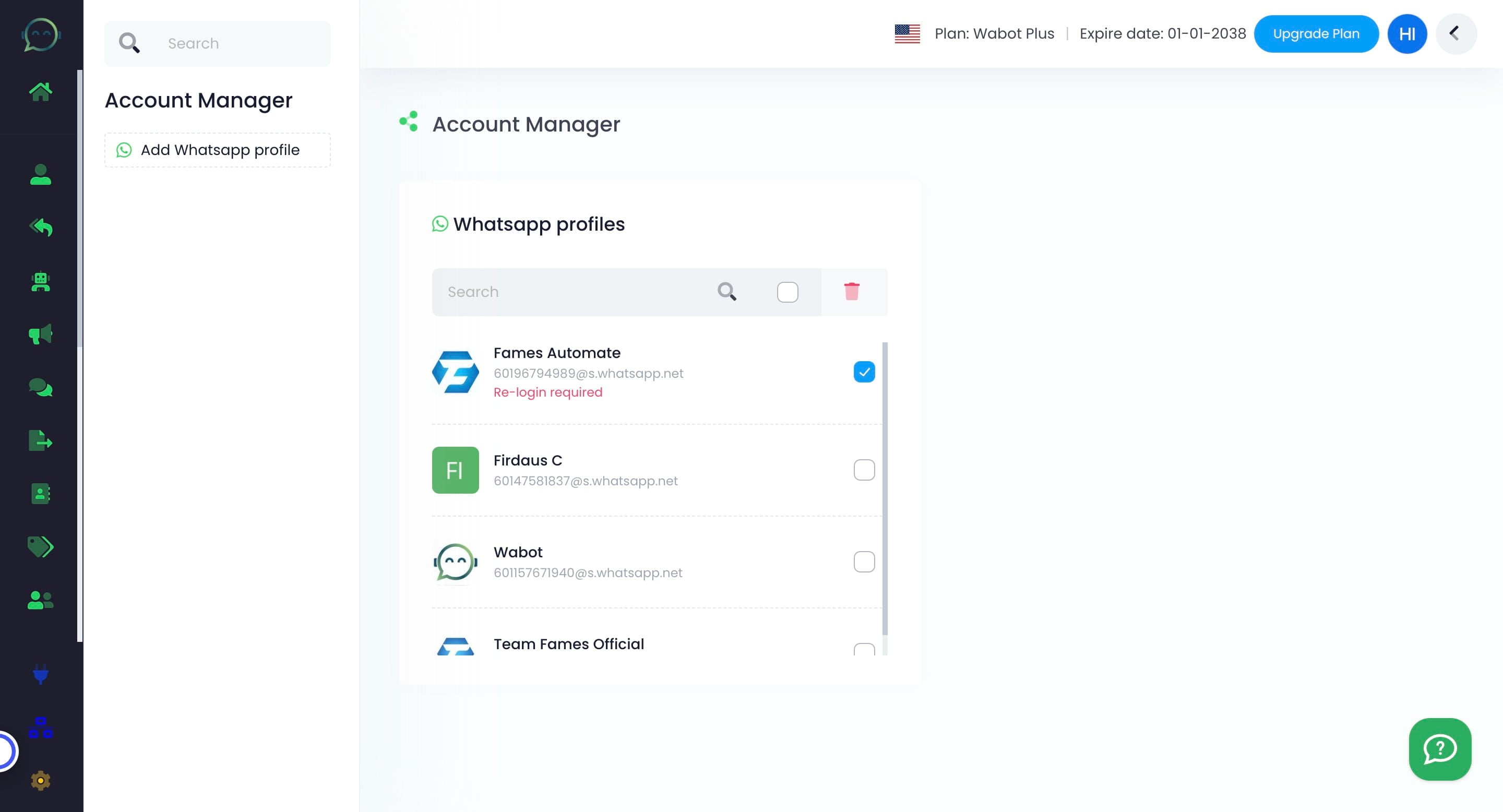
Scan the QR code again using your WhatsApp account. The WhatsApp profile will appear if it has been re-connected successfully