

How To Set No Match Keyword In Chatbot
A customer may send us a message on WhatsApp and not receive a response from the chatbot if no keywords trigger it. To address this, create another chatbot that can respond without needing a specific keyword. This also works as a substitute for "Default Reply".
Navigate to https://dash.wabot.plus/login
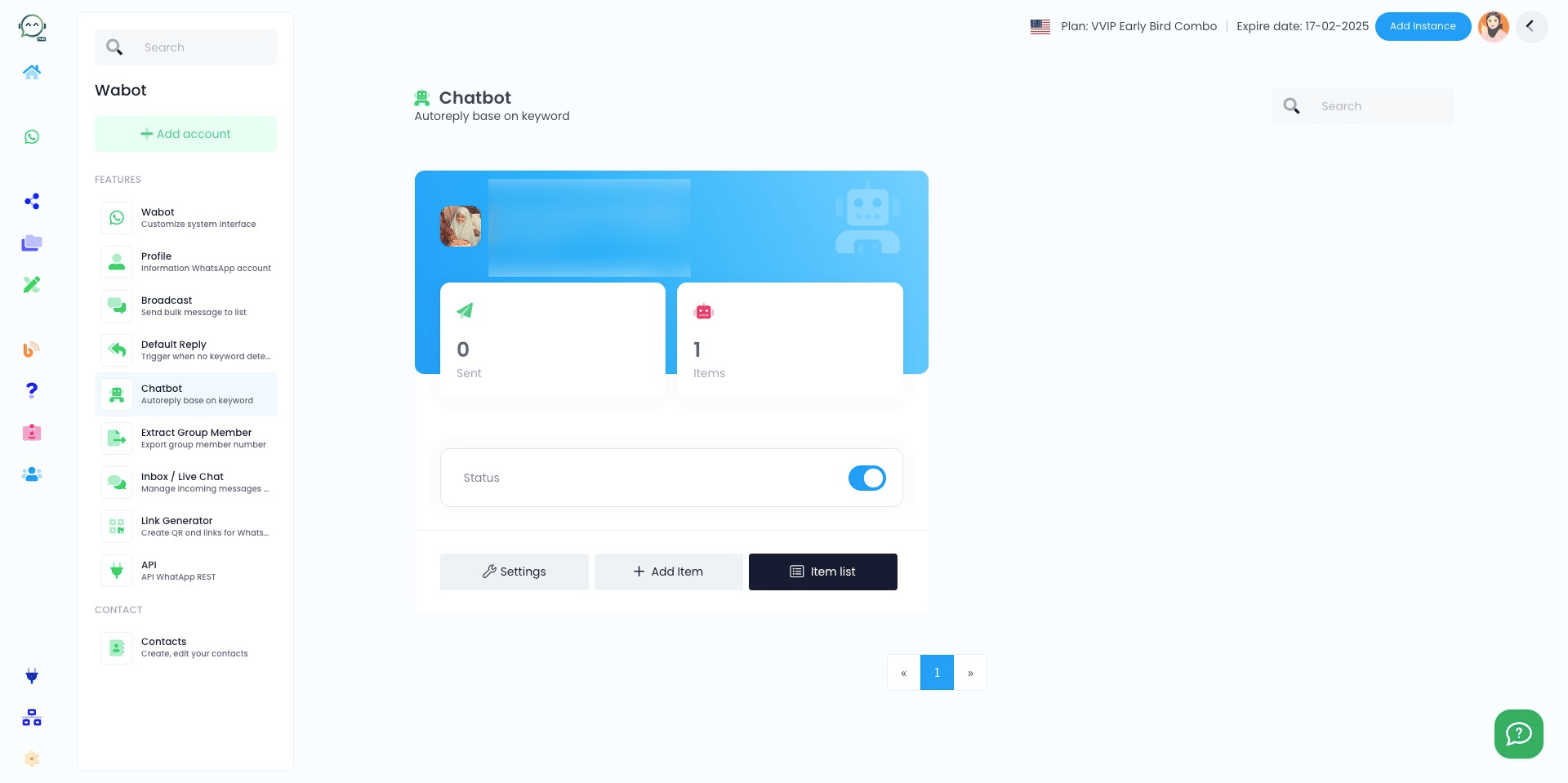
In the dashboard, click on "Chatbot" and go to "Item List"

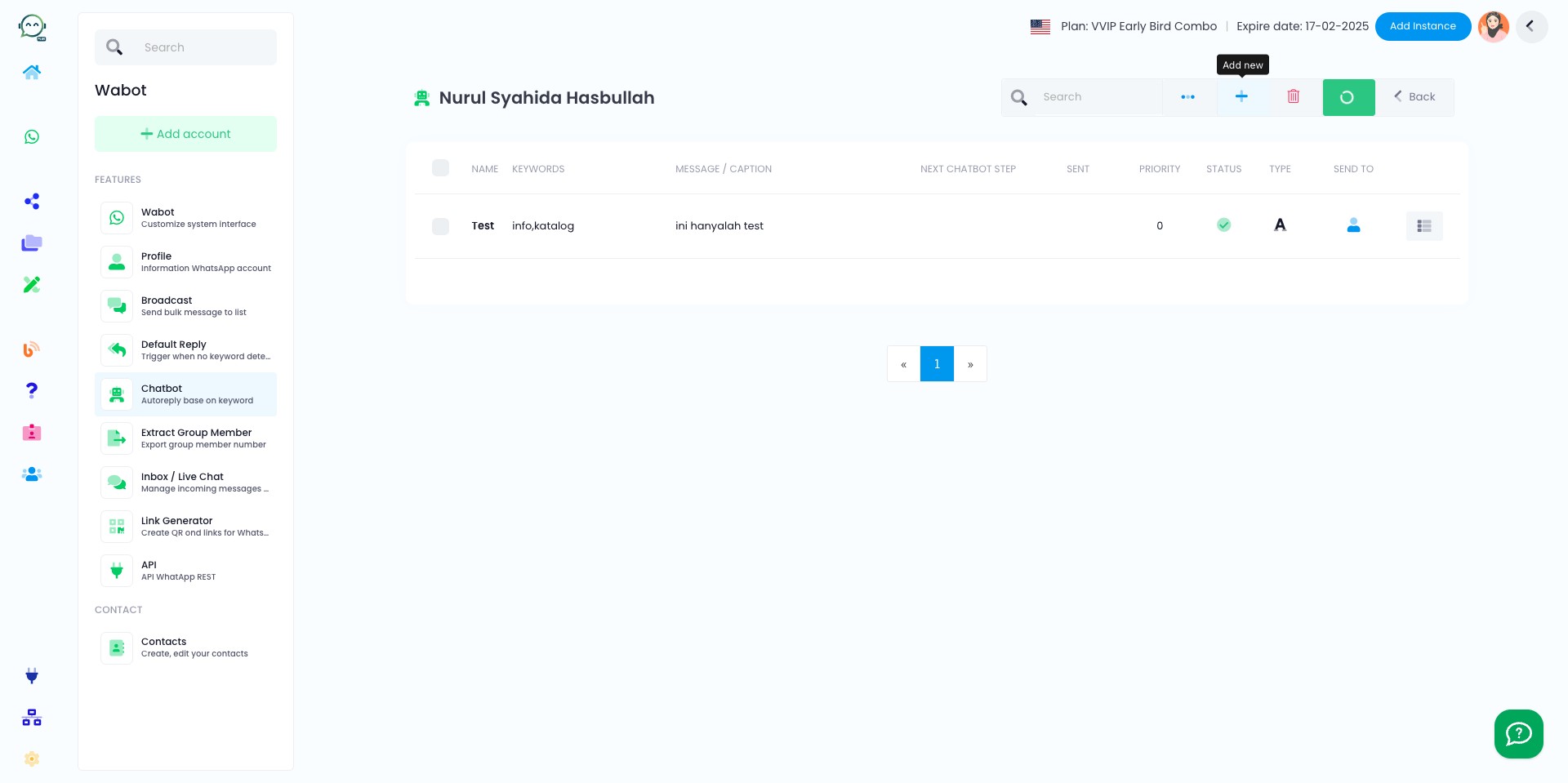
Click this icon to add new chatbot
Enter the chatbot name
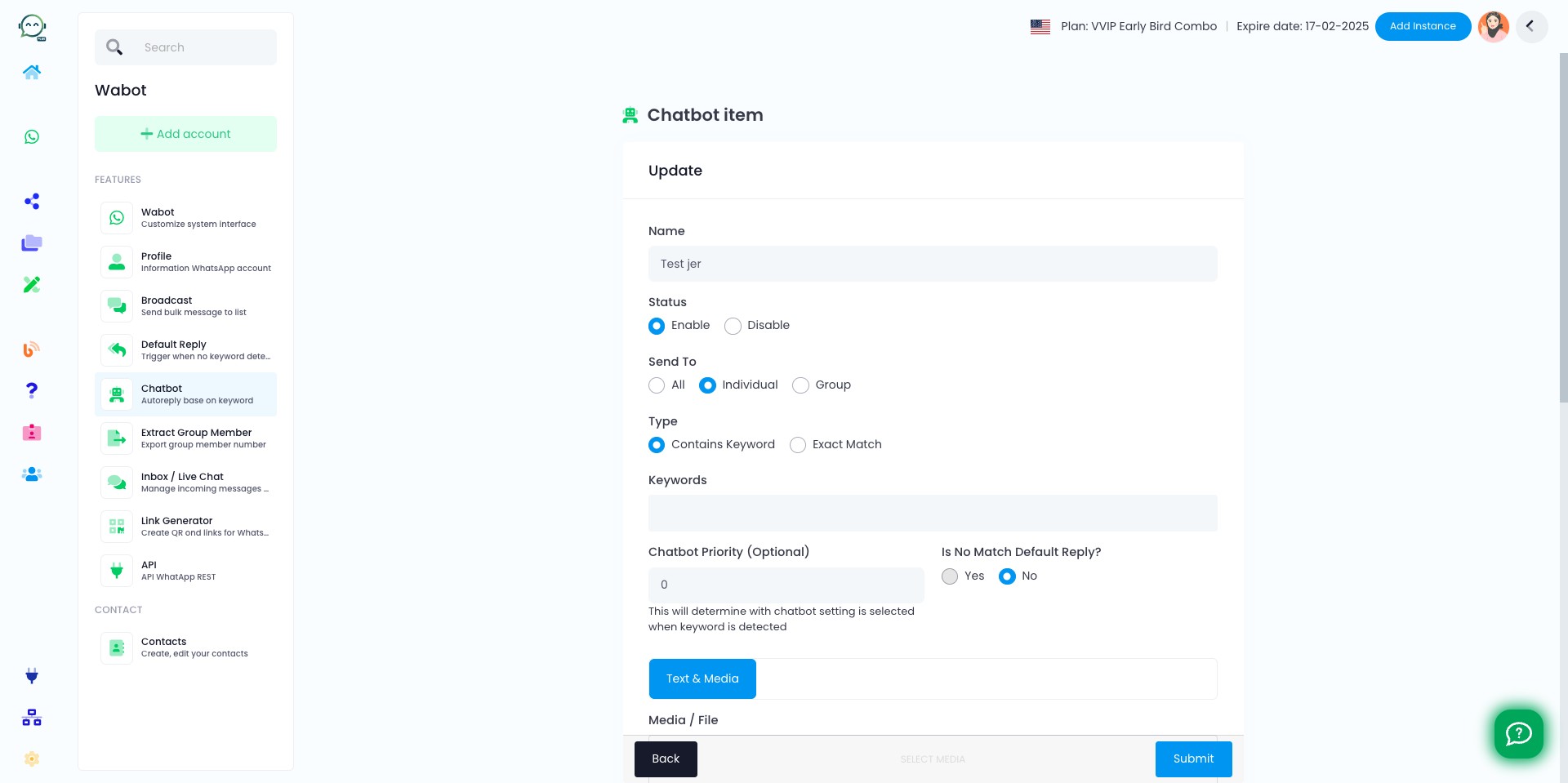
Enable the chatbot
Choose your audience either everyone, individual, or group
For keyword, choose "Contains Keyword"
The keyword should be a common one like "greeting" that customers usually use. Keep it simple since the chatbot is designed to be triggered without a specific keyword
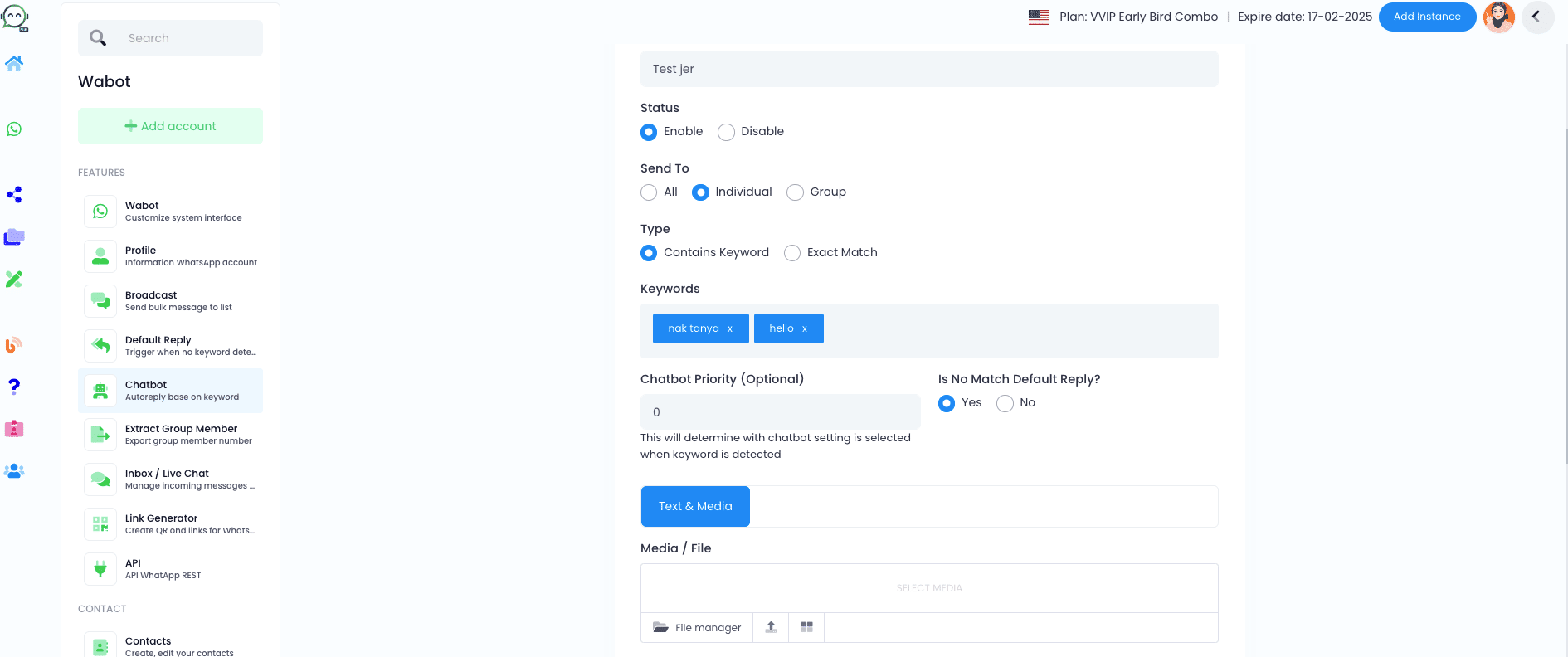
Here is the main part. Click "Yes" for this option. This option will enable the chatbot to be triggered if the keyword provided by the customer is not found. Thus, it helps to solve the issue of the chatbot not being triggered
Insert the caption. Keep it simple and welcoming, like a friendly greeting or an offer to assist. This way, customers will feel encouraged to reply and share their inquiry
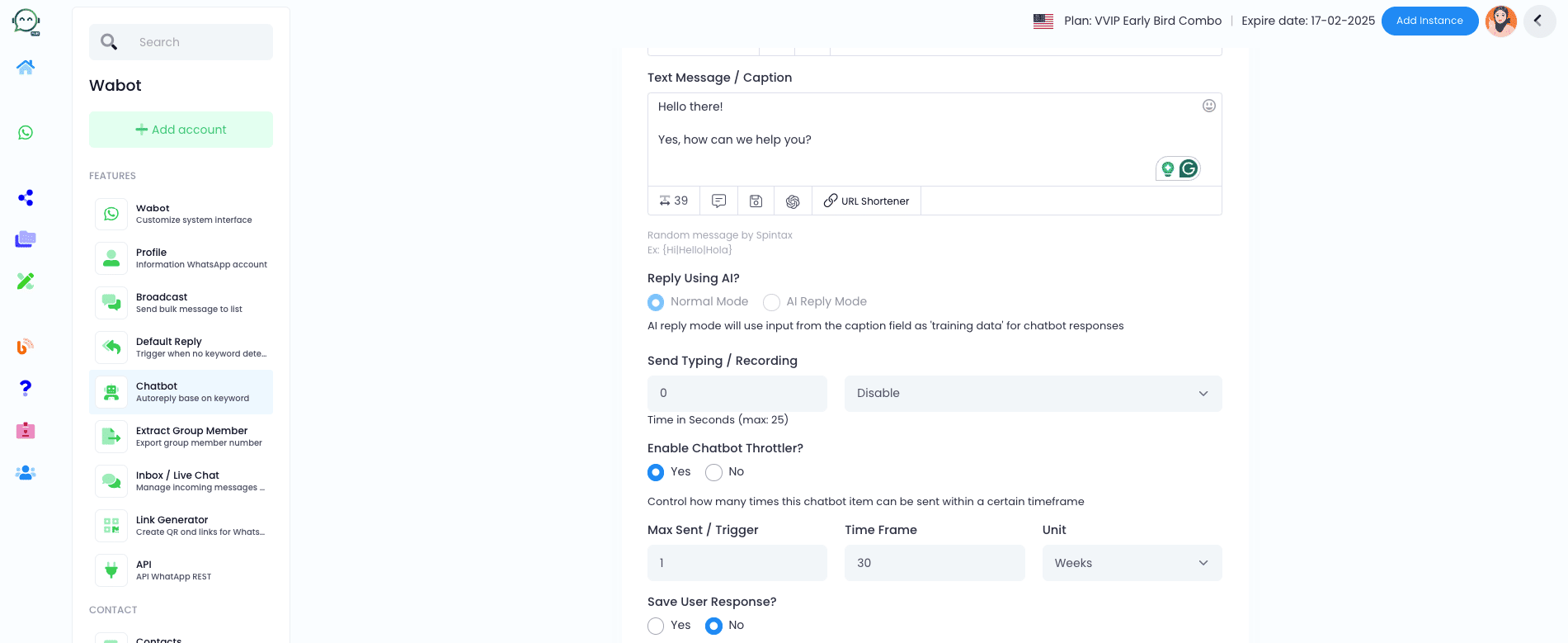
Turn on "Chatbot Throttler" to limit how often the chatbot responds, avoiding repeated messages that seem robotic
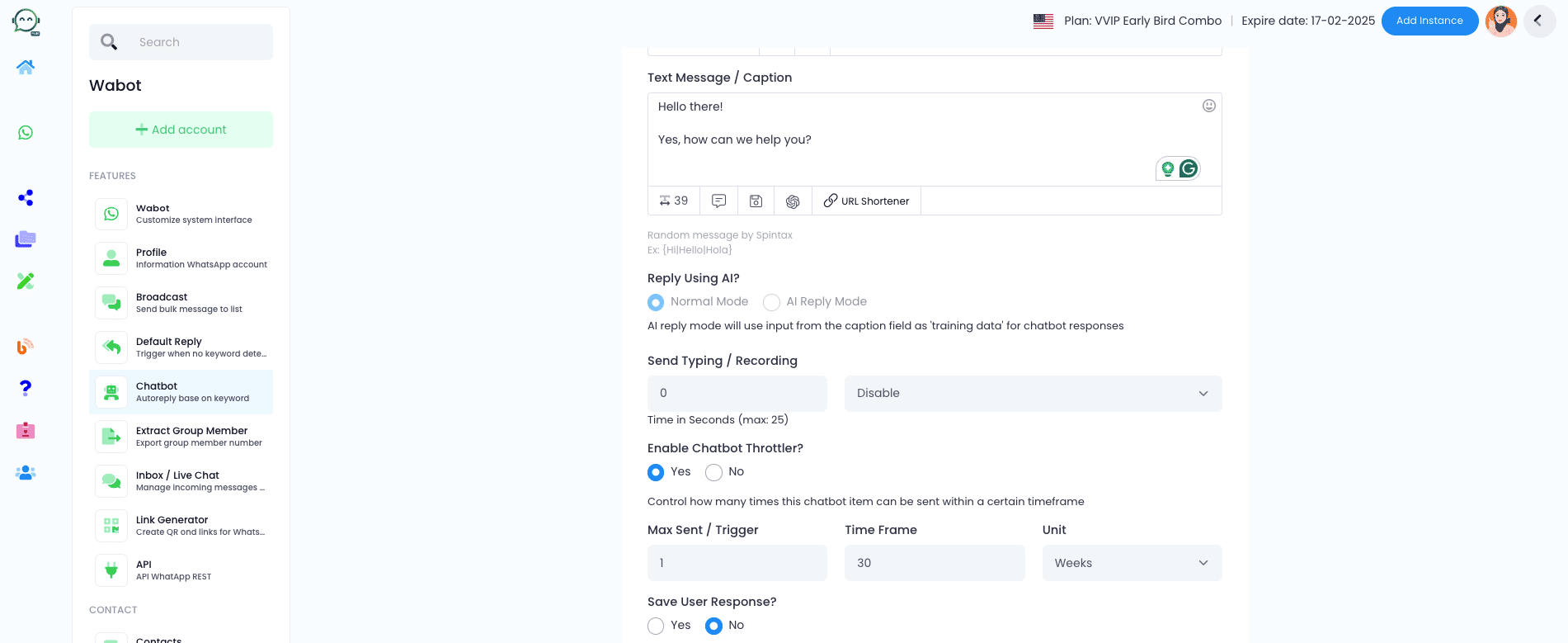
Please select the time frame that suits your needs. If you prefer not to repeat the action for the same customer, opt for the maximum time frame as shown below
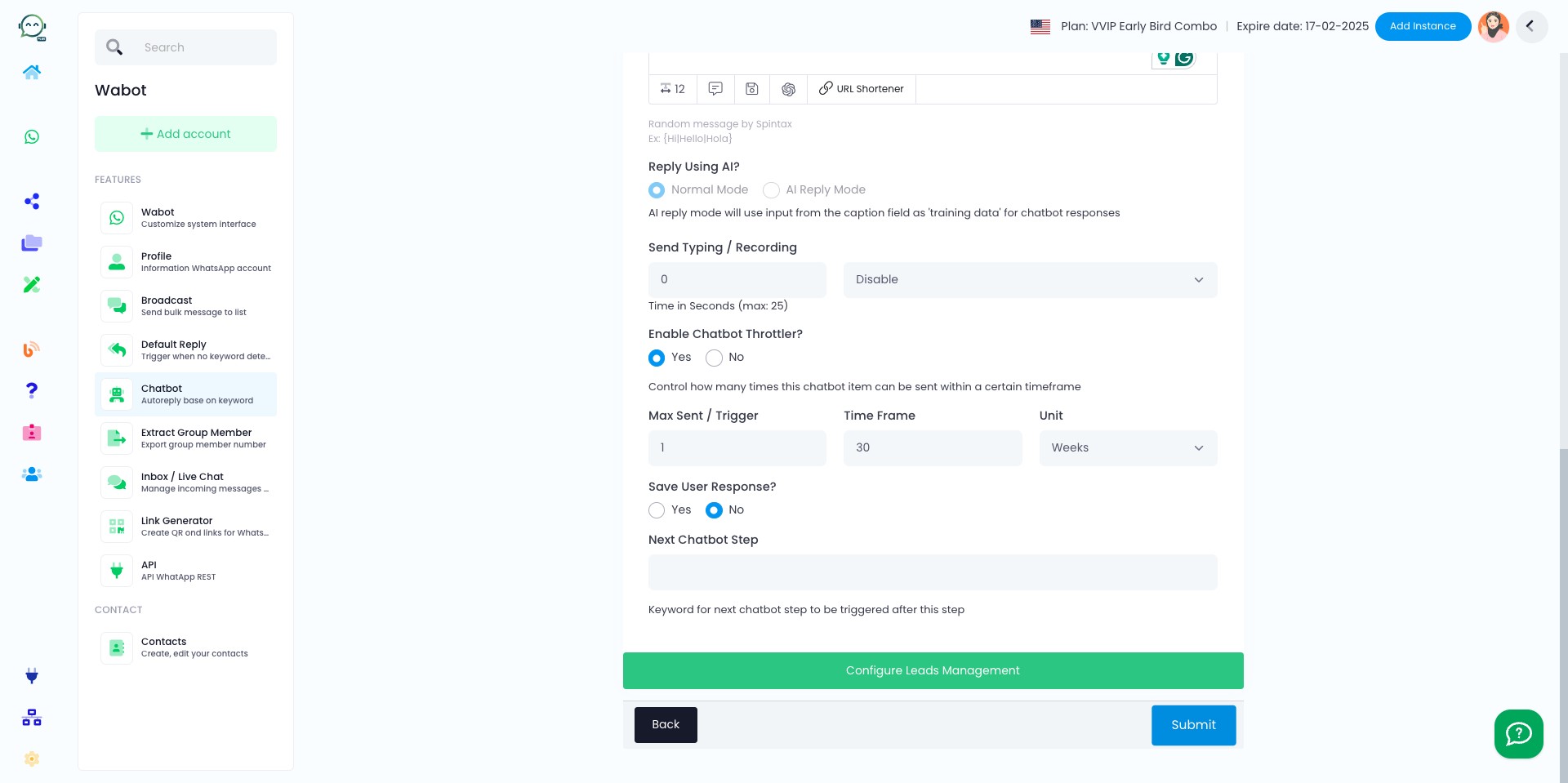
Click on "Submit"
Don't forget to click run to activate the chatbot! Your chatbot is ready 🚀
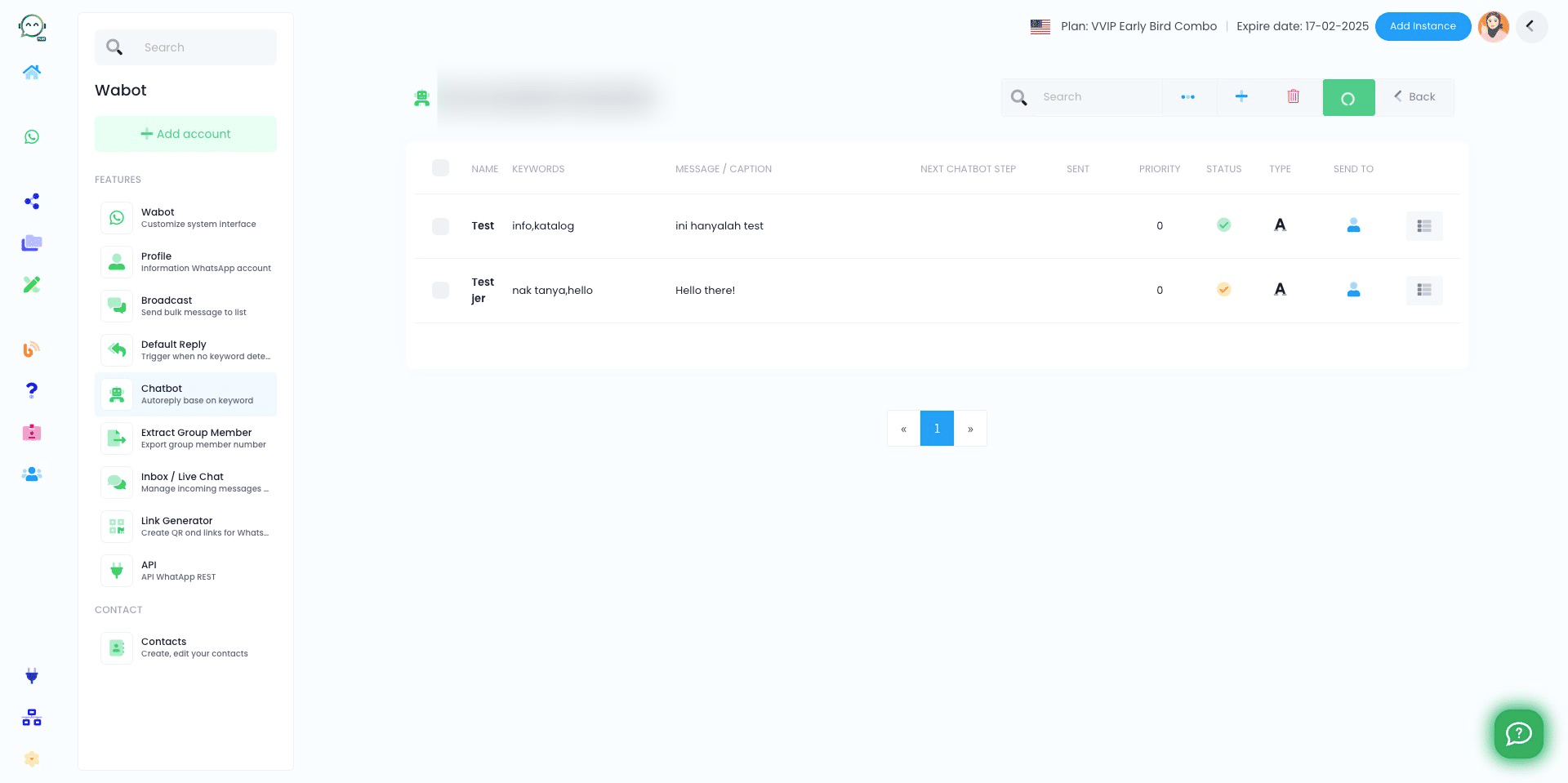
If you have setup this no match keyword chatbot, you can simply disable your default reply because it works the same