

How To Set Chatbot AI Settings
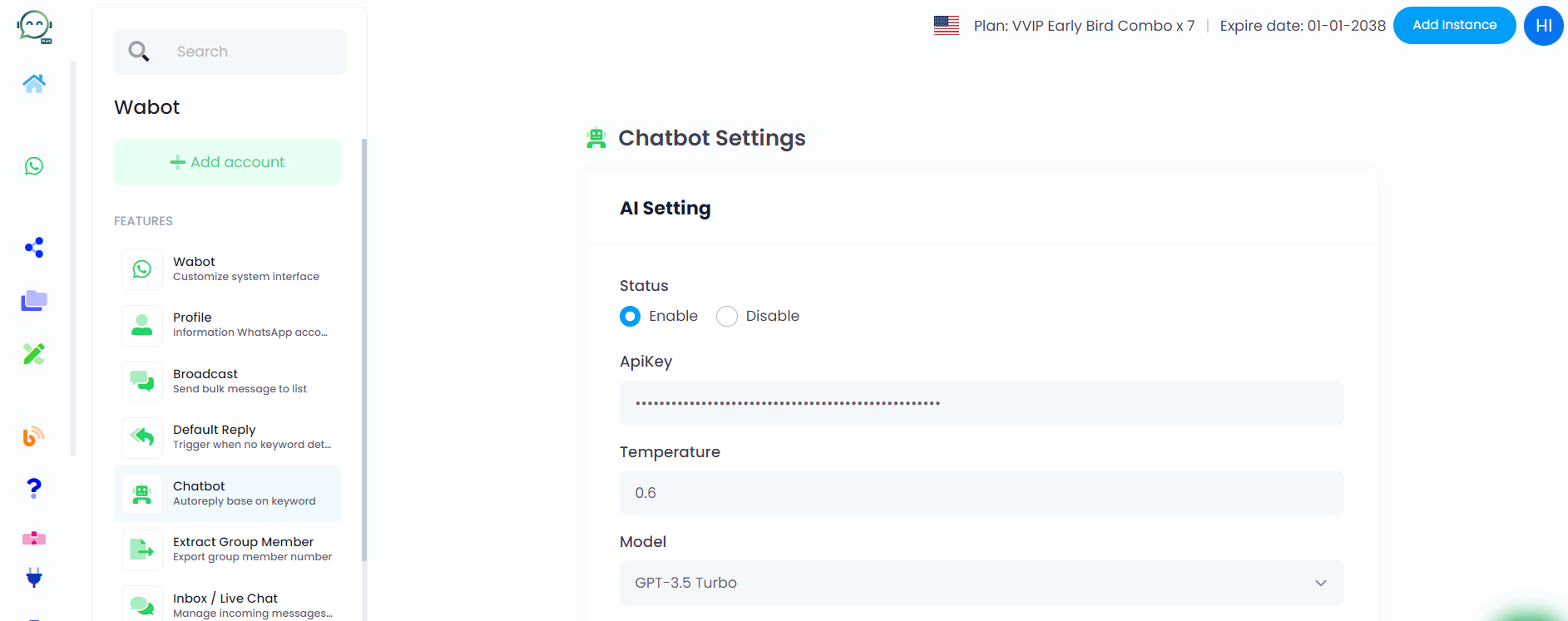
Before you set AI for your chatbot, you must first enable it in the setting.
In the Wabot dashboard, open Chatbot. Then click on button "Settings" of the account that you want to use.


Click "Enable" and proceed to insert all the information needed.

To add the API key, begin by signing up for an OpenAI account and logging in. Even with a free account, you can use AI as a chatbot, although it comes with some speed and credit limitations.

Upon logging in, you will be directed to this homepage. Then, search for "API keys" and click on it

Click on "Create new secret key" and name the key

After creating the key, be sure to copy and paste it in a safe place for future reference. Once you click "Done," the key becomes hidden and cannot be retrieved. Simply proceed to click "Done" after that step

Then go back to Wabot dashboard and paste the API key here

Think of "temperature" as a creativity button—higher for playfulness, lower for seriousness. Adjust to your liking! Recommended around 0.6-0.7, but it differs based on what your business needs
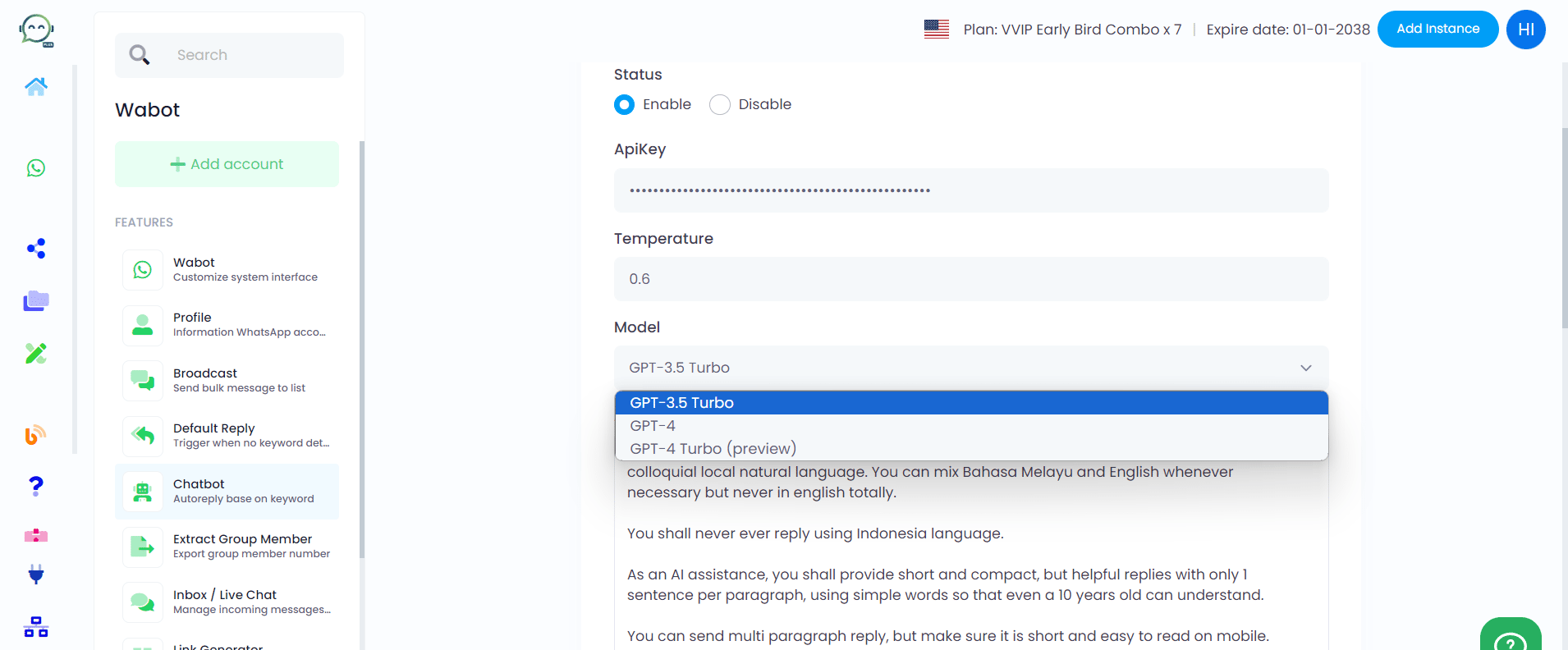
Choose GPT-3.5 for quick responses and decent answers, or go for GPT-4 if you want highly accurate responses, even though it comes at a slightly higher cost!
This is crucial. Include the AI's role, response guidelines, possible questions, and previous answer history. These elements shape the AI's replies.

If the AI isn't working, it gives the default reply
Let say you make same setting changes, you can simply send "reset" to the customer to reset the conversation.

Conversation history length affects how much AI relies on previous interactions. If set to 10, the AI will base the current conversation on the last 10 interactions
You can use webhook to integrate Wabot with 3rd party platform such as Google Form
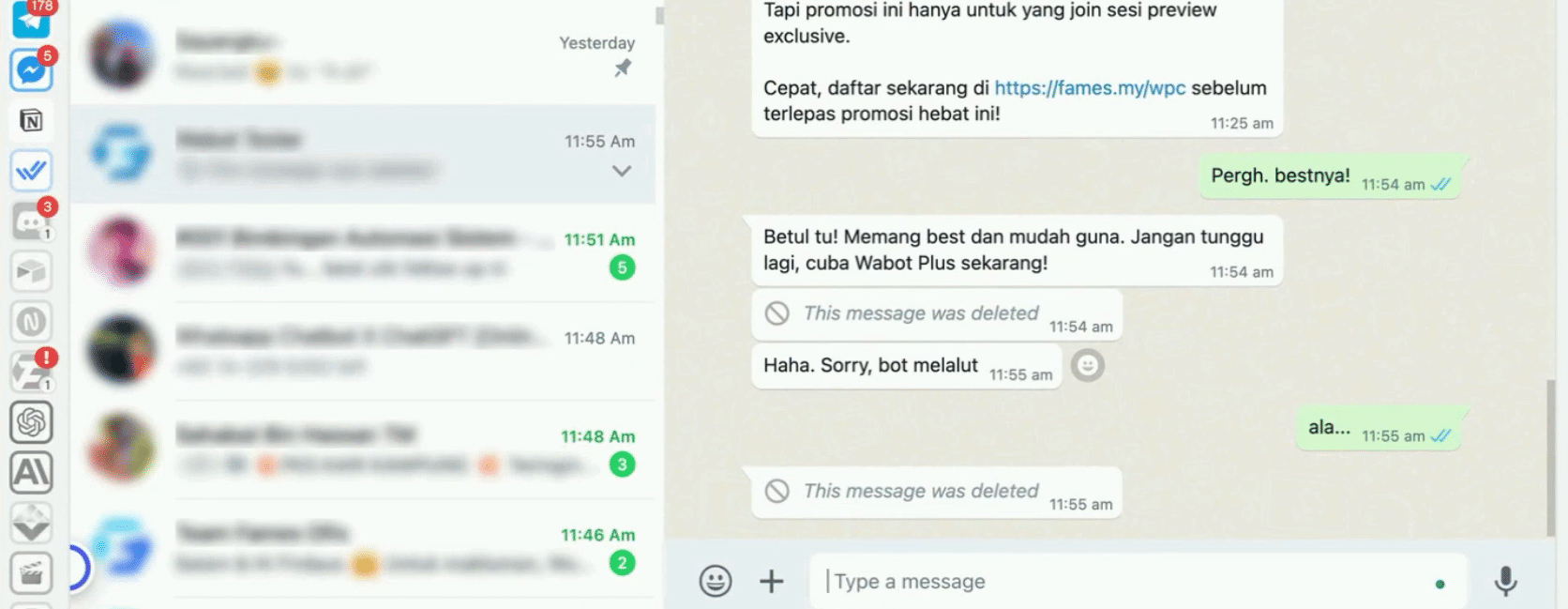
In case you want to take over from the AI, please respond with "stop" to temporarily suspend the bot. When you're prepared to resume, respond with "start"

Rest assured, the terms "start" and "stop" won't appear abruptly in your conversation with customers. After sending, they will be automatically deleted
This feature lets you wait before sending messages to customers, so they can be sent together. You can set the delay to 0 if you want
Don't forget to click submit!
The End
Now you can go and setup your chatbot. Once you enable the AI, then only this setting will appear in chatbot setting. Your Chatbot AI is ready to be used.
